
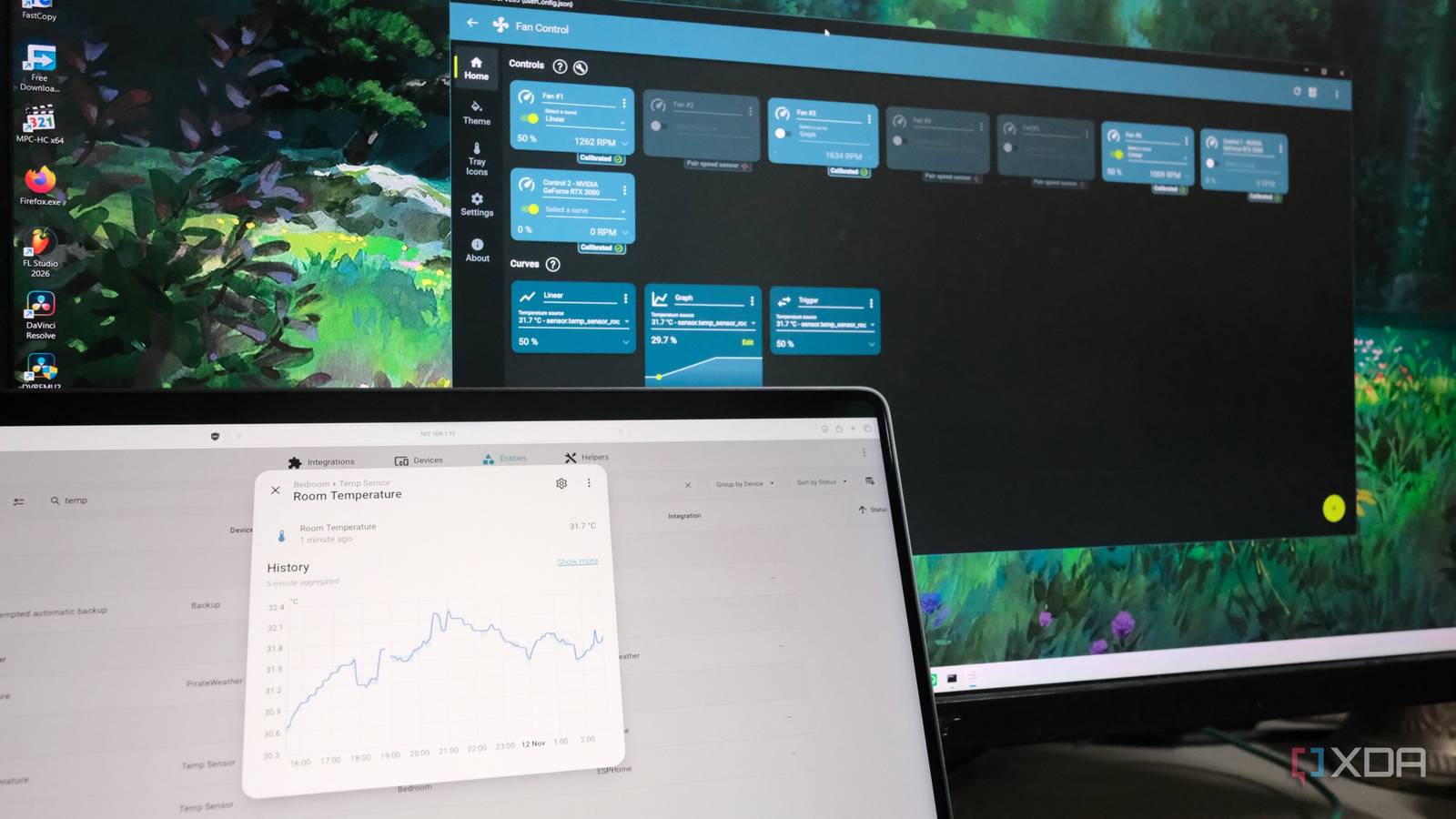
Published Nov 12, 2026, 10:00 AM EST Samir Makwana is a technology journalist and editor from India since past 18 years and his work appears on MakeUseOf, HowToGeek, GSMArena, BGR, GuidingTech, The Inquisitr, TechInAsia, TechWiser, and others. He has written news, features, and gadget reviews for national technology media publications. His passion is to help people with their technology problems and gadget purchases. For that, he has worked for some of the biggest international technology publications, covering news, explainers, how-to guides, listicles, and product-buying guides. He has worked as an editor and managed teams since 2015. His expertise broadly covers computers, smartphones, game consoles, headphones, smart home products, browsers, and apps. Most PC owners set a fan curve once through software or the BIOS. On my Gigabyte X870 Eagle Wi-Fi 7 board, I used Smart Fan 6 in the BIOS. Those curves follow system temperatures, as they should, but they stop at the board’s own on-board sensor, which sits inside the case and has no idea what the room outside is doing. But the Fan Control app in Windows 11 helps me manage my fans to bridge that gap. A community plugin for Fan Control can pull data from a Home Assistant sensor. So once I had a DHT22 and ESP32-S3 reporting room temperature to Home Assistant, my PC’s fans could finally react to the ambient temperature too. Getting there took a handful of small fixes. Building a room thermometer with DHT22 and ESP32-S3 ESPHome and Home Assistant handle it easily I built a temperature sensor and humidity reporting module using DHT22 and ESP32-S3 for less than $12. The DHT22 sensor I have shows three connection points: 3.3V, ground, and data line. I connected them to the ESP32-S3 pins, while keeping GPIO4 for the data input. If you have a four-pin DHT22, you’ll need to add a 10K pull-up resistor between data and power. After wiring the modules together, I added the following YAML configuration to ESPHome: sensor: - platform: dht pin: GPIO4 model: DHT22 temperature: name: “Room Temperature” id: room temperature accuracy_decimals: 1 update_interval: 30s Once flashed, the device shows up in Home Assistant through the ESPHome integration, and the temperature entity appears as sensor.temp_sensor_room_temperature. The placement of the thermometer module matters more than you would expect. I put the sensor a foot away from the PC’s intake side in the front. Otherwise, I’d be measuring the PC's heat, and the curve would end up chasing itself. Also, DHT22 is accurate to roughly half a degree, which is plenty for fan control. Fan Control can read Home Assistant values through a plugin A three-year-old plugin still works Fan Control for Windows 11 supports plugins to inject a sensor, and the FanControl.HomeAssistant plugin on GitHub by hgross helps out there. Although the plugin hasn’t been updated in three years, I expected it to break on the current build. Still, make sure you’re using the latest Fan Control release before installing the plugin, because the plugin loads into the app. After downloading and unarchiving the zip file, I dragged and dropped the plugin’s DLL file into Fan Control’s plugins folder (C:\Program Files\FanControl\Plugins). You can also add the files through the app's settings. If a DLL shows as blocked, right-click that individual file, open its Properties in the Plugins folder, and check the Unblock box. Opening Fan Control after that won’t make the plugin work, mostly because you need to define a few values in the configuration. Fan Control A customizable fan controlling software for Windows 11. Plugin’s JSON file needs three fixes before it works You’ll need permission to write the config First, check if you can edit the FanControl.HomeAssistant.json file in the Configurations (C:\Program Files\FanControl\Configurations) folder. If not, right-click the JSON file, open Properties, go to the Security tab, and edit the permissions for your user account. That permission fix was the first snag, since Windows wasn’t letting me save changes to the file at all. Once I could edit it, I added the IP address of my Home Assistant instance, a long-lived access token, and the entity ID for my sensor. The second snag was the key name itself. The default file uses sensors, meant for defining more than one sensor source, but with just one, I had to use a sensor instead. Fan Control kept failing to fetch the temperature until I made that swap. The third snag cost me an afternoon. Fan Control only reads this file on startup, so every edit needs a full exit and relaunch. If the app is sitting in the system tray of your Windows machine, exit it from there to close it completely. The room temperature now drives the fan curve Blending ambient and component readings with a mix curve I built a Graph curve using the Home Assistant sensors as its source, with a gentle slope that keeps the fans near their minimum below 22°C and ramps them up steadily as the room warms. Then I built a second graph curve from the CPU temperature and combined both into a Mix curve set to Maximum, so whichever curve is asking for more airflow wins. On the cool morning, the CPU curve stays in charge. On a warm afternoon, the room curve rises to the floor, so the fans are already moving air before the CPU even starts heating up. The only caveat I found is that the plugin polls Home Assistant’s data over the network. So if Home Assistant is down or unreachable, it falls back to a predefined value set in the JSON configuration, which is 10°C by default. For safety, I changed it to 30°C to ensure the PC gets enough airflow and cooling on a hot day when it can’t reach Home Assistant’s thermometer. Since the plugin is not actively maintained, I am treating it as something that may stop working with any future Fan Control update. Using room temperature input for my PC’s fan curve If you already have a Home Assistant instance running, setup takes almost no time. After building the temperature and humidity module, all you need to do is configure the plugin properly. Switching the fan curve based on ambient readings alone wouldn't make sense, since the CPU can still spike well before the room does. That’s exactly why the Mix curve exists. It lets the room temperature set a sensible floor without ever overriding what the component itself needs. Home Assistant OS Windows, macOS, Linux, Android, iOS, web iOS compatible Yes Android compatible Yes Home Assistant is the best way to connect your smart home systems together.
A $12 room thermometer now controls how hard my PC's fans spin
Full Article
Original Source
Read the full article at Xda-developers →KhanList aggregates and links to publicly available news content. We do not host full articles from third-party sources. Always verify important information with original sources.