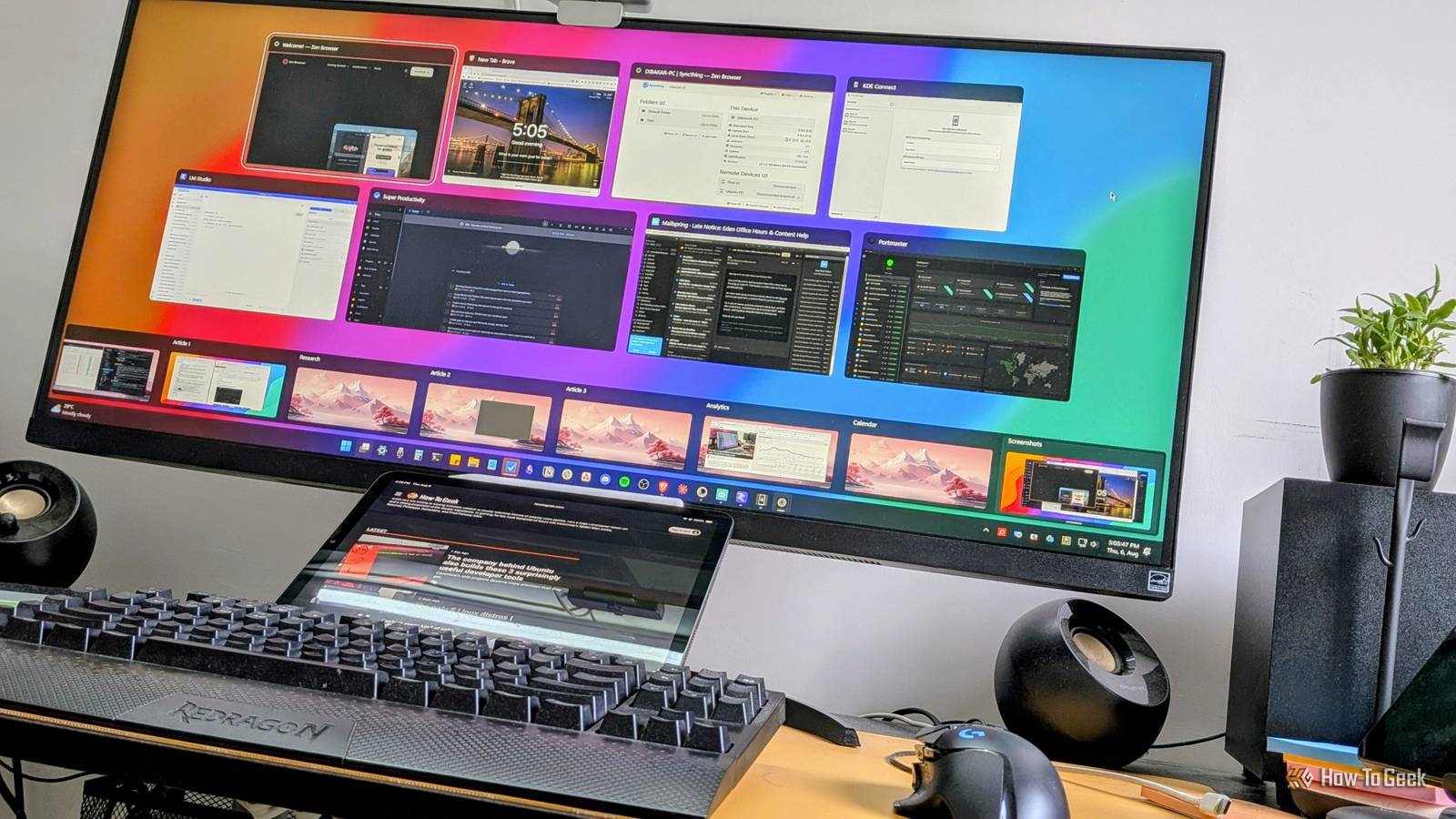
Are you tired of installing the same dozen apps every time you set up a new machine? Are you wondering what everyone else is using and whether you're overlooking some hidden gems? Well, here are eight underrated free apps—some open source—that I always install on all of my PCs. They're an essential part of my workflow, and they're all cross-platform, so they work on both Windows and Linux. Portmaster Know what your apps are doing online Portmaster is a FOSS application firewall that lets me monitor every app on my computer that's connected to the internet. I can see which servers each app is communicating with, when it's connecting, and gain granular control to block connections to specific servers. It even lets me cut off an app's internet access entirely. The app is a must-have for me since I constantly install and test different apps—and since you're reading this, I'm guessing you do the same. It helps me make sure apps aren't phoning home or doing anything suspicious. It's also a great way to verify whether apps that claim to work offline are actually behaving as advertised. Alternatively, I can block an app's internet access, forcing it to work offline. Download Portmaster. Mailspring The modern email client Most people never look beyond the default email client that comes with their operating system. On Windows, that's Outlook, while on Linux, it's Thunderbird. That said, I personally dislike both options. Outlook is slow and riddled with ads, while Thunderbird—a great email client, don't get me wrong—feels janky and dated in my experience. That's why I use Mailspring. It's FOSS, has a clean, modern design, and includes all the usual features you'd expect from a modern email client. For starters, you can add multiple email accounts and manage them all from a unified inbox. The default layout is split into four columns: you’ve got your email folders, followed by the list of emails in the selected folder, a preview of the selected message, and a dedicated pane showing information about the sender—including their social profiles, website, and every previous email you've exchanged with them. However, what really makes Mailspring stand out is its built-in email marketing features, specifically read receipts and link tracking. If you send an email with these features enabled, you'll know exactly when the recipient opens the email and whether they clicked any links inside. That's useful for marketers, but it's just as handy if you're job hunting or waiting on a reply from customer support. The free plan includes a limited number of read receipts each week. You’ll need to upgrade to the Pro plan, which costs $8 per month if you want unlimited access. Download Mailspring. LM Studio Running AI on your own terms AI has exploded in popularity, and if you want to use it for free, one of the best options is running open-source LLMs locally. LM Studio is a simple desktop app that makes it incredibly easy. It allows you to download any open-source LLM you want and then start a chat with them. It even recommends models that are compatible with your hardware. For instance, my PC has an RTX 3060, which lets me run Gemma 4 12B—a model I've found to be both capable and efficient. I use it to extract data from images of purchase receipts and log it into a budgeting CSV file, turn unstructured voice recordings into structured notes, and act as a personal task router that takes whatever I need to do and creates tasks in my to-do app (more on that in a later section). I should point out that, for most people, a locally hosted model won't match the capabilities of ChatGPT, Claude, or Gemini. While some open-source models are incredibly capable, the best ones generally require hardware that's well beyond what most consumers own. That said, you don't necessarily run local AI models because they're powerful—you run them because they're private. If you have sensitive personal workflows and just need semantic automation to move data from one place to another using natural language, they're an excellent fit. Download LM Studio. Super Productivity Better than paid productivity apps Super Productivity is, by far, one of the most feature-packed FOSS apps I've used in years. At its core, it's a task management app that lets you quickly capture tasks, add subtasks, attachments, tags, due dates, and even time estimates. While working on a task, you can track how long it takes and compare that with your estimated time to see how accurate your planning is. But that's just the tip of the iceberg. There's a calendar view for visualizing when tasks are due, along with a planner that lets you time-block your day. You also get a Kanban board to track your workflow and an Eisenhower Matrix to help prioritize what you should actually be working on. Beyond that, Super Productivity includes a built-in habit tracker, idle and break reminders, Pomodoro timers, and an ecosystem of community-developed plugins that add even more functionality. My favorite is the Voice Reminder plugin, which lets you write a message and have it read aloud using text-to-speech after a set amount of time. I use it as a personal cheerleader to keep me motivated whenever I'm grinding through a boring task. Download Super Productivity. KDE Connect The ultimate companion app for your phone and PC Credit: Dibakar Ghosh | How-To Geek KDE Connect is the ultimate companion app for linking your smartphone with your computer. It's FOSS and cross-platform, so it works on both Windows and Linux, with companion apps for Android and iOS—although functionality on Apple devices is a bit more limited. I use an Android phone, and KDE Connect lets me pair it with both my Windows and Linux PCs, so each device can interact with the other. I can transfer files between connected devices, share my clipboard, mirror notifications across devices, turn my phone into a trackpad, and even use its virtual keyboard to type on my computer. The killer feature, though, is remote command execution. I can save terminal commands in the app, and with a single tap on my phone, I can lock my computer, shut it down, launch a specific application, or do virtually anything else I could normally accomplish from the terminal—all without touching my PC. Download KDE Connect. Syncthing Syncing your files without renting someone else's cloud Most people use Dropbox or Google Drive as cross-platform file storage services. However, if you're on a free plan, you're probably using them more for the convenience of syncing than for the storage itself. If that's the case, let me introduce you to Syncthing. It's a FOSS peer-to-peer file synchronization tool with no cloud component, so you're not renting storage on someone else's servers. Instead, you install Syncthing on your devices, and it syncs files directly between them without relying on a third party. You never have to worry about running out of cloud storage because it uses your devices' own storage instead. To use it, simply pair two or more devices running Syncthing and choose which folders to sync. Whenever you add, edit, or delete a file in one of those folders, the changes are automatically propagated to every paired device. This is exactly how I keep my Obsidian vault synchronized across my Windows PC, Linux PC, and Android phone. In order to successfully sync data, all the paired devices must be connected. For example, if you made some change to a file on your Linux PC while your Windows PC was turned off, that change won’t sync. You need to start your Windows PC and keep the Linux system running as well for the change to sync. Download Syncthing. Brave and Zen Browser The default browser isn't always the best browser Windows ships with Microsoft Edge, most Linux distributions ship with Firefox, and many people either stick with those or install Google Chrome. Personally, though, I prefer none of them. My current favorite browser is Zen Browser. It's based on Firefox, but looks much more modern—almost futuristic. By default, it dedicates almost the entire window to the website or web app you're using. Your tabs, address bar, and other browser controls are tucked away in a side panel that automatically hides when you're not using it. It also includes native split view, allowing you to open multiple web pages side by side in the same browser window. If you've heard of Arc on macOS and the hype surrounding it, Zen is essentially its open-source counterpart. Arc is based on Chromium, whereas Zen is built on Firefox, and that comes with its own pros and cons. On the plus side, you can sign in with a Firefox account to sync your data and access Firefox's extensive extension library. On the downside, some websites that are primarily optimized for Chromium may stutter or not work correctly. That's where Brave comes in as my backup browser. Because it's Chromium-based, it delivers an experience that's very similar to Google Chrome, but without Google's telemetry. You don't need a Google account to use it—Brave has its own independent sync system—and it comes with built-in ad and tracker blocking. It may not look as futuristic as Zen, but it's a good fast, privacy-focused browser. Zen Browser on Windows doesn't currently support DRM-protected content. As a result, streaming services like Netflix and Disney+ won't play in the browser. The Linux version, however, does support DRM, so you won't run into this limitation. Download Brave and Zen Browser. Hope you found something useful Those are the eight apps I always install on every PC I own. They're all cross-platform, they all work on both Windows and Linux, and they've all become essential parts of my workflow. Hopefully, you discovered at least one or two apps you hadn't heard of before and are curious enough to give them a try.
8 underrated free apps I always install on all my PCs—Windows and Linux
Full Article
Original Source
Read the full article at Howtogeek →KhanList aggregates and links to publicly available news content. We do not host full articles from third-party sources. Always verify important information with original sources.