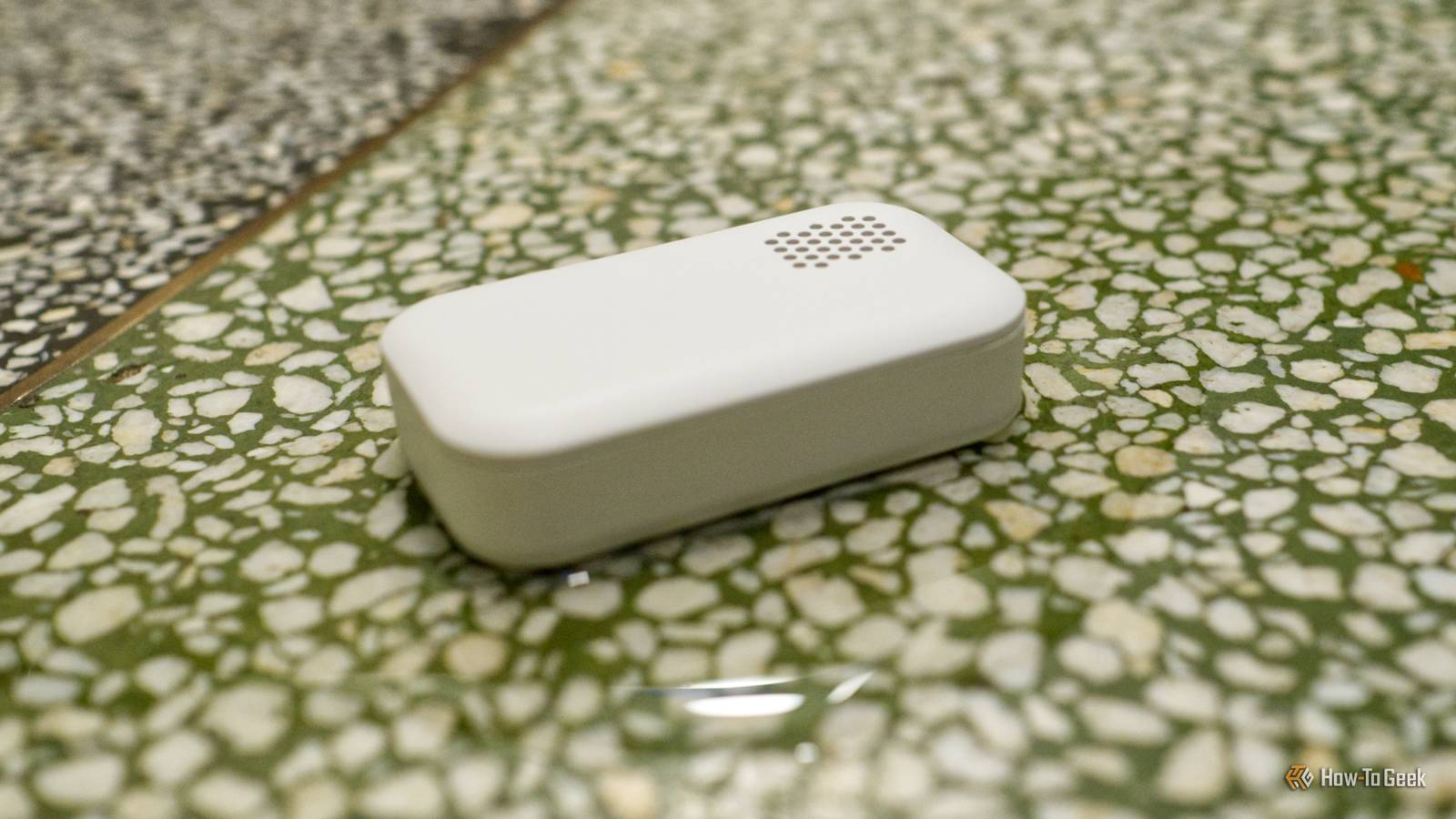
Published Jul 22, 2026, 7:00 AM EDT Tim has been covering technology for almost 20 years, in that time spanning a broad range of topics from security to product reviews. He is especially focused on the Apple ecosystem, productivity, and consumer advice. Over the years Tim has written thousands of articles, reviews, and round-ups in addition to producing video content and original photography. A graduate of journalism, he found his footing as a freelancer with a laptop and loves how he is able to work from practically anywhere. Now a Senior Editor for iPhone, Mac, and Smart Home at How-To Geek, Tim still loves to write. He can also be found crafting round-ups and productivity posts for the Zapier blog. Earlier in his career Tim spent nearly a decade as a writer and eventually Apple section editor for MakeUseOf. Tim currently lives in Brisbane, Australia. Outside of work he loves to hike and work out, play video games, and spend quality time with his wonderful partner and two cats Inka and Roger. Your smart home sometimes requires your attention in the same way that your brick-and-mortar home does. Remembering these tasks can help you avoid problems later on. Here are some reminders that all Home Assistant users should set up today. Sensor battery replacements Not all of them can wait Some sensors are more “important” than others, particularly water-leak sensors. These are easy to forget about since they sit under sinks and near pipes, lying in wait for the disastrous moment a flexi-hose bursts, ready to sound the alarm. This can make them particularly easy to forget about, too. Battery life really depends on which sensor you have, so to make an informed decision, make sure that you check the manufacturer’s recommendations and go from there. The batteries you use (typically disposables) will also make a difference. A battery tester is your best friend for this; you can pick one up for around $6. Once you have a vague idea of how long your batteries should last, set a reminder to change them and stick to it. Make sure you pay attention to any expiration dates on the battery, since cells can start to leak and damage the contacts in your sensor if left too long. For less mission-critical sensors, you can set up an automation in Home Assistant that notifies you when they become unavailable. IKEA TIMMERFLOTTE The IKEA TIMMERFLOTTE is a puck-shaped temperature and humidity sensor. The device comes with Matter-compatibility, allowing it to connect to your smart home hub of choice. It's powered by two AAA batteries. Water-leak sensor tests Power is only one part of the equation Credit: Tim Brookes / How-To Geek You might be sick of hearing about water leak sensors, but testing them to make sure that they still work is just as important as checking they have charge. These sensors find their way into some of the darkest corners of your house, from basements that get cold in the winter to roof cavities that bake in summer. A dead water leak sensor is of no use to anyone. Test the sensor by closing the circuit. You can do this by immersing the two contacts on the bottom of the sensor in water, or just bridging the gap between them with damp hands. While you’re at it, make sure that your automation does exactly what you want it to do: sound alarms, send mobile notifications, or shut off the water supply automatically. IKEA Klippbok water leak sensor Connectivity Matter over Thread Wi-Fi No This water leakage sensor keeps track of water leaks by beeping when it comes into contact with water – helping you make life at home smoother, more comfortable and safer. When connected to a hub, the sensor sends a notification to your smartphone with information about the water leak. The small size makes it easy to position under the sink, appliances or other places where a water leakage can occur. Making sure backups are working correctly Restore your smart home if something goes wrong A few weeks ago I noticed a notification within Home Assistant that said the latest backup had failed. Since I don’t really interact with the Home Assistant dashboard on a regular basis, I only saw this a few days later (but it could have been weeks). In the event of catastrophic hardware failure, this would spell disaster and cause me to lose automations, device configurations, scripts, and logs. Once I’d fixed the problem, I also made sure that the other part of my backup protocol was working properly. Not only does Home Assistant make a local backup every day at about 4 am, but I also copy that backup folder to the cloud for safekeeping. That way, if anything happens to my Home Assistant server, or the VM on which it resides dies, I still have a file I can restore. How you do this depends on which cloud services and hardware you’re using. I made an Automator script to copy my Home Assistant backups folder to iCloud every day at about 5 am. There are Google Drive integrations that will handle this for you from within Home Assistant. There’s also Home Assistant Cloud, which should work for as long as your Nabu Casa subscription is current. As long as the files are there, that’s all that matters. I set a reminder to double-check this once a month. Checking server overhead and free disk space Keep things in order before problems arise Credit: Tim Brookes / How-To Geek The reason my Home Assistant server stopped creating backups came down to free disk space. I got a bit carried away installing LLM models for text-to-speech and custom wake words that I forgot about my server’s limited space. As soon as I got down to the last gigabyte, Home Assistant stopped backing up. The answer here is to periodically check how much free space you have. You could also write an automation that notifies you using the System Monitor integration. Enable the “Disk free” diagnostic and then choose Entity > Numeric state when creating a new automation. Choose “Disk free /” as the entity you want to monitor and set your criteria. Something else you might want to do is keep an eye on server usage. This can creep up when you start to add extra apps that do things like serve media streams or files across the network. Home Assistant Global Health Score is a custom integration that grades your server for an at-a-glance look at how resources are being used. You can also find a simple system monitor under Settings > System > Hardware. Too much memory and processor usage might signal that your server is underpowered or that the virtual environment you’re using for Home Assistant needs more resources dedicated to it. Clearing out ghost entities and unwanted integrations Install these tools and check them periodically Credit: Lucas Gouveia/How-To Geek | KDdesign_photo_video/Shutterstock There are some must-have Home Assistant integrations for staying on top of ghost entities, configuration files that contain missing references, problems within dashboards and scenes, and even maintenance items that demand your attention. One of them is the aforementioned HAGHS, which is a hardcore deep-dive into Home Assistant’s inner workings. But these tools don’t necessarily know how you use your integrations, and whether or not you really need them all. If you frequently install integrations to try things out and then promptly forget to ever use them, periodically checking the list is a good idea to save on space, dashboard real estate, and server overhead. I have a reminder to do this every three months, since I’m great at installing things and terrible at remembering to get rid of them. Use Home Assistant’s built-in calendar for this Did you know that Home Assistant has a neglected calendar component? Use it to break free from the rigid constraints of hard-coded schedules, and set reminders to perform these checks every few months.
5 important reminders every Home Assistant user should set up today
Full Article
Original Source
Read the full article at Howtogeek →KhanList aggregates and links to publicly available news content. We do not host full articles from third-party sources. Always verify important information with original sources.