
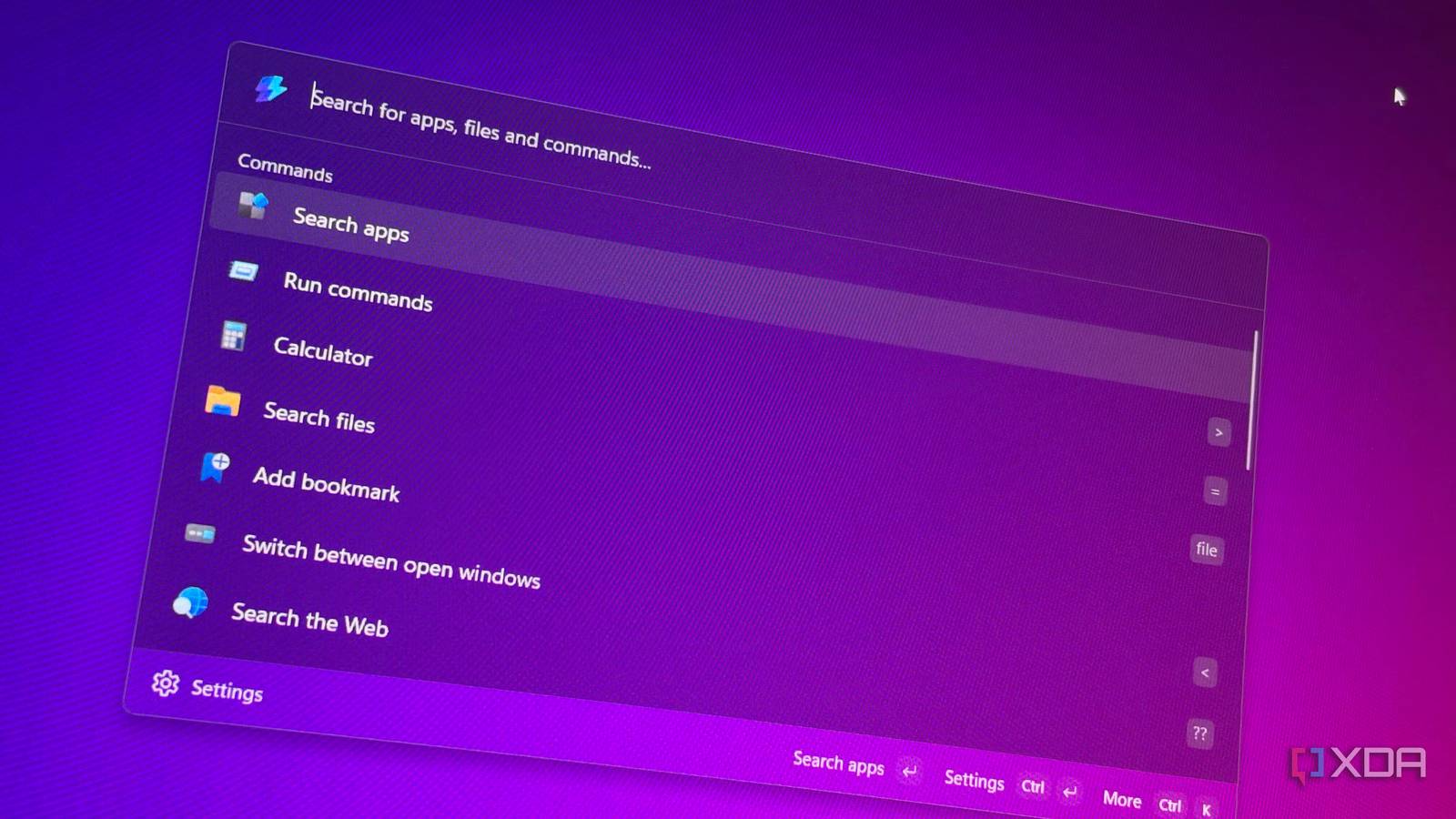
Published Nov 24, 2026, 9:01 AM EST His love of PCs and their components was born out of trying to squeeze every ounce of performance out of the family computer. Tinkering with his own build at age 10 turned into building PCs for friends and family, fostering a passion that would ultimately take shape as a career path. Besides being the first call for tech support for those close to him, Ty is a computer science student, with his focus being cloud computing and networking. He also competed in semi-pro Counter-Strike for 8 years, making him intimately familiar with everything to do with peripherals. Some of the best Windows utilities are made by Microsoft, but ironically enough, most of them don't come stock with Windows. Windows 11 still can't tell you which app is holding a file hostage, bulk-rename a folder by pattern, or have a do-everything Spotlight-style search bar that's functional beyond files and apps. There are five first-party tools that belong in the OS by default, but there's also one additional third-party one that restores audio controls that Microsoft made much worse many moons ago. Command Palette One of the best parts of PowerToys Windows Search wasn't always suboptimal, but in Windows 11 specifically, its reputation is quite poor. It has grown noisier, less trustworthy, and more confusing to use as time has gone on. To find things and perform tasks you're actually looking for, there are much better tools, and ironically enough, Microsoft makes one of the best ones. Command Palette, the successor to PowerToys Run, is the fix. Pressing Win + Alt + Space will open it, and you can start typing immediately into a centered search box that launches apps, finds files, jumps to specific Settings pages, and does quick math without opening Calculator. There are a ton of other functions aimed at power users, and that's where it really pulls ahead of default Search. Typing > followed by a command runs it directly, so > cmd opens Command Prompt, and typing = switches to calculator mode. It can also find and install WinGet packages, which is extremely underrated. FancyZones A must-have for ultrawide and vertical display users Snap Layouts is one of Windows 11's underrated additions. For halves, thirds, and quarters on a typical monitor, it's all most people need, but FancyZones is for everyone else. It's another PowerToys app where you draw your own grid of zones in its layout editor, then hold Shift while dragging a window to drop it into one. This is a must-have for those who are on ultrawide monitors, and it's also helpful if you use a vertical display anywhere in your layout. The default snapping behavior doesn't really match how you'd actually want to split your screen up. A wide center column flanked by two narrow ones, or a portrait monitor stacked into three rows, takes a minute to build in FancyZones and stays exactly how you left it. Layouts are also saved on a per-monitor basis, so a laptop docked to an external display can keep a different arrangement on each screen. PowerRename Bulk renaming made more effective Stock Windows 11 does have bulk renaming, but it's very elementary. If you select a group of files and rename one of them, you'll apply that name to the rest of the files with a bracketed number at the end. That's about as complicated as you can get with bulk renaming by default, but PowerRename in PowerToys brings it into the 21st century. You enter what to search for and what to replace it with, and it'll give you a preview pane that shows every original name beside its new one before anything changes. Turn on regex and it can trim, reorder, or insert text by the pattern you set. Date variables are supported too, and they let you build names like Nov-02-20-screenshot.png in one pass. File Locksmith Another PowerToys must-have "The action can't be completed because the file is open in another program" is one of Windows' least helpful and most annoying errors. It doesn't tell you what program is currently using the file, but File Locksmith actually does. It's one of the most puzzling PowerToys additions, because it really should just be in Windows by default. If you right-click a folder or file and click "Unlock with File Locksmith", it lists every process currently using that file or folder. From there you can kill any process that's using it or expand it in more detail. Running it as admin will show you processes that are running as administrator, too. Windows File Recovery Rescue files after you empty the Recycle Bin Windows File Recovery is Microsoft's own undelete tool, and it's another ironic entry in this list, because it really should ship with Windows. Microsoft warns that any use of your PC after a deletion can overwrite the space the lost file occupied. Downloading and installing an app is exactly the kind of activity you'd want to avoid at that moment, so you'll need to have this installed before you need it. It's free in the Microsoft Store and has a couple of modes: Regular and Extensive. Regular is the first thing to try for recently deleted files on an NTFS drive. Extensive will dig deeper for much older deletions or formatted and corrupted drives. It can even do FAT or exFAT media like SD cards. A command like winfr C: E: /regular /n *.docx scans C: for deleted Word documents and copies what it finds to a recovery folder on E:. On SSDs, TRIM will likely have cleared that recently deleted thing from its flash, so recovery from solid-state is much less likely than recovery from a USB stick or hard drive, but it's absolutely worth an install. EarTrumpet is what I use every day It's not made by Microsoft, but it restores control they stifled The tool I use every single day isn't from Microsoft, but it relies on controls that already exist on the OS thanks to them. EarTrumpet is a free, open-source volume mixer that replaces the taskbar volume popout with one that shows every playback device and every app using it. It's much more reminiscent of the volume mixer that existed in previous versions of Windows. It also lists the legacy Control Panel menus for audio controls that have since been buried in the more "modern" Settings app. These utilities all deserve a dedicated spot in the OS It's a shame that these tools aren't included with Windows 11 by default, because most users would find them exceedingly useful, not just power users. Microsoft knows that these are gaps that exist, and that's why they create tool suites like PowerToys. Until these are included in Windows by default, do yourself a favor and install PowerToys, and if you're tired of how Windows 11 handles audio, EarTrumpet is a must-have.
5 free Windows tools Microsoft should have built in, and the one I can't live without
Full Article
Original Source
Read the full article at Xda-developers →KhanList aggregates and links to publicly available news content. We do not host full articles from third-party sources. Always verify important information with original sources.