
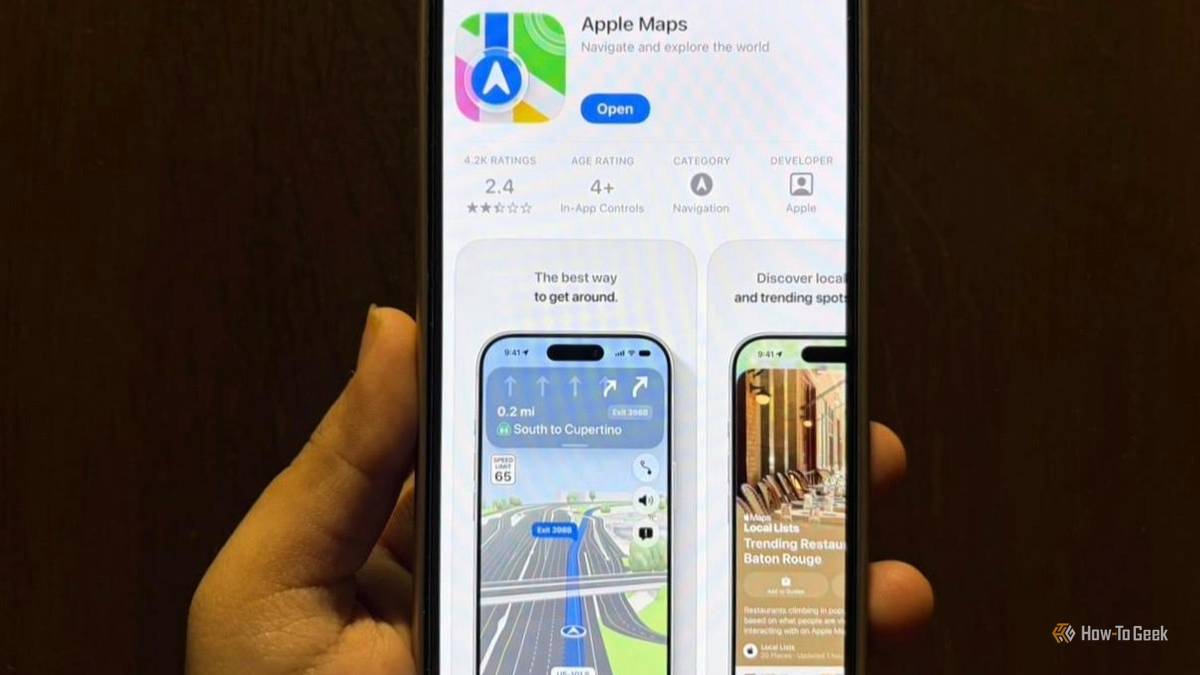
Published Nov 24, 2026, 9:00 AM EST A Computer Engineer turned tech-savvy. Sanya is part of the How to Geek team, and she covers Android, Samsung, Google, apps, and everyday technology, combining hands-on experience with thorough research. She helps readers understand technology without getting lost in technical jargon. I recently realized that I’ve tried every Apple app on my iPhone 17 Pro Max, but Apple Maps was one I kept ignoring. Google Maps had always been my first choice, so I never really cared what Apple Maps had to offer. But that changed when I started looking beyond the usual navigation features. Apple Maps didn’t have the best start, but it’s come a long way since then. With iOS 27, Apple is rapidly updating it with new features to compete with Google Maps, and it’s now comparable in many ways. I recently discovered these four features that made me wonder why I’d ignored the app for so long. I explored cities in 3D with Apple Maps AI-enhanced Flyover makes exploring more interesting Flyover view in Apple Maps I live in Ahmedabad, and I often use Google Maps to explore places before visiting them. So, I was curious to see how Apple Maps handled the same experience. Its Flyover feature lets me explore cities through detailed 3D aerial views. I could zoom in, rotate the view, and get a better sense of the city’s layout without leaving my couch. It’s really cool to see these views on my phone. With iOS 27, Apple has taken this a step further by combining aerial imagery with AI to make buildings, trees, and other details look sharper and more realistic. What I like about this feature is that I don’t have to rely on flat maps to understand an unfamiliar place. I can look at my favorite coffee spots, my mom’s place, and my husband’s office from different angles. It’s a small addition to navigation, but it makes exploring a destination from home much more engaging. Finding my next favorite spot just got easier Local Lists help me discover places worth visiting Local Lists My friends and I usually meet every Saturday, and finding a new café that everyone likes isn’t always easy. We tend to revisit familiar places because everybody is too lazy to spend an extra 10 minutes searching for a place. While browsing the Local Lists, I came across a café that looked worth trying. We decided to give it a chance, and it turned out to be a great find. It’s now our regular Saturday hangout, and I probably wouldn’t have discovered it otherwise. Local Lists brings together collections of places that make discovering somewhere new less of a guessing game. Instead of wasting my time searching for individual cafés and checking them one by one, I can now browse recommendations and find places that catch my attention. It’s a useful way to break out of the usual routine. I stopped worrying about where I parked my car Traffic alerts and Parked Car make driving easier I drive quite often for errands, appointments, and school runs, so I don’t always take the same route. Sometimes, I leave home only to find that my usual road is backed up with traffic. I found a solution in the Apple Maps settings. It has a feature called Preferred Routes and Predicted Destinations. It learns the routes I regularly take and can alert me about significant delays before I leave. I enabled it by going to Settings -> Apps -> Maps -> Location and turning on the feature. Another feature I wish I’d started using sooner is Show Parked Location. Whenever I disconnect my iPhone from my car’s Bluetooth or CarPlay system and leave, Apple Maps can automatically drop a pin showing where I parked. I don’t have to remember exactly where I left my car in a crowded parking lot. I can simply open Maps, search for a Parked Car, and get directions back to it. If you use an Apple Watch, watchOS 27 also adds a Parked Car widget to its Smart Stack, making your car’s location easier to access. I started using Maps to remember more than directions Private Notes help me keep track of my favorite places Private Notes When I take my daughter somewhere new, I often forget little details by the next visit. Maybe a café has a kids' menu, a park has a better entrance for parking, or a play area she enjoyed. Instead of trying to remember everything, I can now add a private note to a saved place in Apple Maps. I can include these details while they’re still fresh in my mind and refer to them the next time we visit. To add a note, I open that place in Maps, tap the three-dot menu, and select Add a Note. The note stays private, so other people viewing the same place won’t see my reminders. It’s a useful feature if you have a picky eater in the family. I’m glad I gave Apple Maps another look Apple Maps has come a long way, and I’m glad I finally gave it a proper chance. But I’d still love to see Apple borrow one thing from Waze: more detailed, community-powered road reports. Waze makes it easy for drivers to report police sightings, road hazards, and other incidents, helping others prepare for what’s ahead. That would make me even more comfortable relying on it every day.
4 Apple Maps tricks I wish I'd known about years ago
Full Article
Original Source
Read the full article at Howtogeek →KhanList aggregates and links to publicly available news content. We do not host full articles from third-party sources. Always verify important information with original sources.