
Published Nov 8, 2026, 1:01 PM EST Vishwamoorthy's interest in tech started early, as a school student, watching Pixel 2 XL camera review videos and being awestruck by what a phone camera with excellent software could do. That curiosity stuck with him: since 2022, he's published over 1,500 articles covering smartphones, Android, and consumer tech news at FoneArena, one of India's leading tech publications. Lately, he's obsessed with how AI is reshaping the business world, the deals, the products, the quiet feature rollouts nobody notices until they're everywhere. Reading and writing about tech is what keeps him going; doomscrolling is what keeps him honest. Ever used hidden developer options on your Android phone to unleash its true potential? You can do the same on your Google TV. These hidden settings unlock additional options that can significantly improve your smart TV experience. Since many smart TVs come with relatively limited RAM and internal storage, their interfaces can become sluggish over time. I experienced this firsthand with my Sony BRAVIA TV running Google TV after about a year of use. Fortunately, I discovered a few developer options that helped restore some of its responsiveness. Beyond performance improvements, these tweaks also changed how I interact with my TV. From managing files wirelessly using my phone to making the interface feel snappier, here are four developer options that can transform your Google TV experience. Cut window and transition animation scales to 0.5x Eliminate sluggish navigation and make the home feed feel instant Unlike smartphones, smart TV chipsets prioritize video decoding over rendering smooth animations. When you scroll rapidly through your app library or jump back to the home screen, the processor often drops frames, making the interface feel laggy. To resolve this, Google TV has a developer option that cuts the time the system spends drawing visual transitions. To enable this, first you'll need to unlock developer options on your TV. To unlock Developer Options on your Google TV, go to Settings, then Systems, and open the About menu. Scroll down to the Android TV OS build, and press the Select button on your remote seven times until a notification confirms you're a developer. To scale down animations, scroll down the Developer Options to find these three settings: Window animation scale, Transition animation scale, and Animator duration scale. Click each option and change the value from Animation scale 1x to Animation scale .5x. Cutting this value in half makes opening menus and switching apps on your TV feel twice as fast while keeping transitions smooth. Enable USB debugging to manage your TV from your phone Sideload APKs, browse files, and capture screenshots over Wi-Fi Transferring files or installing apps on a Google TV often means plugging in a USB drive or relying on third-party apps. However, enabling debugging on Google TV gives you access to Android Debug Bridge (ADB), a tool that lets you communicate with your TV and execute commands remotely. This lets you connect your smartphone to your TV and manage several aspects of its software without plugging in a cable. To enable this, scroll down to Developer options and toggle USB debugging to On. Thanks to this feature, I now use one powerful app like atvTools on my Android phone to connect to my Google TV. The app allows me to sideload APKs, browse internal storage, uninstall unwanted apps, and capture screenshots or screen recordings of my TV without touching a cable. Depending on your TV or streaming device, wireless ADB may require a separate wireless debugging or network debugging toggle instead of USB debugging. Limit background processes to free up memory Stop background apps from consuming unnecessary resources One thing I've noticed with TVs that have limited RAM is how quickly they can feel sluggish when switching between multiple streaming apps. This happens during my movie or series hunting sections, jumping between Netflix, YouTube, and Disney+. This mainly happens because background apps still use memory even when you're no longer using them. Fortunately, you can control this through the Developer options on your Google TV. Scroll down to the Apps section under Developer options, select Background process limit, and change the default Standard limit to At most 2 processes. This restricts the number of background processes Android TV can keep running, eventually freeing up memory for the app you're currently using. Force allow apps on external storage Move apps to a USB drive and free up internal storage Running out of internal storage on your Google TV can be frustrating, especially when you want to install more essential apps. In that situation, you can take advantage of the USB port available on your TV. Yes, you can install and run apps through the external storage even if the app's developer hasn't enabled external storage installation. To enable app installation on external storage, navigate to the Developer options, scroll down to the Apps section, and enable Force allow apps on external. This allows Android TV OS to override certain app installation restrictions, potentially letting you move more space-consuming apps to your USB drive through the App information window. However, not every app can be moved to external storage, and some app data still occupies internal storage. Which developer tweak makes the biggest difference? After experimenting with these settings on my Sony BRAVIA, I'd recommend starting with 0.5x animation scales for a snappier interface. If you frequently transfer files or sideload apps, pairing your TV with atvTools is another worthwhile tweak. Unlocking developer options takes less than thirty seconds, and these small tweaks can make everyday usage more convenient and seamless.
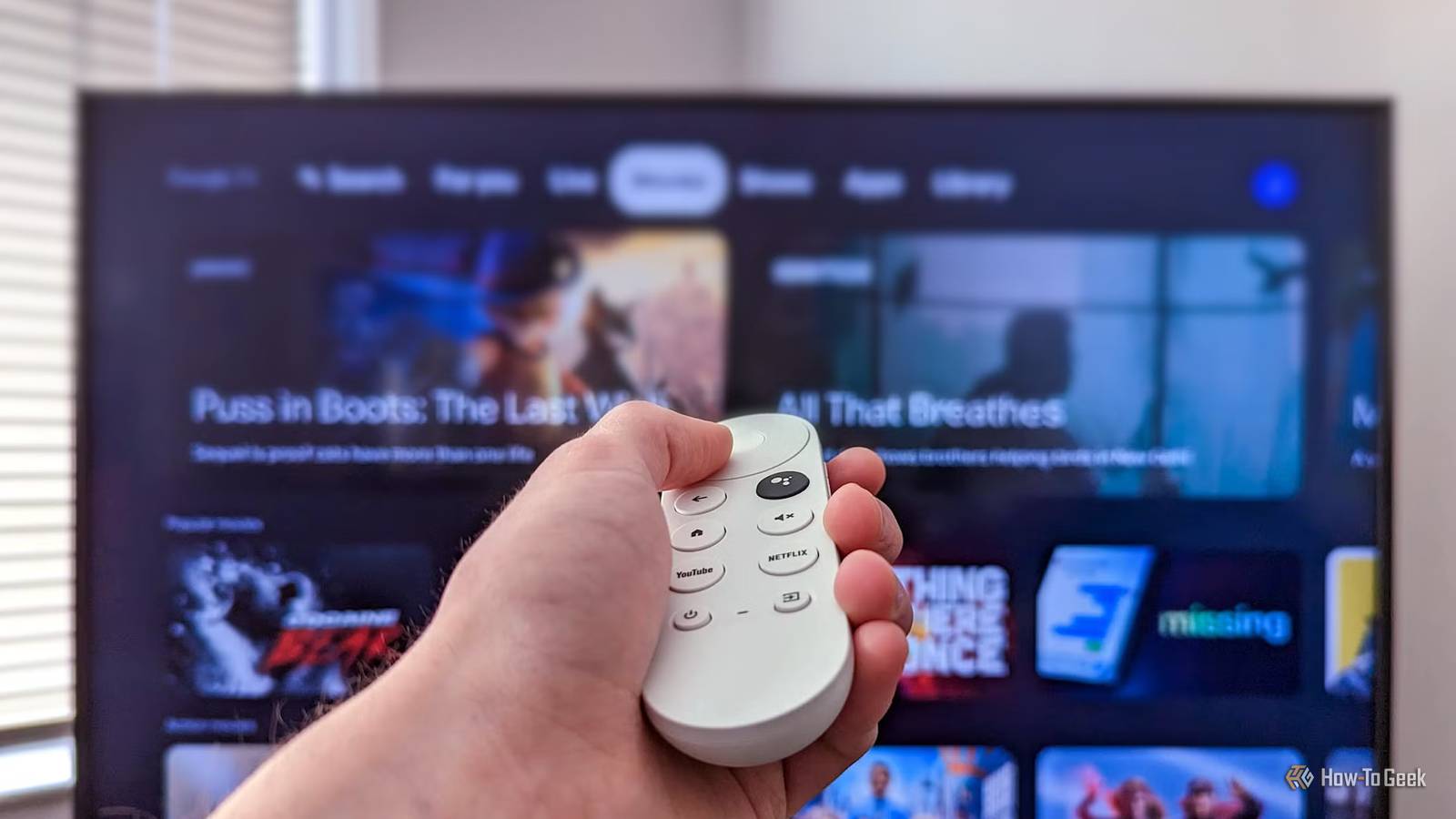
4 hidden Google TV developer options that fix a sluggish TV in minutes
Full Article
Original Source
Read the full article at Howtogeek →KhanList aggregates and links to publicly available news content. We do not host full articles from third-party sources. Always verify important information with original sources.