
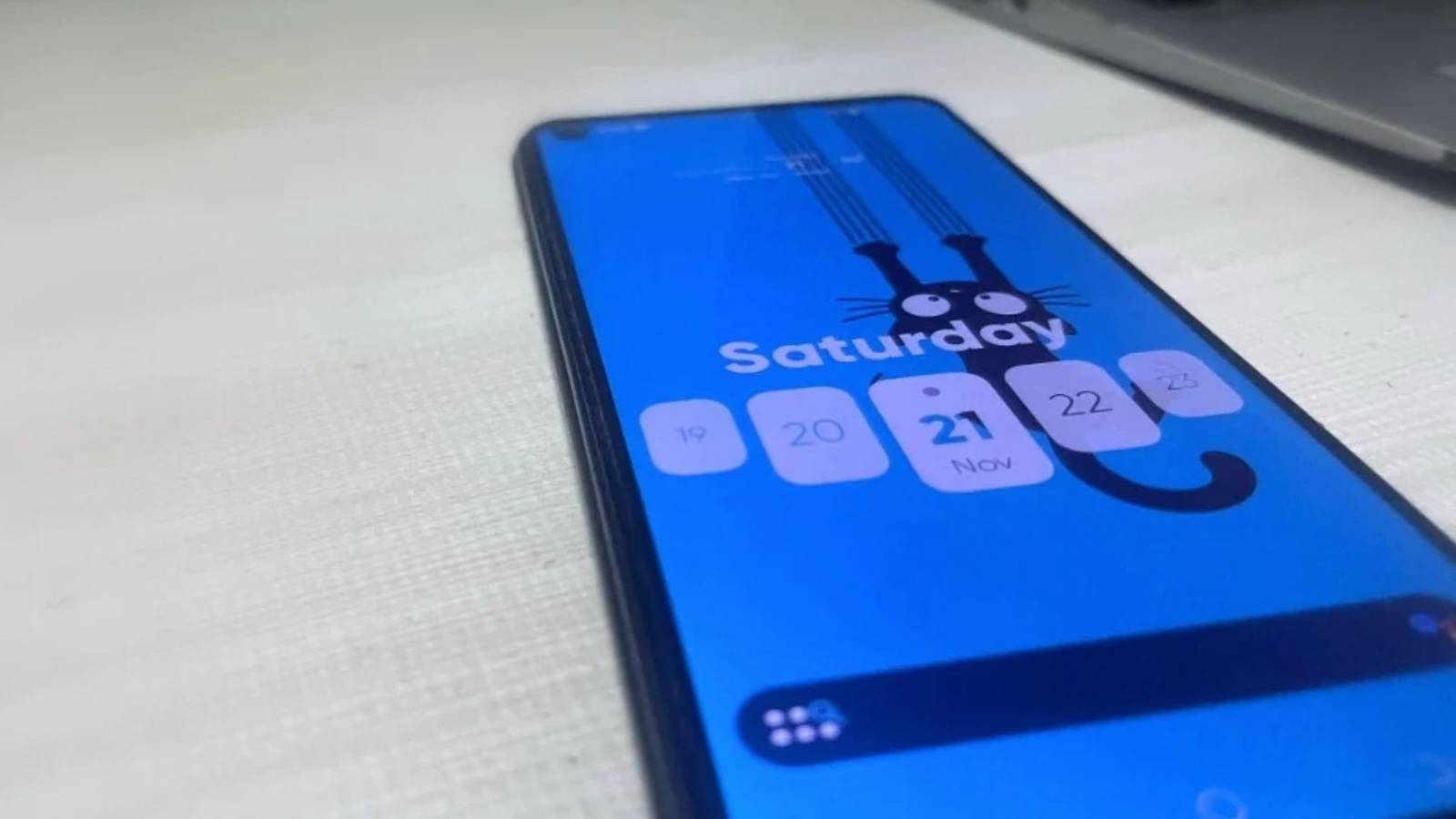
Published Nov 28, 2026, 10:52 AM EST Victor Opata is a Features Author at Android Police, covering Android, apps, software, and Google products. He has written about consumer tech since 2020, including at PCnMobiles from 2022 to 2023, and completed Cisco Networking Academy's Introduction to Cybersecurity course in 2025, which informs his privacy and security coverage. He started using Android in 2015 with a Tecno W5. Today, he tries out every app and setting he covers firsthand before writing about it. Outside of work, he enjoys running and mobile FPS gaming. I love changing the look of my Android phone because I don't want it looking the same way all the time. With Android, I can customize my display, so I regularly do something different with my phone. I wanted to make my screen reflect my apps and information in a certain way. For this, I used Nova Launcher, KWGT, Whicons and Backdrops to achieve the changes I desired. In Nova Launcher, I could change the layout as I liked More room for widgets and other parts Nova replaces your phone's home screen with a customizable display. You can change dock, folders, icons, app drawer, and home screen. I could set how many columns and rows there were, how big the icons were, and how much space each item took up. I changed the desktop grid to 9 by 7 because I prefer viewing my apps at a glance. I then took the labels off the icons on my home screen for a cleaner look. I removed all the apps on the home screen so I can have room for widgets without cluttering the home screen. Nova lets you change more than just the layout. You can hide app labels, change the look of folders and the app drawer, and use gestures to do things. Some of these features do require Nova Prime, but even the free version has a ton of layout and style options. I didn't go with Niagara Launcher because I won't be able to customize widgets and icon packs as much as I want. You don't need to set it up as I did. I just wanted an easier-on-the-eyes home screen that didn't have as many things on it. You can increase the size of the grid, add more room for widgets, or make your app icons transparent. Nova lets you tweak these settings to your heart's content until you find something that works for you. I added a custom widget and quick weather screen. For the widgets, they had to feel like they belonged on the home screen. I do like the widgets on Android, but they don't always play nicely with the way I'd want my phone to look. You can change text, fonts, colors, images, shapes and order of widgets in KWGT. Clocks, weather widgets, music players, battery indicators, photo widgets and more can be found in the information panels. You can start with a blank design or edit a preset that's already in there. For starters, I opened KWGT and selected the Widget 015 preset, and scaled it to 100. I inserted it on my home screen, resized and repositioned it until it looked good. I also wanted to be able to quickly check the weather, so I added a separate widget for that. This allowed me to check the weather without having to open another app, and to have useful information on my home screen. You can install third-party KWGT widget packs, or import presets made by other users. But you will need to upgrade to KWGT Pro to import external presets. Don't download a bunch of widget packs at one time. Try a design with your background and icons to see how it looks before downloading more. I wanted app icons to match my new home screen My app icons look better and cleaner with Whicons I also wanted the app icons to be more similar to each other. A few of the shaped and colored icons that came with the app weren't exactly the style I was going for. So I went to Google Play and looked for an icon pack. I like simple icons, so I downloaded Whicons for my dark home screen wallpaper and simple home screen setup. When I opened Whicons, I noticed it has integration with Nova Launcher. I added the icon packs easily through the Whicons app. My supported apps now have new, updated icons. Icon packs don't always include everything you're looking for. There will be instances where some apps won't have a custom icon included. The whicons definitely brought uniformity to the design of my home screen elements. My app icons were plain and had a uniform color, in sync with my background and my home screen widgets. Backdrops helped me find a wallpaper that fit my new home screen I picked a blue design that caught my eye For the wallpaper, I installed backdrops from Google Play. I searched, and finally, I found what I wanted. The 'Hanging On' background was just what I needed, particularly due to its nice shade of blue. I chose it as both my lock screen and home screen wallpaper. With all their options, backdrops have designs that are sure to match the aesthetic you're aiming for. Finally, my Android's home screen is my home screen again. There was barely anything different when I looked at the home screen I had before this makeover. The blue background paired really well with the white icons, and the KWGT widgets made getting information on the home screen quick and easy, all while avoiding any clutter. Nova didn't take much customization, and it didn't take a long time to make an impact either. I'll definitely use it again, but right now it is looking perfect. I'm satisfied with it for the moment.
4 apps turned my dull Android home screen into something I actually love looking at
Full Article
Original Source
Read the full article at Androidpolice →KhanList aggregates and links to publicly available news content. We do not host full articles from third-party sources. Always verify important information with original sources.