
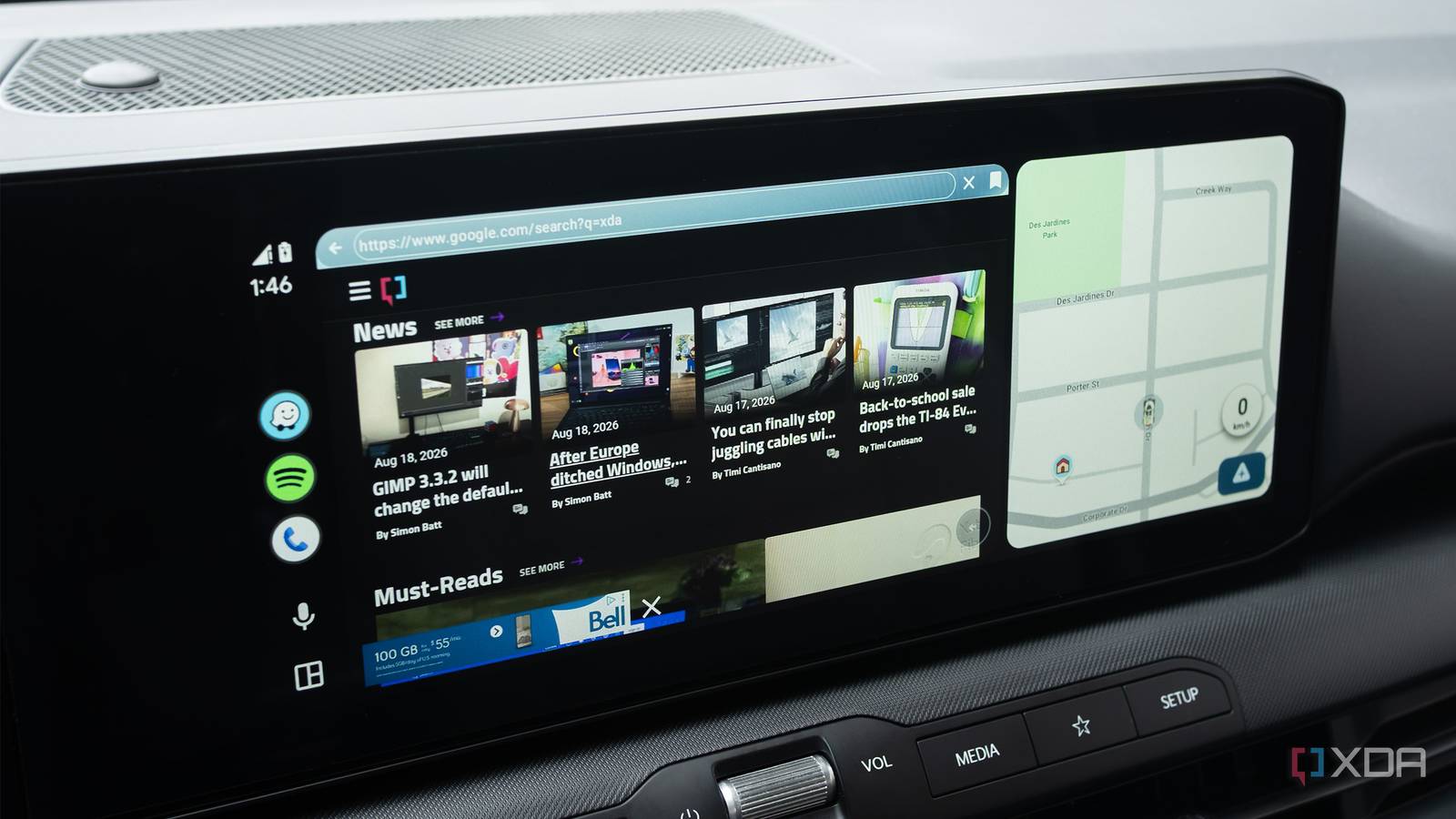
Published Aug 31, 2026, 3:00 PM EDT Patrick O'Rourke is XDA's News Editor and Entertainment Segment Lead. Previously, he was Pocket-lint's Editor-in-Chief, the Editor-in-Chief of Canadian tech publication MobileSyrup, and earlier in his career, he worked as the technology editor at the Financial Post and Postmedia. He's based in Toronto. Over the past 15 years, he's written thousands of articles. Patrick has also interviewed dozens of tech industry executives and covered GDC, E3, Gamescom, WWDC, Apple keynotes, Samsung Unpacked events and more. Patrick has a BA in journalism from Toronto Metropolitan University. I didn't realize it until I was a few months into using Android Auto, but just like Android, the in-car operating system offers a host of developer options. Of course, not all the Android Auto settings in this hidden menu are useful to the average user, but several add welcome quality-of-life features to my Android Auto experience. For example, while I don't need to pull debug logs or collect GPS data, I've found settings like increasing my in-car display's resolution, enabling Unknown Sources, and turning off wireless Android Auto (in certain situations) can be very useful. To access these lesser-known settings, you need to enable Android Auto's developer options Once you've done this once, you won't need to do it again The first thing you need to do is turn on Android Auto's Developer Settings. To do that with My Pixel 10 Pro, I followed these steps: Open the Settings app on your Android phone. Navigate to Connected Devices (the second option), then Connection Preferences. Tap on Android Auto. Scroll down and tap Version until Developer Settings are enabled (you'll see a notification that you have only three taps left when you're close). After following the above steps, Android Auto's Developer Settings should now be available when you tap the Three-line button in Android Auto's settings. Android Auto doesn't always automatically select your in-car infotainment system's actual display resolution Turning up your car's resolution can make the screen look sharper In most cases, Android Auto is great at determining your vehicle's display resolution, but not always. For example, Android Auto set my Ioniq 5's screen to 720p, so when I turned the resolution up to 1080p, it looked noticeably sharper. If you set a resolution your display doesn't support, the screen flashes black and, in most cases, reverts to the last resolution that worked properly. The same thing also happens if you set a screen resolution that's too low. Android Auto Developer Settings screen resolution options include 1080p, 720p, and 480p. To change this setting on my Pixel 10 Pro, I did the following: Settings > Connected Devices > Connection Preferences > Android Auto > Three-line button (in the top-right corner) > Developer Settings > Video Resolution. Turning on Unknown Sources lets you install sideloaded Android Auto apps These apps are often a bit shady, but they can add useful functionality to Android Auto Over the past several months, I've spent a lot of time experimenting with various sideloaded Android Auto apps that add new features to the in-car operating system. For example, I most recently tried Xtream Player, a pretty reliable way to add unofficial YouTube and web browsing support to Android Auto, but I've also used Fermata Auto and Screen2Auto at various points over the past few months (official YouTube support is coming to Android Auto soon). While you can install some sideloaded apps through third-party stores like Android Auto Apps Downloader (AAAD), I've found the platform to be very unreliable. Instead, I enable Unknown Sources and download sideloaded Android Auto apps from their official GitHub pages. To turn on Unknown Sources, follow these steps: Settings > Connected Devices > Connection Preferences > Android Auto > Three-line button > Developer Settings > Unknown Sources. To install sideloaded Android Auto apps, you'll also need to enable Android's Developer Options by navigating to Settings > About Phone > Software Information > Build Number (tap this seven times). You'll then see a message that says "Developer Mode Enabled." Turning off wireless Android Auto can be useful If you're looking to save battery life or encounter connection issues, this setting can help I sometimes turn off wireless Android Auto when I'm testing a feature or using a phone that doesn't have a data connection. I'm usually tethered to my iPhone 17 Pro so I can still use apps that require data, but I can't do that when I'm wirelessly connected to Android Auto over Wi-Fi Direct. Though this is unique to me and my work here at XDA, you might also want to turn off wireless Android Auto to save your phone's battery life or to try to resolve a connection issue you might be encountering. After all, wireless Android Auto is notoriously laggy. To turn off wireless Android Auto, I follow these steps: Settings > Connected Devices > Connection Preferences > Android Auto > Three-line button > Developer Settings > Wireless Android Auto. With this feature on, your phone won't default to wireless Android Auto if it's available in your vehicle.
3 hidden Android Auto settings that make every drive so much better
Full Article
Original Source
Read the full article at Xda-developers →KhanList aggregates and links to publicly available news content. We do not host full articles from third-party sources. Always verify important information with original sources.