
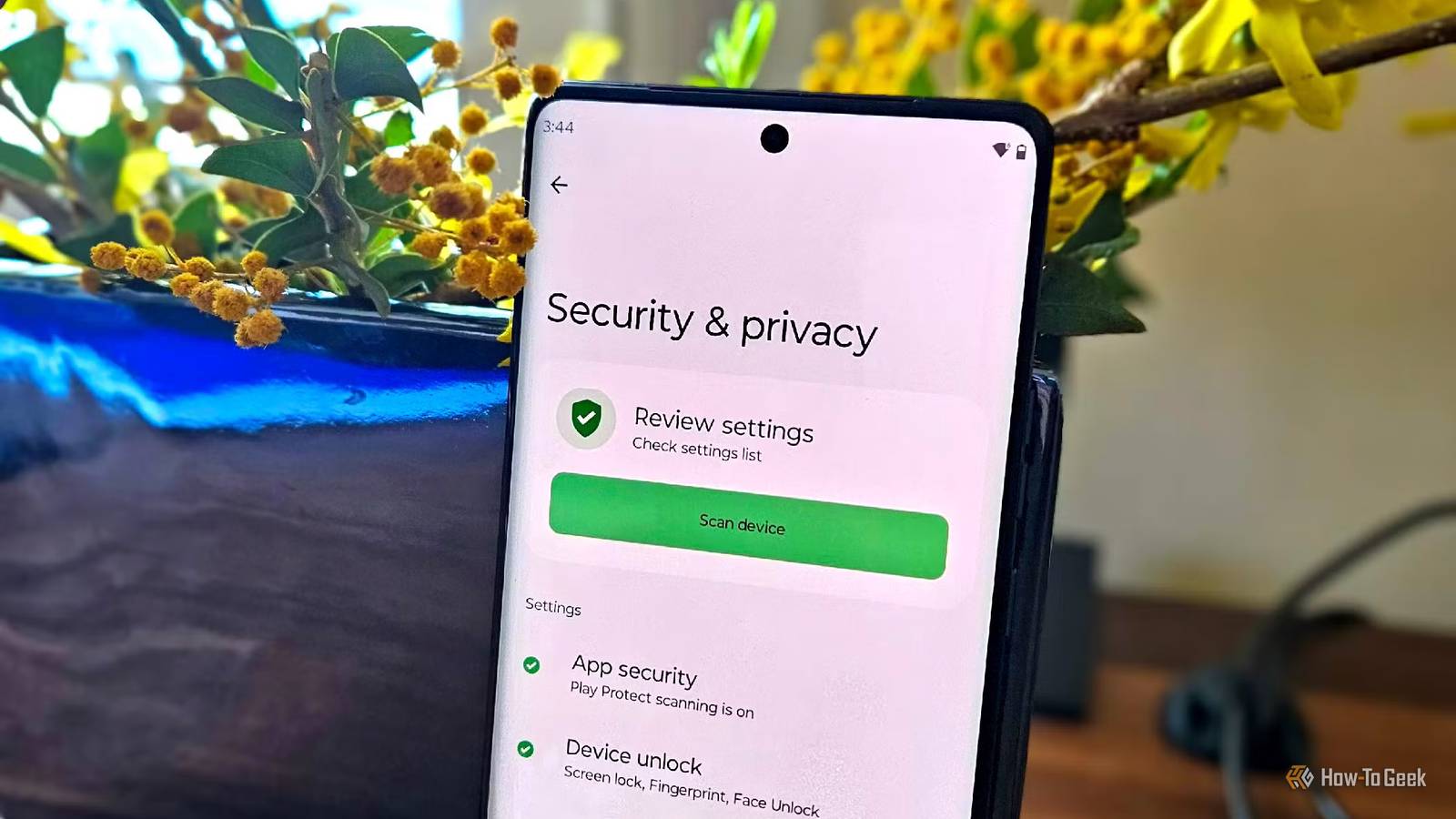
Published Sep 23, 2026, 7:30 PM EDT Tyler is an automotive journalist and content contributor at How-To Geek with over three years of experience covering the automotive industry. His work focuses on delivering clear, well-researched, and engaging content that helps readers better understand the vehicles they drive and the technology behind them. Before entering automotive media, he spent five years as an academic editor, developing a strong foundation in research methodology, factual accuracy, and structured analysis. This background informs his journalistic approach today, ensuring that every article balances technical insight with accessibility for a broad audience. Tyler specializes in automotive journalism, content strategy, and SEO-driven publishing, with a particular interest in performance, reliability, and the cultural role of cars. He approaches automotive writing with a distinct philosophy: vehicles should be engaging and expressive, not merely functional tools. This perspective shapes his coverage and allows readers to connect with cars beyond basic specifications. Android gives you surprising control over your privacy and security, but some of the most useful settings are easy to overlook. The problem is that some features can sound like they're meant for people who know their way around a network or security console. If you're not particularly technical, it's tempting to leave them alone and assume they're either too complicated or already configured properly. Fortunately, you don't need to understand all the technical details to take advantage of these protections. Android makes it relatively simple to enable several features that can limit tracking, protect your internet activity, and make your phone more resistant to certain attacks. Some may already be enabled on your device, while others take only a few taps to activate. Once you know where to look, these features become much easier to understand and use. Use MAC address randomization Limit tracking When scanning for Wi-Fi networks, or connecting to one, your device essentially transmits a unique identifier. Your factory MAC address acts as a digital fingerprint, allowing anyone from network operators to public venues to actually physically track your movements. This can also be used to build a history of your habits, creating a precise profile of who you are and where you go. Turning on MAC address randomization keeps you anonymous and stops potentially malicious third parties from tracking you. This feature might sound a little daunting if you're not particularly technically inclined. The good news is that on most modern devices, it is active by default. You can, however, double-check that it is active on the network you're connected to by going into your list of available Wi-Fi networks, tapping on the gear icon next to the network, and scrolling down until you see 'MAC address type'. If it is set to randomized, then you can rest easy knowing you're a little harder to track. Set up a secure private DNS Keep your activity under wraps You would be surprised at just how easily accessible your internet activity is in general. When you're browsing using default settings, DNS queries are sent in unencrypted plain text. This means that everything is visible to your ISP, the owner of the network you're connected to, and any malicious third parties. Using a private DNS instead means that you make use of protocols like DNS over TLS (DoT) or DNS over HTTPS (DoH) to scramble requests and keep your data private. While it might sound somewhat complicated, enabling this setting is actually fairly simple. Go to your connection settings, then tap 'more connection settings,' and you should see the Private DNS section. Change this from automatic to the private DNS provider of your choice. We have a list of some of the best DNS servers to pick from. Enter the hostname, and you're good to go, with your online activity being far more protected. Enable Advanced Protection for ultimate privacy and security A surprisingly easy solution If you want to make sure you're getting the most out of your Android device's security features, one setting can dial up your protection to the maximum. Advanced Protection is essentially Google's strongest built-in security feature, with it being designed specifically to protect at-risk users, such as journalists and activists, from outside attacks. For privacy and security, this is the best way to keep your device as secure as possible. There are a few things that turning on Advanced Protection does. Before you turn it on, you'll see a list of safeguards that it activates. For device safety, it prevents lost, stolen, or confiscated devices from being accessed. It also protects against memory bugs and unsafe apps, but the downside is that you can't install or update apps from unknown sources. It also disables 2G networks, which are particularly insecure. It also protects against spam and scams in your Google Messages app. Finally, it protects against unsafe websites by providing live threat protection against harmful web pages, warning you before you visit non-HTTPS sites, and disabling certain advanced JavaScript capabilities to reduce risk. While this sounds like a lot, and it is, turning on this feature is as simple as tapping a toggle. On Pixel devices, you'll find the setting under 'Security and privacy', under the 'other settings' tab. On most other Android devices, you'll go to Settings -> Google services, tap on All services, and then scroll down to Advanced Protection, which will be under Personal & device safety. Android devices make advanced privacy pretty accessible Privacy is becoming more and more of a luxury in our increasingly connected world. Your data and behaviors are being sold as a commodity. Malicious third parties are also becoming more creative, finding ways to access and abuse this data. By utilizing some of the above settings, you're at least a little more shielded from this. While some features might have intimidating names, especially if you're not all that well-versed in tech speak, they're pretty easy to find and use.
3 Android privacy features that sound complicated but aren't
Full Article
Original Source
Read the full article at Howtogeek →KhanList aggregates and links to publicly available news content. We do not host full articles from third-party sources. Always verify important information with original sources.