
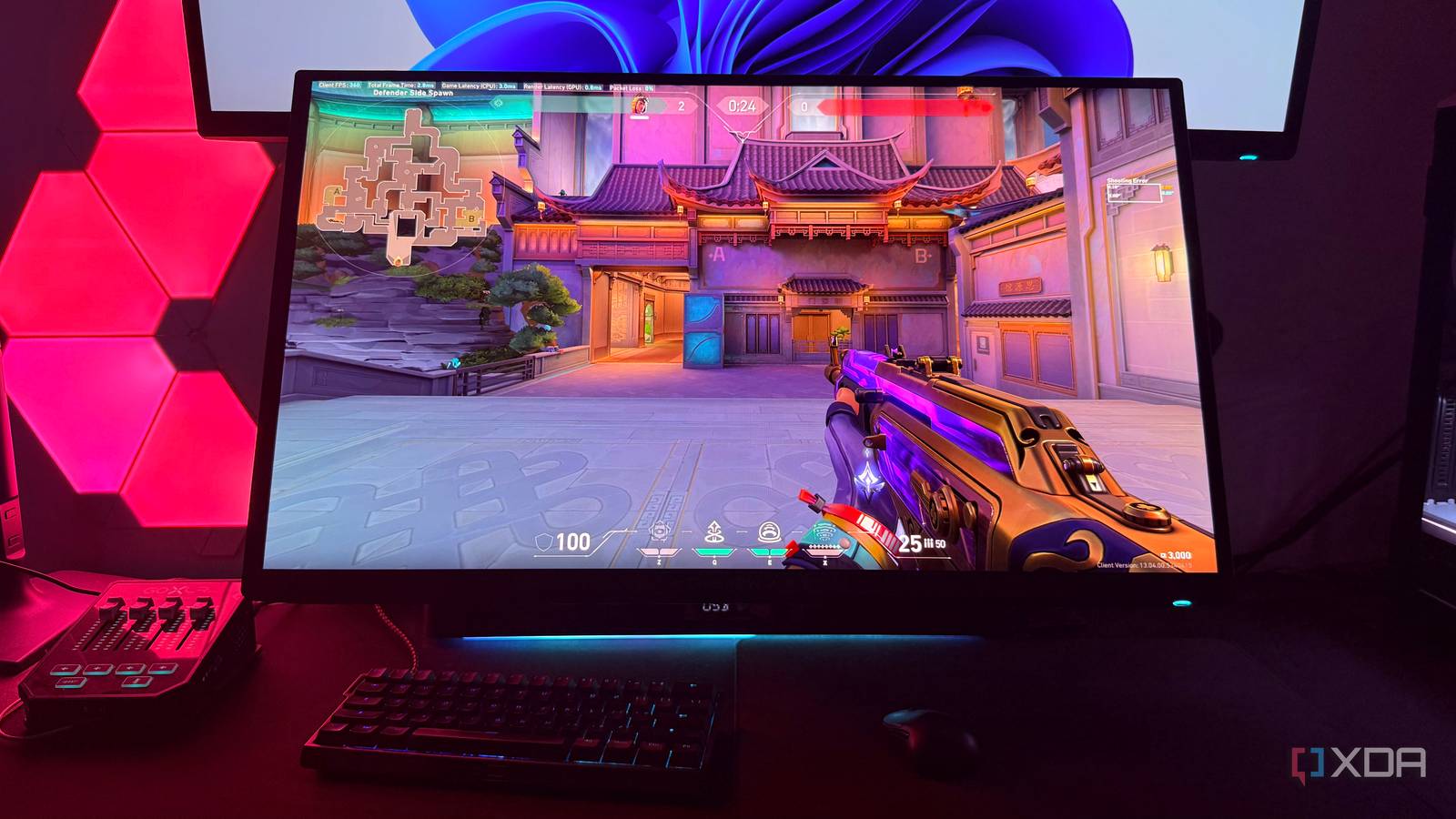
Published Aug 31, 2026, 8:00 AM EDT Hamlin has been in the tech field for over nine years. Since 2017, his work has appeared on MakeUseOf, Android Police, OSXDaily, Beebom, and more. He served as the Senior Editor at Valnet's MakeUseOf for over two years before joining XDA. He uses a high-end gaming rig for desktop use and a MacBook for traveling, but dislikes some of the quirks of macOS. You're more likely to catch him at the gym or on a flight than anywhere else. Buying an OLED gaming monitor and then playing most games in SDR has always seemed a little backward to me. Sure, you're still getting many other benefits, like instant pixel response times, perfect blacks, and an infinite contrast ratio, all of which make OLED appealing in the first place. Still, HDR is a huge part of that experience, as those bright highlights really help these panels stand out compared to traditional LCDs. The problem, though, is that HDR support on PC has always been inconsistent. Even though many AAA titles support native HDR these days, there are still plenty of SDR games out there. A good example is Valorant, which I play almost every day. So if you rarely play newer AAA releases, you're probably using your OLED monitor mostly in SDR. But that's exactly when a feature like RTX HDR comes in, as it can convert almost all those games to HDR. RTX HDR makes SDR games look better on OLED All it takes is one setting to make those highlights stand out It has been about four years since I bought my first OLED monitor, the AW3423DW. And since I mainly play Valorant on my PC, I bought another 1440p/360Hz OLED a couple of years ago. I always appreciate that near-perfect motion clarity for competitive gaming, but since the game lacks HDR support, I know I'm not getting the best possible experience. RTX HDR fixes that by converting the SDR output to HDR, which lets muzzle flashes, abilities, and bright light sources just pop. The game is already colorful in SDR, but that extra contrast you get with RTX HDR makes the SDR image look flat by comparison. Enabling it is actually pretty straightforward. All you need to do is open the Nvidia app and go to Graphics -> Global Settings, scroll down to RTX HDR, and set it to On. If the setting is grayed out, make sure you've enabled HDR in Windows first. Of course, you'll need an RTX GPU for this, but that's pretty much it as far as the requirements go (assuming you're using an OLED). Once you're in-game, you can open the Nvidia Overlay (Alt + Z) and go to Game filters to adjust things like peak brightness, middle gray, and contrast for more granular control. RTX HDR isn't just for older games I use it when native HDR has issues, and there's RTX Video HDR too Even with RTX HDR enabled globally, it won't kick in if you enable native HDR in your game's settings. That's exactly how I want it to work anyway because a good native HDR implementation is still my first choice. But PC games don't always get HDR right, and more importantly, I've had issues using native HDR with features like frame generation. For example, I noticed smearing and shimmering around UI elements in 007 First Light while using native HDR with frame generation. Of course, the immediate solution is to disable frame generation, but with RTX HDR as a fallback, you don't have to choose between HDR and smoothness. All you need to do is disable HDR in-game for RTX HDR to take over. The Nvidia App also has a similar feature to convert SDR videos to HDR, which you can enable separately from System -> Video -> RTX Video Enhancements -> HDR. I find it very useful while watching YouTube, since most of the content there is still SDR. Unfortunately, some DRM-protected content isn't supported, which explains why it didn't work on Netflix. The main downside is the FPS hit That's why Special K is better, but I'll still take RTX HDR's convenience any day If there's one reason to avoid RTX HDR, it's the performance penalty. Even though it's implemented as a game filter, it uses your GPU's Tensor Cores to process the image in real time, which means you're going to lose some FPS. In the games I tested, the FPS hit was usually around 7-10%, but it varies a lot by game. And given how sensitive PC gamers are about performance, this could easily be a dealbreaker for you. That's why Special K is popular among enthusiasts these days. It's a lot less demanding than RTX HDR and gives you way more control over how HDR looks. I found it too complicated to use, which is why I immediately went back to RTX HDR. Since I primarily use RTX HDR in older games, that performance hit isn't really a problem for me, especially since I have an RTX 4090. The fact that I can toggle a setting in the Nvidia App and forget that it exists altogether is exactly why I prefer RTX HDR. I don't mind giving up a few frames for that convenience. Getting the most out of our OLEDs shouldn't be up to developers Gone are the days when we had to rely entirely on developers to add HDR support to their games. Thanks to RTX HDR, Windows Auto HDR, and even third-party tools like Special K, we now have multiple options to get HDR in almost any game we play. And I honestly think that's a step in the right direction, considering HDR support on PC has always been sort of a mess. Of course, I'll still pick native HDR any day, but I don't want to resort to SDR just because a developer decided not to implement it. NVIDIA App The Nvidia App has a lot more to offer than just being a driver updater. You can use it to fine-tune your DLSS settings, optimize games, and access features like RTX HDR and Smooth Motion.
You're wasting your OLED monitor if you're ignoring this Nvidia feature
Full Article
Original Source
Read the full article at Xda-developers →KhanList aggregates and links to publicly available news content. We do not host full articles from third-party sources. Always verify important information with original sources.