
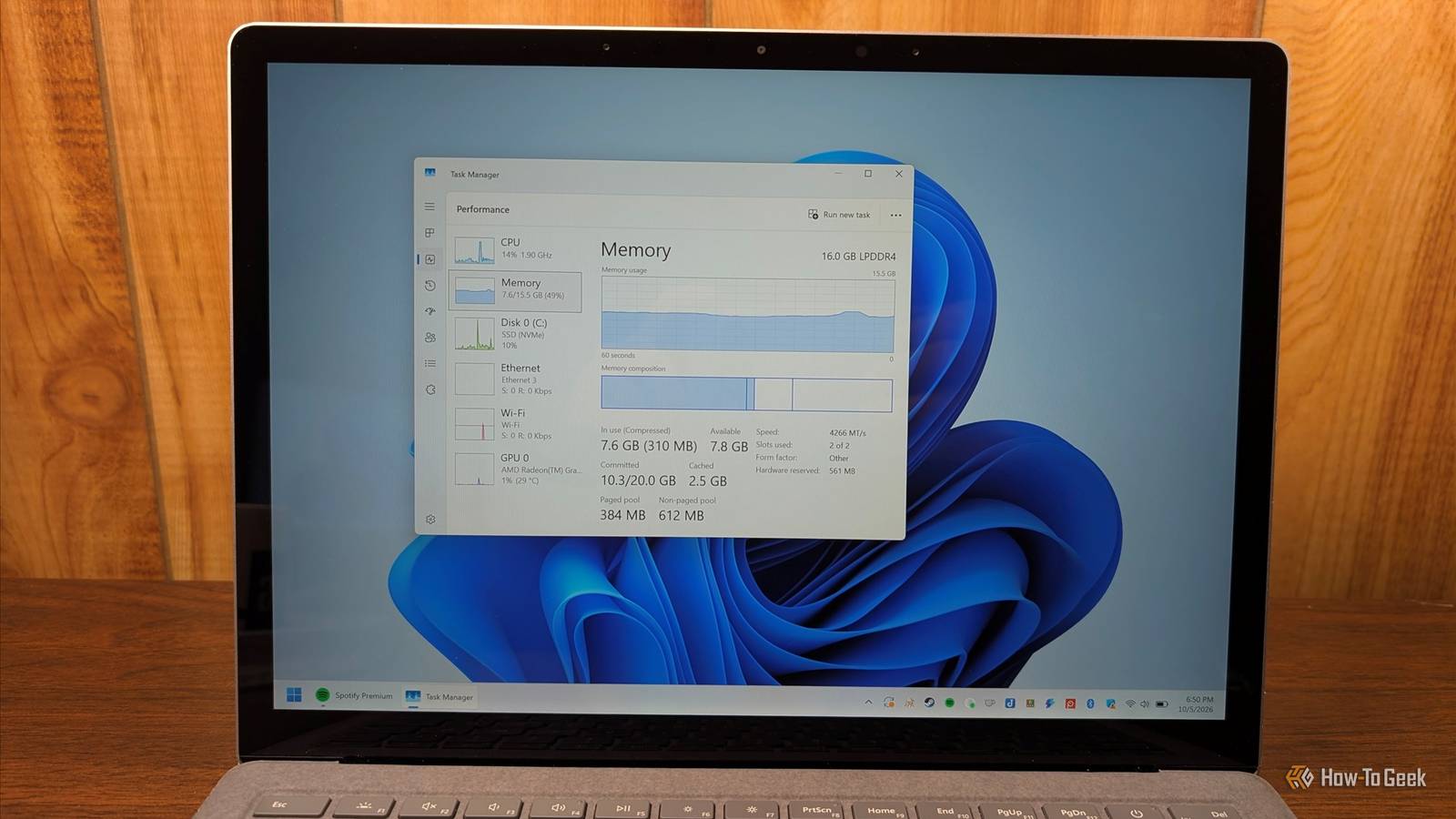
Published Oct 6, 2026, 12:30 PM EDT Nick Lewis is an editor at How-To Geek. He has been using computers for 20 years --- tinkering with everything from the UI to the Windows registry to device firmware. Before How-To Geek, he used Python and C++ as a freelance programmer. In college, Nick made extensive use of Fortran while pursuing a physics degree. Nick's love of tinkering with computers extends beyond work. He has been running video game servers from home for more than 10 years using Windows, Ubuntu, or Raspberry Pi OS. He also uses Proxmox to self-host a variety of services, including a Jellyfin Media Server, an Airsonic music server, a handful of game servers, NextCloud, and two Windows virtual machines. He enjoys DIY projects, especially if they involve technology. He regularly repairs and repurposes old computers and hardware for whatever new project is at hand. He has designed crossovers for homemade speakers all the way from the basic design to the PCB. Nick enjoys the outdoors. When he isn't working on a computer or DIY project, he is most likely to be found camping, backpacking, or canoeing. When I open up Task Manager and I see that 60% of my 32GB of RAM is in use and I have 10GB cached even though I'm not doing anything, my first instinct is to start ending tasks and services to "free up RAM." My intuition—built in the XP and Vista era—tells me that it is a sign of a problem. On modern PCs running modern operating systems, that isn't really the case. Manually ending tasks may even make your performance worse. What in the world is Windows 11 doing with your RAM? Idle RAM gets put to use Windows doesn't just sort memory into two categories—in use and free—that a quick glance at Task Manager's "Memory" column might suggest. It functionally uses three categories: in use, standby (cached), and free. When you look at the Memory column in the Processes view, you're seeing in-use. When you dig into the Performance tab, you'll probably see that several gigabytes are cached. You might assume that high numbers in both or either field is a sign of waste. That cache is used to store information and apps that you've recently accessed. That means that Windows doesn't need to read that information from your disk when you access it; it loads from RAM instead, which is significantly faster in most cases. The slower your storage drive is, the bigger the performance difference standby memory will make. Cached memory tends to grow fairly freely as you use your PC. The cache is also written to by a service called SysMain (formerly Superfetch) to preload the apps and files that you use most often. Historically, early iterations of Superfetch could tie up a mechanical hard drive at 100% for a few minutes after boot. That is much less of an issue today with solid-state boot drives. But isn't the cache a problem? Does that mean opening a RAM-heavy application will result in your PC running out of RAM if you have 15GB cached? High use is generally fine The total amount in use and cached isn't a problem On modern PCs, that cached memory actually means that Windows is doing what it is supposed to. If you were to open an application that would exceed the amount of RAM available, standby memory instantly gets flushed to make room for the app you're opening. Almost nothing is written to the disk since most that data all exists on the drive anyway—the cache only exists to make your PC feel snappier. Usage scales with how much RAM you have. If you have 32GB of RAM, Windows will use more of it for caching than it would on an 8GB system. It isn't "wasting" the extra space; it's using the available room to make the OS feel snappier. 8GB systems are the ones that may have a problem If you're on an 8GB system trying to run Chrome, a chat app or two, and Office simultaneously, your PC is going to be more sensitive to RAM pressure than someone with a 64GB system. This is compounded by integrated graphics that borrow from your system RAM, the general bloat of Chromium- and WebView2-based components built into Windows, and the glut of Electron apps in circulation today. Microsoft has acknowledged the problem and committed to optimizing RAM use on low-RAM systems. At one time, "upgrade your RAM" was safe general advice because RAM was inexpensive. Today, recommending a RAM upgrade is a serious financial proposition. Ending apps and running RAM cleaners backfire Forcing memory free makes your PC work more It might sound good in theory to use a "RAM cleaner" or manually kill every background process, but in practice, you're just forcing your PC to repeat work it already did. Closing apps you'll reopen later leads to more disk reads and higher CPU usage, which can noticeably impact performance in the moment. If you're on a laptop, running the CPU and storage harder will negatively impact your battery life. RAM cleaners either specifically target the cache, which is a pool of memory Windows will already free up by itself when the need arises, or they close apps. The only time you should aggressively kill a process is if you've identified a specific app with a memory leak. Otherwise, leave your RAM alone. How to check whether you have a real memory problem The symptoms will tell you if you have a problem Credit: Nick Lewis/How-To Geek If you want to know if you actually have a problem, you don't need to look at Task Manager or Resource Monitor to find out—you'll be able to feel it. It isn't subtle when you actually run out of RAM. Programs crash, browser tabs reload spontaneously or close, and the OS itself will stutter. If a program does manage to limp along, the performance will be noticeably terrible. If you look at Task Manager, you'll probably see your disk activity maxed out as Windows desperately tries to relieve pressure on your RAM by writing to the page file. Unless that happens, I don't worry too much about what my RAM is doing. After all, if whatever Windows is doing with my RAM doesn't impact my user experience, why would it bother me? Worrying about a 12GB cache is completely pointless. Sometimes you will have a memory problem Windows hasn't given me serious memory problems in years, even when I ran a 16GB system. However, there are a few situations where there is a real need to free up more RAM than Windows can handle by itself. As an example, some modern games will monopolize 12–16 GB of RAM on their own. If you're running a local AI with CPU offload, you could easily use 100% of your system RAM. In those situations, start by removing unnecessary startup applications with the Task Manager. I'm not especially diligent about removing startup apps these days, but quickly going through and shutting off unnecessary stuff shaved 5GB of RAM off my idle RAM use. Many applications also create scheduled tasks via the Task Scheduler that launches the apps automatically. If you've gone through the Task Manager's startup apps, and you notice some apps are still starting automatically, that is probably why. If you run an application and the in-use memory gradually expands until it uses all of your free RAM, that probably means the program has a memory leak or some other issue—just end it using the Task Manager. I ignore the percentage and watch for symptoms Worrying about RAM use is basically a superficial metric. What you should worry about is real-world performance. Does your PC feel snappy? Do apps run reliably? If you have 16GB of RAM or more and you aren't getting stutters or reloads, stop worrying about how much cached memory you see in Task Manager, or the fact that your system is using 50% of RAM while idling after startup.
Your Windows 11 PC is always using half its RAM, and that's a good thing
Full Article
Original Source
Read the full article at Howtogeek →KhanList aggregates and links to publicly available news content. We do not host full articles from third-party sources. Always verify important information with original sources.