
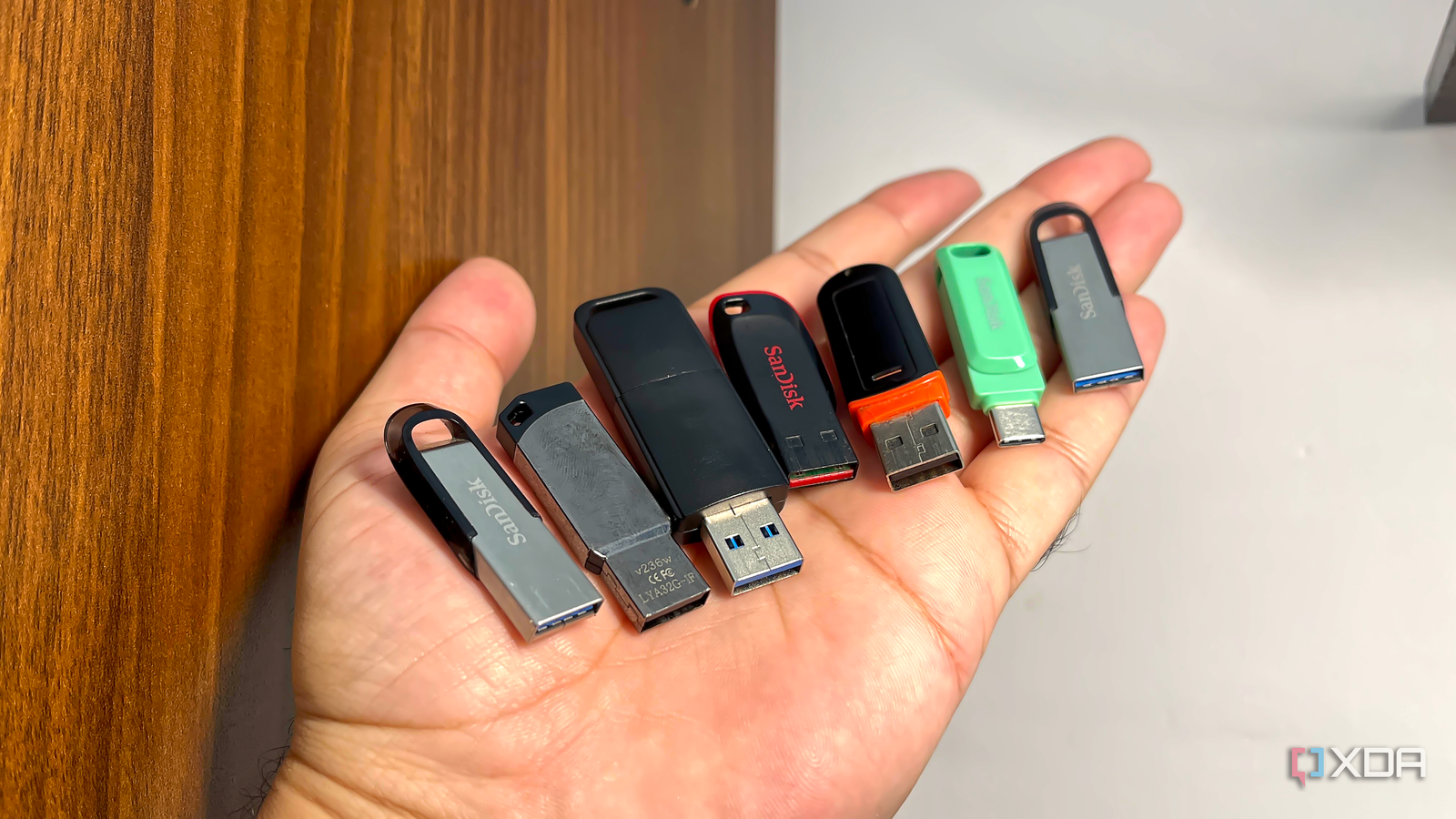
Published Nov 9, 2026, 1:30 PM EST With over five years of experience in the tech industry, Kazim excels at simplifying complex topics, making them accessible to tech enthusiasts and general readers alike. He has extensively covered the Windows ecosystem, from Windows 7 to Windows 11. When he’s not writing, you’ll find Kazim planning weekend getaways or diving into tech verticals beyond his expertise. I have always been a big fan of flash drives. Although they're less reliable than traditional storage like HDDs or SSDs, flash drives still have plenty of uses in day-to-day life. That's why you shouldn't limit their use case to storage or file transfers. A flash drive is capable of a lot more. The best part is, you don't always need a fast enough flash drive. For some use cases, even a 10-year-old, slow flash drive will work just as well, if not better. Of course, it comes down to your expectations from the setup. But generally speaking, every flash drive you have can be used smartly to complement your workflow. Run a portable Windows version Take your Windows installation wherever you go The first on the list, and my personal favorite, is a portable Windows installation, previously called Windows To Go. Simply put, the entire OS installation stays on your flash drive, much like on an HDD or SSD, and you can run Windows on any computer you want. Just plug the flash drive in, and your portable Windows install loads along with your collection of apps. I have tried a portable Windows install with different flash drives, and there are a few things you should know. First, use a fast flash drive, preferably a USB 3.2 drive, because there's a lot of activity, and you need something capable of handling it. With a slow flash drive, the portable Windows install may not load at all. Second, constant read and write operations can shorten your flash drive's lifespan. Frankly, there's not much you can do about it. But going with a reliable brand and minimizing background activity can help. A free cloud storage solution Access files from devices across your home Another exciting use case, and one that most of us can actually benefit from, is creating a cheap NAS equivalent using a flash drive. All you need is a decent flash drive and a router with a USB port. Yes, that USB port on your router isn't simply for installing firmware updates. A flash drive, or any other storage drive, when plugged in and set up, can be accessed from every device on the network, including your smartphone, laptops, tablets, and desktops. I have tried this with a travel router, and the setup is fairly simple. Connect the flash drive to your router's USB port, and enable Server Message Block (SMB). That's all. The entire process takes less than a minute. Once you are done, you can upload files to the drive from one device and access them from another, much like a personal cloud storage solution. You can also turn on Internet FTP to access files over the internet, though I wouldn't recommend it for privacy and security reasons. Portable app installations Best for privacy-conscious users If you are always on the move and have to work on different systems from time to time, it makes sense to carry some useful apps around with you. And you can do that with a flash drive. Instead of running from the computer's built-in drive, these apps run from your flash drive. As for the options, you can have browsers, text editors, image viewers, office suites, editing software, and more on the flash drive. The approach even has privacy benefits. Unlike traditional counterparts, portable apps run from the flash drive and leave little to no trace on the system you're using. They don't leave any activity history, cache, or data behind, making them a viable option for privacy-conscious users. You never know when you might need one What do you generally do when your computer fails to boot? You try out a couple of built-in troubleshooting options in the Windows RE (Recovery Environment), and then proceed with a Windows reinstall. If that sounds familiar, you are doing it wrong. Because there are some excellent and user-friendly tools that can do an even better job, and you can store them on a flash drive. This way, whenever the system acts up, the OS shows signs of corruption, or the drive looks like it's about to fail, you can easily fix things. Available options include SystemRescue and Hiren's BootCD PE, among others. If you want to streamline troubleshooting, it's smart to have a USB drive with the necessary recovery tools ready. Expanding storage on my smart TV Because TVs don't come with a lot of built-in storage If your TV is always running low on storage, that flash drive you haven't touched in ages can come to your rescue. You can use it to expand your TV's storage capacity, allowing you to install more apps. And the setup is fairly simple. You just connect the flash drive to the TV's USB port, head into the Storage settings, and format it. That's all. You can also use the flash drive to stream movies and videos locally, just like you do on a computer. I have tried both these use cases, and while the setup may differ depending on the TV's operating system and version, the process is usually straightforward. A physical lock for your PC Unplug the flash drive and your computer locks instantly This is possibly one of the coolest ways you can use a flash drive, and it isn't as complicated as it sounds. The idea is simple: you create a physical key that unlocks your PC. Without it, no one can access your personal files or look through your system's activity. And the best part is that it doesn't even have to be fast, since there's not much activity. For this, you will need a tool like USB Raptor, which is free. The tool creates an encrypted file on your flash drive, then monitors it; as soon as you remove the drive, USB Raptor locks the screen, preventing unauthorized access. Keep in mind that this isn't an advanced hardware-level lock, but for the average user, this can be both fun and a smart way to use an old flash drive. Flash drives are incredibly convenient Recently, flash drives and SD cards have gotten expensive too. That's why I wouldn't necessarily suggest buying them to try things out. However, if you already have a few, which I guess almost everyone does, it's time you put them to better use. You don't always need expensive storage solutions. Sometimes, that old flash drive you have neglected for years can punch above its weight and streamline things for you.
Your USB flash drives don't have to collect dust — here are 6 ways I use mine beyond file storage
Full Article
Original Source
Read the full article at Xda-developers →KhanList aggregates and links to publicly available news content. We do not host full articles from third-party sources. Always verify important information with original sources.