
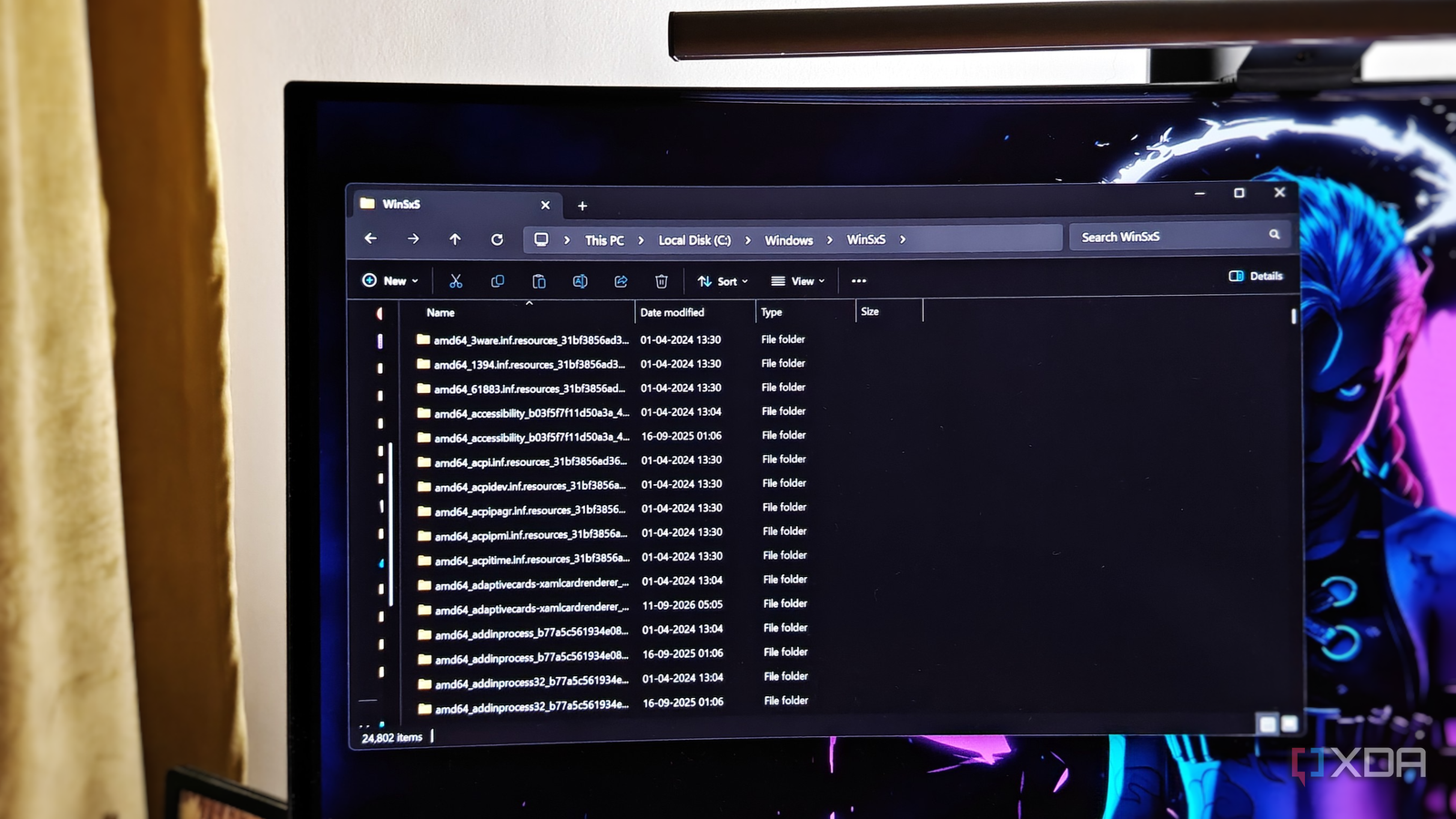
Published Nov 16, 2026, 1:30 PM EST After a 7-year corporate stint, Tanveer found his love for writing and tech too much to resist. An MBA in Marketing and the owner of a PC building business, he writes on PC hardware, technology, and Windows. When not scouring the web for ideas, he can be found building PCs, watching anime, or playing Smash Karts on his RTX 3080 (sigh). Those of us who didn't hoard tons of storage in the "before" times can often struggle with free storage space on our PCs, especially on the C: drive. I like to allocate only enough space to my OS partition as needed, with the rest of it free for my games, media files, and backups. Still, seeing my C: drive turn red in File Explorer isn't as uncommon as I'd like it to be. If you're often in the same boat, you may find this list helpful. Windows has more than a few folders, most of them tucked away, which can accumulate files over time and grow unreasonably large. In the worst case, these 5 folders cumulatively can account for 100GB or more of files that you can safely clean up, whether manually or via system tools. Windows automates a lot of this cleanup, but you need to be more hands-on when you need more space urgently. Your Temp folder isn't always managed by Storage Sense It's not really hidden, but you might be ignoring it Your Temp folders (both the user and system folders) are used by Windows and applications to store temporary files that they might need now and then. Since these are temporary, you can delete them without harming anything on your PC. Storage Sense already covers both Temp folders under its cleanup schedule, but the catch is that the default low space threshold after which it starts the cleanup may be too low — your system may never reach it. So, it makes sense to manually run Storage Sense, specifically for clearing your temporary data. Depending on when you ran it the last time, you could clear several GBs of data on your SSD with the Temp folders alone. I recommend doing this only if you're seriously low on space on your C: drive and need to clear a few gigabytes right away. And remember to use Storage Sense to do it, or delete the contents of the folders manually, never the folders themselves. AppData can have dozens of GBs of junk files It's literally hidden on your system One of the Temp folders I mentioned above is located at C:\Users\\AppData\Local\; this is the one you access by typing %temp% in a Run window. However, your AppData folder, which is hidden by default, houses much more than some temporary files. Nearly every program installed on your system can store caches, settings, logs, and other data in this folder. AppData can be one of the biggest folders on your C: drive, as I found out after running a WizTree scan. Common culprits on many systems include the DXCache folder inside the NVIDIA folder and your browser folders, each containing several gigabytes of cached data. You can safely delete the contents of folders related to the programs you rarely touch. This way, deleting the cache and temporary data won't affect your day-to-day experience. WinSxS can grow quite large over time Windows retains too many older components Most people aren't aware of it, but the WinSxS (Windows Side-by-Side) folder can grow up to several dozen gigabytes over time. Windows uses this folder to store the system components that are needed to service the OS, manage features, or roll back to a previous system state. The problem is that Windows stores several older components that aren't needed anymore, unless you want to roll back your system to a months-old state. Hence, clearing the WinSxS folder can often free up 5–10GB of space on your SSD. However, you shouldn't manually delete anything in this folder. Using the DISM /Online /Cleanup-Image /StartComponentCleanup command in a CMD window is the right way to do it. My WinSxS folder was over 17GB in size before running this command, after which it was reduced to around 11GB. Windows.old retains your old files for days You rarely need them if everything is going well If you upgraded from Windows 10 to Windows 11 on the same PC or performed an in-place upgrade or reinstall, Windows would have created a Windows.old folder in the root directory of your C: drive. This folder is meant to retain your old data in case something goes wrong with the upgrade, and you want to roll back. If your system has been working fine for a long time, the data inside Windows.old can be safely deleted. Windows automatically deletes this folder 10 days after the upgrade, but you can remove it earlier if you need some GBs urgently. Again, don't do it manually. Instead, open Disk Cleanup and check Windows Update Cleanup to let the OS do the rest. SoftwareDistribution stores old Windows Update files You can safely clear them once updates are done Finally, the SoftwareDistribution folder is where Windows stores all the updates before it installs them on your PC. With time, this folder can grow in size, depending on how many updates you receive. Several users have reported sizes of around 15GB, which is considerable, once you add it to all the other folders on this list. If you're clearing this folder, never delete SoftwareDistribution itself. Delete the contents in the Download folder inside it. It's best to stop the Windows Update service before doing this, so that the process isn't interrupted. If Windows doesn't let you delete certain files, leave them alone, as it means Windows needs them to install an update or is waiting for a system restart. Freeing up dozens of space on your SSD is quite simple If you've never touched any of these folders before, you'll easily clear a lot of space on your C: drive. Having enough free space on your SSD's system partition is essential for the smooth functioning of your system. Besides, if your PC doesn't have much storage, even several GBs can mean a lot when you want some free space to install a program or copy data from another drive.
Your SSD is filling up, and these 5 hidden Windows folders are the reason why
Full Article
Original Source
Read the full article at Xda-developers →KhanList aggregates and links to publicly available news content. We do not host full articles from third-party sources. Always verify important information with original sources.