
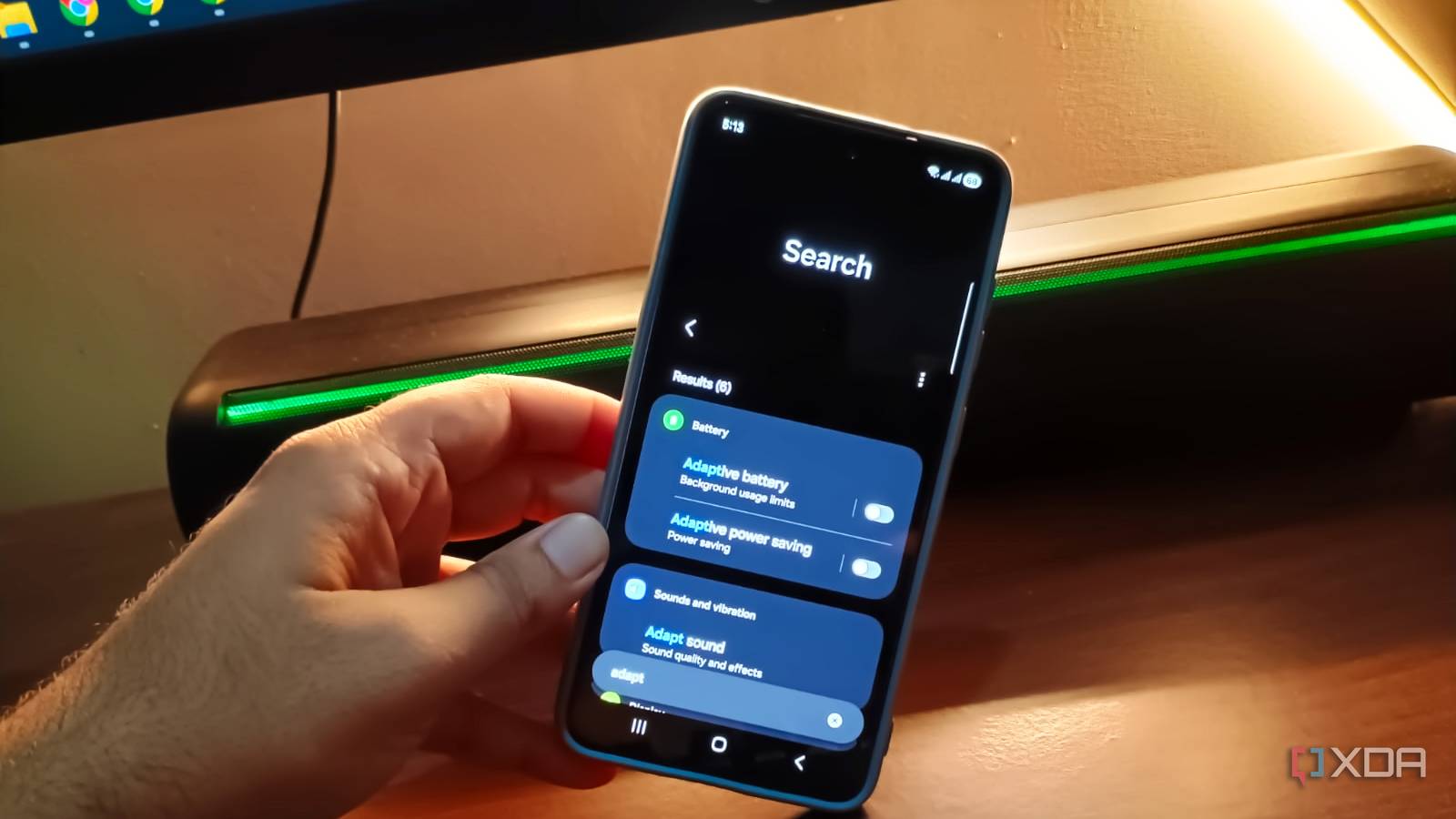
Published Sep 23, 2026, 4:00 PM EDT Abhishek is an author at XDA who covers computing. He has loved computers since he got the Lenovo G570 in 2012. Abhishek holds a master's degree in computer applications and began his writing career in 2018. He loves writing how-to articles, listicles, and informational posts on popular operating systems and web services. He closely follows the Windows Insider program and tests new Insider builds to discover upcoming experimental features and upgrades. His past work includes long-term collaborations with reputed publications like Tom's Hardware, and Windows Latest. When not writing anything, he is busy watching new episodes of One Piece or searching for something binge-worthy. Smartphones have indeed gotten bigger, with battery capacities averaging around 4000–5000mah. This reflects an effort to meet the software demands of the Android OS, which keeps adding features to improve the user experience. However, not all smartphone models come with the largest battery capacity. My Samsung Galaxy S21 FE has a 4500 mAh battery that doesn't seem to last as long as it should. I barely get a day out of it, and then deliberately keeping the maximum charge at 85 percent for battery protection shaves a couple of hours more. There are some obvious culprits, like background activities and apps, and lesser-known settings that slowly drain your phone's juice. I've disabled most of these Samsung One UI settings that tend to gulp down the battery life. Let's discuss the settings that you can turn off on your Samsung Galaxy phone. Always on display has grave battery implications It doesn't need to always be “on” Always on display (AOD) is a concept for phones with AMOLED displays. These displays can keep a tiny part of the screen illuminated at all times, helping you glance at a particular metric whenever needed. But when's the last time you picked up your phone just to check the time? Even if you take a break and just want to check the time, a press of the power button can show the same information with no trouble. I checked the battery charts, and it didn't paint a pretty picture of the feature. When active, AOD tends to consume a huge portion of the phone's battery because the screen is a demanding piece of hardware. Even keeping a small portion active all day eats up a noticeable chunk of battery life. One thing that I like about Samsung One UI is that it has multiple AOD settings that are much more granular than the simple on/off toggle. There are several modes ranging from Auto, Always, Scheduled, For new notifications, and Tap to show. The last option is the most feasible because it gives you control over when to activate the AOD. Rather than keeping the screen running all the time, it shows the screen elements when you tap the phone screen in locked mode. It's the most battery-conservative option if you want to keep AOD active. Otherwise, you can just deactivate it and use the power button instead. Background apps are the real battery killer Forcing the unnecessary ones to deep sleep Samsung phones aren't devoid of bloatware, and it's easy to spot multiple apps that aren't really useful. I don't mind bloatware, but limiting control over it is an even worse strategy. Some of these apps don't have an uninstallation option, and you can imagine the frustration when they keep running in the background. However, you can force sleep apps and assign them different sleeping modes on your Samsung Galaxy phone. There are two sleep modes: normal and deep sleep. The first one shows only important notifications and keeps only essential background activity enabled. However, if you don't want to lose even the slightest bit of battery power, the deep sleep option can help. It puts the apps in a state where they don't run any background activities and cannot show notifications unless you open them. There's an automatic option to add apps to the list, but I prefer the manual mode. Deep sleeping apps have made a noticeable difference in my phone's battery life, and it was one of the first things I tried. Before that, I thought aggressive power-saving mode was a great option, but it doesn't work for daily use. Deep sleep apps tend to take up storage, can launch and work when needed, and don't waste battery life like normal sleep or active apps. E-commerce apps, OEM apps like Samsung News and Bixby, and games are great examples of apps that belong to the deep sleep category. Nearby device scanning is always searching for devices I rarely need them I use wired earphones with my Samsung Galaxy S21 FE phone, which lacks a 3.5 mm jack. A USB DAC helps me connect a pair of wired earphones to it. Apart from that, the only wireless connection I really use is connecting to my JBL home theater. Samsung has a nearby device scanning feature to keep its “eyes and ears open” for any wireless device that can connect with it. The feature works well for users who have multiple wireless earphones and other devices, like printers for wireless printing. But for me, the nearby device scanning is a battery-wasting feature with no real benefits. Even when it’s turned off, I can easily connect to my Bluetooth speakers just by tapping the icon in the notification center. You’ll find the Nearby device scanning option in the More connection settings section. You can also disable the Printing option, which keeps searching for available printers in your home or workplace. Adaptive power saving is of little help The adaptive battery feature is in the same boat These two settings sound miraculous, as if they’ll magically improve your battery life. However, keeping both active does very little to boost your battery life. The names are even more confusing, and you are better off with manual modes for both of them. Adaptive power saving dynamically adjusts phone settings to conserve battery. But the feature doesn’t state what settings it alters, and it's the biggest problem with it. I prefer the manual mode while traveling because I can select the features that I want to turn off temporarily. Adaptive battery mode is an automated version of sleep mode that only affects phone apps. It categorizes apps and limits their background activity based on usage patterns. But less-used apps don’t mean that they should remain in sleep mode. For example, a grocery delivery app might not be active for five minutes a day, but it still needs to show notifications when the rider arrives. The delivery might be hours after the order time, and if Adaptive battery mode devices put the app to sleep, it’s a disaster. Save your battery I picked the Samsung Galaxy S21 FE because it was a compact phone with a decent camera. Small form-factor phones tend to lag in the battery life segment, and Samsung's One UI settings leave no stone unturned to reduce it further. You can safely disable the above-mentioned settings for a small boost in daily battery life. Background apps remain the biggest troublemaker, so start with them. Samsung Galaxy S26 SoC Snapdragon 8 Elite Gen 5 Display 6.3-inch Dynamic AMOLED 2x The latest flagship series phone with new AI features and improved camera. RAM 12 GB Storage 256 or 512 GB Battery 4,300 mAh Weight 167g Colors Violet, Sky Blue, Black, White, Silver Shadow, Pink Gold Operating System Android
Your Samsung phone has hidden battery drains — here's how to find and kill them
Full Article
Original Source
Read the full article at Xda-developers →KhanList aggregates and links to publicly available news content. We do not host full articles from third-party sources. Always verify important information with original sources.