
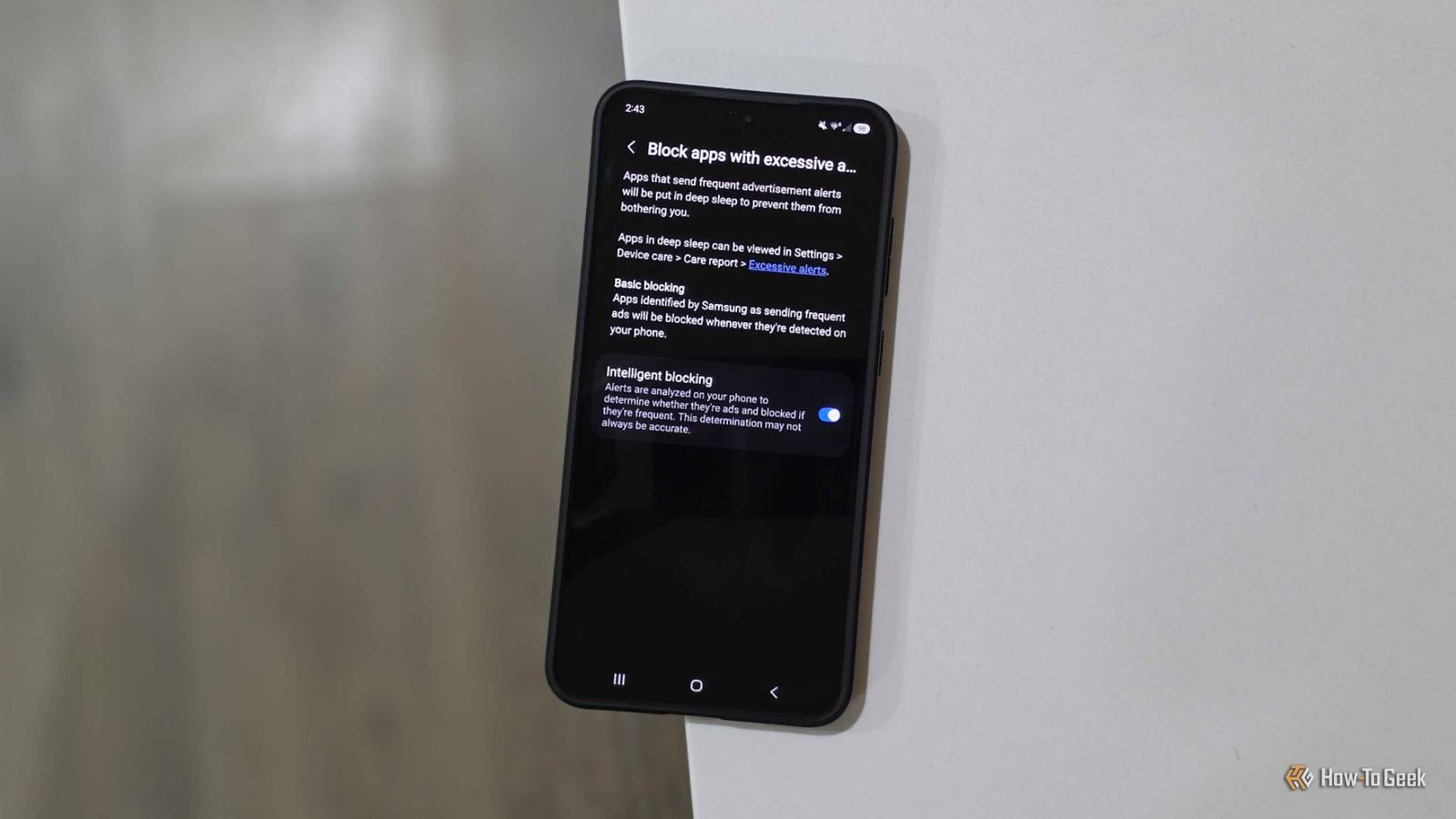
Published Aug 12, 2026, 9:45 AM EDT Cory Gunther is a senior author and Newsletter Editor at Valnet, covering cutting-edge tech, Android, and more for How-To Geek. He's covered Android, cars, and technology for over a decade. When he's not reviewing the latest gadget, you can find him off-roading in his Toyota truck, fixing said truck, or doing something outdoors with friends and family. He's covered CES, SEMA, and MWC and reviewed countless phones, TVs, speakers, EVs, e-bikes, and more. Before Valnet, Cory worked for GottaBeMobile. His writing has also appeared on SlashGear, InputMag, and AndroidCentral. He's written over 9,000 articles. No one wants ads and other junk popping up on their screen, especially if those ads are frustrating notifications from an overly aggressive app on your Galaxy phone. Thankfully, if you're on the latest Samsung One UI 8.5 update, you can use a new ad blocker hidden in the settings menu. Most newer Samsung phones should be running One UI 8.5, which arrived earlier this year, and the update has several overlooked features you'll probably love. One of those is a new setting in the device care menu designed to stop pesky ads from appearing in your notification tray. I'm talking about Samsung's new feature called Block apps with excessive ads. While this won't block in-app ads or ads you see while browsing the web, it will wrangle and prevent notification ads for those who need it. Hiding in plain sight Credit: Cory Gunther / How-To Geek Before I begin, I want to mention again that this isn't a traditional ad blocker. Instead, it's a setting that can recognize and block certain apps that are overtly spamming your notification system, especially if some of those alerts are advertisements. According to Samsung, the new Block apps with excessive ads feature is pretty powerful, and the company explains it by saying, "apps that send frequent advertisement alerts will be put in deep sleep to prevent them from bothering you." The basic mode will let Samsung figure things out and potentially slow down notifications and spam ads. However, there's a second option called "Intelligent blocking," where alerts are analyzed on your phone to determine whether they're ads and blocked if they're frequent. This all happens automatically using AI, and Samsung even notes that this intelligent determination may not always be accurate. Basically, one is a simple tool, while the other is more aggressive and might need some babysitting. Samsung already has a built-in system that puts apps you don't often use to sleep, which can help improve battery life and other performance. Now, this is just an extension of its deep sleep feature, only for apps that are going overboard. Stop notification spam in its tracks Now that you know a little more about this relatively unknown feature inside of One UI 8.5, here's how to turn it on. As long as you're running One UI 8.5 (or later), you can start by heading into Settings > Device Care > and tapping the 3-dot menu button at the top right. Head into Device care settings and tap on the Block apps with excessive ads option. Next, you'll want to flip the switch to "On" for the Intelligent blocking mode. Again, this won't prevent ads in your browser or inside apps themselves. Instead, it's a system to prevent pesky apps from sending advertisements and similar alerts to your notification system. We've all probably downloaded an app or two that continuously sends us alerts, and the intelligent system will recognize that it's a problem and put the app to sleep to prevent further interruptions. Keep in mind that this might be pretty aggressive, and if there's an app you use somewhat frequently that gets targeted and put to sleep, it will no longer get updates. If that's the case, you might want to turn off intelligent mode or manage notifications on a per-app basis yourself. For example, I use Postmates for food delivery, but the app is constantly sending me alerts, discounts, or telling me that now might be a good time to order. Obviously, that's a bit irritating, and Samsung's system actually shut it down for me. I didn't have to dig into settings, uninstall the app, or take any other measures. Instead, my Galaxy phone's ad blocker tool did all the work for me automatically. It's pretty great. Use it as a guide for which apps to uninstall After you turn on this helpful One UI 8.5 feature, let it run for a few weeks, and you'll start to notice fewer ads and junk showing up in your notification bar. Then, go back to Settings > Device care > more > Block apps with excessive ads, and tap the "Excessive alerts" option. This will give you a report on all the misbehaving apps, and it's a great way to decide which apps to uninstall from your Galaxy phone. I constantly purge apps to free up space, and the ones Samsung's system puts to sleep are the first ones to go. Then, when you combine that with choosing a new DNS for your device, you'll have a Samsung phone that's fast and ad-free, and you'll likely enjoy better battery life, too. And if your phone is too old for One UI 8.5, you might want to consider upgrading to a newer model. In the future, it would be great if Samsung would extend this feature to stop ads inside browsers and apps, but for now, notification ads are all it can handle. Samsung Galaxy S26 Ultra Brand Samsung SoC Snapdragon 8 Elite Gen 5 Get the new Galaxy S26 Ultra with AI smarts and an all-new privacy display. It's big, powerful, packed with AI, and you'll love the S-Pen stylus.
Your Samsung Galaxy’s new ad blocker is better than you think
Full Article
Original Source
Read the full article at Howtogeek →KhanList aggregates and links to publicly available news content. We do not host full articles from third-party sources. Always verify important information with original sources.