
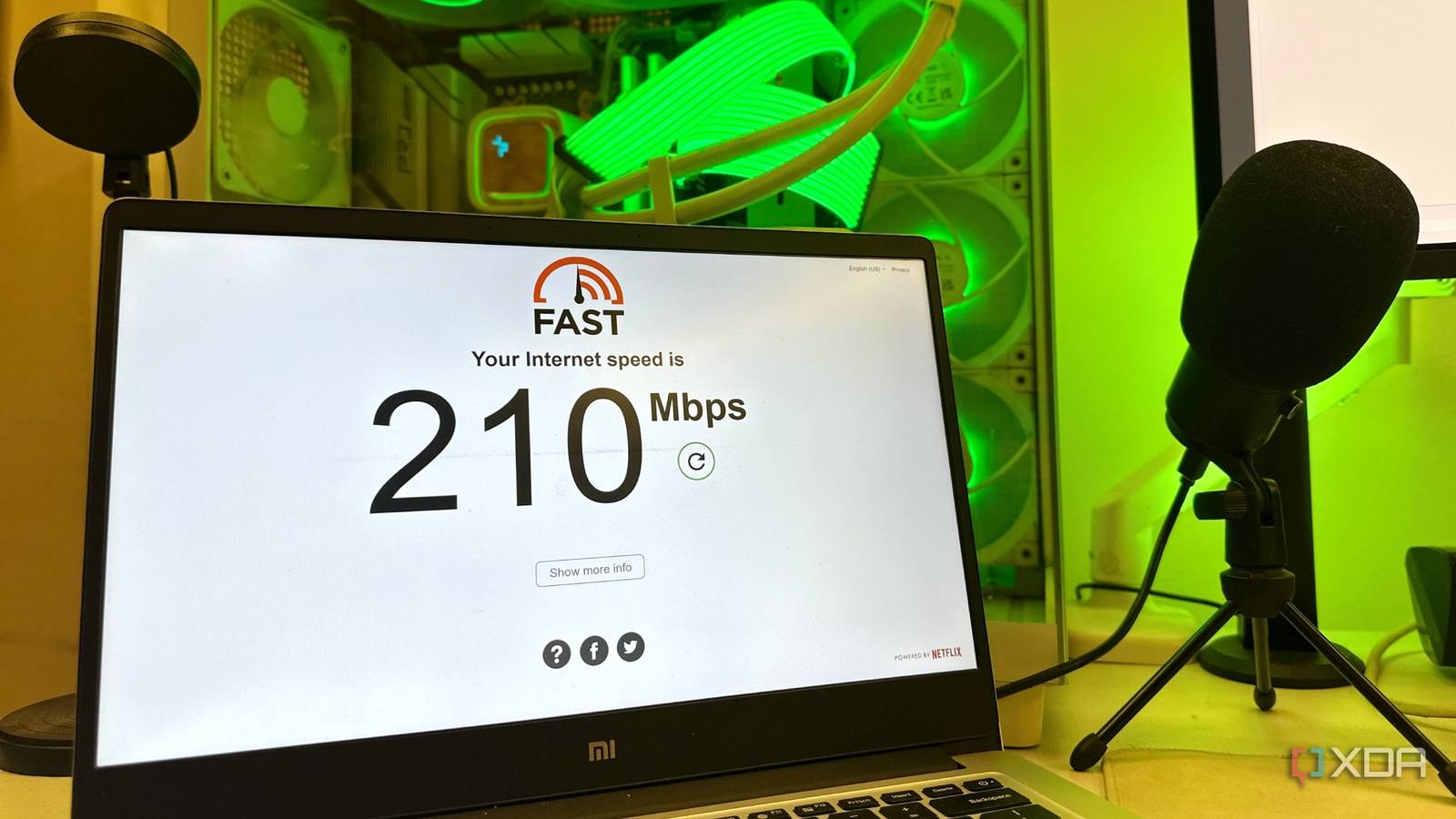
Published Aug 26, 2026, 8:01 AM EDT Jasmine is Software and PC Hardware Author at XDA with years of tech reporting experience ranging from AI chatbots right down to gaming hardware, she's covered just about everything. Whether it's breaking news about the latest AMD NPUs or creating video tutorials on social media platforms, Jasmine has contributed to the world of AI and tech in a variety of ways including interviewing the CEO of Razer, AMD's Director of Product Marketing and the VP of Lenovo. Passionate about gaming and PC technology, she has built countless computers, keyboards and other peripherals - knowing them inside and out. An all-too-familiar scenario is when you are on a wired connection or even high-spec Wi-Fi with a 500Mbps+ speed. Yet in fast-paced tactical shooters, you suffer from intermittent micro-rubber banding and hit registration delays. Unfortunately, when you run a speed test, you'll still see your high speeds and low idle ping, which might leave you completely baffled as to why your actual gaming sessions feel inconsistent. The problem may be your router's wireless channel width, which was set out of the box to 80 MHz or 160 MHz in order to chase vanity benchmark numbers. In competitive multiplayer gaming, bandwidth capacity is irrelevant. Airtime stability and signal-to-noise ratio are everything. By dropping your 5 GHz or 6 GHz channel width from 80 MHz or 160 MHz down to a clean 40 MHz or even 20 MHz, you eliminate co-channel interference, avoid radar dropouts / the RF noise floor, and lock in flat, zero-packet-loss delivery, which should ultimately rectify your lag. How does channel bonding work? Understanding this is fundamental The first thing you need to understand about Wi-Fi and how it works is the RF physics of channel bonding. Channel bonding works by dividing standard 5GHz Wi-Fi into individual 20MHz channels to deliver massive gigabit wireless speeds. Modern routers bond multiple adjacent channels into 40MHz, 80MHz, 100MHz, or 60MHz super channels. This also suffers from a thermal noise floor tax of around a 3 dB penalty per doubling. In RF engineering, every time you double your channel bandwidth (for example, going from 20MHz to 40MHz, then to 80MHz, and finally to 160MHz), you let in twice the thermal noise. This raises your background noise floor by 3 dB per step, which directly degrades your signal-to-noise ratio. The lower signal-to-noise ratio forces the router and your PC to drop to lower modulation and coding scheme rates, causing retransmitted packets, CRC errors, and sudden latency spikes. For you, this will show up as lag, and your speed tests will still look fine. An 80MHz or 160MHz channel is like casting a massive fishing net across the entire RF spectrum. If even one neighbor's router or a baby monitor in the area transmits on a sub-channel in that swath, your entire bonded channel is forced to pause under clear channel assessment rules. Your latency might be spiking yet still show clean speed test results If your ping appears great, why is your game stuttering? To get a clean 80MHz or 120MHz block on 5GHz Wi-Fi bands, routers are forced to use DFS channels like UNII-2 and UNII-2 Extended. However, by law, if your router detects the faintest blip of a nearby weather radar or an airport channel, it must instantly silence its radios due to the channel availability check and force all connected clients to jump onto another frequency. For a gamer, a DFS strike means a sudden 2- to 5-second total freeze, which, if this occurs mid-gunfight, can entirely ruin your game. Yet again, when this is happening, your speed tests will look completely clear. You might also face co-channel interference in denser areas like apartment buildings or busy suburban streets. Your neighbors' routers are also fighting for 80MHz channels, which can cause issues. The constant overlapping packet collisions create heavy burst packet loss that never shows up on a sequential speed test. Adjust your Wi-Fi settings straight away This can fix a lot of your network issues Cloudflare provides you with more information when compared to a standard speed test. Luckily, you can fix all of these problems with a few tweaks to your Wi-Fi settings. Before you start, audit your spectrum with a Wi-Fi analyzer. You can use a tool like Wi-Fi Analyzer to scan the local 5GHz band. Download it on a device you can move around with, like your laptop or phone, then run a scan to see whether there are any issues with your network and what the details are. It can also identify clean slices in UNII-1 or UNII-3 that avoid DFS channels entirely. Once you have this information, you're ready to get started. Next, lock the channel width in your router firmware. You can do this by going to your router's wireless settings and looking at the 5GHz or 6GHz radio settings. Switch your channel bandwidth from auto to 40MHz, or even 20MHz if you're in an ultra-congested apartment building or somewhere with a lot of interference. Manually select a fixed primary control channel like channel 36 or 149 instead of automatic. Set roaming aggressiveness to the lowest to stop Windows from scanning for other access points mid-match, which can also introduce latency spikes. Don't let out-of-the-box settings ruin your experience Adjust them to suit your needs Router manufacturers market theoretical peak speeds in order to win the spec sheet war, but competitive multiplayer netcode sends tiny UDP packets requiring less than 1Mbps of bandwidth, sacrificing our stability for gigabit download speeds you don't use while gaming. This is a losing trade. Log in to your router's administrative console, drop your 5GHz channel width to 40MHz, and you'll avoid the DFS trap and, hopefully, as a result, enjoy a flat 0-packet-loss connection every time you queue for a match.
Your router's channel width setting is sabotaging your gaming, and the fix takes 30 seconds
Full Article
Original Source
Read the full article at Xda-developers →KhanList aggregates and links to publicly available news content. We do not host full articles from third-party sources. Always verify important information with original sources.