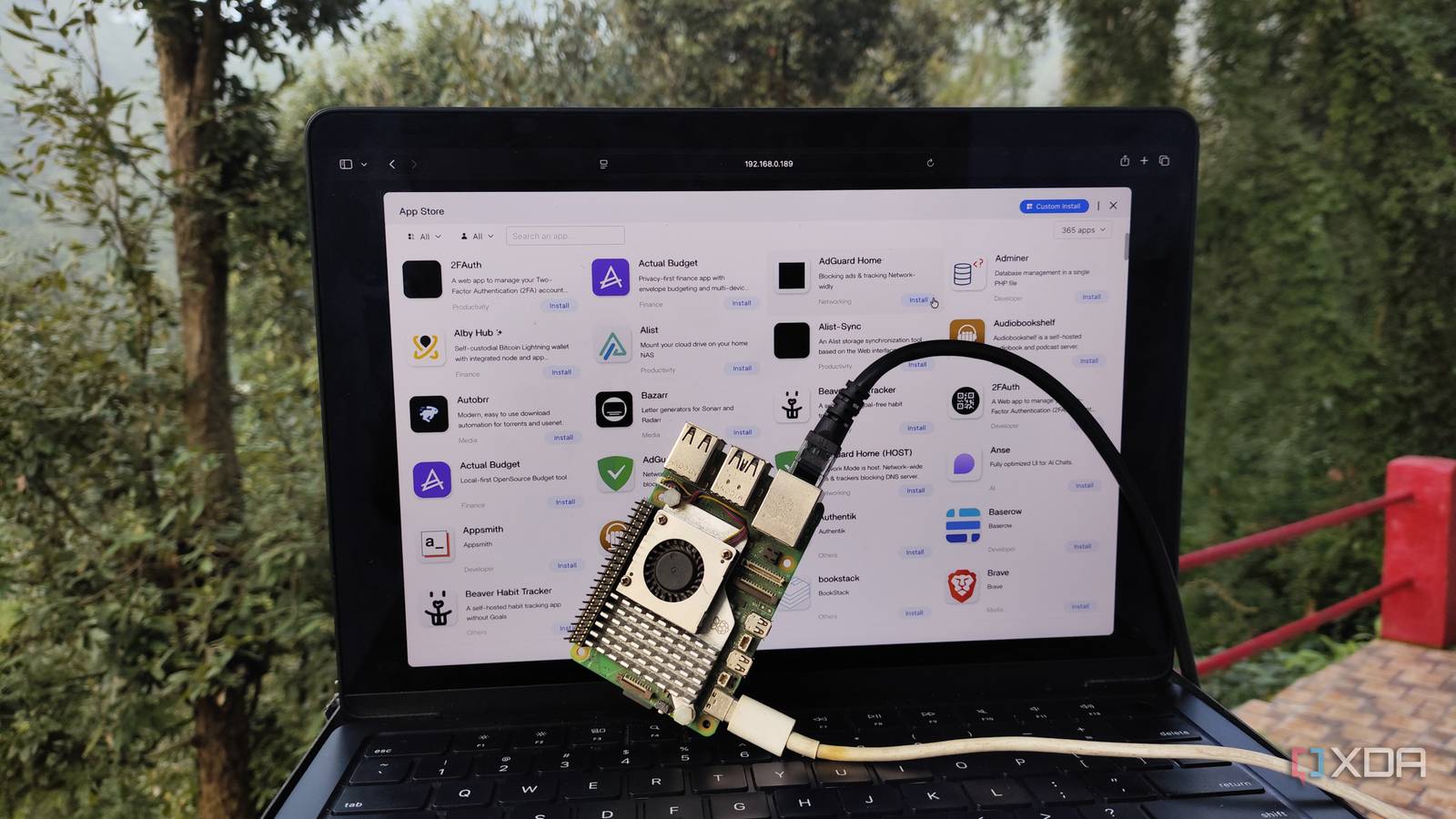
Published Aug 15, 2026, 11:00 AM EDT Ayush Pande is a PC hardware and gaming writer. When he's not working on a new article, you can find him with his head stuck inside a PC or tinkering with a server operating system. Besides computing, his interests include spending hours in long RPGs, yelling at his friends in co-op games, and practicing guitar. Productivity apps can be a godsend when you’re about to head back to school for the upcoming semester. But considering the subscription-heavy nature of most cloud-based tools, it might be a good idea to self-host your own QoL applications. Contrary to what most beginners think, you don’t need bulky enterprise-grade systems to build a cheap self-hosting workstation for your everyday tasks. Heck, even a Raspberry Pi single-board computer is more than enough to run a handful of productivity tools, with tools like CasaOS making the container management process more accessible for fledgling home labbers. And if you’ve got a modern, non-Zero RPi board, you can also configure lightweight yet fairly capable large language models to complement your local application stack. CasaOS meshes well with good ol’ Raspberry Pi OS Lite for this project But the Raspberry Pi supports a couple of other container-hosting platforms Starting with the brass tacks, you’ll need a container runtime to deploy FOSS services. Docker Engine is the most common option, and thanks to utilities like Compose, it’s easy enough to pick up for complete beginners. However, managing Docker environments from a command-line interface can be a little too cumbersome when you’ve got dozens of lectures to attend every week. So, I recommend going with a containerization platform – one that includes everything from Docker packages to web UI elements – to make your self-hosting journey as painless as possible. CasaOS is one of the first home server tools I used in my university days, and although it needs an underlying operating system, it has enough accessibility features to make it worth setting up on a Raspberry Pi. OS-wise, I’d recommend opting for a lightweight Linux flavor, preferably one without a desktop environment, as we’ll be using the web interface to manage the containerized services. Raspberry Pi OS Lite is a decent option, especially since you’re not likely to encounter weird compatibility issues with the distribution once you start working on complex projects, but DietPi is also worth looking into if you want something with an even smaller footprint. As for the installation process, the official Raspberry Pi Flasher works really well with the RPI OS Lite, and as long as you plan to self-host light services instead of storage-hogging apps, a 64GB microSD card should be more than enough for this project. Then, all you have to do is insert the freshly-written microSD card into your tiny tinkering companion, choose a handful of keyboard and account settings, and voilà; you’re free to tinker with the Raspberry Pi OS to your heart’s content. Once you’ve updated the package repos using sudo apt update, you can install the curl utility needed to pull the CasaOS setup script with sudo apt install curl -y, before running curl -fsSL https://get.casaos.io | sudo bash and waiting for the installation wizard to work its magic. Soon, the CasaOS script will display the IP address for its web interface, and you can start experimenting with the container management platform after you create a local account for its UI. CasaOS’ app store made deploying services a breeze While its Files utility is pretty useful for sharing documents with my client devices If you’re wondering why I went with CasaOS specifically, it’s because the platform houses several QoL features to make your container management tasks painless. For one, it has a neat dashboard where you can monitor essential Raspberry Pi metrics. But the real star of the show is the App Store that ships with the platform, as it includes ready-to-deploy templates for most of the essential tools you could need in your student life. As for utilities that aren’t available as templates, you get the option to paste Docker Compose files directly within CasaOS’ web UI, so you don’t need to run terminal commands every time you want to look into a cool yet obscure service. The same applies to docker run commands, which is precisely how I got BentoPDF running on my CasaOS-powered Raspberry Pi home server. CasaOS also ships with a neat file browser, where you can upload and download files to your heart’s content, thereby letting your Raspberry Pi double as a document-archival hub. On top of that, CasaOS supports SMB shares, and configuring them is as simple as right-clicking on a folder and pressing the Share button. Combine all that with its customizable UI and support for third-party app repositories, and CasaOS is a beast of a software suite for your Raspberry Pi-powered dorm-room server. CasaOS Meanwhile, llama.cpp handles light LLMs on my Raspberry Pi Gemma 4 E2B is surprisingly useful for simple inference tasks Considering the inadequate reasoning capabilities of low-parameter LLMs, a Raspberry Pi sounds like a terrible host for AI models. But thanks to Gemma 4 E2B’s wild Per-Layer Embeddings-based architecture, this LLM has a footprint of 2.3B parameters, even though it can access a knowledge base that’s equivalent to a 5.1B model. If you want a no-nonsense setup process for Gemma 4 E2B, you can use the Ollama template within CasaOS. However, I’d recommend compiling llama.cpp for this project. Yes, it’s a tad more complicated than an Ollama instance, but it lets you fine-tune your LLM parameters and has a lower performance overhead (which is extremely important considering the weak specs of Raspberry Pi boards). If you’re following along, the setup process is far less complex than it may look. I’ve deployed it on the same Raspberry Pi SBC where I installed CasaOS, and all I had to do was run these commands: sudo apt install -y git build-essential cmake pi-bluetooth libcurl4-openssl-devgit clone https://github.com/ggml-org/llama.cpp.gitcd llama.cppcmake -B build -DCMAKE_BUILD_TYPE=Releasecmake --build build --config Release -j$(nproc) On my Raspberry Pi 5 (8GB), it took roughly 15 minutes for the compilation process to finish, and I already had around ten containers (including Nextcloud and Obsidian) active on CasaOS. Then, I downloaded the gguf file for Gemma 4 E2B (Q4_K_M) as well as its mmproj file to add vision detection capabilities to the LLM. Running it with ./bin/llama-server -m /model/directory/gemma-4-E2B-it-Q4_K_M.gguf --mmproj /mmproj/directory/mmproj-gemma-4-E2B-it-BF16.gguf -c 75000 --host 0.0.0.0 --port 8087 caused the CPU usage on my Raspberry Pi to spike to 80%, while the RAM remained at the 50% mark. The token generation speeds across all my tests were in the 5.6–6.2 t/s range, and as long as you have a similar setup, your Gemma 4 E2B performance numbers should be the same. Of course, this Raspberry Pi-powered llama.cpp pipeline isn’t ideal for getting instantaneous answers, but it’s more than enough for adding LLM inference capabilities to Blinko, Karakeep, Paperless-GPT, and other AI-supported apps on CasaOS. But if you haven’t bought a Raspberry Pi yet, a used mini-PC might be a better option My Raspberry Pi 5 was something I’d bought during my university days, and it turned out to be a solid investment for training my Linux, self-hosting, and (most importantly) troubleshooting needs. That said, if I had to begin uni anew, I’d ditch mainline Raspberry Pi boards and opt for a cheap mini-PC or an outdated thin client instead. Contrary to when I bought it, the Raspberry Pi SBCs are a lot more expensive these days, to the point where x86 machines with built-in SSDs tend to retail at cheaper rates than a high-end RPi 5. If you end up choosing a mini-PC for your dorm-room server, you can just use DietPi or the CLI version of Debian instead of Raspberry Pi OS Lite. Both CasaOS and llama.cpp shouldn’t give you any trouble on a typical mini-PC, and you’ll get solid performance without spending all your savings on a low-power Raspberry Pi SBC.
Your Raspberry Pi can become a reliable Docker and AI-hosting dorm-room server, and the setup process is just that simple
Full Article
Original Source
Read the full article at Xda-developers →KhanList aggregates and links to publicly available news content. We do not host full articles from third-party sources. Always verify important information with original sources.