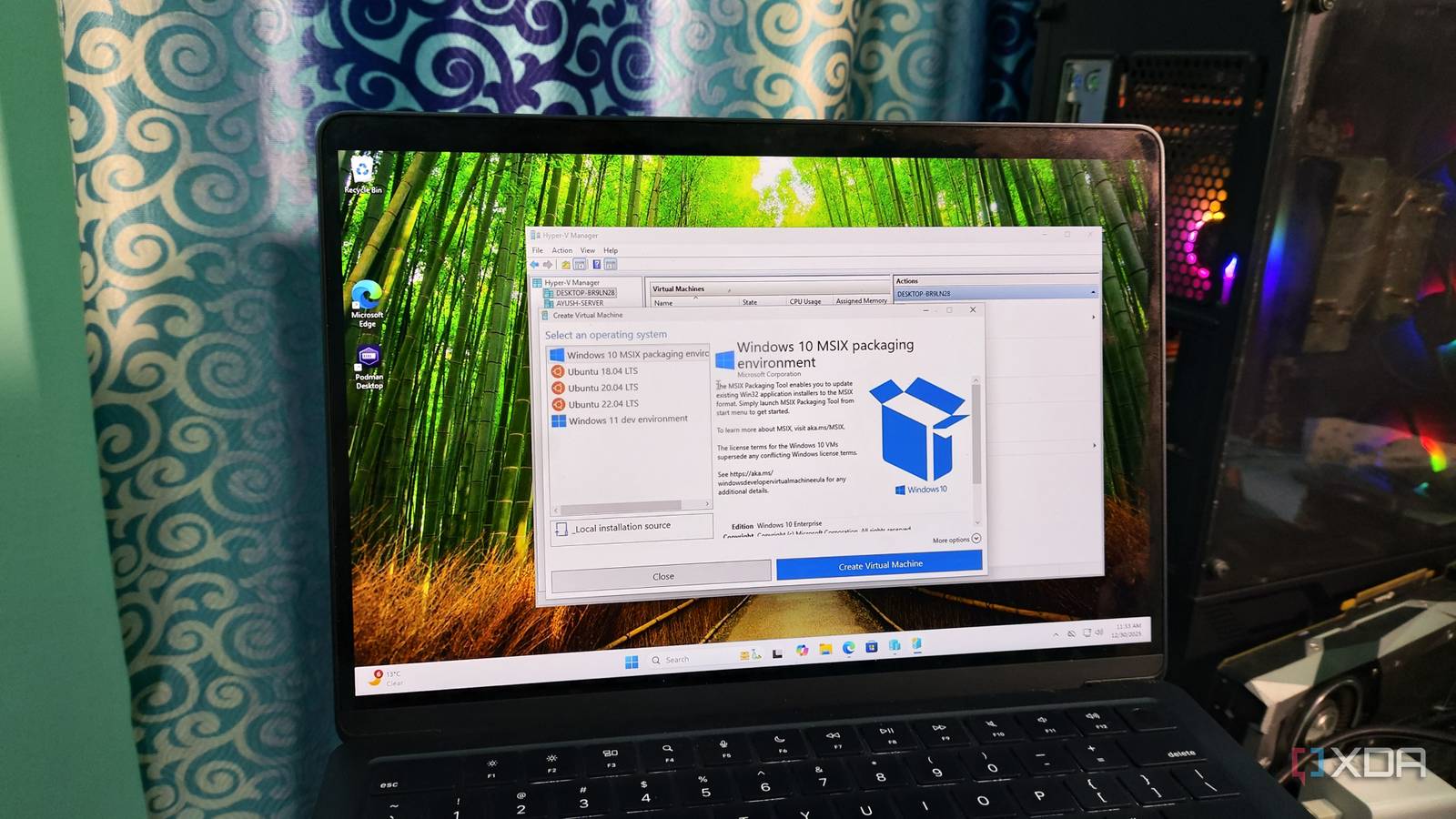
Published Aug 3, 2026, 2:00 PM EDT Abhishek is an author at XDA who covers computing. He has loved computers since he got the Lenovo G570 in 2012. Abhishek holds a master's degree in computer applications and began his writing career in 2018. He loves writing how-to articles, listicles, and informational posts on popular operating systems and web services. He closely follows the Windows Insider program and tests new Insider builds to discover upcoming experimental features and upgrades. His past work includes long-term collaborations with reputed publications like Tom's Hardware, and Windows Latest. When not writing anything, he is busy watching new episodes of One Piece or searching for something binge-worthy. Type-2 hypervisors like VirtualBox are a great way to run a second operating system on your PC. You don't need to dual-boot, which causes more problems with file management and isolation; you are better off with these virtualization tools. Even Windows includes a hypervisor, but most people rush to VMware or VirtualBox instead of the native one. A huge part of the problem is Microsoft's idea to restrict Hyper-V to only Pro, Education, and Enterprise editions, which cost more than the Windows 11 Home edition. While it's a good earning strategy, Hyper-V’s native implementation makes it easy to run virtual machines, and it is a sore sight not to have it on Windows 11. Let’s discuss why it's a better virtualization tool than VirtualBox. Built-in and reliable Perks of a native OS tool Any third-party tool won't have the same level of integration and compatibility as a native one. Hyper-V is a great example of this because I've faced numerous instances where a Windows update or a change in OS policies has conflicted with VirtualBox and VMware. A beginner who wants to set up and run a separate instance of Windows or Linux on their PC isn't ready for the complexity or problems involved. I prefer reliability over any other feature in a hypervisor. VirtualBox looks like a modern tool with a better UI and design. I wouldn't malign it on the basis of these factors. Hyper-V is yet to receive a facelift like its third-party competitors, but that doesn't mean it's unusable. In fact, if I had to choose between the current UI, VirtualBox, or Hyper-V, I would go for the latter. VirtualBox has become too distracting since the new design in version 7.0, and it no longer works for me. Hyper-V lists all the options on one side, and you can quickly spin up a virtual machine or take control and configure each element from scratch. The setup clearly explains each element and what it does, rather than just throwing a bunch of jargon words at you. Even if you are a novice, you can understand how to set up a folder location, adjust the virtual disk size, assign memory, and manage network adapters. I don't see the same level of explanation in VirtualBox or VMware, which are direct and uninformative. Better overall performance Features that actually matter Even though VirtualBox’s performance has improved over the years, with much less noticeable delay, it's still a type-2 hypervisor. In simple terms, it's an application that first asks Windows, and then Windows sends requests to the underlying hardware. So, no matter how much the application improves, there will always be a performance overhead. Hyper-V is baked into Windows and doesn't suffer from such handicaps, resulting in better performance when running one or more virtual machines. Hyper-V is also a tad better at managing system resources and supports dynamic memory allocation. I can't remember how many times I've encountered memory limitations on my host OS while running a virtual machine in VirtualBox, and it's infuriating. VirtualBox sets aside a portion of memory for the virtual machine, but it cannot increase or decrease it when the system experiences an abrupt demand. During setup, Hyper-V asks you to enable dynamic memory allocation, and you don't have to worry about it later on. The app can intelligently manage low- and high-demand scenarios and use only what's required. The disk I/O performance is also better in Hyper-V machines, mainly due to the type-1 hypervisor nature. I like this because Windows updates and heavy software installations complete faster, and it doesn't feel like I'm losing performance due to virtualization. Hyper-V also supports checkpoints to easily revert to a working configuration, and clipboard sharing and other features, like display resizing, work natively. In VirtualBox, I need to rely on Guest additions to enable these features, and they require an update whenever VirtualBox releases a new version. I also despise the VirtualBox design of switching between the virtual machine and the host OS. It's difficult to escape the session, and I don't see the same problems with Hyper-V. I can move my mouse cursor in and out of the active virtual machine window without pressing a dedicated escape key. Learn the nuances of virtualization Hyper-V is an enterprise-grade software hiding in plain sight on your Windows PC. It's the tool that Microsoft uses as the virtualization foundation for multiple OS security features, and it can be a great teaching point for you. It can help you learn about virtual machines, server management, and testing tools in disposable machines without sacrificing the main system. Moreover, you learn the traits of managing virtual machine components, network adapters, managing TPM, and Secure Boot, and toying with Windows installations. Once you master one machine's management, you can create multiple of them and learn remote access and management. Doing so helps you understand how to manage multiple servers remotely, all while maintaining complete control. VirtualBox can offer these capabilities to some extent, but it’s not as good as Hyper-V for learning Windows Server and other Microsoft-focused concepts. Even if you are on Windows 11 Home and want to use Hyper-V, there’s a simple script to solve all your troubles. I’ve used it on one of my daily-driver PCs, and it can add the feature for you. There will be a few errors when you run the batch file, and it can take around 30 minutes to complete. But after a restart, you can use Hyper-V to run Windows and Linux machines without any problems. Free yet powerful Third-party tools exist to solve problems that native Windows solutions cannot. However, Hyper-V is one of those few exceptions, and you’ll love it once you start using it. VirtualBox looks better, but I’ve had enough problems with it and prefer Hyper-V for both Windows and Linux machines. It has better features too, and while VirtualBox wins in areas like USB pass-through, I don’t like the idea of relying on Guest Additions for the most common features, and I miss support for dynamic memory allocation. Windows 11 Pro A USB installation drive and license key for Windows 11 Pro, with additional features like Hyper-V and Windows Sandbox support.
Your PC already has a better hypervisor than VirtualBox, and it's been there the whole time
Full Article
Original Source
Read the full article at Xda-developers →KhanList aggregates and links to publicly available news content. We do not host full articles from third-party sources. Always verify important information with original sources.