
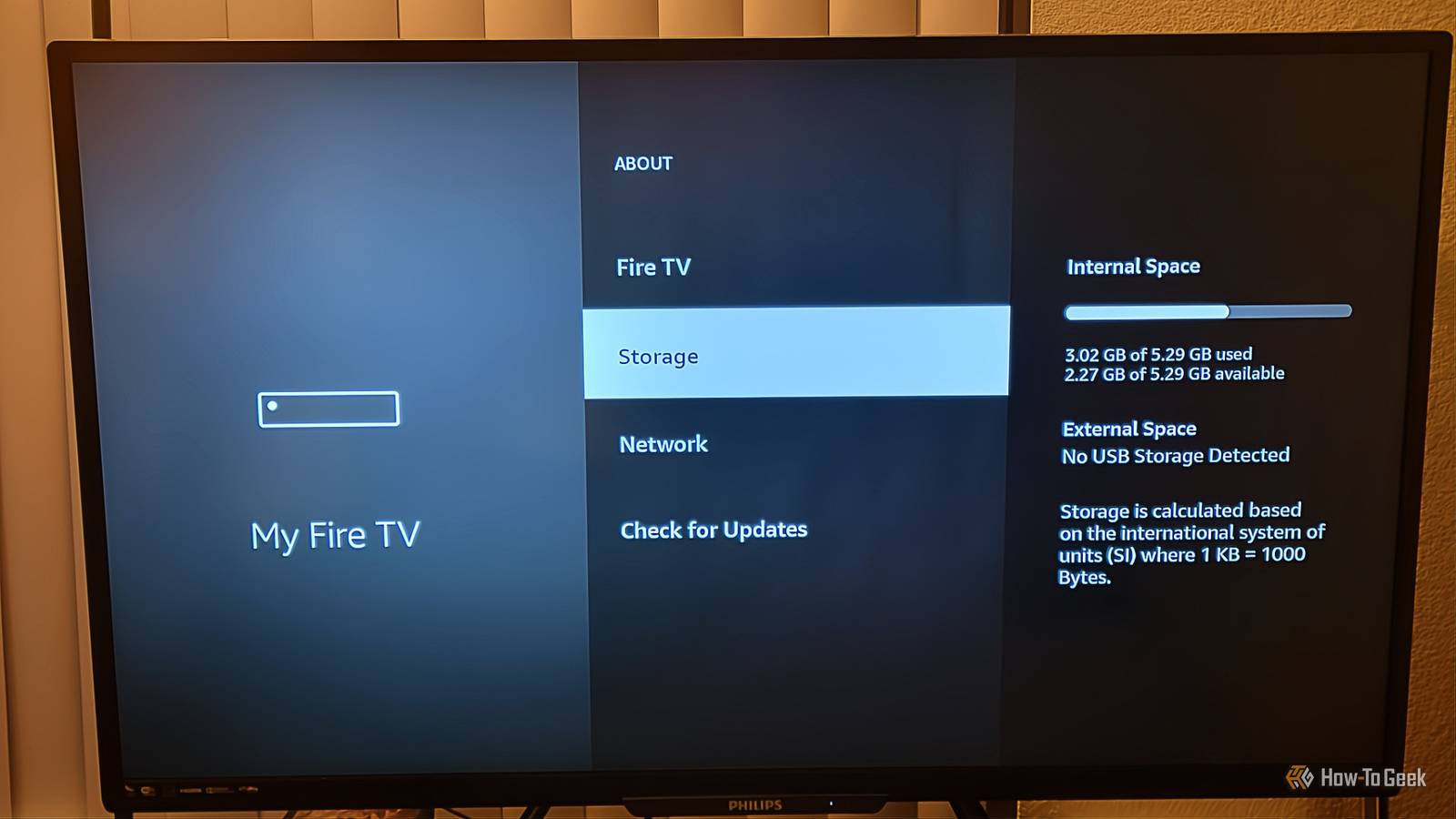
Published Nov 15, 2026, 4:30 PM EST Aggy is a veteran writer and editor in the technology and gaming space. Having served as a Managing Editor for high-traffic digital publications, alongside being an editor and consultant for over a dozen sites. Aggy's published work spans a wide and respected array of tech and gaming outlets, including WePC, Screen Rant, How-To Geek, Android Police, PC Invasion, and Try Hard Guides. Beyond editorial work, Aggy's direct experience in the tech sphere extends to app development. Aggy has published two games under Tales and is always eager to learn and do more. He also likes working on computers and researching in his spare time. He knows about Windows, Linux, Audio, Video, and much more. My old Fire TV Stick used to be fine, but it's gotten slower over the years. The big issue is that the apps got heavier, but the hardware stayed the same. It doesn't help that Amazon keeps running its own services in the background. You don't have to replace the stick or live with the lag. There's a developer tool already built into the system that doesn't cost anything and is easy to use. Old Fire TVs slow down for a reason ADB lets you change what Amazon hides Older Fire TV Sticks came with pretty cramped hardware, usually somewhere between 1 and 1.5 GB of RAM and a modest quad-core chip. That was okay back then, but streaming apps have gotten way heavier over the years. They now load high-res image grids, animated backgrounds, and big video buffers that these older devices were never built to handle. When RAM fills up, the system has to keep stopping and cleaning up memory for more space. That's what's causing the stuttering, input lag, and frozen menus you're probably used to. Storage is another problem. Most older Fire TVs only have 8 GB of internal flash storage, and once that starts filling up, the drive has trouble keeping up with read and write requests, which can make the whole device slower. On top of all that, Fire OS runs a bunch of background stuff, like Alexa listening daemons, ad overlays on the home screen, telemetry services, and recommendation engines. All of these features are eating up the RAM and CPU that your streaming apps could be using instead. ADB (Android Debug Bridge) is a developer tool built into Android that lets you send commands straight to an Android device from a computer or phone, over USB or Wi-Fi. Since Fire OS is built on top of Android, it still has the same core system components under the hood, like the services that manage running apps, handle memory, and draw animations on screen. Amazon switched to Vega OS recently, but that doesn't change anything for devices sold before Vega. Those still run on Android. I can't say the same for Fire Sticks sold after the update, but most of them are still Android underneath. ADB gives you a way to tweak those components directly, beyond what Amazon shows you in the normal settings menus. Before you can run any ADB commands, you just need to turn on the hidden developer settings on the Fire TV. Go to Settings, then My Fire TV (some older models call it Device & Software), then About. Go to the main device entry, like "Fire TV Stick," and press the Select button on your remote seven times quickly. You'll see a message on screen confirming developer mode is on. Head back to My Fire TV, and you'll now see a Developer Options menu. Go in there and turn ADB Debugging on. This tells the device to start listening for ADB connections on port 5555. You'll also need your Fire TV's IP address. Go to Settings, then My Fire TV, then About, then Network. Write down the IP address shown there. Don't use the Network section under the main Settings screen since that one doesn't show the actual IP. You need to connect over ADB first These commands will speed up your Fire TV Your computer or phone needs to be on the same Wi-Fi network as the Fire TV. Open a terminal (or an ADB app on your phone) and type: adb connectIP_ADRESS:5555(make sure to have angle brackets that surround your IP_ADRESS) Replace IP_ADDRESS with the one you wrote down. The Fire TV should show a prompt on screen asking if you want to allow debugging from this device. Select "Always allow from this computer" and hit OK. That saves your computer as a trusted device so you don't have to approve it every time. Once you're connected, run these commands one at a time. Take your time here, you don't want to mess up and put in the wrong command. Kill background processes right now. Use one of these two commands, since the first one doesn't always work. For the second one, swap in the package name of the app you want to stop. adb shell am kill-all adb shell am force-stoppackage_name (make sure to have angle brackets that surround your package name) This tells the system to close the background apps that are sitting in memory. It frees up RAM fast. The catch is that it's temporary since the apps will slowly creep back as you use the device, but it's a good instant fix. Stop background apps from piling back up: adb shell settings put global activity_manager_constants max_cached_processes=2 By default, Fire OS can keep up to 32 apps suspended in the background. This command drops that limit to 2, so the system has to clear out old apps before RAM gets critically low. This one sticks around after a reboot. A major OS update might reset it, but normal restarts won't. Run these three commands to speed up animation: adb shell settings put global window_animation_scale 0.5 adb shell settings put global transition_animation_scale 0.5 adb shell settings put global animator_duration_scale 0.5 These control how long screen transitions take. Cutting them in half makes menus and app switching feel a lot snappier because the device spends less time drawing animations. You can also set these to 0 to skip animations entirely. These settings also survive reboots. To disable bloatware packages, use: adb shell pm disable-user --user 0 package_name (make sure to have angle brackets that surround your package name) Replace package_name with the package you want to disable. This tells the system to stop launching that app entirely, including any background services it runs at startup. The app's files stay on the device so you can re-enable it later, but it stops using up RAM and CPU. This change stays until you undo it or factory reset the stick. Some of these tweaks have a cost You can undo every change you make If you lower the background process limit, then switching between apps gets slower. If you go from Netflix to Prime Video and back, those apps will have to reload from scratch each time instead of picking up where they left off. I think the tradeoff is worth it because everyday navigation feels a lot smoother, but keep it in mind. You could just do a factory reset or buy a new device instead, but I don't recommend it. The thing is, a factory reset doesn't actually help much long-term, since the OS still runs the same background processes and the same heavy apps. Also, buying new hardware obviously costs money. These ADB tweaks are free, don't need any rooting, don't void your warranty, and you can undo them whenever you want. Even my 13-year-old self could do this, because it's really that easy. This isn't a replacement for a new stick or TV None of these tweaks will turn an old stick into a brand new one. I'd still try this even if I knew I had to replace my device because the changes are free. If your Fire TV has gotten slow enough to annoy you, spending a few minutes typing in these commands is a quick way to see how much of the lag you can fix.
Your old Fire TV Stick is slow because of Amazon, and ADB can fix it
Full Article
Original Source
Read the full article at Howtogeek →KhanList aggregates and links to publicly available news content. We do not host full articles from third-party sources. Always verify important information with original sources.