
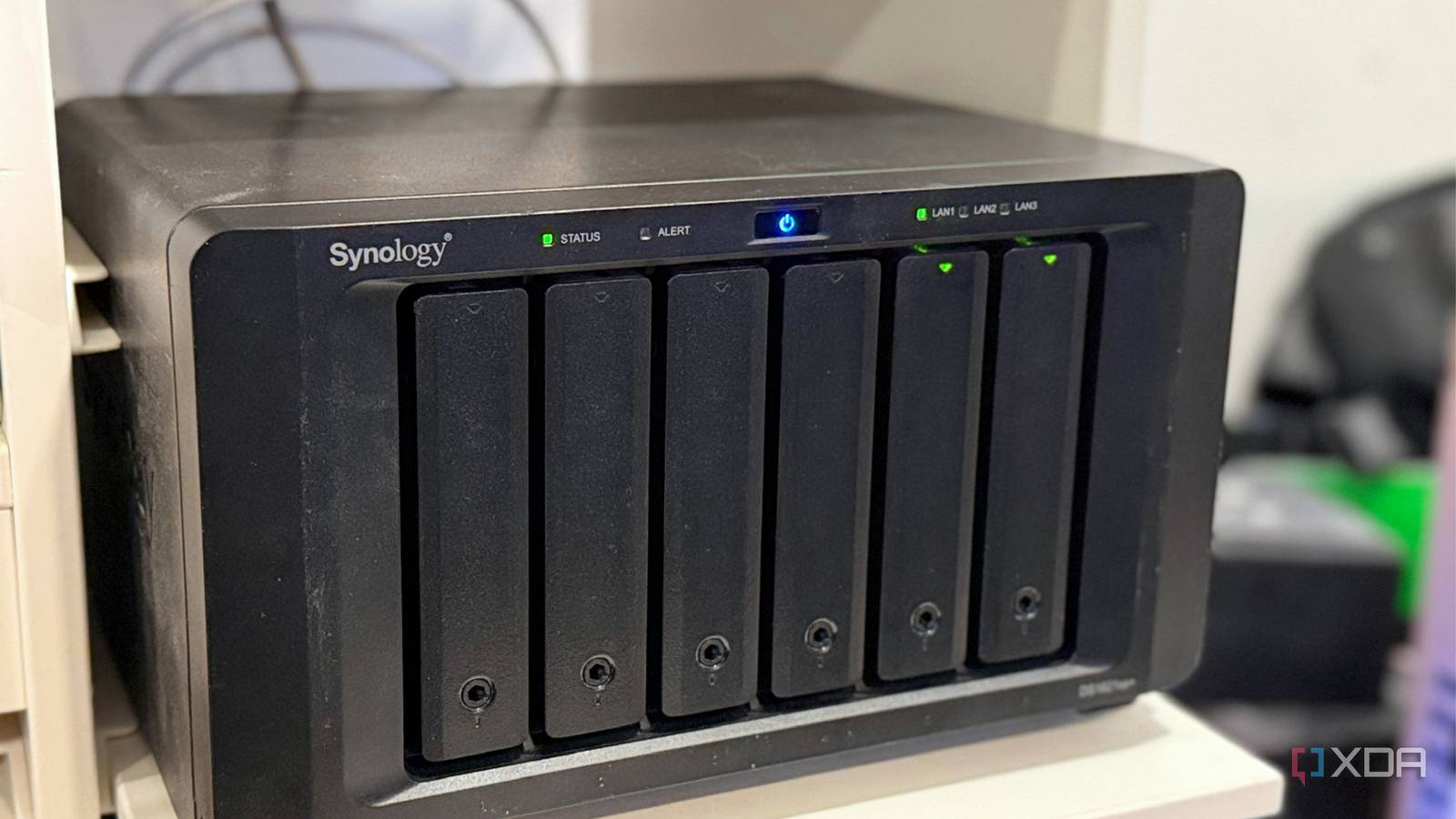
Published Nov 25, 2026, 10:00 AM EST Jasmine is Software and PC Hardware Author at XDA with years of tech reporting experience ranging from AI chatbots right down to gaming hardware, she's covered just about everything. Whether it's breaking news about the latest AMD NPUs or creating video tutorials on social media platforms, Jasmine has contributed to the world of AI and tech in a variety of ways including interviewing the CEO of Razer, AMD's Director of Product Marketing and the VP of Lenovo. Passionate about gaming and PC technology, she has built countless computers, keyboards and other peripherals - knowing them inside and out. Aggressive drive spin-down schedules look like a free power win on paper, but they can create hidden friction and mechanical wear over time. Spinning hard drives down to standby saves a modest amount of wattage, but short idle timeouts combined with frequent background NAS tasks (such as indexing, S.M.A.R.T. polling, Docker/container logs, or array metadata checks) can trigger repeated start-stop and head load/unload cycles. Spin-downs don't automatically kill every drive, but start-stop cycles, firmware power management, and OS-level timers can contribute to hard drive wear, and a single practical adjustment (disabling aggressive spin-down or raising the standby/APM threshold to match actual access patterns) can cut unnecessary cycling. We've had drives spin down while idle, but there are cases where you probably should consider otherwise or at least tune it so it won't prematurely kill your drives. What is spin-down? How does spinning down affect your drive health? Credit: In order to understand how a spin-down can affect your hardware, you first have to understand the difference between a full spin-down and head load/unload cycles. A full spin down is when a device enters standby/sleep mode and the spindle rotation stops. Power drops to roughly 1W per drive. Head load/unload cycles are slightly different. This occurs when drives are moving read/write heads onto the ramp while platters continue spinning. It's easy to conflate the two, but both behave very differently under firmware and OS control. Many modern hard drives carry rated load/unload cycle figures, often cited around 300,000 to 600,000 cycles, and start/stop readings, commonly around 50,000 cycles, under rated conditions. This depends on the drive specifications, but hitting this number doesn't spell failure, nor does spinning 24/7 eliminate wear. Rapid repeated start-stop cycling can add recurring mechanical and thermal transients. It might be easy to think that spinning down your drives gives you free power savings, but this is often overestimated. A spinning idle drive may draw around 3W to 7W depending on model and RPM, while standby drops closer to 1W. Over a 24-hour day, saving a few watts per drive can yield fairly modest annual kWh reductions, which can be very small compared to the cost of a single premature replacement drive or the convenience cost of spin-up lag. Your NAS might be fighting your drives OS timers might hurt your drive health Background noise of your NAS can wake up sleeping drives. In a live NAS environment, background services like file indexes, thumbnail generators, S.M.A.R.T health checks, container/VM writes, or even network discovery can touch a disk shortly after it enters standby. This means that your NAS software could be fighting with your drive's firmware. If the spin-down timer is set too low (for example, 5 to 15 minutes), the drive can cycle down and spin back up repeatedly throughout the day, creating wear. OS standby timers also play a part. On Linux-based NAS setups, tools like hdparm interact with drive-level power modes, and sometimes drives ignore or override those timers depending on firmware and SATA/HBA behavior. Similarly, vendor power balance or head parking features can behave unexpectedly if left mismatched with your OS settings. Array layouts can affect spin-down behavior pretty dramatically too. In some multi-disc pools or parity/striped arrays, waking one member disk or reading across stripes often requires multiple drives to spin up together, magnifying wake latency and power spikes across the entire enclosure. You can verify what is happening in your own NAS by checking S.M.A.R.T. statistics before and after a 24-hour window, auditing which processes or shares wake disks, and spotting mismatches between NAS UI timers and actual disk power states. The most relevant counters to check are Start_Stop_Count (4) and, when supported by the drive, Load_Cycle_Count (193); Power_Cycle_Count (12) can be useful, but it tracks full power cycles, not routine spin-downs. How to fix constant spin-down One setting can make a major difference The easiest fix is that, instead of chasing aggressive 5- or 10-minute spin-down timers, either disable automatic spin-down on actively used NAS drives (which will keep them spinning and essentially disable standby) or you can set a long standby window, such as several hours or overnight only, paired with proper APM/power settings, so drives aren't yo-yoing all day. The exact commands and UI labels vary by OS, whether you're using TrueNAS, Unraid, OpenMediaVault, or even custom Linux. Be sure to double-check your vendor utilities where applicable, so you know what settings to adjust specifically. Some apps (Plex, Jellyfin, etc.) and OS will actually prevent drives from stopping altogether. There are some instances where spin-down does make sense. For example, if you have cold/archive backup drives that are accessed only once a day or less, or fanless/quiet desktop enclosures where acoustics and heat matter, then spinning down your drives might make more sense. If you're in a high-electricity-rate area where idle wattage adds up, spinning down your drives might save you money in the long term. No single power tweak will replace real reliability hygiene, so make sure that you keep your drive temperatures reasonable, run regular SMART short/long tasks, maintain parity/redundancy, and follow a 3-2-1 backup strategy so that your data is protected. Don't let spin-down affect your drive health Aggressive NAS spin-down schedules often trade measurable daily convenience and extra start-stop cycling for surprisingly small energy savings while in turn creating mechanical wear on your drive. It might be worth checking your own SMART counters, testing a longer spin-down interval, or keeping your active NAS drive spinning during heavy-use hours to measure the real power and wake behavior rather than relying on default timers.
Your NAS drive spin-down schedule is secretly shortening drive life, and one tweak fixes it
Full Article
Original Source
Read the full article at Xda-developers →KhanList aggregates and links to publicly available news content. We do not host full articles from third-party sources. Always verify important information with original sources.