
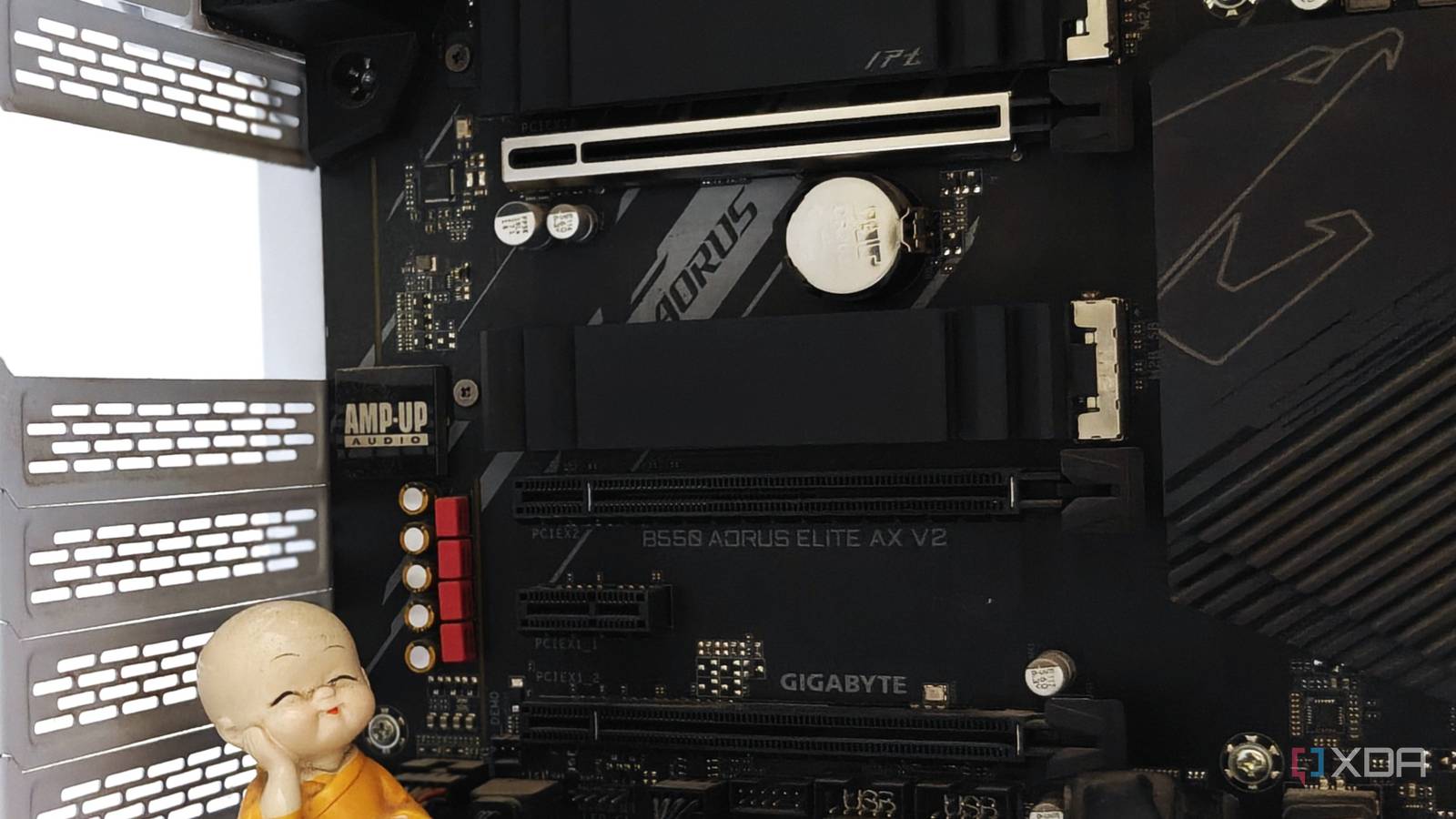
Published Aug 16, 2026, 12:00 PM EDT After a 7-year corporate stint, Tanveer found his love for writing and tech too much to resist. An MBA in Marketing and the owner of a PC building business, he writes on PC hardware, technology, and Windows. When not scouring the web for ideas, he can be found building PCs, watching anime, or playing Smash Karts on his RTX 3080 (sigh). Those of you who've built a new PC in the last four years are probably enjoying maximum speeds on two or even three SSDs simultaneously (ignoring chipset latency for now). This privilege isn't available on older chipsets, such as AMD's B550 or Intel's B660/B560, which limited PCIe 4.0 speeds to the primary M.2 slot. While higher-end chipsets like X570 and Z690/Z590 were immune, the average user didn't usually buy them. If you have more than one Gen4 NVMe SSD installed on your old motherboard, your second drive is probably bottlenecked. Most budget and entry-level motherboards of this time only supported PCIe 3.0 speeds on the second M.2 slot. And if you had additional PCIe expansion cards installed, your SSD would have dropped to PCIe 3.0 x2 speeds. The practical implications of halved speeds on a Gen4 drive are debatable, but the limitation does exist. Your older chipset can't handle two Gen4 drives at full speed The second one has been running at half speed all this time Most B550 motherboards in the Ryzen 5000 era were limited to PCIe 3.0 x4 speeds on the secondary M.2 slot. Installing a Gen4 NVMe SSD in the primary slot worked at maximum speed, thanks to the PCIe 4.0 x4 direct connection to the CPU. A second Gen4 drive, however, was limited to PCIe 3.0 x4 speeds, meaning it was running at only half speed. In fact, some cheaper B550 boards only supported PCIe 3.0 x2 speeds on the second slot. Similarly, B560 motherboards could only run your second SSD at PCIe 3.0 x4 speeds. Even some cheaper models with the newer B660 chipsets were limited to PCIe 3.0. If you knew about the limitation and used a Gen3 SSD as your secondary drive, it wouldn't have posed any problems. However, many users probably bought two Gen4 drives without knowing about the distinction between the two M.2 slots. Adding PCIe expansion cards can reduce the number of PCIe lanes available on the secondary M.2 slot, depending on the motherboard's lane-sharing behavior. This can further reduce your secondary SSD's link speed. You can confirm your SSD link speed in seconds Seeing it documented hits different If you want to see for yourself whether your motherboard is indeed throttling your second SSD, download CrystalDiskInfo. This free and lightweight utility will show you your SSD's link speed on the first screen. You just need to look at the "Transfer Mode" field for the specific SSD you want to check. The first value shows the current link speed, while the second one shows the maximum the SSD supports. In my case, my Gen3 drive in the secondary M.2 slot is already running at its maximum supported speed. Your situation could be different if your secondary SSD is a Gen4 drive. Depending on your motherboard chipset, it might be capped at around 3,500 MB/s (or worse) instead of around 7,000 MB/s. There's not a lot you can do besides upgrade your PC A platform upgrade may be necessary, but not urgent Modern motherboards, even budget models, feature both Gen5 and Gen4 slots supporting maximum speeds at the same time, but older systems weren't as lucky. If your second Gen4 SSD is indeed capped at half speed, it's a hardware limitation that can only be fixed with a platform upgrade. In real-world terms, a Gen4 SSD running at PCIe 3.0 x4 speeds might not affect gaming load times or OS boot times tangibly, so it's an upgrade you could delay, especially in the current market conditions. Still, it pays to know that your storage might not be running at the speed you assumed. Once you know about PCIe lane sharing, you'll be able to make better purchase decisions for your next PC. You might be unaware that your hardware is running bottlenecked Whether it's storage, graphics, or RAM, it's possible that your hardware is running at less than its maximum speed. PCIe lane-sharing on some motherboards can drop your GPU from x16 to x8 speeds if your primary M.2 slot is populated by a Gen5 SSD. Leaving XMP/EXPO turned off in the UEFI will deprive you of the RAM performance that you paid for. And some older and lower-end motherboards will limit your secondary SSD to PCIe 3.0 speeds; hence, it pays to do your research.
Your motherboard's second M.2 slot might be crippling your SSD performance
Full Article
Original Source
Read the full article at Xda-developers →KhanList aggregates and links to publicly available news content. We do not host full articles from third-party sources. Always verify important information with original sources.