
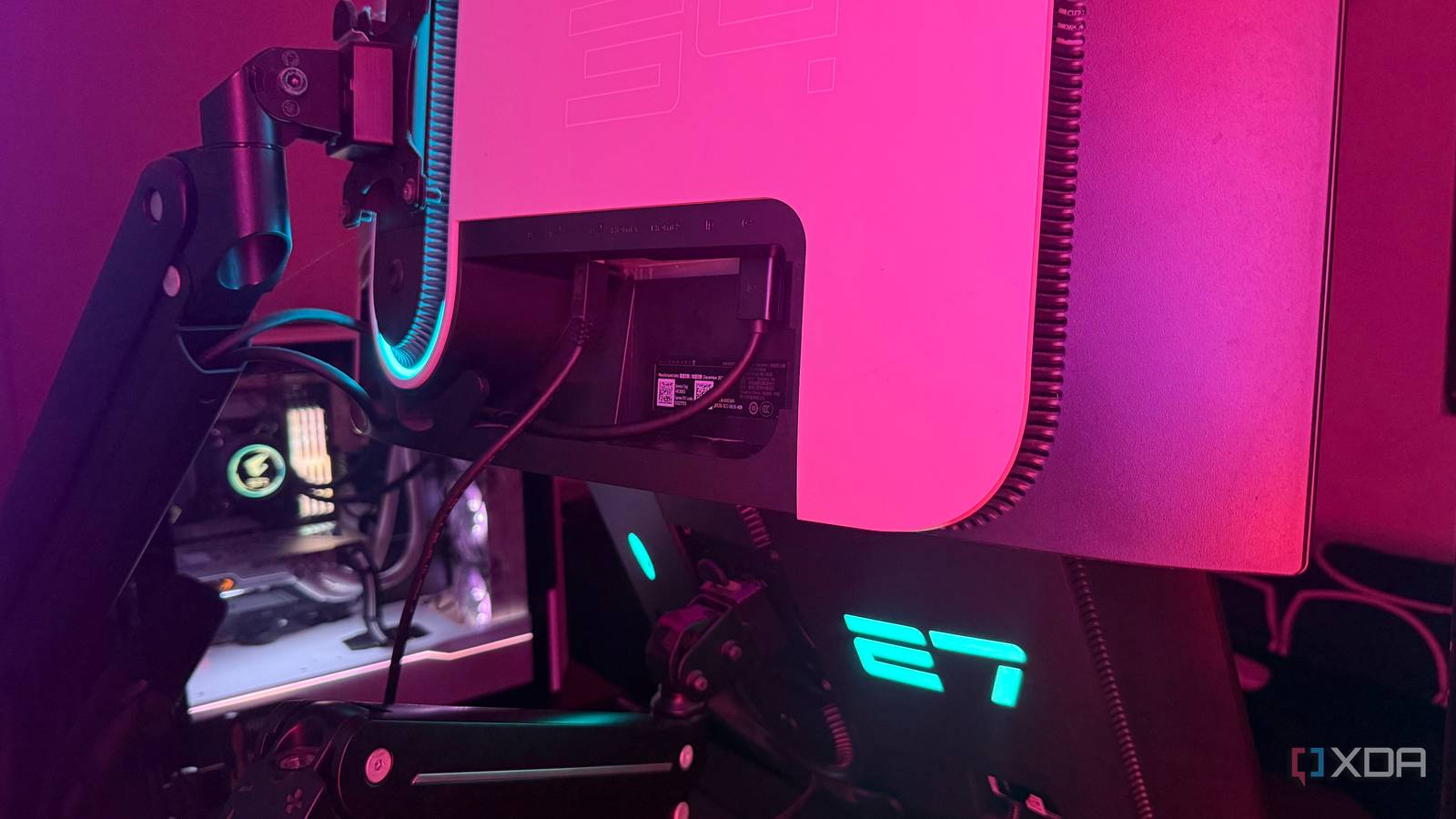
Published Aug 18, 2026, 7:00 AM EDT Hamlin has been in the tech field for over nine years. Since 2017, his work has appeared on MakeUseOf, Android Police, OSXDaily, Beebom, and more. He served as the Senior Editor at Valnet's MakeUseOf for over two years before joining XDA. He uses a high-end gaming rig for desktop use and a MacBook for traveling, but dislikes some of the quirks of macOS. You're more likely to catch him at the gym or on a flight than anywhere else. I use the Alienware AW3423DW and AW2725DF OLED monitors with my gaming PC, and while both have built-in USB hubs, only the newer AW2725DF has a USB-C port. It's one of those features I didn't even care about when I first bought it because it had already won me over with its gorgeous OLED panel and 360Hz refresh rate. Now, I just wish the AW3423DW had one too, because I've realized how convenient it is to have a USB-C port sitting right beneath the display. Of course, you can't just plug a device into your monitor's USB-C port and expect it to work. Your monitor's USB hub first needs an upstream connection to your PC, whether that's through a separate USB upstream cable, like in my case with the AW2725DF, or the same USB-C connection carrying your display signal. But once you have that set up, that USB-C port essentially becomes another port for your PC, except it's a lot easier to reach. So if you've been overlooking it all this time, here's how you can put it to good use. Your phone This is easily the most useful one Most of us take a break from our phones when we're on our PC anyway, so it's the perfect time to charge it. I don't have a free outlet next to my desk, so I used to leave my phone in the next room whenever I needed to charge it. This meant I could miss important text messages, emails, and other notifications while I was busy on my PC. But now, I just plug my phone into the USB-C port beneath my monitor and leave it on my desk while it charges. If my phone lights up, I take a quick glance and move on. So, as long as the USB-C port on your monitor can supply power, this is a great use case. The one on my AW2725DF supports 15W charging, which isn't fast by any means, but I'm not in a hurry when I'm spending hours gaming or writing articles, anyway. Even if the USB-C port on your monitor is only for data, you can use it to quickly transfer photos or videos if you don't already use Phone Link on Windows. Either way, it's a lot more convenient than reaching behind your PC every time you need to plug your phone in. Webcam It's an easy cable management win It makes a lot of sense to connect your webcam directly to your monitor, especially since that's probably where you have yours mounted anyway. Normally, you'd have to run its USB cable down the back of your monitor, across the desk, and all the way to your PC. However, if your monitor has a USB-C port, you can keep that entire connection behind the display itself and hide the cables almost completely when you're sitting at your desk. You don't need a particularly fast USB-C port for most webcams, either. Even my Logitech MX Brio has no trouble giving me 4K output through my 5Gbps USB-C port, so you don't need to look for the fastest port on your motherboard. And unlike your phone, you'll probably leave a webcam plugged in all the time. So if I had to pick a permanent use case for that USB-C port, this would be it, simply because it keeps one more cable out of sight. Gaming peripherals Even your wireless mouse might prefer the monitor's port Your monitor's USB-C port is perfect for quickly hooking up some of your gaming peripherals, and yes, even the wireless ones that come with a 2.4GHz receiver. For instance, if you have your mouse's receiver tucked away in the back of your PC, it could have a less reliable connection because it's farther away and a metal case sits between it and your mouse. Moving it to your monitor puts it much closer to the mouse on your desk and removes that obstruction. So, if you've been dealing with random dropouts, give this port a try. I also frequently use the USB-C port on my monitor to connect my PS5 controller. It's easier to grab a short cable and plug it in beneath the display than to run one all the way to my PC, which only adds more cable drag in my experience. And sometimes, when my wireless headset is low on battery in the middle of a game, I can plug it in too and keep using it while it charges. Using the PC's port would leave me with a cable running over my body, which is pretty annoying once you're used to gaming with a wireless headset. External SSDs and flash drives For smaller transfers, you don't really need the fastest port Ideally, connect an external SSD or flash drive to the fastest USB port on your motherboard, especially if you're transferring hundreds of GBs at a time. But if you just need to move a few files back and forth, the USB-C port on the back of your monitor will be very convenient. You won't be spending much time waiting anyway. The USB-C port on my AW2725DF is rated for 5Gbps, which is basically USB 3.0 speeds and only half as fast as the USB 3.2 Gen 2 ports on my X570 board. Still, sometimes convenience matters far more than that extra speed, and it's not like every drive you have will even be fast enough to take advantage of a 10Gbps port. All the flash drives I have are USB 3.0, so I'm not even giving up any speed by connecting them to my monitor. It's all about having a port within reach Your PC can have all the ports in the world, but that doesn't make them convenient when most of them are sitting at the back of your case. If you have your case under your desk against a wall, reaching them every time you want to connect something can get annoying pretty quickly. And chances are, the ports on the front of your case are already occupied by dongles for your peripherals, assuming you even have a USB-C port there in the first place. That one port behind your monitor adds a level of convenience that no port on your case really can, and once you give it a fair shot, you'll probably wonder why you weren't using it sooner.
Your monitor's USB-C port is more useful than you think, and here's what you should plug into it
Full Article
Original Source
Read the full article at Xda-developers →KhanList aggregates and links to publicly available news content. We do not host full articles from third-party sources. Always verify important information with original sources.