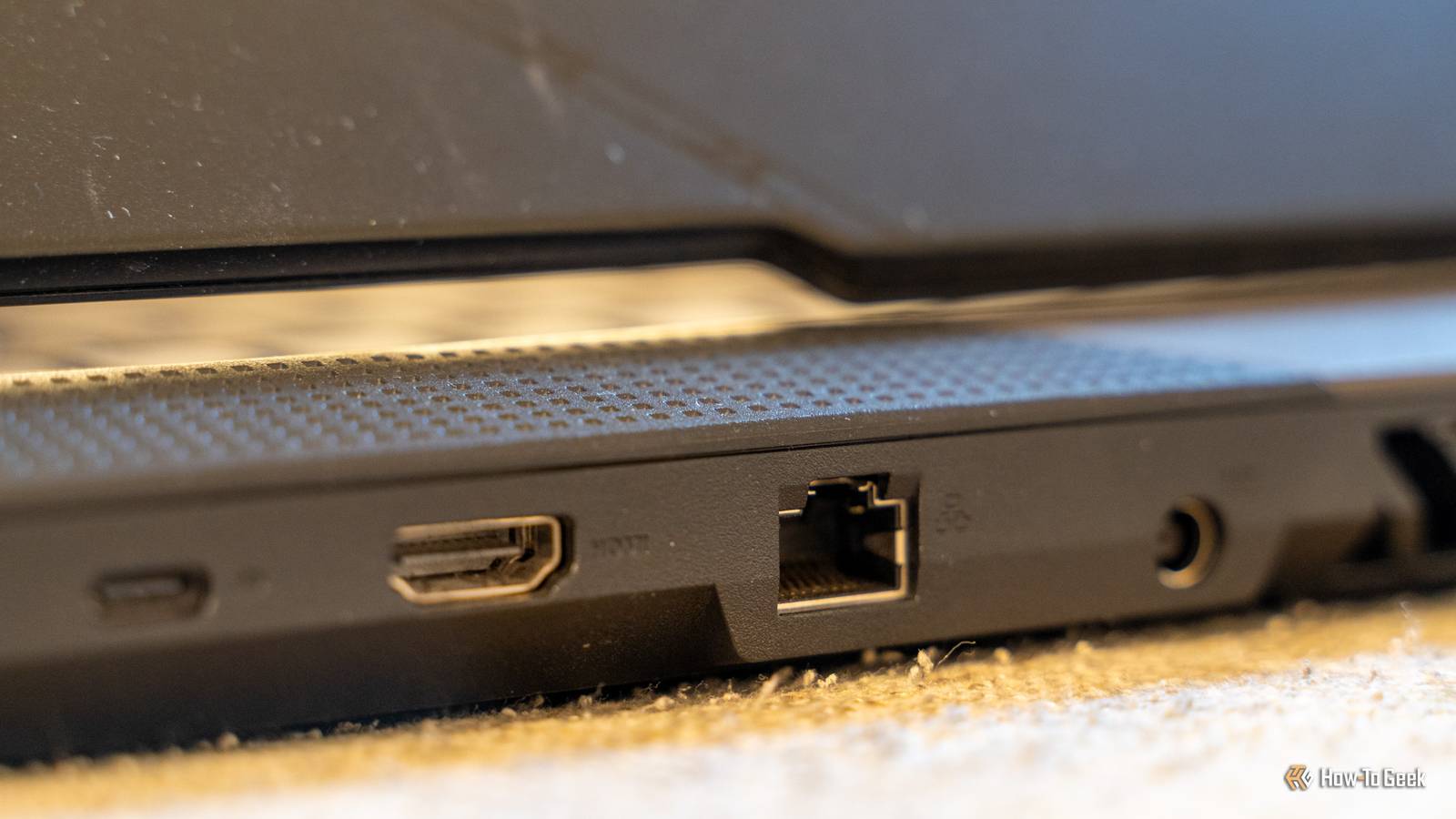
Published Jul 21, 2026, 8:00 AM EDT Aggy is a veteran writer and editor in the technology and gaming space. Having served as a Managing Editor for high-traffic digital publications, alongside being an editor and consultant for over a dozen sites. Aggy's published work spans a wide and respected array of tech and gaming outlets, including WePC, Screen Rant, How-To Geek, Android Police, PC Invasion, and Try Hard Guides. Beyond editorial work, Aggy's direct experience in the tech sphere extends to app development. Aggy has published two games under Tales and is always eager to learn and do more. He also likes working on computers and researching in his spare time. He knows about Windows, Linux, Audio, Video, and much more. Buying a high-end monitor and then plugging it in with whatever cable came in the box is something most people do without thinking twice. HDMI is everywhere; the port fits, and the picture shows up, so everything seems fine. The problem is that there are plenty of issues that no one talks about. The cable and port you're using matter more than most people realize, and HDMI specifically has some limitations that aren't obvious from the outside. HDMI has limits that don't show up on the box Fake labels and cheap parts will blur things If you've just plugged a high-end gaming monitor into your PC with an HDMI cable and something looks off, there's a good chance the port itself is to blame. Before you start wiggling that HDMI cable, you should know a bit about it first. The HDMI Licensing Administrator decided to phase out the HDMI 2.0 spec and fold it into HDMI 2.1. That sounds like an upgrade, but the features most people associate with HDMI 2.1 are all optional. That means the higher bandwidth, Variable Refresh Rate, and Auto Low Latency Mode do not have to be included in any of them. So a monitor can ship with an HDMI 2.1 label on the box while the actual port runs at the same speeds as the older 2.0 standard. Technically legal, but it can feel misleading if you are buying based on the label. The chip inside a monitor that handles the video signal is a scaler, and the ones capable of pushing full HDMI 2.1 bandwidth aren't cheap. To keep prices down, manufacturers can use cheaper scalers that cap the port at lower bandwidth tiers. The hardware limitation is baked in before you ever turn the screen on. Quiz 8 Questions · Test Your KnowledgeHDMI, DisplayPort, and beyondTrivia challengeFrom HDMI to DisplayPort — see how much you really know about the cables and connectors powering your screens.HDMIDisplayPortConnectorsStandardsVideo TechBegin Which version of HDMI first introduced support for 4K resolution at 60Hz?AHDMI 1.4BHDMI 2.0CHDMI 2.1DHDMI 1.3That's right! HDMI 2.0, released in 2013, was the first version to support 4K at 60Hz with up to 18 Gbps of bandwidth. HDMI 1.4 could do 4K but only at 30Hz, which felt noticeably choppy for most content.Not quite — the answer is HDMI 2.0. While HDMI 1.4 introduced 4K support, it was capped at 30Hz. HDMI 2.0 bumped bandwidth to 18 Gbps, finally enabling smooth 4K at 60 frames per second.Continue What organization developed and maintains the DisplayPort standard?AIEEEBHDMI ForumCVESADUSB Implementers ForumCorrect! VESA, the Video Electronics Standards Association, created DisplayPort and released version 1.0 back in 2006. VESA is the same body behind older standards like VGA and the monitor mounting pattern most people still use today.The correct answer is VESA — the Video Electronics Standards Association. It's easy to mix up standards bodies, but VESA has been behind DisplayPort since its debut in 2006, while the HDMI Forum manages the competing HDMI standard.Continue Which display connector type uses a 20-pin trapezoid-shaped design that cannot be inserted upside down?ADVI-DBMini DisplayPortCDisplayPortDHDMI Type ASpot on! The standard DisplayPort connector uses a distinctive 20-pin asymmetric trapezoid shape, which means it only fits one way — no fumbling in the dark. This was a deliberate design choice to prevent accidental damage from forced insertion.The answer is DisplayPort. Its 20-pin trapezoid shape has a notch on one side that prevents upside-down insertion, unlike HDMI which many people have accidentally tried to plug in backwards at least once. It's one of DisplayPort's underrated usability wins.Continue What is the maximum bandwidth supported by HDMI 2.1?A18 GbpsB32 GbpsC48 GbpsD40 GbpsExcellent! HDMI 2.1 supports up to 48 Gbps of bandwidth, enabling features like 8K at 60Hz, 4K at 120Hz, and Variable Refresh Rate (VRR). It's why HDMI 2.1 became a key selling point for PS5 and Xbox Series X gaming.The correct answer is 48 Gbps. HDMI 2.0 topped out at 18 Gbps, but HDMI 2.1 nearly tripled that to 48 Gbps. This huge leap unlocked 4K/120Hz gaming and 8K video, making it the standard of choice for next-gen consoles and high-end TVs.Continue Which older display connector standard transmitted both analog and digital signals depending on the variant used?AVGABDVICS-VideoDComponent videoRight! DVI came in several flavors — DVI-A carried only analog, DVI-D carried only digital, and DVI-I carried both. This made DVI a transitional standard that could bridge the gap between older analog CRT monitors and newer digital flat panels.The answer is DVI. VGA was purely analog, but DVI was designed as a transitional format with multiple variants: DVI-A (analog only), DVI-D (digital only), and DVI-I (both). That versatility helped it bridge the CRT-to-LCD transition era of the early 2000s.Continue DisplayPort supports a feature called Multi-Stream Transport (MST). What does this allow?AStreaming video over a network cableBDaisy-chaining multiple monitors from a single DisplayPort outputCSplitting one display signal into audio and video streamsDRunning two GPUs in sync over a single cableCorrect! Multi-Stream Transport lets you daisy-chain multiple monitors from a single DisplayPort output on your GPU, as long as each display supports MST passthrough. It's a powerful feature for clean multi-monitor setups without needing extra ports on your graphics card.The right answer is daisy-chaining multiple monitors. MST (Multi-Stream Transport) is one of DisplayPort's most practical advantages over HDMI, letting a single port drive several displays in a chain. HDMI has no equivalent — each HDMI display requires its own dedicated port.Continue Thunderbolt 3 and Thunderbolt 4 use which physical connector form factor?AUSB Type-ABMini DisplayPortCUSB Type-CDHDMI Type CThat's right! Thunderbolt 3 and 4 both use the USB Type-C connector, which is why ports are often labeled with a lightning bolt symbol to distinguish them. Thunderbolt 4 can carry DisplayPort 2.0 signals, meaning a single small USB-C port can drive high-res external monitors.The answer is USB Type-C. Intel's Thunderbolt 3 moved away from the Mini DisplayPort connector used in Thunderbolt 1 and 2, adopting USB-C instead. This is why modern laptops can use the same tiny port for charging, data transfer, and connecting 4K displays.Continue Which display connection standard was specifically designed as a royalty-free replacement for VGA in computers, and explicitly prohibited from being used in consumer electronics like TVs?AHDMIBDisplayPortCDVIDUSB4 videoSpot on! DisplayPort was intentionally designed for the PC market and its specification originally prohibited use in consumer electronics — a deliberate market split from HDMI. It's royalty-free for manufacturers to implement, which helped drive its adoption across PC monitors and laptops.The answer is DisplayPort. VESA designed DisplayPort specifically for the PC ecosystem as a royalty-free alternative to VGA and DVI, and the original spec actually barred its use in televisions and consumer AV gear — that territory was left to HDMI. This market split largely still holds today.See My Score Challenge CompleteYour Score/ 8Thanks for playing!Try Again You really start to notice it when trying to run 4K at a high refresh rate over that restricted connection. When the signal is too large for the pipe, the monitor compensates by compressing the color data. It's because of chroma subsampling. It drops from full RGB down to a compressed format to make everything fit. On a TV, it tends not to be noticeable, but on a PC monitor, it's a different story. Windows and other desktop operating systems use precise subpixel rendering to keep text and UI elements sharp. When chroma subsampling gets forced into the mix, that precision breaks down. Text goes soft, edges blur, and you might start seeing odd color fringing around thin lines. People spend good money on a 4K monitor and then wonder why everything looks slightly fuzzy, and the HDMI port is rarely the first thing people think to blame. However, you're not going to have these problems with a DisplayPort connection. DisplayPort handles high performance without any tricks Extra bandwidth keeps your colors accurate and stops screen tearing Credit: Ismar Hrnjicevic / How-To Geek DisplayPort and HDMI are built on completely different ideas at the engineering level, and that difference matters a lot once you start pushing high-end displays. HDMI sends data as a continuous stream with its own dedicated clock signal, while DisplayPort breaks everything into packets, much like how Ethernet or PCIe work. That packetized approach makes it scalable and faster. The latest version, DisplayPort 2.1, pushes this even further with UHBR20 signaling. Thanks to the encoding scheme, it wastes very little of its bandwidth on overhead. This means you can run a 4K display at 240Hz, or even an 8K display at 85Hz, over a single cable without any compression tricks at all. That extra headroom helps with image quality. Since DisplayPort isn't starved for bandwidth, it defaults to full RGB 4:4:4 color, keeping text sharp and colors accurate. Credit: Patrick Campanale / How-To Geek DisplayPort is also the native home of Adaptive-Sync, the technology that gets rid of screen tearing and stuttering by syncing your monitor's refresh rate to your GPU's output. This matters especially for monitors with dedicated G-Sync hardware modules, which are physically wired to the DisplayPort input on those displays. Older G-Sync modules used to have this limitation, but newer hardware modules support full variable refresh over HDMI ports without a problem. The last big advantage is Multi-Stream Transport (MST), which lets you daisy-chain multiple monitors from a single DisplayPort output. You run one cable from your PC to your first monitor, then a second cable from that monitor's output port to your second monitor, and as long as MST is turned on in the first monitor's menu, your GPU handles the rest. You need the right cable and ports to get the full speeds Look for VESA labels and use USB-C if your device is too thin Credit: Ismar Hrnjicevic / How-To Geek When shopping for a DisplayPort cable, the most important thing to check is whether it has an official VESA bandwidth certification. Look for labels like HBR3 on older setups or UHBR20 if you want the best performance available. Those certifications matter because they tell you the cable can actually handle the data load without causing dropped frames or a flickering screen. Do not buy the cheap, unbranded cables that don't list their supported transmission speeds anywhere on the packaging. Better cables also have solid shielding built in, which keeps interference from your other desk gear from causing problems. Getting the right version means actually seeing the full color depth and refresh rates your monitor is capable of. Most laptops and compact computers don't have a built-in DisplayPort connection, and the main reason is space. Laptops keep getting thinner with every generation, and the standard DisplayPort connector is pretty bulky. It takes up a lot of room on a laptop motherboard, even though desktop graphics cards still use it as a standard. Manufacturers trying to make the next slim machines can't accommodate that kind of chunky port on a laptop, so they go with smaller, multi-purpose options instead. That's why full-sized DisplayPort is not as common on portable devices as HDMI ports seem to be. The workaround modern computers use is USB-C with Alt Mode, which lets a small USB-C port carry a DisplayPort signal without needing a dedicated connector. Use your DisplayPort if you have one DisplayPort isn't on every laptop or compact desktop. While that is a real constraint, it isn't a dealbreaker since there is an easy fix. If your setup has a dedicated DisplayPort output, though, using it instead of HDMI is one of the more straightforward improvements you can make without buying new hardware. If you use it, the difference is something you'll notice on the first day, not something you have to convince yourself to see. BENFEI DisplayPort to VGA Cable A unidirectional DisplayPort to VGA adapter cable used for connecting a DisplayPort output to a VGA input.
Your monitor's HDMI port is a trap—here's why DisplayPort matters
Full Article
Original Source
Read the full article at Howtogeek →KhanList aggregates and links to publicly available news content. We do not host full articles from third-party sources. Always verify important information with original sources.