
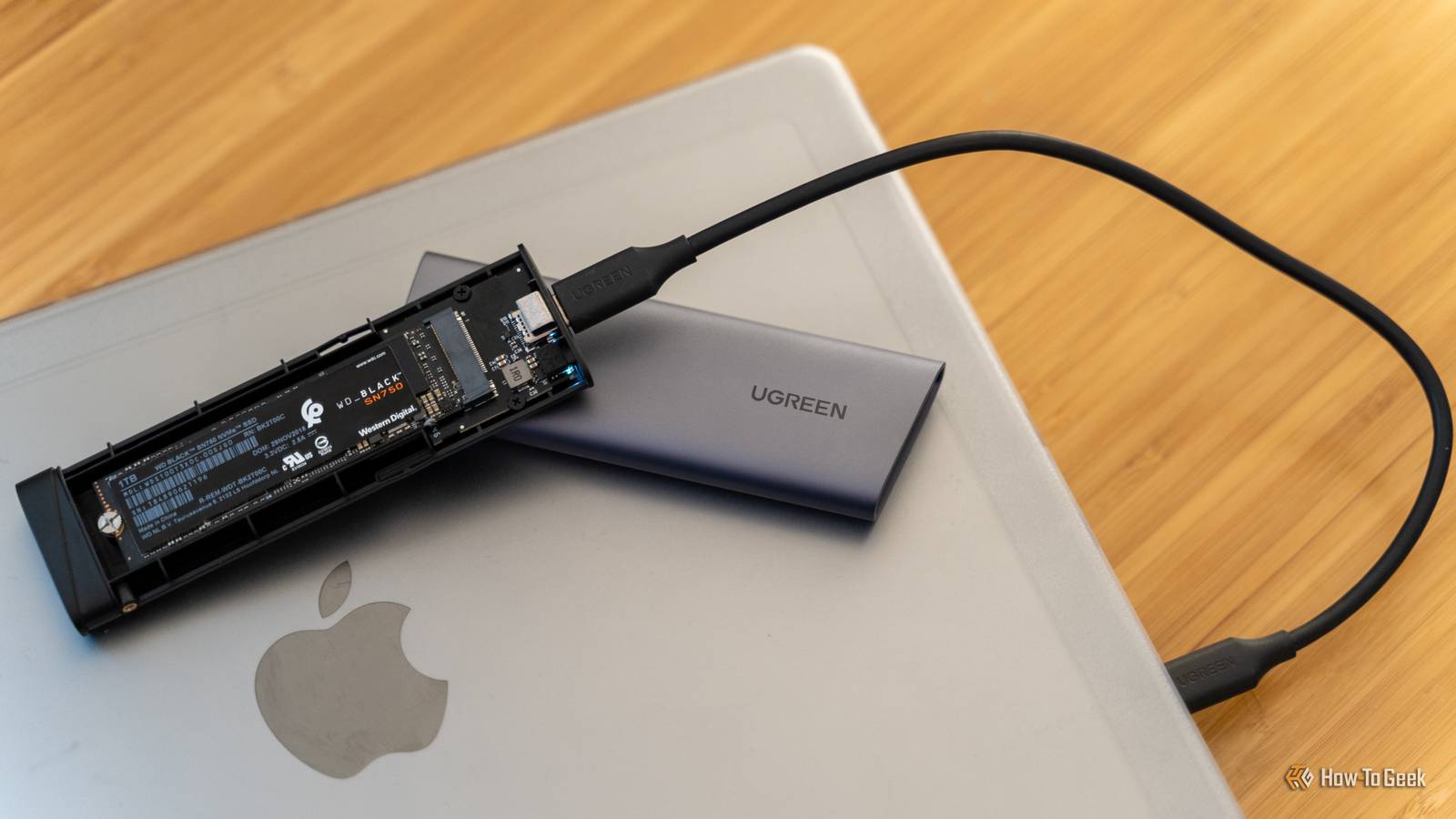
Published Jul 27, 2026, 11:00 AM EDT Monica J. White is a journalist with over a decade of experience in covering technology. She built her first PC nearly 20 years ago, and she has since built and tested dozens of PCs. PC hardware is her main beat, and graphics cards and the GPU market at large are her main area of interest, but she has written thousands of articles covering everything related to PCs, laptops, handhelds, and peripherals. From GPUs and CPUs to headsets and software, Monica's always willing to geek out over all things related to computing. Outside of her work with How-To Geek, Monica contributes to TechRadar, PC Gamer, Tom's Guide, Laptop Mag, SlashGear, Whop, and Digital Trends, among others. Her ultimate goal is to make PC gaming and computing approachable and fun to any audience. Monica spends a lot of time elbow-deep in her PC case, as she's always making upgrades, testing something, or plotting out her next build. She's the go-to tech support person in her immediate circle, so she's never out of things to do. Whenever she has spare time, you'll find her gaming until the early hours and hanging out with her dog. Even old and tiny SSDs can find a new job if you give them the chance to, and in this economy, it's much better to get creative than to open up your wallet. Your SSD may be way too old to trust with irreplaceable files, but it can still take over the constant background noise that wears your main SSD down every single day. Your main SSD handles far more writes than you realize Temporary data doesn't feel temporary to the drive Your main SSD is a busy bee. It stores your OS, your apps, and the files you consciously save. Every time you browse the web, install an update, launch a game, edit a photo, or extract an archive, the drive also has to deal with a steady stream of temporary files, caches, logs, and background data. Most of it is disposable, but the writes still count for something. Browsers continually refresh their caches; creative apps generate previews and scratch files; game launchers unpack updates... and then there's Windows (if that's what you use), with a million temporary files and various data that accompanies everyday tasks. It's a lot, and you won't see most of it, but it can all add up to a surprising amount of activity over the years. Modern SSDs are designed to withstand plenty of writing, so this is not a reason to panic about normal use. SSDs can die for any reason and at any time, but it's not like too much writing will kill them in a year or two. Still, there's little to no benefit in making your main drive handle every throwaway file when an older SSD can absorb some of that workload instead. Redirecting the right caches and temporary folders gives the old drive a useful job while keeping more free space available on the SSD that actually matters to you. Lexar NM790 SSD $310 $450 Save $140 If you need a new SSD, the Lexar NM790 is a solid PCIe Gen 4 option. An old SSD is ideal for data you can afford to lose A cache drive doesn't need to be your fastest or newest Credit: Patrick Campanale / How-To Geek That older SSD is a good fit for this kind of gig precisely because cache data isn't precious. These kinds of files are usually data that can be recreated automatically, so losing them is a tiny bit annoying, but not disastrous. All your important files, you know, the ones that are actually permanent, should stay on the healthy, trustworthy drive. But disposable data doesn't need that same level of protection, nor does it need cutting-edge performance. Even an old SATA SSD is fast enough for most cache and scratch workloads, especially compared to an HDD. The workloads that benefit most from a separate cache SSD Creative applications can write hundreds of gigabytes of temporary data Credit: Patrick Campanale / How-To Geek This kind of setup makes the most sense for workloads that generate humongous amounts of temporary data. Creative applications are the obvious example here: video/photo editors and 3D tools constantly build previews, proxies, render files, and scratch data behind the scenes. A single big project can generate gigabytes of files that only exist to make the editing process smoother. Developers, VM users, and anyone who frequently extracts large archives can benefit, too. Build folders, package caches, test environments, temporary VM disks ... they all create plenty of short-lived writes. Moving that activity to a separate SSD keeps it away from your main drive without demanding much from the older one beyond basic speed and stability. What you should actually move to the old SSD Start with application-level cache settings Credit: Patrick Campanale / How-To Geek So, where do we begin? The easiest place to start is inside the apps that already let you choose where their temporary data goes. All you need to do is switch things up. Look for settings labeled cache, scratch disk, media cache, preview files, proxy storage, or temporary files, then create a dedicated folder on the old SSD and point the app there. You can also move your Downloads folder, archive extraction folder, and other disposable work directories to the old drive through each app's settings or OS-level folder properties. I would avoid relocating the entire Windows Temp directory (if you're on Windows), as well as the page file, and user profile, unless you know exactly what you're doing, though. Stick to caches and folders the software officially lets you move. A dedicated cache SSD can improve more than endurance Keeping free space on the main drive helps it perform consistently A portable SSD atop a desktop PC.Credit: Monica J. White / How-To Geek Separating all that temporary activity can also help your main SSD maintain more consistent performance. SSDs need some breathing room for background tasks, including garbage collection, wear leveling, and reorganizing data. Constantly growing caches can eat into that free space, tanking your SSD's performance. If you move all those tasks away, your primary drive suddenly gets a lot more room to work with. Check the SSD before giving it a second job SMART health matters more than the drive's age Credit: Patrick Campanale / How-To Geek As far as I'm concerned, it doesn't matter what your SSD is going to end up doing. Data storage, cache helper duty, rescue drive ... No matter what you do, make sure to run a health check on it first (I use CrystalDiskInfo or HWiNFO). If you get the all-clear, you can proceed with some degree of confidence. If the SSD is dying, this is a no-go While I'm all for repurposing older SSDs, if the drive is genuinely on the brink of death, don't even bother. It might work for a while, but not long enough to make the process worthwhile. Similarly, if your main SSD is struggling, offloading part of its job to an older SSD is nothing more than a cover-up rather than a fix. Ultimately, a dying drive needs to be replaced, one way or another. SanDisk Extreme Portable SSD A portable SSD can have a lot of uses, from data storage to transferring files. This SanDisk drive is known for being reliable, so it's a solid pick.
Your main SSD is wearing out faster than you think—here's the fix
Full Article
Original Source
Read the full article at Howtogeek →KhanList aggregates and links to publicly available news content. We do not host full articles from third-party sources. Always verify important information with original sources.