
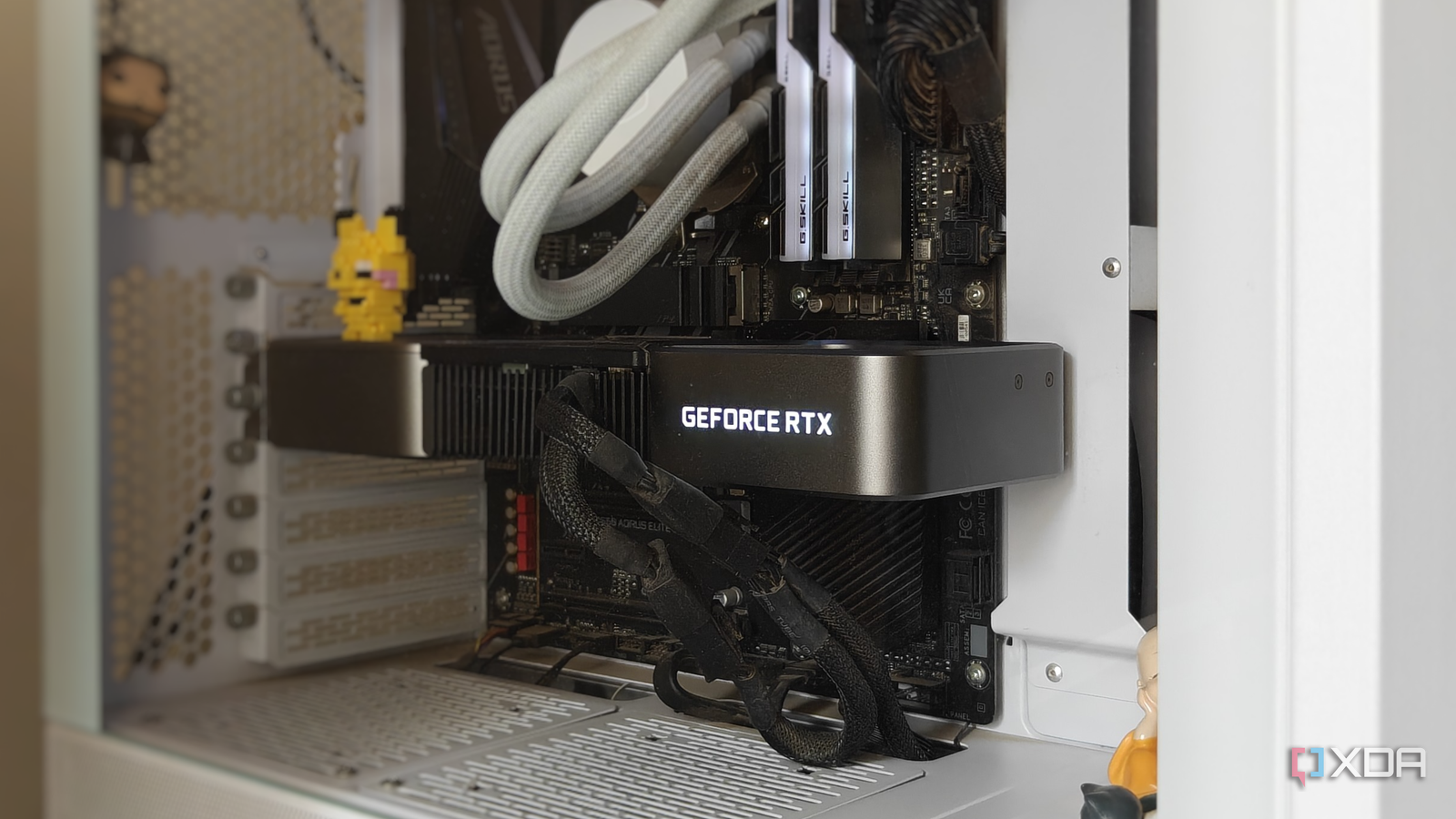
Published Sep 2, 2026, 12:00 PM EDT After a 7-year corporate stint, Tanveer found his love for writing and tech too much to resist. An MBA in Marketing and the owner of a PC building business, he writes on PC hardware, technology, and Windows. When not scouring the web for ideas, he can be found building PCs, watching anime, or playing Smash Karts on his RTX 3080 (sigh). When you bought a new graphics card with PCIe 5.0 support, you probably never doubted that it would actually use a PCIe 5.0 link with your motherboard. You simply installed it, launched a few games, and never thought about it again. However, your GPU might be running a slower PCIe generation without making it obvious. Whether it's an RTX 50, RX 90, or an older GPU, you ideally want your graphics card to use the fastest PCIe generation and link width it supports. The drop in performance on using a slower PCIe connection may not be huge, but you should still know the PCIe behavior of your GPU and motherboard. You might not even know something is off A slower PCIe link is usually fine The worst aspect of this issue is that there are no incompatibility errors on Windows if your GPU is running a slower PCIe generation than what it supports. Your games run fine, performance is mostly within expectations, and without inspecting the PCIe configuration, you can't tell if something is wrong. So, you could go years without knowing that your GPU's PCIe connection is essentially throttled. Now, the real-world impact of a GPU running at PCIe 5.0 x16 vs. PCIe 5.0 x8 or PCIe 4.0 x16 might be negligible. That doesn't mean that you shouldn't investigate what's going on behind the scenes. For instance, my RTX 3080 supports PCIe 4.0, so I want it to run at PCIe 4.0 x16 (using 16 lanes) when needed. If it's constrained at PCIe 4.0 x8 or PCIe 3.0 x16 due to an underlying cause, I want it fixed. It's not because fixing it will magically make my GPU significantly faster. It might eliminate a 2–5% FPS drop, but the real benefit is knowing that my hardware isn't being artificially limited, especially if I can do something about it. A slower PCIe link can, in fact, tank your performance if your system only supports PCIe 3.0 and your GPU runs out of VRAM. The memory load spills on to the system RAM, slashing your FPS drastically. It's because the GPU uses the PCIe bus to communicate with the RAM, which is considerably slower than the onboard VRAM. Benchmarks comparing 8GB and 16GB VRAM variants of the same GPU locked to PCIe 3.0 have shown the former dropping FPS by nearly 80% compared to the latter. So, whatever the case may be on your system, I suggest downloading GPU-Z to confirm what is going on. The "Bus Interface" field shows you the maximum PCIe link speed your GPU supports, followed by the one it's currently using. Don't get alarmed if the active link shows a slower connection. Your GPU throttling the link when idle is completely normal. What you need to check is the situation under load. The small button next to the field runs a short render test to check the actual PCIe connection your GPU currently supports. If that shows a slower PCIe generation or fewer lanes than 16, then you need to find out what's wrong. Your motherboard's lane sharing can slow your GPU down It's worth reviewing the M.2 slots you've populated One of the reasons why your GPU is running a slower PCIe connection to the motherboard is the number of PCIe lanes available to it. Depending on your motherboard model and the lane-sharing arrangement, populating even the primary M.2 slot can halve the number of lanes available for the GPU. Older PCs will usually have to contend with this situation, irrespective of the PCIe generation of the NVMe SSD. On newer platforms, running a GPU and SSD at full x16 and x4 configurations simultaneously is usually easy. Adding an SSD to the secondary M.2 slot, however, can sometimes halve the GPU bandwidth. So, it's all about checking the motherboard manual and installing M.2 SSDs in the right slots, because the PCIe lane sharing can differ significantly between different platforms and chipsets. A single SSD next to your GPU isn't an issue due to dedicated PCIe lanes to the CPU. And if your other M.2 slots use chipset-routed lanes instead, then there's no lane sharing between the SSDs and the GPU. If GPU-Z reports your GPU using a slower PCIe generation or fewer lanes, check if you can move your SSDs around to fix it. Cheap PCIe risers can force a slower PCIe link It may be time to replace yours An unforeseen consequence of using an incompatible or cheap PCIe riser cable can also throttle your GPU's available bandwidth. Mounting your graphics card vertically is great for aesthetics, but it needs the right riser cable to avoid performance and stability issues. A subpar cable will either drop the PCIe link to a slower generation or introduce signal instability. Check the specifications of your riser cable, if possible. If it doesn't support the PCIe generation of your GPU, then you have your answer. If it's compatible, it might not be built or shielded well enough to reliably support PCIe 5.0 or 4.0 bandwidth. Besides dropping to a slower PCIe generation, it can also cause stutters, artifacts, BSODs, crashes, or blackouts. You can get a decent and reliable riser cable from brands like EZ-DIY and LINKUP for around $60–$70. They support PCIe 5.0, feature good build quality, and aren't too long to introduce signal issues. You won't find out your GPU is running "slow" without an investigation The impact of your GPU running a slower PCIe link isn't earth-shattering, at least on most modern systems. This makes it hard to find out if you PC is throttling your GPU's PCIe connection. Utilities like GPU-Z will help you confirm it, and checking your motherboard's lane-sharing arrangement, plus your riser cable's specs (if you have one) will allow you to remedy the situation.
Your graphics card might be running a PCIe generation slower than it should, and Windows won't tell you
Full Article
Original Source
Read the full article at Xda-developers →KhanList aggregates and links to publicly available news content. We do not host full articles from third-party sources. Always verify important information with original sources.