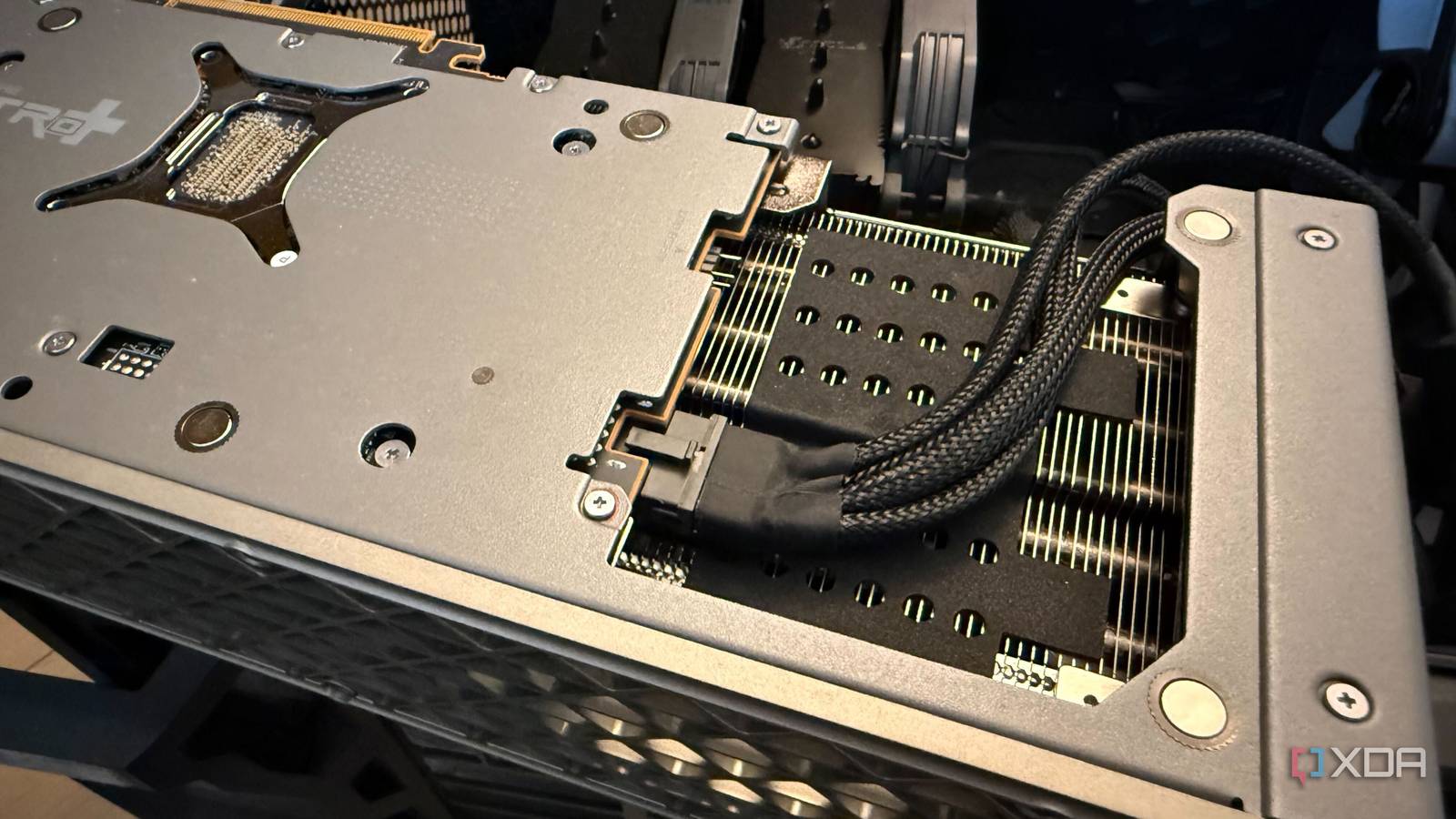
Published Aug 3, 2026, 5:30 PM EDT After a 7-year corporate stint, Tanveer found his love for writing and tech too much to resist. An MBA in Marketing and the owner of a PC building business, he writes on PC hardware, technology, and Windows. When not scouring the web for ideas, he can be found building PCs, watching anime, or playing Smash Karts on his RTX 3080 (sigh). If you've ever paid attention to your graphics card's TGP, you would have gotten an idea about the maximum power the card is allowed to consume. Most gamers are clear about this, but what isn't as clear is that this TGP isn't the actual power limit of the graphics card. Tools like MSI Afterburner allow you to raise the power limit of your GPU beyond the "100%" value, and this directly impacts your gaming performance. The degree of gains may not be linear, but you still get a free performance boost by simply moving the power slider. If your particular GPU's firmware permits, you can usually raise this limit by 15–20%, getting a noticeable improvement in gaming performance. Graphics cards can exceed the "100%" power limit The default power limit is a safeguard, not your GPU's real hardware limit Contrary to what some gamers might think, the power limit of their graphics card isn't set in stone. Although the stock limit set by the manufacturer guarantees maximum stability, it's still targeted at the least-quality silicon. Your particular GPU might be capable of performing better if the factory limits are removed. And thankfully, doing that doesn't require flashing a custom vBIOS on most graphics cards. You just need to push the power limit slider to the right in MSI Afterburner. Alternatively, you could use the performance settings in the Nvidia App or AMD Adrenalin Software to do the same. Also, you don't need to tweak any other setting to ensure the increased power limit takes effect properly. Your GPU will automatically respond to the extra headroom by maintaining higher boost clocks, improving the average as well as minimum FPS. Most graphics cards allow raising the power limit to 115% or 120%. This won't dramatically improve your maximum framerates, but a noticeable jump can be expected. More importantly, better 1% lows could lead to a smoother gameplay experience. You still need to avoid running into the thermal limit Don't replace one type of throttling with another With more power comes more performance. However, as your graphics card consumes more watts, it also has to contend with more heat. The enhanced power limit ensures your card isn't power-throttling anymore, but it can still run into thermal throttling. Every GPU has a throttling temperature, and the firmware ensures your performance starts tapering automatically to avoid reaching this temperature. If the increased power increases the risk of thermal throttling, you end up defeating the purpose of the whole exercise. Hence, sufficient cooling is necessary if you want to avoid tanking your performance due to thermal constraints. If your graphics card has a decent AIB cooler and your case has sufficient intake and exhaust fans, you might be able to sustain the higher power draw and temperatures without throttling the card. Undervolting might yield better results, if not more performance It may be the better option overall An increased power budget allows your GPU to churn out some extra frames at the cost of higher operating temperatures, but going the other way could be better. Undervolting your graphics card instead reduces the voltage required for the same performance. By tweaking the voltage-frequency curve in MSI Afterburner, you can lower your power consumption without a significant hit to the performance. In some instances, the additional thermal headroom actually increases your FPS. Your GPU can also maintain its boost clocks for longer without running into thermal limits. Even if the performance stays mostly the same, you're still ensuring smoother gameplay due to improved 1% lows. And the lower operating temperature will translate into lower fan noise and increased GPU longevity. Undervolting can be better than increasing the power limit if the gains from the latter are insignificant. Lowering the voltage trades a minor performance boost for smoother performance, better thermals, and longer hardware lifespan. Pushing more power to your GPU is a double-edged sword While extra watts allow your graphics card to push higher frequencies and more FPS, it also produces more heat that needs to be dissipated to avoid thermal throttling. If you're not getting the desired performance boost, you can try undervolting instead. It could potentially yield smoother gameplay without running the risk of thermal throttling. Besides, it is easier to manage with a typical cooling setup, and is better for your GPU's lifespan.
Your GPU's maximum power limit isn't what you think it is, and raising it gives you free performance
Full Article
Original Source
Read the full article at Xda-developers →KhanList aggregates and links to publicly available news content. We do not host full articles from third-party sources. Always verify important information with original sources.