
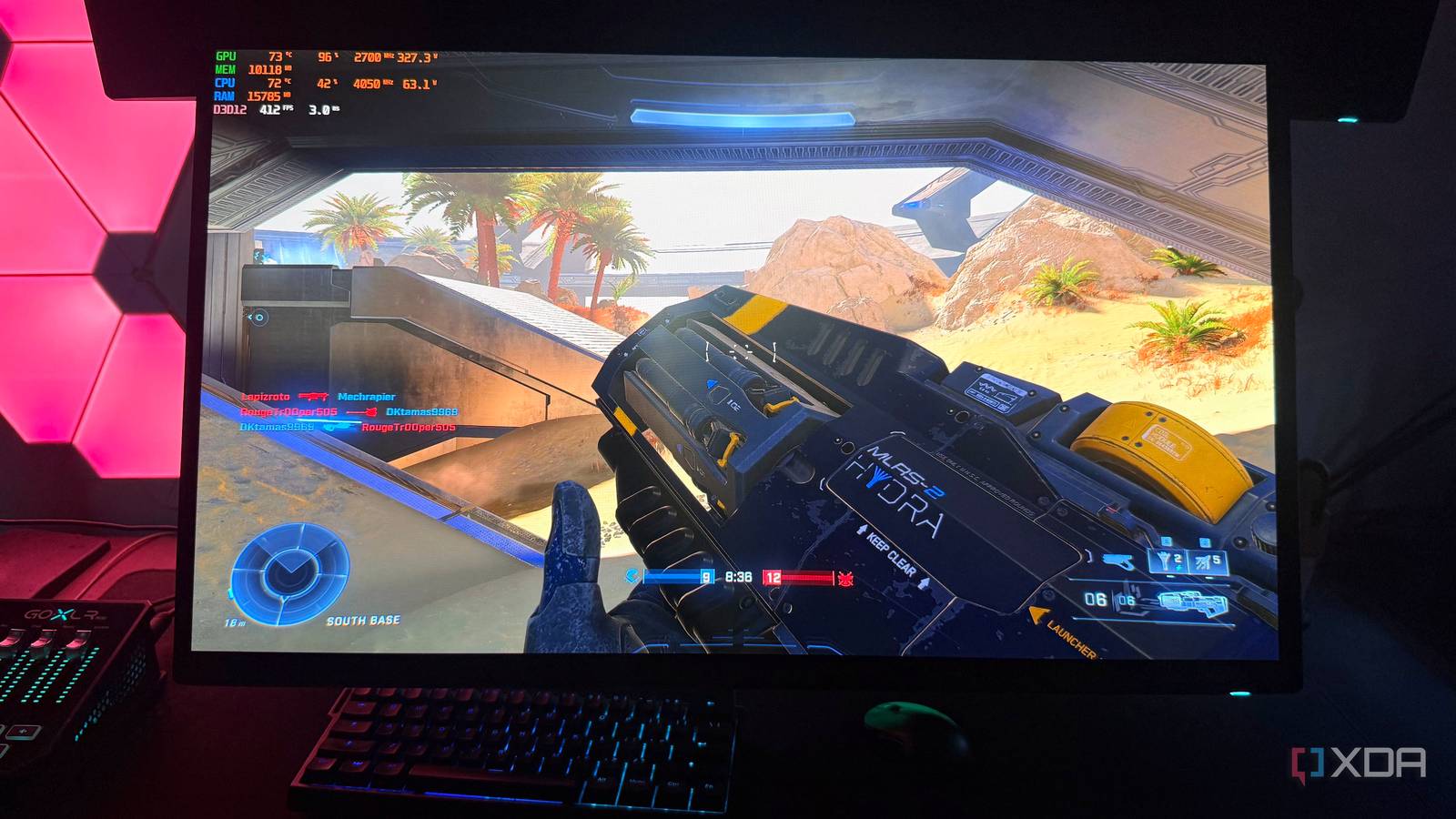
Published Aug 23, 2026, 7:00 AM EDT Hamlin has been in the tech field for over nine years. Since 2017, his work has appeared on MakeUseOf, Android Police, OSXDaily, Beebom, and more. He served as the Senior Editor at Valnet's MakeUseOf for over two years before joining XDA. He uses a high-end gaming rig for desktop use and a MacBook for traveling, but dislikes some of the quirks of macOS. You're more likely to catch him at the gym or on a flight than anywhere else. When I first got into PC gaming, the only performance metric I really cared about was average FPS. As someone who switched from a PS3 back then, I just wanted AAA titles to average around 50FPS on my GTX 680 at 1080p. I never even knew what 1% lows or frame times were until years later, when I upgraded to the GTX 1070 and started chasing higher frame rates in fast-paced shooters like Battlefield 1 and Titanfall 2. Fast-forward to today, and I've learned enough to know that these two metrics matter just as much as average FPS, especially when you're trying to figure out why a game doesn't feel as smooth as the number MSI Afterburner suggests. You could be averaging well over 100FPS, but if these other metrics are all over the place, the game can still feel choppy. That's why you need to look beyond your average FPS when you aren't satisfied with the smoothness. Sure, sometimes it could be the game itself, but your 1% lows and frame times can give you a much better idea of what's going on. "Average" isn't your whole experience Smoothness depends just as much on how low your FPS drops When you look at the FPS counter in MSI Afterburner and see it hovering around 100FPS, you're probably thinking, okay, my PC is handling this game just fine. And for the most part, it probably is. But that number doesn't tell you how far your FPS drops, especially during GPU-intensive or CPU-intensive scenes. For instance, your game could dip to 30FPS for a second and go right back to 100, and your average FPS might barely even change. Except you'll feel that drop immediately. This is exactly why your 1% and 0.1% lows are so important. They represent performance across the slowest 1% and 0.1% of frames and give you clear insight into what happens during the worst moments. Many of the stutters or occasional hitches you notice while playing a game will show up in your 1% and 0.1% lows, so that's the first thing I'd check if I wasn't satisfied with the smoothness. MSI Afterburner doesn't show this metric in the OSD out of the box, but you can enable it from Settings -> Monitoring. Look for Framerate 1% Low and Framerate 0.1% Low and check the Show in On-Screen Display box for each. 100FPS doesn't mean every frame arrives evenly The frametime graph shows you exactly what's happening Even though your 1% and 0.1% lows can tell you something's wrong during the worst moments, they still condense all that information into a couple of numbers. That's where the frametime graph becomes a lot more useful. It shows you how long each individual frame takes to render. At 100FPS, for example, each frame takes around 10ms on average, and if your game is running smoothly, that number should be relatively consistent. Now, if one of those frames takes 20ms to render, you'll see a spike on the frametime graph. That's what I'm looking for when a game feels like it stuttered even though my FPS counter barely moved. Consistent frame delivery is what makes motion feel buttery smooth, so if the graph has a lot of spikes, that could explain why your game feels choppy. Don't expect a perfectly straight line, though, because some variation is completely normal. But if you feel a hitch and see a large spike on the graph at the same time, you know one or more frames took longer to render. You can enable Frametime in the Monitoring section of MSI Afterburner's settings, but if you want to see the graph, you need to select it from the dropdown next to Show in On-Screen Display. Higher FPS can still make a game feel smoother But your GPU might not be the reason the game isn't smooth Of course, if you upgrade to a faster GPU and double your average FPS to 200, the game will still feel smoother than it did at 100FPS. After all, you're getting a new frame every 5ms instead of 10 on average, so that should make motion feel noticeably smoother as you move your mouse around. And if your GPU was the bottleneck in the first place, upgrading it can improve your 1%/0.1% lows and frame times, along with your average FPS. But when you're already getting triple-digit frame rates, there's a good chance a faster GPU isn't going to fix those stutters. Your CPU could be holding your GPU back, which is something I experienced firsthand when I paired the RTX 4090 with a Ryzen 9 5900X. CPU-side stalls can delay frame delivery, which shows up as frametime spikes. Then there are asset streaming delays, shader compilation stutters, and poor optimization in general, all of which can cause stutters no matter how fast your CPU or GPU is. So don't be quick to jump to conclusions just because you're not happy with your numbers. If 100FPS doesn't feel like 100FPS, now you know why I'll admit average FPS is still the first thing I'm going to look at whenever I start monitoring performance using MSI Afterburner. And I'm sure most of you will continue to do the same. There's nothing wrong with that, but if the game doesn't feel like it's running at the number you see, or you're dealing with occasional hitches or stutters, it's probably time to look into these other metrics. They won't pinpoint what's causing the problem, but at least you'll have a better idea of what's going wrong. If smoothness is your top priority, like it is for me when I'm playing fast-paced games, you should be paying just as much attention to 1%/0.1% lows and frame times.
Your games still stutter at 100 FPS because average frame rate hides the real problem
Full Article
Original Source
Read the full article at Xda-developers →KhanList aggregates and links to publicly available news content. We do not host full articles from third-party sources. Always verify important information with original sources.