
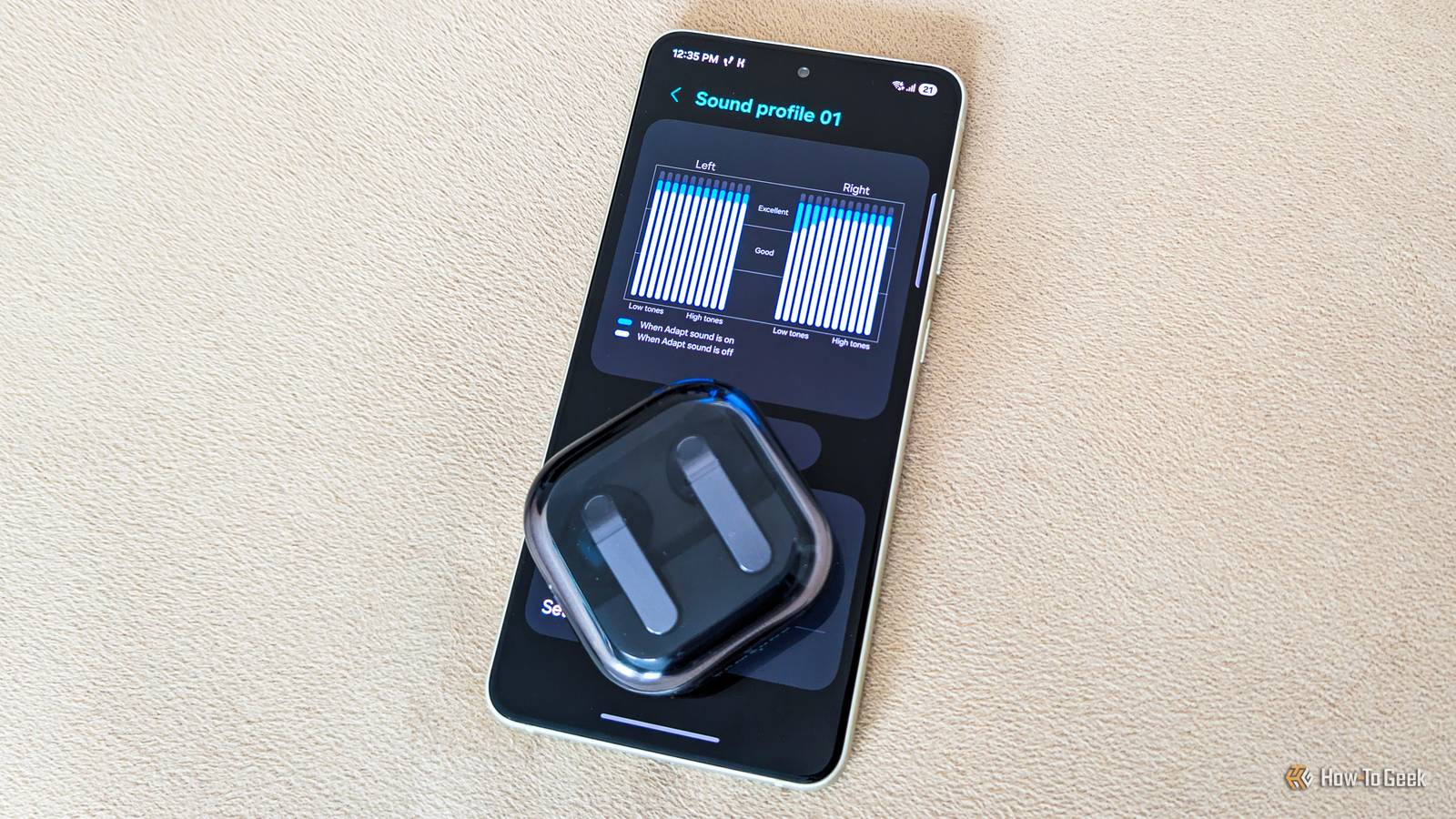
Published Nov 7, 2026, 7:00 PM EST Ever since he got his first smartphone, the legendary Nokia 6600, back in 2005, Goran became obsessed with technology. This obsession had only gotten worse after he received his first gaming PC a couple of months later. He fell in love with video games in the early '90s, shortly after embarking on his gaming journey with the Sega Master System II and SNES. Since then, he has built dozens of PCs, played thousands of games, and authored hundreds of articles about PC hardware, gaming hardware, and video games. He knows everything there is to know about the PC gaming and PC hardware space, and while his console gaming knowledge isn't as comprehensive, he considers himself a console veteran. Goran has almost a decade of experience writing about tech and video games for numerous web publications including TechSpot, TechPowerUp, and EsportsHeadlines. He has been writing for How-To Geek since December 2022. When he isn't gaming or deciding which component of his PC to upgrade next, you can find him strolling around Novi Sad while listening to music and contemplating what to play next. Similar to eyesight, everyone's hearing is unique. Some of us can hear most frequencies audible to the human ear, while others struggle with certain ranges, which can affect their experience when listening to music and watching videos. If you own a Samsung Galaxy phone, though, you can take a hearing test and adjust your headphones' sound profile to boost the frequencies you struggle to hear. It only takes a minute and can not only improve the experience of enjoying music or movies but also make calls clearer and the people you speak with on the phone easier to understand. Most of us don't have perfect hearing Age and habits can and will degrade it Have you ever taken an online hearing test? I’ve done them many times, and despite still being more than a few years away from my 40th birthday, my hearing is closer to that of a person who’s nearing their 50s. A bummer, but expected, considering the decades of listening to loud (mostly metal) music over headphones and earbuds, as well as going to countless concerts. Unlike most cells in our body, the hair cells in our ears — responsible for registering sound vibrations, converting them into electrical signals, and sending them to our brain for processing—don’t regenerate. This is the main cause of the hearing loss that happens to every person as they get old. Some are affected by it to a lesser degree, some to a greater degree, but we all experience some level of hearing degradation with age. In general, as you get older, you lose your ability to hear higher-pitched sounds, which is why kids and young people can usually hear some “silent” dog whistles (at least those that use lower frequencies) while adults can’t. You can test it yourself with an online dog whistle. In my case, I couldn’t hear sounds at 15kHz and higher, which isn’t that great since most people under the age of 40 can. Luckily, Samsung Galaxy phones have a One UI feature that adjusts your headphones and earphones so that they boost only the frequencies you have trouble hearing. The feature’s called Adapt sound, and most Galaxy phones should have access to it. Adapt sound tunes your headphones and earbuds to your ears The feature boosts frequencies you have trouble hearing You can find Adapt sound by opening your phone’s Settings app and then going to Sounds and vibration -> Sound quality and effects -> Adapt sound. Once you open its menu, you’ll be greeted with three default profiles you can enable, but I strongly recommend creating a bespoke profile because, as I’ve said, each person has a unique hearing profile. All you need to do is put your headphones or earbuds on, make sure you’re in a relatively quiet place, and tap the Add personalized sound profile button and tap Start on the next screen. The phone will play a number of sounds of various frequencies to your left and right ears, slowly building your hearing profile. Once it finishes, you get a custom sound profile tailored to your hearing. To my surprise, it looks like my left ear can still hear the frequencies used in most music and videos nearly perfectly (the bulk of what you hear in them sits well below 15kHz), but my right ear has issues with low-frequency tones. Thus, my sound profile only boosts lower tones, and only in my right ear. I’ve taken the test multiple times and gotten very similar results, so this isn’t a fluke. Now, I can’t say that I notice a massive difference when listening to music with and without the sound profile enabled, but the bass sounds a bit tighter and fuller with it on. This might just be a placebo, but it will cost you nothing aside from a minute of your time to try it out yourself. If you do decide to keep your sound profile on, I also recommend activating it for both calls and media, and selecting a preferred ear for calls, which should be the ear you usually hold your phone to. I selected my left ear because it looks like my hearing’s worse in my right one, but also because I’m a leftie. If you own a pair of newer Galaxy Buds or Galaxy Buds Pro (Galaxy Buds4 in my case), the Adapt sound option will likely be gone from the Sound quality and effects menu and replaced with Adjust sound to fit, which automatically tunes the sound based on your ear shape and the way you wear your earbuds. It’s similar to Adapt sound, and you don’t have to take a hearing test, but it adjusts the sound to fit your ears rather than your hearing. The good news is that you’ll still be able to access the Adapt sound feature. You’ll just have to look for it in Settings -> Accessibility -> Hearing enhancements -> Adapt sound. One UI's Sound quality and effects menu hides a few other goodies A 9-band equalizer, sound upscaler, per-app sound effects settings, and more The Adapt sound feature isn’t the only thing you should notice in the Sound quality and effects menu. This menu includes a few other useful features, most importantly the equalizer. You can pick from six different presets or adjust its 9 bands yourself. Another option to consider is the Dolby Atmos toggle. Depending on your preferences, Dolby Atmos can make music and videos sound better or worse. I keep it enabled, with the Music profile activated since I very rarely watch videos on phones, but you do you. When using a pair of newer Galaxy Buds, Dolby Atmos will be replaced with the 360 Audio option. There’s also an option called App sound settings, which stores custom sound settings you can adjust for each media app separately. To tweak them, open the media app you want to adjust and play something in it, open the Quick Settings panel, swipe down again to get access to the volume slider, and hold the slider. This opens a menu that allows you to adjust Dolby Atmos, Equalizer, and Loudness normalization only for that app. Other settings there include Loudness normalization, which adjusts the volume to prevent sounds from suddenly becoming too loud or too quiet when playing media, and UHQ upscaler, which should make music and videos clearer when using wired headphones or compatible wireless earbuds (you can’t use it while playing media on your phone’s speaker). The former can be useful, especially when watching movies with a wide dynamic range, but the latter is mostly a gimmick in my experience. One UI is full of surprisingly handy features like Adapt sound Adapt sound is just one of many small but very useful audio-related features in Samsung’s One UI. For example, with a feature called Separate app sound, you can use two media apps at the same time on your Galaxy phone, each one playing audio through a different device (your phone’s speaker and headphones, for instance). The Good Lock app also includes a slew of audio-related features, the most useful being the one that allows you to fine-tune volume granularity, increasing volume steps from 15 to 150! Lastly, on newer flagship Galaxy phones, Audio Eraser can make dialogue easier to understand by boosting the volume of voices on the fly in the media apps you use.
Your Galaxy phone has a built-in hearing test that customizes your headphone audio
Full Article
Original Source
Read the full article at Howtogeek →KhanList aggregates and links to publicly available news content. We do not host full articles from third-party sources. Always verify important information with original sources.