
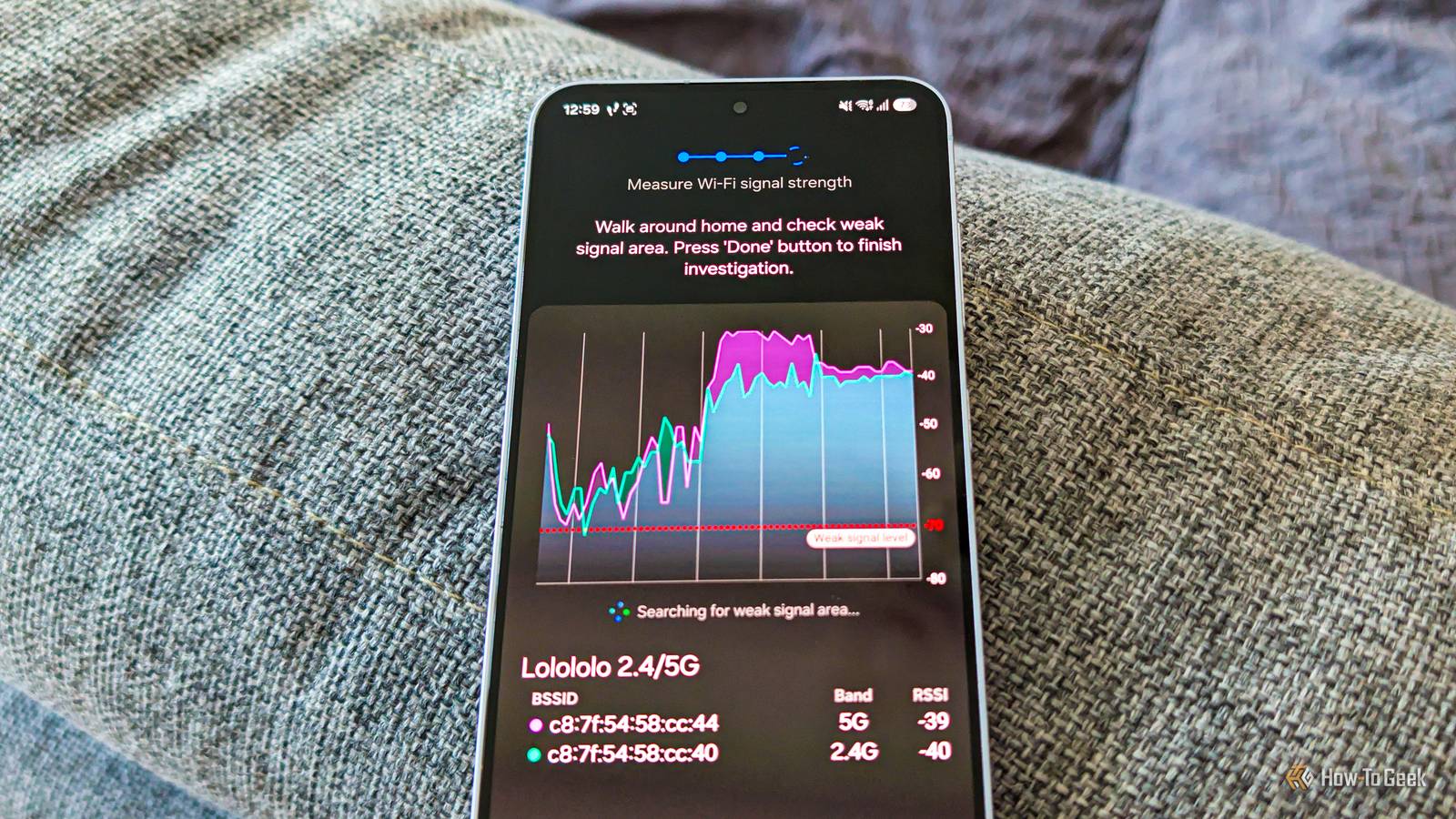
Published Nov 8, 2026, 9:00 AM EST Ever since he got his first smartphone, the legendary Nokia 6600, back in 2005, Goran became obsessed with technology. This obsession had only gotten worse after he received his first gaming PC a couple of months later. He fell in love with video games in the early '90s, shortly after embarking on his gaming journey with the Sega Master System II and SNES. Since then, he has built dozens of PCs, played thousands of games, and authored hundreds of articles about PC hardware, gaming hardware, and video games. He knows everything there is to know about the PC gaming and PC hardware space, and while his console gaming knowledge isn't as comprehensive, he considers himself a console veteran. Goran has almost a decade of experience writing about tech and video games for numerous web publications including TechSpot, TechPowerUp, and EsportsHeadlines. He has been writing for How-To Geek since December 2022. When he isn't gaming or deciding which component of his PC to upgrade next, you can find him strolling around Novi Sad while listening to music and contemplating what to play next. You probably know that Android phones have a hidden Developer options menu that contains a bunch of settings allowing you to do all kinds of stuff. If you own a Samsung Galaxy device, the secret goodies don't end there. Similar menus that can be activated with special tap combinations are present in various Samsung apps as well. These menus are usually labeled “Labs” and feature various options you can’t find in the regular Settings menu. Some of them aren’t that useful, but others can change the way you use a certain app or your Galaxy phone. Samsung Capture A bunch of developer options here, but most aren't of interest While Samsung Capture is technically an app, you won’t find it in the app drawer. The app runs in the background, allowing you to take screenshots and record the phone's screen at any time, but its settings are part of system settings, which is also where you’ll unlock its hidden menu. To unlock Samsung Capture’s hidden menu, open Settings, go to Advanced features > Screenshots and screen recordings > About Samsung Capture, and tap the version number 10 times. This will take you directly to the Developer menu. Note that after you exit the Developer menu, you’ll have to tap the version number again to access it. Now, the Developer menu has a bunch of cryptic options I don’t recommend you enable blindly, but there are a few interesting ones. You can, for instance, see your screenshot history, change the default AI model used by the AI Select feature, enable telemetry data, or disable various features supported by the app. That said, I wouldn’t bother with this menu because it’s not well documented, and there isn’t really a must-have feature that’s disabled by default that you can enable from it. Connectivity labs Once again, you have to open Settings to unlock the hidden Connectivity Labs menu since you won’t find it in any app. To do this, open Settings, go to Connections > Wi-Fi, tap the three-dot button, open Intelligent Wi-Fi, and keep tapping the Intelligent Wi-Fi version found at the bottom until you unlock Connectivity Labs. Once you open it, you’ll find lots of handy options that can show you how long your phone has been connected to Wi-Fi networks today, the average Wi-Fi connection time, which Wi-Fi bands your phone is connected to and for how long, which Wi-Fi standard the phone has been connected to, and so much more. You can also check your daily Wi-Fi usage, see all the networks you have saved on your phone, toggle Wi-Fi 7 mode (if your phone supports it), manually switch to the 2.4GHz band when setting up IoT devices, and even launch the Home Wi-Fi inspection app, allowing you to check Wi-Fi signal quality across your home and locate weak spots! If you’re on One UI 9, you’ll also find AI Network Guard, which can block internet access for specific apps. The Connectivity Labs menu is a proper game-changer, and I strongly recommend enabling it since it can give you a ton of insights about your Wi-Fi while also including a number of cool features most users can benefit from. I honestly can’t believe I didn’t know about it during all those years I owned a Galaxy S21 FE. The only option you get here lets third-party contacts show up in the built-in Contacts app Samsung Contacts also has a hidden menu, but it’s not nearly as exciting or feature-packed as the Connectivity Labs menu. It only has one option, which lets contacts from third-party chat apps show up in the built-in Contacts app. To unlock it, open the Contacts app, tap the three-dot menu, go to Settings, open About Contacts, and then tap Contacts seven times. Once you tap it enough times, the menu will automatically open. After you unlock it, you can visit it by tapping Contacts again, but this time only once. Samsung Gallery To enable the Gallery Labs menu, open the app, tap the menu icon in the bottom-right corner, and then tap Settings. Now open About Gallery, and tap the version number 10 times. You should get notified about the Labs menu being unlocked, and it should show up at the very bottom of the Gallery settings menu. The Gallery app has a pretty long Labs menu, with most options grouped by the One UI version they were introduced in. In there, you can not only enable options that never made it to the regular settings, but also some legacy ones, such as grouping album photos by date, saving images as PDF files, locking specific albums, adding new categories to album collections, and more. Conversely, you can also disable a number of options, such as AI zoom, Recent and Favorites albums being visible on the Gallery home screen, the filmstrip that shows at the bottom of the screen when viewing photos, and so on. As with the Connectivity Labs menu, I recommend enabling Gallery Labs because it has lots of potentially beneficial options you can enable or disable depending on your preferences. It can be especially handy if you liked a certain legacy option or feature that has since been removed, as you’ll now be able to re-enable it. My Files Just two options here, but one can be a game-changer The My Files app, which is the default file manager on Galaxy phones, has quite a slender Labs menu, but one option available there can be really useful. First, let me show you how to unlock the menu. Open the app, tap the three-dot menu at the top, and open Settings. Now go to the bottom and open About My Files, tap My Files about 10 times, and then tap Enable MyFiles Labs once it shows up. Once you open the Labs menu, you’ll find just two options there, but one of them is quite interesting. Permanently Delete Option finally lets you banish files and photos for good instead of sending them to Trash. Now, you can empty the Trash folder in My Files manually, but with the option to permanently delete files enabled, you won’t have to worry about emptying it each time you delete a sensitive file. The only downside is that you can permanently delete files only inside My Files; you can’t do it in the Gallery app, for instance. Still, it’s (much) better than nothing. Samsung Browser Just one Labs option here that's anything but important Samsung Browser technically also includes a Labs menu, but it’s anything but interesting since it includes just one option. You don’t even have to unlock it, but its location is a bit out of the way. To find it, open Browser, tap the three-dot menu, and open Settings > Useful features > Labs. There, I found just one option, which lets you use the phone’s system font for webpages instead of the custom fonts webpages use by default. As I’ve said, it's barely worth mentioning. Not all Samsung Labs and developer menus are interesting. Some apps only include one or a few Labs options that are pretty underwhelming. But a few Labs menus really knock it out of the park. My favorite is the Connectivity Labs menu, which includes plenty of valuable options and features that can give you deep insights into your Wi-Fi network, allow you to test the Wi-Fi signal around your house and find weak spots, and even set up Network Guard, which can block specific apps from accessing the internet. The Gallery Labs menu also houses a number of cool options, which can be especially interesting to people who miss certain legacy Gallery features that were abandoned after updates.
Your Galaxy phone has 6 secret “Labs” menus with features Samsung doesn’t show you
Full Article
Original Source
Read the full article at Howtogeek →KhanList aggregates and links to publicly available news content. We do not host full articles from third-party sources. Always verify important information with original sources.