
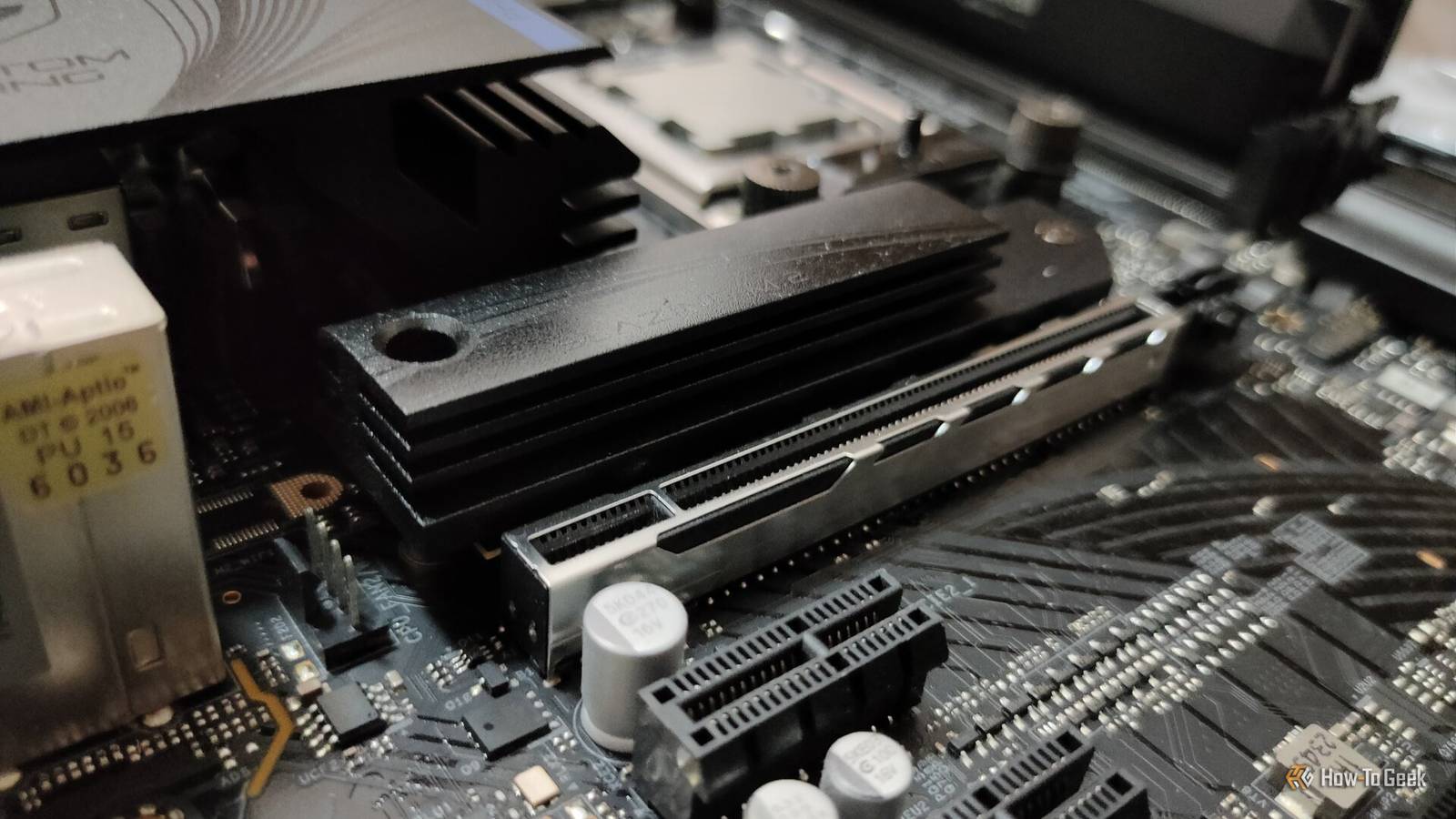
Published Aug 24, 2026, 11:45 AM EDT Monica J. White is a journalist with over a decade of experience in covering technology. She built her first PC nearly 20 years ago, and she has since built and tested dozens of PCs. PC hardware is her main beat, and graphics cards and the GPU market at large are her main area of interest, but she has written thousands of articles covering everything related to PCs, laptops, handhelds, and peripherals. From GPUs and CPUs to headsets and software, Monica's always willing to geek out over all things related to computing. Outside of her work with How-To Geek, Monica contributes to TechRadar, PC Gamer, Tom's Guide, Laptop Mag, SlashGear, Whop, and Digital Trends, among others. Her ultimate goal is to make PC gaming and computing approachable and fun to any audience. Monica spends a lot of time elbow-deep in her PC case, as she's always making upgrades, testing something, or plotting out her next build. She's the go-to tech support person in her immediate circle, so she's never out of things to do. Whenever she has spare time, you'll find her gaming until the early hours and hanging out with her dog. If you shell out some of your hard-earned cash on a PCIe 5 SSD, you certainly expect it to hit five-digit speeds. It's meant to be the fastest it can possibly be in this current generation, after all. But what if testing the drive reveals much slower speeds? Don't panic. It's probably not your motherboard. It might not even be the drive! PCIe link negotiation could be to blame. A PCIe link negotiates two numbers Generation is the speed limit, width is the road Various PCIe shenanigans are among the most common SSD-related mistakes, in the sense that getting this wrong can make your drive extremely slow. And yes, it's easy to get it wrong, actually. Almost too easy. A lot of it comes down to link negotiation. This is where your drive and your motherboard decide how fast the connection between them can be, based on many factors, but chiefly, obviously, what each is able to provide. This is done in two parts: link speed, which is the generation, and link width, which is how many PCIe lanes are actually live. The generation determines how much bandwidth each individual lane can provide, and the width tells you how many of those lanes the SSD actually gets to use. The way these lanes work means that the SSD doesn't get to just grab whatever it wants; even though most NVMe SSDs are designed for x4, meaning four lanes, they can end up running x2 or even x1 if that's all the M.2 slot or your PC can provide. All of this mess put together adds up to the link's total bandwidth. So, a PCIe 5 SSD negotiating at Gen5 x2 still gets Gen5 speeds on each lane, but it only has two lanes carrying data instead of four. Meanwhile, a Gen4 x4 connection has four lanes to work with, but each one is slower than a Gen5 lane. Gen5 x2 and Gen4 x4 are essentially the same ceiling But you won't see these calculations on the box Credit: Patrick Campanale / How-To Geek If this whole thing feels a little confusing, you're not alone, but keep on reading—it makes sense. PCIe bandwidth essentially doubles with each generation, which is why you'll see top SSDs having double the maximum read/write speeds that their predecessors offered. But this creates a kind of weird result. A single PCIe 5.0 lane carries about twice as much data as a PCIe 4 lane, so Gen5 x2 and Gen4 x4 end up with the same bandwidth ... in theory. It's just under 8GB/s in each direction (which is also a lot less than a PCIe Gen 5 SSD should be capable of). Unsurprisingly, this discrepancy doesn't get advertised all over the place. SSDs typically advertise the highest possible speeds they can achieve, which aren't a given, and they hinge on many different factors. While an SSD may be capable of those 14,000MB/s+ speeds, if you cut its link width in half, that whole advantage goes bye-bye. The second M.2 slot isn't the same thing as the first one But it's the first one that gets talked about Credit: Patrick Campanale / How-To Geek If you thought things were confusing before, I'm about to confuse you even more. Enjoy. Two M.2 slots on the same motherboard don't necessarily offer the same connection. The primary slot is where you want your SSD to live, as that's usually connected directly to the CPU and it gets four dedicated PCIe lanes, so it lets your SSD stretch its legs. Additional slots may run through the chipset or just be wired for fewer lanes, making them much worse for an expensive, modern SSD. Many motherboards, especially the ones that are more budget-oriented, give you a shiny Gen5 x4 M.2 slot paired with one that's limited to Gen4 x2, for instance. Physically, they're both an M.2 slot, so the SSD should fit in either. It just won't work as well in both. That's why using the wrong M.2 slot can slash your SSD's speed in half. Laptops and prebuilts wire the slot however they like Of course, you don't get a say Credit: Tony Phillips/How-To Geek This whole time, I've been talking about desktop PCs, namely ones you choose parts for and then build by yourself. Super fun, super flexible. But things get a little muddy when we look at laptops and prebuilts in this particular context. You didn't get to choose the motherboard. You may not even get a list of lanes, telling you which M.2 slot is connected where. Some manufacturers may give you one good x4 slot, some may be generous and offer two. The worst part of it all is that your M.2 slots may not be well documented by the motherboard manufacturer, which makes slotting the SSD in the wrong place a serious possibility. This is especially annoying when upgrading your laptop, because an empty M.2 slot basically tells you nothing. Digging through spec sheets is the only thing to do in this situation. How to check what your drive actually negotiated It's worth the time Credit: Monica J. White / How-To Geek CrystalDiskInfo is my favorite tool for these types of things. Open it up, select the SSD you're interested in, and look for Transfer Mode. This is displayed as current transfer mode first, supported second. So basically, it tells you which gen of PCIe and how many lanes the drive is using, and how many are available to it at most. If you find some discrepancies here, the software will tell you about it, but it won't tell you why. The answer lies in the mobo/PC/SSD documentation or in the hardware itself. Trace your path all the way back to the PCIe slot and find out what went wrong. The link is only ever as fast as the slowest thing that agreed to it At the end of the day, your SSD, amazing as it may hopefully be, can only do what circumstances allow it to do. A Gen5 x4 drive in a Gen4 x4 slot becomes a Gen 4 SSD for all intents and purposes, which means that you're essentially throwing money away by buying a more expensive drive if your motherboard won't allow it to perform at its maximum potential.
Your fancy PCIe 5.0 drives are probably running at half speed
Full Article
Original Source
Read the full article at Howtogeek →KhanList aggregates and links to publicly available news content. We do not host full articles from third-party sources. Always verify important information with original sources.