
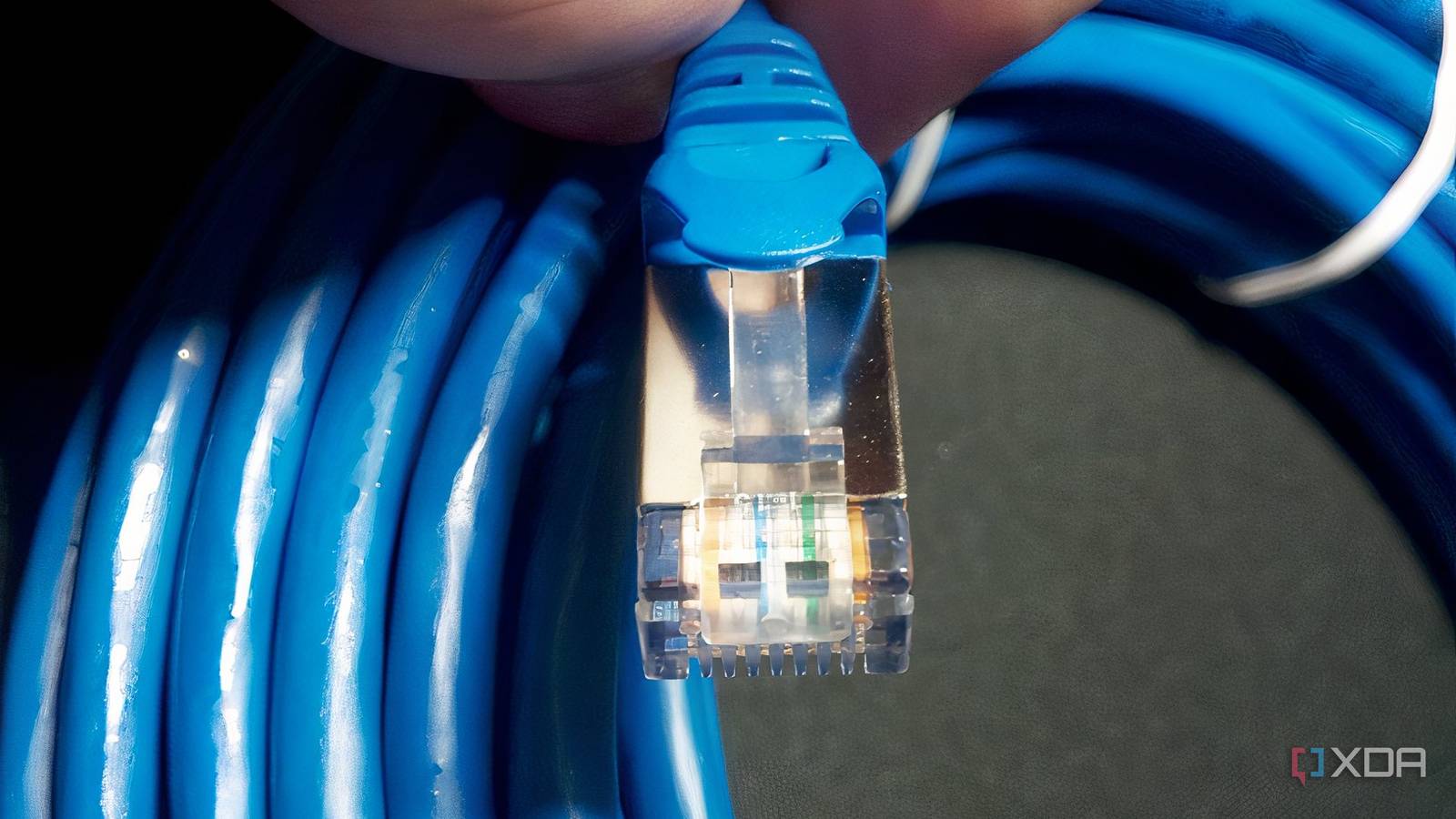
Published Aug 13, 2026, 12:00 PM EDT Hamlin has been in the tech field for over nine years. Since 2017, his work has appeared on MakeUseOf, Android Police, OSXDaily, Beebom, and more. He served as the Senior Editor at Valnet's MakeUseOf for over two years before joining XDA. He uses a high-end gaming rig for desktop use and a MacBook for traveling, but dislikes some of the quirks of macOS. You're more likely to catch him at the gym or on a flight than anywhere else. Whenever our internet connection feels slow, the first thing we tend to do is run a speed test to see what the numbers are. And we're quick to blame the ISP when those speeds are nowhere close to what we're paying for. That's why I also always run a speed test over Wi-Fi on my phone. But if it's just my PC that's affected, I know there's a good chance the problem is somewhere between my PC and the router. And one of the easiest things to overlook at that point is the Ethernet cable connecting the two. Usually, we're checking for background downloads, messing with network drivers, or wondering if there's something wrong with the Ethernet port itself. The cable doesn't seem suspicious at all when your PC is still connected to the internet. But that thought process assumes a bad cable has to stop working altogether, which isn't necessarily the case. It can still maintain a connection while leaving you stuck at 100Mbps instead of 1Gbps. The good news is it only takes a minute to find out if that's the problem. Your Ethernet connection could be stuck at 100Mbps The easiest way to find out is to check your link speed in Windows If you're paying for a 300Mbps or faster plan, but you're not even touching 100Mbps in a speed test, the first thing I'd check is the Ethernet link speed in Windows. You don't need to install any third-party tool for this because you can easily check it in Settings -> Network & internet -> Ethernet. Expand the network adapter you're connected to and look for Aggregated link speed (Receive/Transmit). If you see 100Mbps instead of 1000Mbps next to it, it's time to start suspecting your cable. Simply put, this number indicates the speed your PC has negotiated with the device at the other end of the Ethernet connection, usually your router or a network switch. So, even if your ISP is delivering the full 300Mbps you're paying for, a 100Mbps Ethernet link will bottleneck the internet connection on your PC. Sure, that doesn't necessarily mean your cable is at fault, but at this point, it's definitely worth swapping the cable and checking the link speed again to see if you're still stuck at 100Mbps. A damaged cable is all it takes Gigabit Ethernet needs all four twisted pairs to work Unless you're using an ancient Cat5 cable, I wouldn't worry too much about the type of cable you have. Even though Cat5 isn't inherently capped at 100Mbps, I'd still rather use at least a Cat5e cable for a high-speed connection. It's more than enough for Gigabit Ethernet up to 100 meters, while Cat6 gives you more headroom for multi-gigabit speeds. Either way, if you're already using Cat5e or Cat6, I'd be more concerned about the cable's condition than the category printed on it, because that's more likely to limit your link speed. The reason comes down to how Gigabit Ethernet works over copper wiring. It requires all four twisted pairs in your Ethernet cable to deliver 1Gbps. This standard is called 1000BASE-T, whereas 100BASE-TX only needs two of those pairs to deliver 100Mbps. So, if one of the pairs needed for Gigabit Ethernet is damaged or isn't making proper contact due to a bad crimp, your PC and router may not establish a 1Gbps link. Depending on what's damaged, though, the two pairs needed for 100Mbps could still work just fine. That's why you can't assume your cable is fine just because you're still connected to the internet. Don't be quick to blame your cable, though A faulty Ethernet port can leave you stuck at 100Mbps too Of course, I can't say with 100% confidence that swapping the cable will get you a 1Gbps link speed because the Ethernet ports on either end (your PC and router) can cause the same problem. For instance, if there's physical damage or one of the internal contacts isn't making proper contact, you could still be limited to a 100Mbps link. On Windows, it can look like the exact problem I described earlier, but the link speed alone won't tell you whether it's the cable or the port that's at fault. And yes, there's also a chance you're using an older router and have plugged the cable into a 100Mbps LAN port. Still, I'd start by trying a different Cat5e or Cat6 cable first. After all, it's the easiest and cheapest variable to remove, and if your link speed jumps back to 1Gbps, then you don't have to waste time troubleshooting anything else. If your router has another Gigabit LAN port, I'd also try that before narrowing down the problem to your PC. But if you're still facing issues and you think it's the port on your motherboard, you can try using a different port if your motherboard has one, or use a Gigabit USB-to-Ethernet adapter to bypass the built-in port altogether. Checking your link speed can save you a headache If you don't spare a minute to double-check your link speed, you're far more likely to waste time troubleshooting the problem. You may end up reinstalling network drivers, calling your ISP, or even messing with your router's QoS settings when none of those things can fix an Ethernet connection that's limited to 100Mbps. The link speed gives you a much better idea of where the bottleneck is, especially when every other device connected to your router is getting the speeds you're paying for.
Your Ethernet cable is the reason your connection is slow, not your PC
Full Article
Original Source
Read the full article at Xda-developers →KhanList aggregates and links to publicly available news content. We do not host full articles from third-party sources. Always verify important information with original sources.