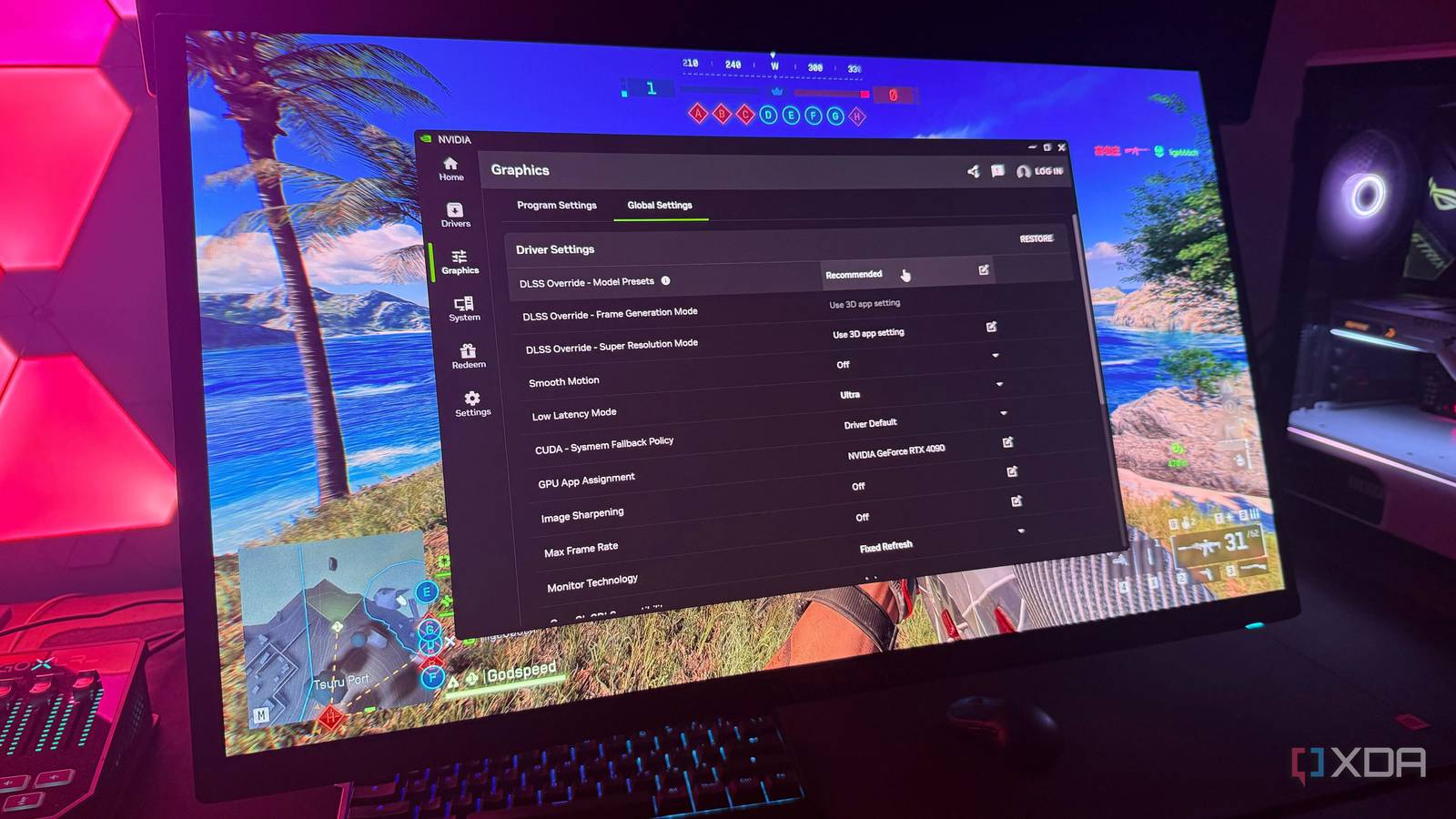
Published Jul 25, 2026, 7:00 AM EDT Hamlin has been in the tech field for over nine years. Since 2017, his work has appeared on MakeUseOf, Android Police, OSXDaily, Beebom, and more. He served as the Senior Editor at Valnet's MakeUseOf for over two years before joining XDA. He uses a high-end gaming rig for desktop use and a MacBook for traveling, but dislikes some of the quirks of macOS. You're more likely to catch him at the gym or on a flight than anywhere else. Not too long ago, I avoided DLSS upscaling unless I absolutely needed the extra performance. Visually, it always felt like a compromise. The image looked softer, almost as if someone had smeared Vaseline all over my screen. But Nvidia has improved DLSS so much over the last year and a half, and with DLSS 4.5 today, the upscaled image looks just as good as native 4K. At this point, I can't really tell whether DLSS is enabled unless I check the in-game settings or look at my FPS counter. That doesn't mean every DLSS game suddenly looks sharper. Many titles that launched a year or two ago are still using older DLSS models. Expecting developers to update games that are no longer in active development just so they support the latest version of DLSS isn't realistic either. Fortunately, the Nvidia App has a solution in the form of DLSS Override. You can use it to force the latest DLSS models in games that launched years ago, so waiting for developers can finally be a thing of the past. DLSS Override fixes what developers often don't Most games never get the latest DLSS model Only a handful of games natively support DLSS 4.5 today, which is to be expected considering Nvidia rolled it out just earlier this year. Sure, some developers may update their games down the line, but that's usually limited to newer titles that have an active player base. The truth is, most games may never get native DLSS 4.5 support. And you can't expect developers to keep updating their games forever as Nvidia releases new versions of DLSS. That's why DLSS Override exists. You can use this feature in the Nvidia App by going to Graphics -> Global Settings. The only setting you need to mess with is the one at the top: DLSS Override - Model Presets. By default, it's set to Use 3D app setting, which means the game will use the DLSS model it natively supports. Change that to Recommended, and the Nvidia App will automatically use newer DLSS reconstruction models in supported games. This should immediately improve image quality in many older games that still use DLSS 2 or 3. For DLSS 4.5, you'll need one more tweak Especially if you use DLSS Quality or Balanced modes You can have the latest graphics drivers installed and play a game that natively supports DLSS 4.5, but that still doesn't guarantee you're using DLSS 4.5's second-generation transformer model. That's because Nvidia's recommendations for DLSS 4.5 are a bit confusing. By default, Nvidia recommends Preset K for both Quality and Balanced modes, which actually uses the first-generation transformer model introduced with DLSS 4. To use the second-generation transformer model, you'll need to select one of the two newer presets: Preset M or Preset L. Nvidia recommends these presets for Performance and Ultra Performance modes because they're more demanding on the GPU. With Preset M, you're looking at about a 5% FPS hit compared to Preset K, while Preset L pushes that to around 10%. These presets are even more taxing on RTX 30-series and older GPUs because they lack native FP8 support. But if you want the best upscaling quality, Preset L is your best bet. Preset M sits in the middle, but I'm not a fan of it because of its over-sharpened look. You can select these presets by clicking Custom and using the dropdown next to Super Resolution. Not every DLSS game supports DLSS Override But the list of supported games is growing with each Nvidia App update Some old DLSS games are left behind, though. DLSS Override requires the game to support DLSS 2.0 at the very least. That means many titles that shipped with the original version of DLSS alongside the RTX 20-series GPUs and never received an update to DLSS 2.0 will continue to look like a blurry mess. A good example is Battlefield V, which was one of the first AAA titles to support ray tracing and DLSS. Another hurdle is Nvidia's whitelist. Even if a game supports DLSS 2.0 or later, you won't be able to use DLSS Override if Nvidia hasn't whitelisted it. The good news is that there's a way around this limitation. You can use DLSS Swapper to replace the game's DLSS DLL with a newer version. Then, you can use Nvidia Profile Inspector to force the driver-level preset override. I know that's a bit more complicated, but I personally haven't needed to do this in any of the games I've played. If anything, with every Nvidia App update, there's a growing list of games that I see in the release highlights. So this should be a non-issue sooner rather than later. DLSS Override makes native support almost irrelevant For the longest time, I'd check which DLSS version a game shipped with before I even bothered enabling it, but now that DLSS Override is an option in the Nvidia App, I don't even think about it anymore. Nowadays, I just open the Nvidia App and check whether the game supports DLSS Override under Program Settings. It's nice to know that I can use the latest transformer model at any time without waiting for developers to update their games. And for that reason alone, I find the Nvidia App indispensable at this point. NVIDIA App The Nvidia app isn't just for updating your graphics drivers. You can use it to optimize games, access the in-game overlay and, more importantly, get better control over your DLSS settings.
Your DLSS game still looks blurry because it's using an older model — the Nvidia app can replace it
Full Article
Original Source
Read the full article at Xda-developers →KhanList aggregates and links to publicly available news content. We do not host full articles from third-party sources. Always verify important information with original sources.