
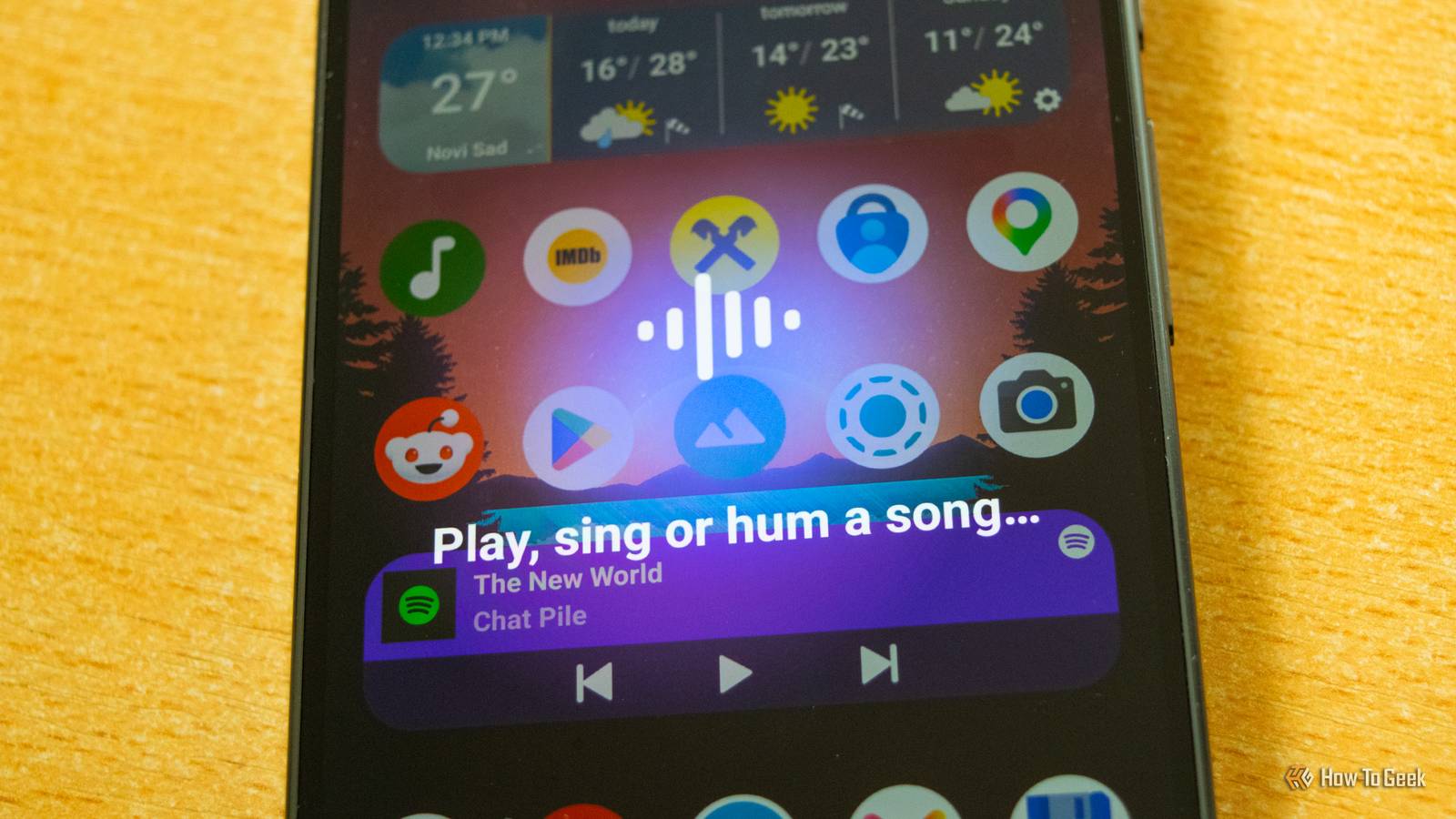
Published Sep 11, 2026, 5:00 PM EDT Ever since he got his first smartphone, the legendary Nokia 6600, back in 2005, Goran became obsessed with technology. This obsession had only gotten worse after he received his first gaming PC a couple of months later. He fell in love with video games in the early '90s, shortly after embarking on his gaming journey with the Sega Master System II and SNES. Since then, he has built dozens of PCs, played thousands of games, and authored hundreds of articles about PC hardware, gaming hardware, and video games. He knows everything there is to know about the PC gaming and PC hardware space, and while his console gaming knowledge isn't as comprehensive, he considers himself a console veteran. Goran has almost a decade of experience writing about tech and video games for numerous web publications including TechSpot, TechPowerUp, and EsportsHeadlines. He has been writing for How-To Geek since December 2022. When he isn't gaming or deciding which component of his PC to upgrade next, you can find him strolling around Novi Sad while listening to music and contemplating what to play next. Unless you own a Google Pixel phone with the built-in Now Playing feature, you have to use Shazam to recognize songs playing around you, right? Well, actually, no. Many Android phones have access to Google's built-in Song Search feature, which is almost as good as Now Playing and Shazam. Android Song Search is almost as good as Shazam It also closely matches the Now Playing feature available on Pixel phones Credit: Goran Damnjanovic / How-To Geek Android's Song Search is a Google feature that debuted years ago. These days, it should be available on most Android phones, meaning you don't need a third-party app like Shazam to recognize songs playing nearby. The feature is almost as good as Shazam in that it identifies songs pretty quickly, even in relatively noisy environments, at least from my limited testing. Better still, you don't even have to play a song; you can hum, sing, or whistle it, and Google will usually recognize it if you nail the melody. Humming a song isn't as reliable as playing it; when I tested the feature, Google recognized the song only about one in every four tries. This might be because I don't have a great singing voice, though, so your mileage may vary. Credit: Goran Damnjanovic / How-To Geek When Google recognizes a song, it provides you with a search result that looks the same as when you manually search for a song, including a YouTube video, lyrics, and results from popular streaming services such as Spotify. You even have a history of the songs your phone has recognized, which is a neat addition. Credit: Goran Damnjanovic / How-To Geek On the flip side, Google Song Search doesn't run in the background like Shazam and Now Playing, nor can it recognize songs when your phone's screen is turned off like Now Playing can. You have to manually start the service to search for a song, which is less than ideal but still a very handy way to look up songs in a pinch, considering you can do it on most Android phones without having to install anything. Here's how to add Song Search to your Samsung Galaxy phone The procedure should be very similar on other Android phones, too Credit: Goran Damnjanovic / How-To Geek There are a few ways to use Google Song Search, and I'll show you every one. For this, I'm using two Samsung phones — a Galaxy S21 FE and a Galaxy S25 — but you should be able to add and use Song Search in a similar way on other Android phones that support it also. The first and most straightforward way is to search for songs directly from the Google Search bar widget. If you don't already have it on your Home screen, add it and then tap the microphone icon. Next, tap the Search a song button and let Google do its magic. You can also add a dedicated Song Search shortcut to one of your home screens. To do this, tap and hold an empty space on any of your home screens (this should work similarly on phones other than Samsung Galaxy as well), tap the Widgets button, and scroll down until you find the Google widgets. Expand the menu and place the Song Search shortcut on your home screen. Lastly, you can also add a Song Search toggle to the Quick Settings panel. If you have a newer Galaxy phone running One UI 8.5 or newer, swipe down twice while on any Home screen page if you don't have the Quick Settings and notification panels separated. If they're separated on your phone, swipe down from the top-right corner of the screen — or from the top-left corner if you've configured the Quick Settings panel to open from that side — to open the Quick Settings panel. Then, tap the pencil icon, then tap the Add a control button. Now scroll down until you locate the System apps tab, tap and hold the Song Search button, and add it to your Quick Settings panel. If you have a Galaxy phone running One UI 8.0 or an older version, swipe down twice if you don't have the Quick Settings and Notifications panels separated, or once from the top-left or top-right corner if they are (stellar job, Samsung). Now tap the pencil icon, then the Edit button. Now find the Song Search button and add it. If you own a Pixel, I recommend sticking to Now Playing While Song Search is pretty good at recognizing songs, it requires an internet connection and can't run in the background; you have to start it manually, which can be less than ideal in some situations. On the other hand, Pixel-exclusive Now Playing identifies songs using an on-device library and runs in the background, often showing results before you tap its button on the lock screen to search for a song. In other words, if you own a Pixel phone, I recommend using Now Playing instead of Google Song Search, unless you want to hum a song. In that case, Song Search is the better tool because Now Playing can't recognize songs you're singing yourself.
Your Android phone can recognize songs without Shazam—here's the feature everybody keeps forgetting about
Full Article
Original Source
Read the full article at Howtogeek →KhanList aggregates and links to publicly available news content. We do not host full articles from third-party sources. Always verify important information with original sources.