
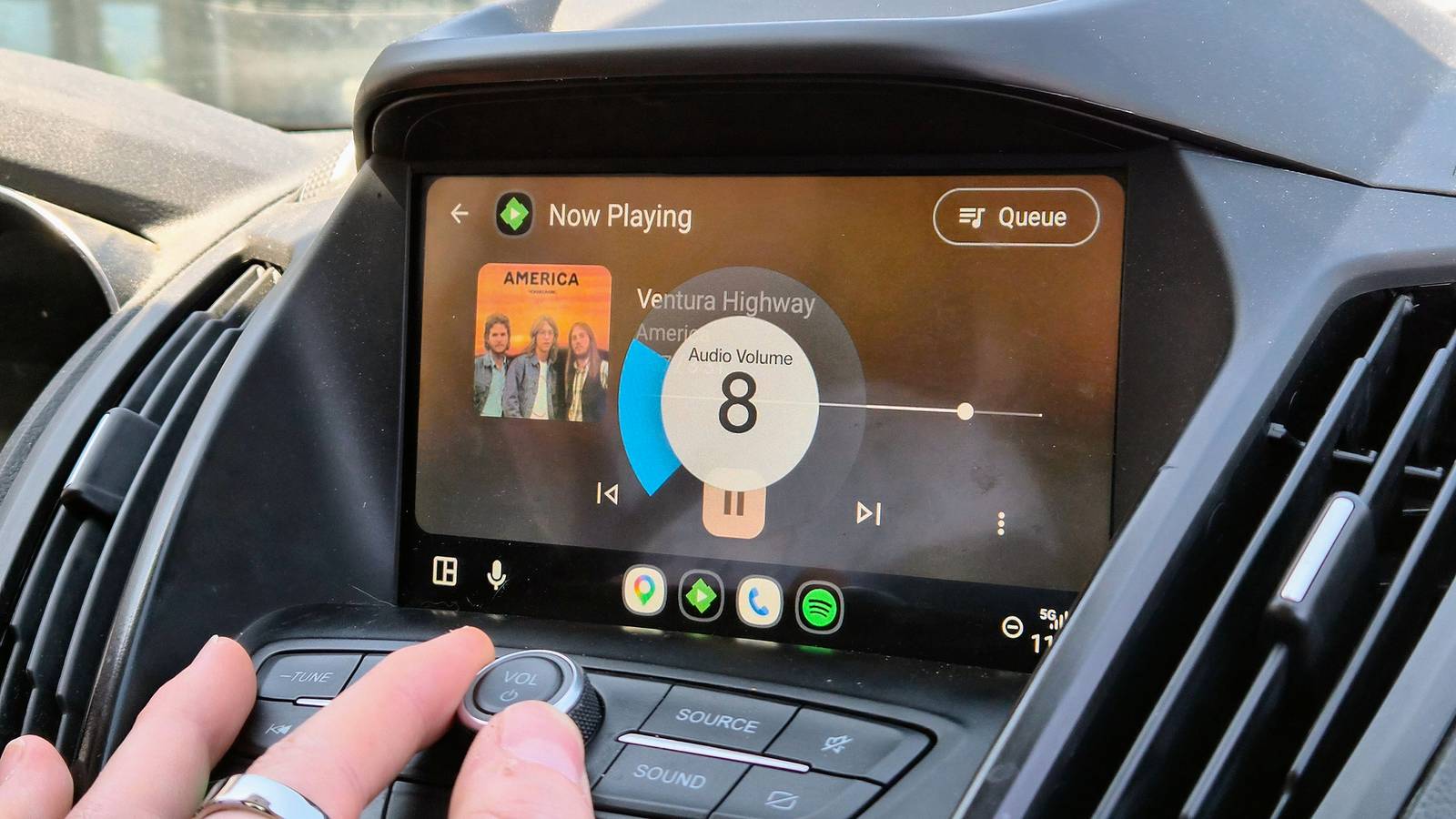
Published Sep 2, 2026, 6:30 AM EDT Andy is a senior writer and former Mac editor at HTG. He has over 20 years experience as a consumer tech journalist, and has covered everything from the old Palm Pilots to the original iPhone and Android devices, to the latest gadgets. He has written and edited for UK-based print publications like PDA Essentials and Android Magazine, and online at sites including MUO, Android Tips and Hacks, broadband.co.uk, and Envato. He has a passion for all things mobile and has been a keen Mac enthusiast since 2005. Android Auto can be frustrating if you don't want it to do anything more than the basics. It quickly fills up with apps, it bombards you with notifications, and generally feels bloated and cluttered. All I need is for it to tell me where to go and play some music until I get there. And by changing a few key settings, that's exactly what it does. Hide apps you never use It's time to clean up your Launcher Most of the apps you've got installed on your phone aren't compatible with Android Auto, but the ones that are show up on the Auto screen automatically. Without you even noticing, Android Auto can quickly become bloated with stuff that you don't actually need. It makes sense to remove this clutter and keep only the apps that you use in the car. I keep it stripped right back, which makes the launcher easier to navigate at a glance. For example, I've got various apps on my phone that can handle music, podcasts, and audiobooks. But in the car, I've cut it back to just Spotify and Pocket Casts. It's simple to do. On your phone, go to Settings > Connected Devices > Connection Preferences > Android Auto. Then select the Customize Launcher option. Here, you'll see all the apps that are both on your phone and compatible with Android Auto. Simply uncheck the ones that you don't need. You need to repeat this from time to time, as any new apps you install on your phone will be added if they're compatible with Android Auto. Rearrange the app launcher Put your most used apps at the top While you're in the Customize Launcher settings, it's worth taking a moment to rearrange the apps that you are keeping. The default order for apps is alphabetical, which makes it easy to find them, but can leave your most used apps a long way down the list. Rearrange them by long-pressing on an app and dragging it up or down into a new position. I've got my navigation apps at the top of the launcher, followed by media apps, then phone apps, and then everything else follows afterwards. It means that when I tap to open the launcher, the apps that I'll use almost all of the time are right there without any extra scrolling. This also allows you to compromise on which apps you keep. If you don't want to remove most of your compatible apps from Auto, you can move them to the bottom so that they aren't getting in the way. Turn off message previews Cut back on distractions Part of Android Auto's bloat comes in the form of distractions. Screens are inherently distracting, and it's not ideal to have them constantly buzzing away while you're driving. One way in which I've cut back on this is to turn off message previews. The setting for this is found in the Android Auto settings. In the Messaging section, turn off the option labeled Show First Line of Messages. I still get the notifications when they come in, but they don't fill the screen and draw my eye away from the road while I'm driving. The content itself will stay hidden until I choose to interact with it. If you do find these useful, there is a neat hack to at least make message previews smaller. Silence unnecessary notifications Those group chats can wait As well as disabling message previews, I turn off Show Group Conversations. Group chats, in my experience, are the most distracting thing of all, yet also the least likely to need to be read immediately. I don't need to see them while I'm driving. As someone who wants minimal distraction, I also toggle off Notifications with Assistant, so incoming messages aren't automatically read aloud either. I've also found that getting notifications while driving shows just how pointless a lot of notifications actually are. Taming Android notifications is always worth doing, so going into the settings to cut down on which apps can send them, and what they can send, is very helpful. On top of that, switching my phone into Driving Mode limits the apps that can send notifications while on the move. You can choose to allow certain people and apps, and other alerts like calendar events and reminders, and disable anything that you don't need. It's a really effective way to cut down on Android Auto bloat. You can configure it in the Settings under Modes on a Pixel and Modes and Routines on a Galaxy. Cut Android Auto down to just what you need When I'm on a short drive, I want Android Auto to give me live traffic information. On a longer drive, I want directions. On all occasions, I want music playing. And that's all I need from Android Auto. I don't need a barrage of notifications or apps that turn my Android Auto system into a mini-version of my phone. I just want the basics. No bloat, no nonsense. By tweaking just a few settings, that's what I've got.
Your Android Auto launcher is a mess, but these 4 tweaks fix it
Full Article
Original Source
Read the full article at Howtogeek →KhanList aggregates and links to publicly available news content. We do not host full articles from third-party sources. Always verify important information with original sources.