
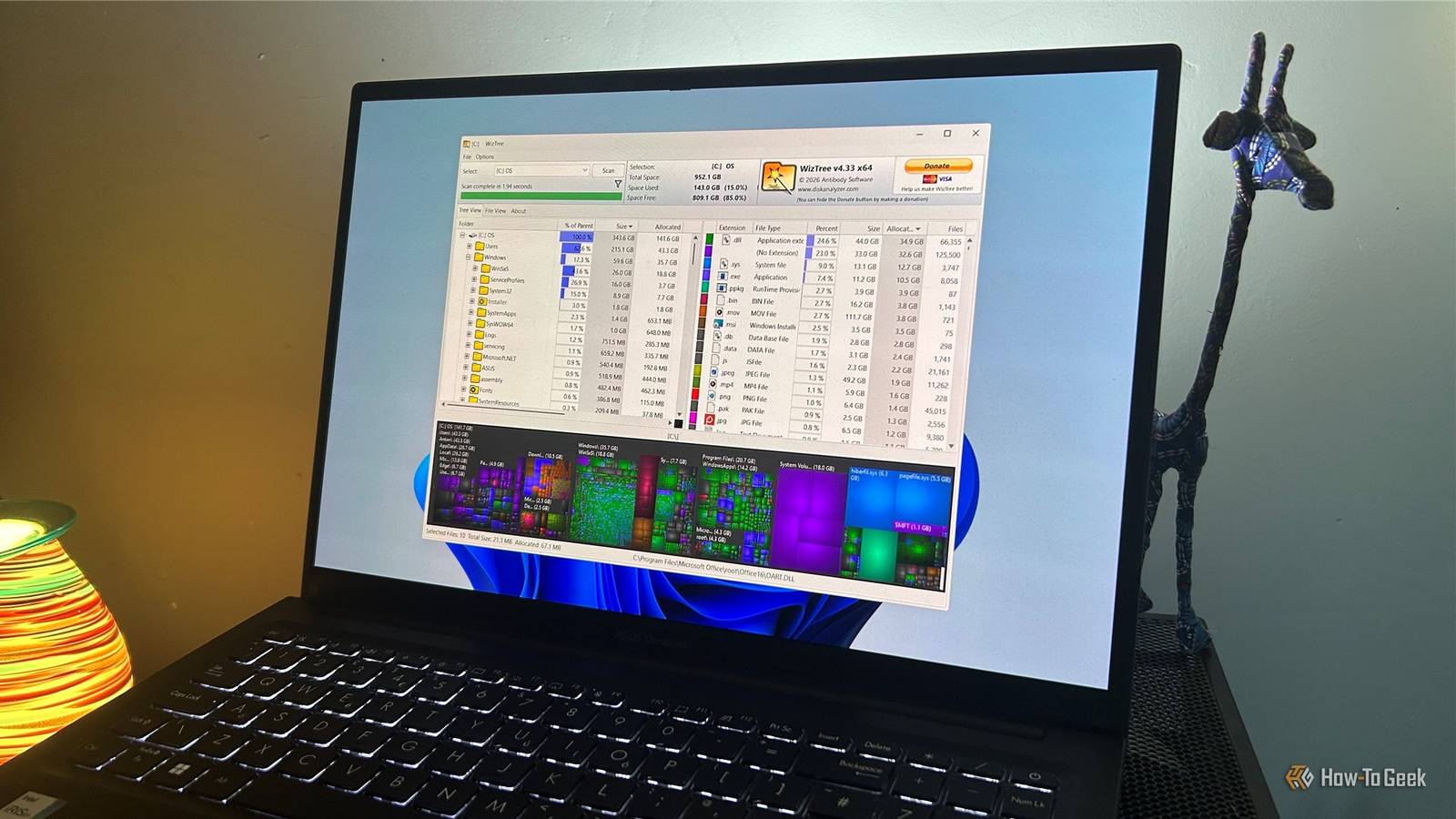
Published Nov 12, 2026, 12:30 PM EST Tony Phillips is a senior author at How-To Geek with over a decade of experience working with documents, data, and digital productivity tools. Holding a dual-honors degree in Linguistics and Hispanic Studies, he combines technical expertise with a passion for making complex topics easy to understand. Before joining How-To Geek in 2024, Tony worked as a document producer, data manager, legal document specialist, and content creator. He has also proofread and edited more than 3 million words of academic and professional writing. While Tony specializes in Microsoft 365, particularly Excel, his interests extend far beyond Office. He enjoys testing software, exploring open-source projects, discovering useful companion apps, and finding ways to customize and optimize Windows. Whether he's building spreadsheets, evaluating new tools, or uncovering hidden features, Tony enjoys helping readers get more from their technology. Outside of tech, he enjoys spending time with his dog, watching football, astrophotography, gardening, and golf. I've often found myself wondering where all the used space on my Windows 11 PC was actually going. Windows 11's built-in Storage page gives me plenty of useful data, but I had to jump between categories and wait for calculations to finish before I could piece together the full picture. Then I tried WizTree. Less than two seconds after clicking Scan, my entire 952GB SSD was mapped on a single screen. I'd expected another storage utility. Instead, it quickly became one of the easiest ways I've found to make sense of my drive. Windows gets the basics right The data is there, just spread out Windows 11's Storage page deserves more credit than it often gets. When I checked my SSD, it showed Installed Apps using 57.4GB, System & Reserved accounting for 69.2GB, Other consuming 16.5GB, and Temporary Files taking up another 12.1GB. Digging deeper turned up app sizes, downloads, delivery optimization files, virtual memory, hibernation data, and system restore information. But the hard part was seeing how it all fit together. To see where my storage was being used, I had to switch between Installed Apps, Temporary Files, Other, and System & Reserved, with each section answering a different question. Some screens also needed time to calculate their results, so the process felt slower than it should have been. I came away with a better appreciation for Windows' storage tools than I expected. Microsoft exposes plenty of useful data; I just didn't find it particularly easy to explore. WizTree's scan was ridiculously fast My entire SSD was mapped in 1.94 seconds After downloading the portable version of WizTree and launching it, I selected my SSD and clicked Scan. The process finished in 1.94 seconds. That speed genuinely caught me off guard. Even on my 952GB SSD, WizTree mapped the entire drive almost immediately. It does this by reading the Master File Table (MFT) on NTFS drives rather than scanning files individually, which dramatically reduces the work required. The interface itself made an even bigger impression. Instead of sending me through categories and submenus, WizTree displayed my drive hierarchy in one place. I could immediately see Windows, Users, Program Files, Recovery, System Volume Information, pagefile.sys, hiberfil.sys, and everything else occupying space on the SSD. For the first time, instead of piecing together details from several locations, I was looking at the whole drive at once. The treemap won me over It changed how I looked at storage At the bottom of WizTree's interface is a visual representation of my storage. Each rectangle represents an item on the drive, and its size corresponds to the disk space it occupies. Larger files and folders immediately stand out because they take up more room on the map. That might sound like a small thing, but it becomes obvious once you compare it with how Windows presents the same information. Windows Storage largely displays information as lists and categories. WizTree gave me a map. I could see the relative size of everything on my drive and immediately identify the areas consuming the most space. I quickly saw why people swear by treemaps. Rather than deciding which category to inspect next, I could follow the most obvious visual cues first. The largest areas naturally drew my attention, making further investigation feel intuitive instead of methodical. The experience felt less like troubleshooting and more like exploration. Instead of hunting for answers, I could simply follow what the drive was already showing me. It helped me understand my storage rather than just clean it up I could finally see where my storage was being used The biggest benefit was context. Within moments, I could see that AppData accounted for roughly 28.8GB on my system. Downloads consumed about 10.5GB, while System Volume Information occupied approximately 18.0GB. I could also see the impact of files and folders such as hiberfil.sys (6.3GB), pagefile.sys (5.5GB), and Recovery (3.9GB). None of those figures are particularly surprising on their own. Most Windows power users will recognize the purpose of those locations and files. What mattered was seeing them together and immediately grasping how much space each one occupied relative to everything else on the drive. That distinction is important. I wasn't looking for things to delete. Several of the largest items on my system perform important functions and shouldn't be removed casually. The real benefit was seeing how space was distributed across the drive. Why I still prefer WizTree It removes almost all the friction After comparing the two approaches, I don't think Windows Storage is bad. If anything, I finished my testing with a better opinion of Microsoft's built-in tools. WizTree's advantage comes from presentation, simplicity, and speed. I don't have to decide which category contains the answer I'm looking for, navigate through multiple levels of menus, or wait for different sections to calculate their results. A single scan gives me an overview that's easy to interpret. I also like how WizTree is available as a portable application. Once extracted, it can be launched without going through a traditional installation process. That's particularly useful when I simply want to analyze a machine quickly and move on. Anyone who's spent years tweaking Windows PCs will probably recognize similarities to utilities such as WinDirStat and TreeSize. Those tools are also great, but WizTree's speed is what stood out to me. Scanning a 952GB SSD in under two seconds makes the software feel remarkably responsive, and that responsiveness encourages me to use it more often. Of course, identifying a large file doesn't automatically mean it's safe to delete. When I actually want to reclaim space, I still turn to Windows' built-in cleanup tools and utilities such as the open-source BCU. WizTree's role is helping me see what's there in the first place. It's staying on my PC I downloaded WizTree expecting another storage cleanup utility. Instead, I found something that made navigating my PC's contents considerably easier. The biggest storage upgrade I've made wasn't reclaiming extra gigabytes. It was finally seeing where those gigabytes were being used.
WizTree is the best storage upgrade I've ever made to my PC
Full Article
Original Source
Read the full article at Howtogeek →KhanList aggregates and links to publicly available news content. We do not host full articles from third-party sources. Always verify important information with original sources.