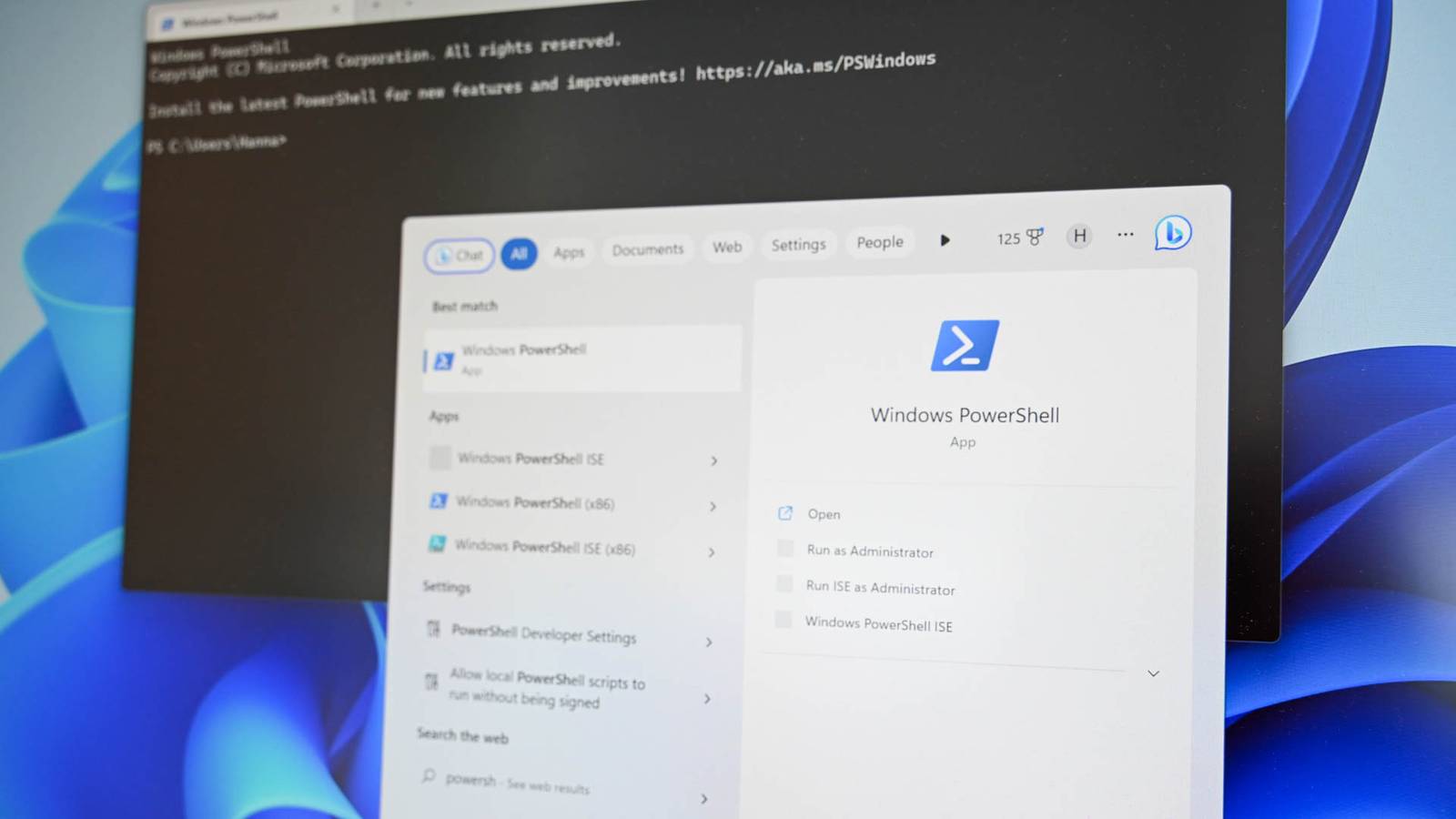
Published Jul 26, 2026, 10:15 AM EDT Rich Hein is a veteran technology journalist with more than two decades covering developer, consumer and enterprise topics. Rich's career has been dedicated to service journalism, connecting readers to content that informs and delights. Previously, Rich was vice president and editor-in-chief for Simpler Media Group, director of audience development for IDG and editor/writer for sites like CIO.com, ComputerWorld, CodeGuru and other tech-centric publications. He's received numerous accolades, including the IDG Summit and Azbee awards and has been covered by Medium for his work in audience development. When not at his desk, Rich lives in Daytona Beach with his wife and three dogs. He enjoys playing guitar, surfing and staying abreast of the latest in tech. Windows 11 is still my go-to operating system, but using it sometimes feels like a constant tug of war between how I want to work and how Microsoft thinks I should work. I like Windows, I know my way around it, and it fits my workflow better than the alternatives. What frustrates me is how often Microsoft gives me plenty of ways to customize the little things while making some of the bigger annoyances much harder to change. That's especially strange when you consider how massive the Windows 11 Settings app has become. Most of the operating system can be adjusted from one place, yet there are still a few frustrating defaults that Microsoft doesn't give you a straightforward switch for. For these three, I had to skip Settings entirely and turn to PowerShell. Fortunately, none of this is especially complicated. In each case, it's mostly a matter of carefully copying and pasting a command, pressing Enter, and letting Windows do the rest. I don't want to click twice for options Windows used to show me The shortened right-click menu in Windows 11 is one of those changes I've never really warmed up to. Microsoft didn't actually get rid of the old context menu, but it added another layer between me and some of the options I regularly use. You can still bring up the full menu by holding Shift while you right-click, which is handy in a pinch. The problem is that adding an extra keystroke every time I right-click doesn't feel like an improvement. I could also install third-party software to change the menu, but that seems unnecessary when Windows can already do what I want. The easiest solution I've found is to use PowerShell to restore the classic context menu. The command changes a Registry setting that tells Windows to use the old menu by default, so after making the change, a normal right-click brings up the full menu immediately. Threads on Microsoft's community forums still frequently share this Registry change as a reliable way to restore the classic menu in Windows 11. To restore the classic menu, open the Start menu, type PowerShell, right-click PowerShell in the search results, and select Run as administrator. Approve the User Account Control prompt, then paste the following command into PowerShell and press Enter: reg add "HKCU\Software\Classes\CLSID\{86ca1aa0-34aa-4e8b-a509-50c905bae2a2}\InprocServer32" /f /ve Windows Explorer needs to restart before you'll see the change. You can restart the PC, but it's quicker to restart Explorer directly from PowerShell: Stop-Process -Name explorer -Force Explorer should restart automatically. Once it does, right-click a file or the desktop again and the full classic context menu should appear without having to select Show more options or hold Shift. The change isn't permanent if you decide you prefer Windows 11's newer menu. Open PowerShell as an administrator again and run: reg delete "HKCU\Software\Classes\CLSID\{86ca1aa0-34aa-4e8b-a509-50c905bae2a2}" /f Restart Explorer once more, and Windows 11's condensed context menu will return. If the classic menu doesn't appear after restarting Explorer, restart your PC instead. This change only applies to your user account, and because Microsoft could modify how context menus load in future updates, a major Windows update might eventually reset this setting. Stop Windows Search from showing Bing results I don't want a web search when I'm looking for something on my PC One of my biggest Windows Search annoyances is that Bing results can show up when I'm just trying to find an app, file, or setting. If I'm searching from the Start menu, I'm usually looking for something on my PC, not the web. The fix is simple. Open PowerShell as an administrator, paste this command, and press Enter: reg add "HKCU\Software\Policies\Microsoft\Windows\Explorer" /v DisableSearchBoxSuggestions /t REG_DWORD /d 1 /f Restart your PC or sign out and back in, and Bing results should disappear from Windows Search. On the PC I use most, I went a step further and installed MSEdgeRedirect to deal with some of Microsoft's other Edge and Bing redirects. On my other Windows PCs, though, this PowerShell command is usually enough. To undo the change, run: reg delete "HKCU\Software\Policies\Microsoft\Windows\Explorer" /v DisableSearchBoxSuggestions /f Restart or sign out again, and Windows Search will return to its default behavior. If I don't use it, I don't need it sitting there Windows 11 lets you hide the Widgets button from the taskbar, but that doesn't actually remove Widgets. I've never used the Widgets board or Microsoft's Discover news feed inside it, so hiding the button always felt like a half-measure. I don't need weather, stocks, news, or other web content built into the corner of my desktop. I prefer to just remove the whole experience. Open PowerShell as an administrator, paste the following command, and press Enter: winget uninstall "Windows Web Experience Pack" Restart Windows when it's finished. The Windows Web Experience Pack powers Widgets and other web-based Windows experiences, so removing it gets rid of the Widgets panel instead of simply hiding its taskbar button. To bring it back later, open PowerShell as an administrator and run: winget install 9MSSGKG348SP Restart again, and Widgets should return. The Windows Web Experience pack powers more than just Widgets, so removing it could affect other web-based Windows features. I haven't missed anything on my PC, but it's worth keeping in mind before you uninstall it. A little PowerShell goes a long way None of these changes are complicated, and that's really the point. A few carefully copied commands can fix Windows annoyances that Microsoft makes surprisingly difficult to change any other way. PowerShell can look intimidating if you've never used it, but for simple tweaks like these, there's really not much more to it than copying the right command, pasting it in, and pressing Enter.
Windows won't let you fix these 3 annoyances without PowerShell
Full Article
Original Source
Read the full article at Howtogeek →KhanList aggregates and links to publicly available news content. We do not host full articles from third-party sources. Always verify important information with original sources.