
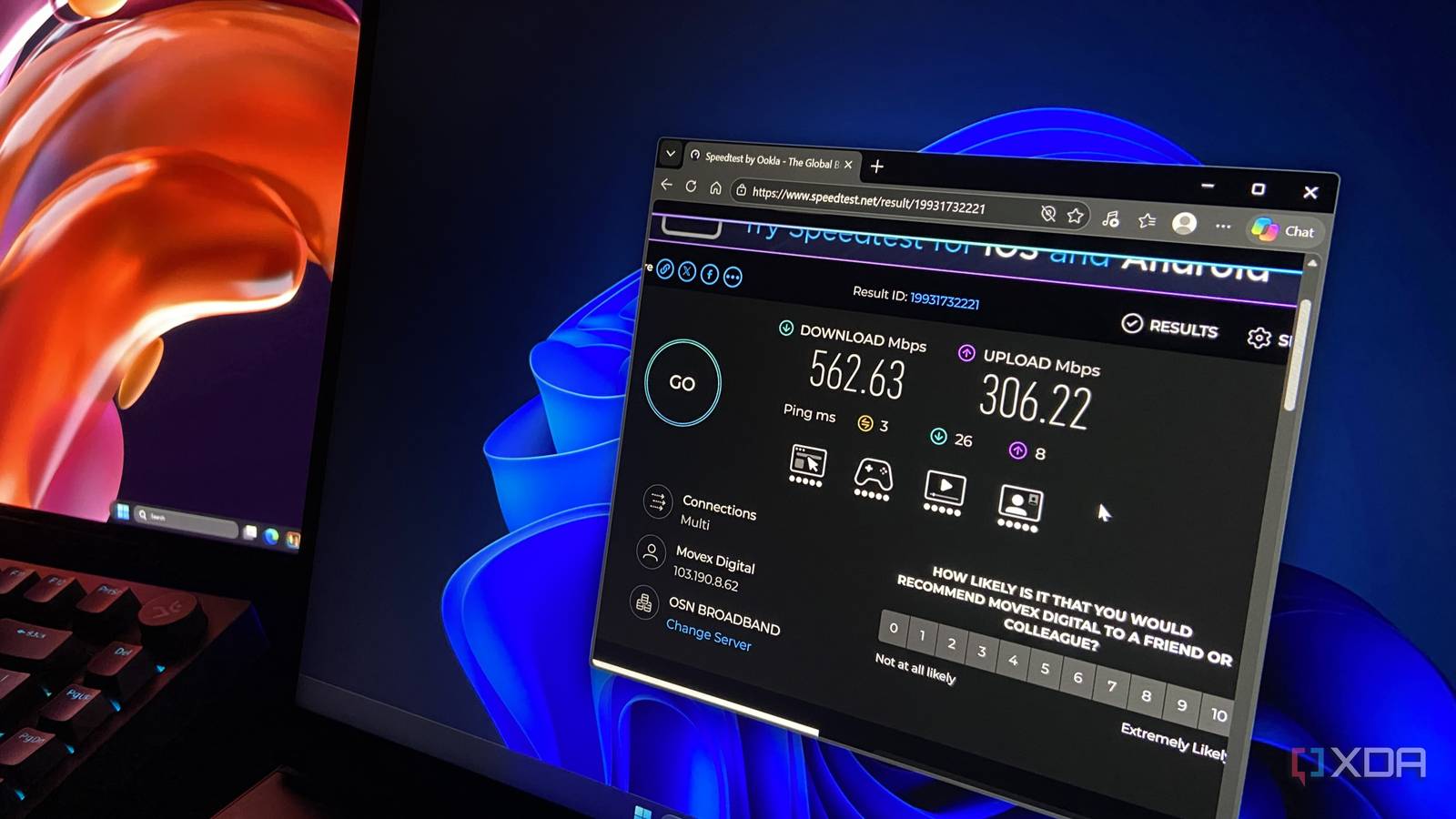
Published Nov 20, 2026, 12:00 PM EST Abhinav pivoted from a career in banking to pursue his first love in writing. Even while working full-time, he continued contributing as an editor-at-large, a role he has held for more than 7 years. A lifelong tech enthusiast who has built three gaming and productivity powerhouse PCs since 2018, his passion for technology keeps him closely following the semiconductor industry, from NVIDIA and AMD to ARM. His MSc dissertation explored how artificial intelligence will reshape the future of work, reflecting his curiosity about the wider social impact of emerging technologies. When I'm at "work", my Lenovo Legion 5 Pro sits on a table that's one room away from my router. On the very same connection that gives my desktop PC north of 400 Mbps, my laptop used to manage 93 Mbps down and 37 Mbps up. Of course, I'd only measured it a few times, and always thought of the distance as the obvious suspect. A few days ago, however, I decided to check which band Windows had been putting it on. The Legion 5's MediaTek chip was on 2.4GHz, which was the slower of the two bands my router broadcasts under one network name. In the subsequent tests that I ran, I found that the 5GHz band reached the table without trouble, and yet Windows picked 2.4GHz on four out of five reconnects. Luckily, there happens to be a single dropdown in Device Manager that changes this default tendency, and after one change, the laptop averaged 222 Mbps down and 128 Mbps up from the same spot. Windows judges a band by signal strength, not by speed At the same spot, 2.4GHz reads louder According to Microsoft, Windows automatically handles band selection by joining the best band when a router shares one network name across several. At my table, the best band just so happened to be the loudest one. I ran a netsh scan, which is a command-line network tool built into Windows, and found that my router's 2.4GHz band was reading 81% signal at the table, while its 5GHz band sat at 66%. The lower frequency loses less strength through a wall, so it wins that comparison from the next room. Left at its defaults, the MediaTek driver went with the bigger number, and that is to be expected. Signal strength, however, says nothing about how much the connection can carry. On 2.4GHz, Windows reported a 300 Mbps link over 802.11n. Earlier that day, in a different room, my laptop had connected to 5GHz at 866.7 Mbps over 802.11ac. Those are best-case numbers, and in my neighborhood, 2.4GHz never gets close to its own. Of the 40 signals my laptop could see from the table, 26 were on 2.4GHz, and eight of them were on channel 11, which overlaps the channel 13 that my router uses. The shared airtime on top of the usual Wi-Fi overhead is how a 300 Mbps link ended up delivering 93 Mbps, which is less than a quarter of what my plan offers. A dropdown that Windows hid in Device Manager fixes it I tested five reconnects, and all five went to 5GHz The fix to this problem was a setting called Preferred Band, and it can be found in Device Manager. To get to it, you'd have to open Device Manager, expand Network adapters, and double-click your Wi-Fi adapter. In the Advanced tab, you have to look for Preferred Band and change it from No Preference (which seems to be the default on Windows devices) to Prefer 5GHz band. My MediaTek card lists it under that name, but not every other card does. Upon selecting the option, the Wi-Fi drops for a few seconds as the driver resets. Once it was done, I ran the same reconnect test as before, and the laptop joined 5GHz on all five attempts, up from one in five. On the same Speedtest server, from the same spot in my house, download speeds averaged 222 Mbps against 93 Mbps on 2.4GHz, and upload went from 37 Mbps to 128 Mbps. Even my slowest 5GHz run beat the fastest one on 2.4GHz. My MediaTek card also has an option for Band Selection, which can lock it to 5GHz completely, but that's something I'd skip on a laptop since it has no fallback if 5GHz is not available. Since Preferred Band, as the name suggests, is only a preference, the laptop can still drop to 2.4GHz where 5GHz doesn't reach. My upload speed more than tripled From 357 ms of lag under load to 121 The biggest difference that I saw in jumping from 2.4GHz to 5GHz was in the upload speed. On 2.4GHz, the laptop averaged 37 Mbps up, and on 5GHz, it went to an average of 128 Mbps, which is nearly three and a half times as much. This is something that matters particularly on my laptop, since it also runs Jellyfin and Immich for my home network, and every stream Jellyfin serves leaves over that uplink. The latency under upload also fell by two-thirds, from 357 ms to 121 ms, which is exactly the kind of lag that becomes apparent in everything else the laptop does when it's serving a stream. It's important to check your band before you blame the ISP I've switched internet providers three times over the past year alone, and cursing the ISP is almost sort of my reflex whenever something on my home network starts to act up. This time, though, the ISP wasn't the problem. A driver default was costing my laptop more than half its speed. If your device also sits a room away from the router, you can run the following: netsh wlan show interfaces This command works in PowerShell or CMD and shows what band you're on. If it says 2.4GHz on your chip that's 5GHz-capable, the Preferred band is something you might want to change before you change your ISP.
Windows was quietly halving my laptop’s Wi-Fi speed, and one hidden setting fixed it
Full Article
Original Source
Read the full article at Xda-developers →KhanList aggregates and links to publicly available news content. We do not host full articles from third-party sources. Always verify important information with original sources.