
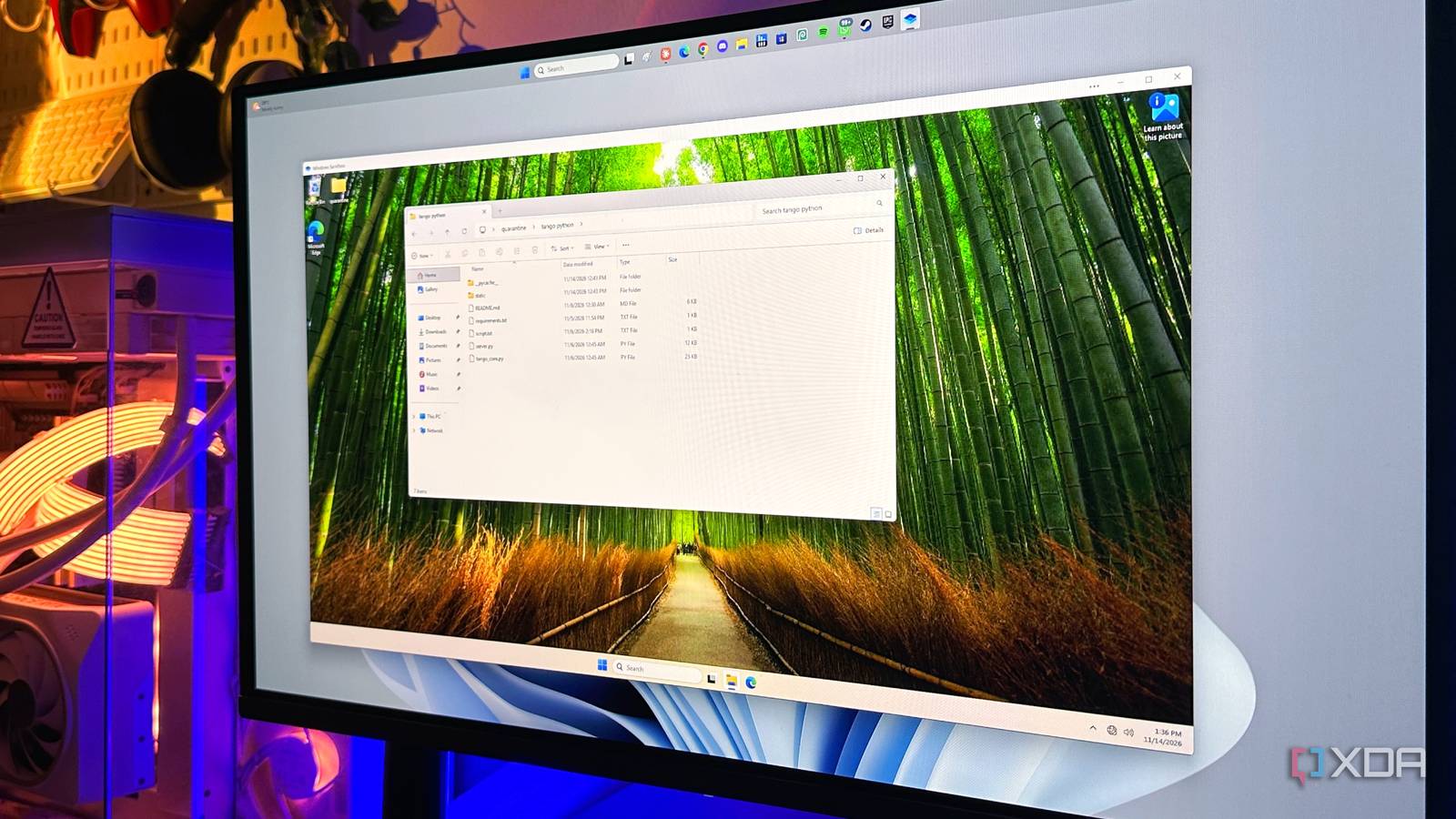
Published Nov 14, 2026, 8:00 PM EST Gaming has been Samarveer’s greatest passion, and the Literature graduate in him takes immense joy in dissecting games for their themes, messages, and impact. Samarveer holds a deep appreciation of gaming, and considers the platform to be the most immersive and impactful across all media. He can be found engaging with gaming communities online, always ready to debate the finer points of ray tracing or itching to write an 8-page collegiate thesis on any game that impacts him emotionally. There's a particular kind of Windows download that makes me hesitate before I double-click it. It isn't necessarily malware, and Windows Defender may have nothing bad to say about it, but an obscure executable from the internet is still an excellent way to discover just how much access a program has to your PC. I've taken enough chances with random utilities over the years to know that the best security strategy isn't to hope that things will "probably be fine." Plus, nobody wants to see five random Command Prompt windows open up and disappear within milliseconds every time they boot up their PC. Thankfully, Windows has a surprisingly good solution hiding in plain sight. It lets you poke, prod, install, and experiment without any permanent consequences for your main Windows installation. Once you're done, you can simply make the whole thing disappear. Windows Sandbox is the disposable PC I wish more people used No more wondering what a stray EXE does As a native Windows feature, Windows Sandbox feels almost too useful to be buried as deep inside the OS as it is. It creates a temporary, isolated Windows environment where you can run apps, install utilities, change settings, or generally just make questionable decisions. Sandbox uses hardware-based virtualization and a separate kernel to keep the temporary environment apart from Windows running underneath it. However, it makes zero sense to maintain a fully separate Windows installation just to test out the occasional suspicious executable. Thankfully, Microsoft uses a lightweight shared base image for Sandbox, saving you gigabytes of disk space and overhead by dynamically linking to the host operating system's existing system files. Despite that, any potential malware in the VM (virtual machine) you create can't see your real disk, your real processes, or your real memory. That's what makes Sandbox extremely useful for the sort of software I encounter constantly — obscure utilities, unsigned tools, ancient abandonware games from shady websites, and even the occasional installer from the high seas. Instead of wondering what happens when I double-click them, I can find out somewhere disposable. I'd argue Sandbox's biggest benefit isn't the virtualized Windows box it runs for you, though. Instead, it's the disposability of it. Even if you install something nasty and fill your desktop with questionable software, the moment you close Sandbox, the entire virtual disk, memory, registry, and every file you created or downloaded inside it are discarded. Reopen it and you start clean again. Enabling Windows Sandbox is pretty easy, actually Just ensure you're on the right version of Windows To use Windows Sandbox, you need the right hardware and the appropriate settings enabled. For starters, Windows Sandbox ships only with Windows 11 Pro, Enterprise, and Education versions. It is not available on Windows 11 Home. Secondly, you'll need a 64-bit machine with hardware virtualization enabled in the BIOS/UEFI. On the more realistic side of things, you will, of course, need a few gigabytes of RAM to spare, which is where a 32GB system would shine. To start using Windows Sandbox, press the Windows button on your taskbar and search for "Turn Windows features on or off." Tick Windows Sandbox, and then reboot your PC. After the restart, "Windows Sandbox" is just another entry in the Start menu. Click it and a clean desktop appears. I don't use Windows Sandbox the lazy way Sandbox's default configuration is good enough, but not always Using it the regular way (or the lazy way) is pretty much good enough for most people — you open Sandbox, drag a questionable file into it, and run it there. Install any programs or click whatever looked suspicious. Just closing the window is enough to throw the entire VM into the bin. However, if I genuinely don't trust something, I never use it with Sandbox running in its default configuration. Windows actually lets you create .wsb configuration files that launch a preconfigured environment, and that's where things get considerably more interesting. For instance, I can disable networking before any malicious EXE gets anywhere near my desktop or connects to the internet. My preferred setup also disables the virtual GPU, clipboard, printer, microphone, and camera redirection. None of these are particularly useful when I'm trying to determine whether an executable deserves to touch my actual PC, and every unnecessary connection between host and guest is another thing I would rather not leave exposed. I also use a dedicated quarantine folder and map it into Sandbox as read-only. That gives the guest access to the file I'm testing without giving it a writable path back into my actual filesystem. It's a small distinction, but security is often about removing exactly these small conveniences. Building your own .wsb file is less work than it sounds. It's just a plain-text XML file you can write in Notepad — a block with a handful of one-line toggles for everything you want turned off. Save it with a .wsb extension instead of .txt, double-click, and Sandbox boots with those doors already shut. Microsoft documents every tag if you want the full list. Save that configuration as something like distrust.wsb, double-click it, and Windows boots a disposable environment with the doors deliberately shut. At that point, I'm not hoping the suspicious program behaves itself. I'm giving it considerably less room to misbehave. Windows Sandbox isn't a magic malware shield Safer doesn't mean completely untouchable Before you let some files loose in Windows Sandbox, it's pertinent to know that it's not an impenetrable fortress. Sure, it's safer than running a suspicious executable straight on your PC, but there are bridges between the disposable Sandbox environment and your actual PC. The moment you start enabling networking, clipboard sharing, mapped folders, or other integrations, Sandbox's security dissipates. There's also a difference between testing something questionable and deliberately opening something you already know is malicious. Sandbox is fantastic for checking whether an obscure utility does what it claims, but if you deliberately use it for running some sort of malware that specializes in escaping virtualized environments, Sandbox won't look so infallible. What this feature provides is a disposable place to take calculated risks. Keep unnecessary integrations disabled, don't expose your personal files, and don't confuse isolation with immunity. For everyday Windows experimentation, that's a pretty compelling safety net — and one Microsoft has already given you for free. The ability to take risks on another PC inside your own I'll probably have my laundry list of personal complaints with Windows for decades to come, but it solves a problem for me natively, without any apps involved. Sandbox is exactly that, and its provision of a disposable junkyard where I can make the occasional terrible decision is why I like it so much. Curiosity is a perfectly reasonable reason to download something, and Windows users are going to keep poking at obscure utilities, mods, scripts, and ancient software regardless of how many security warnings Microsoft throws at them. I'd much rather satisfy that curiosity on my own PC safely than either build a new one just for experiments or risk exposing my entire machine. Windows 11 Pro A USB installation drive and license key for Windows 11 Pro, with additional features like Hyper-V and Windows Sandbox support.
Windows ships with a disposable sandbox, and it's the safest way to open anything sketchy
Full Article
Original Source
Read the full article at Xda-developers →KhanList aggregates and links to publicly available news content. We do not host full articles from third-party sources. Always verify important information with original sources.