
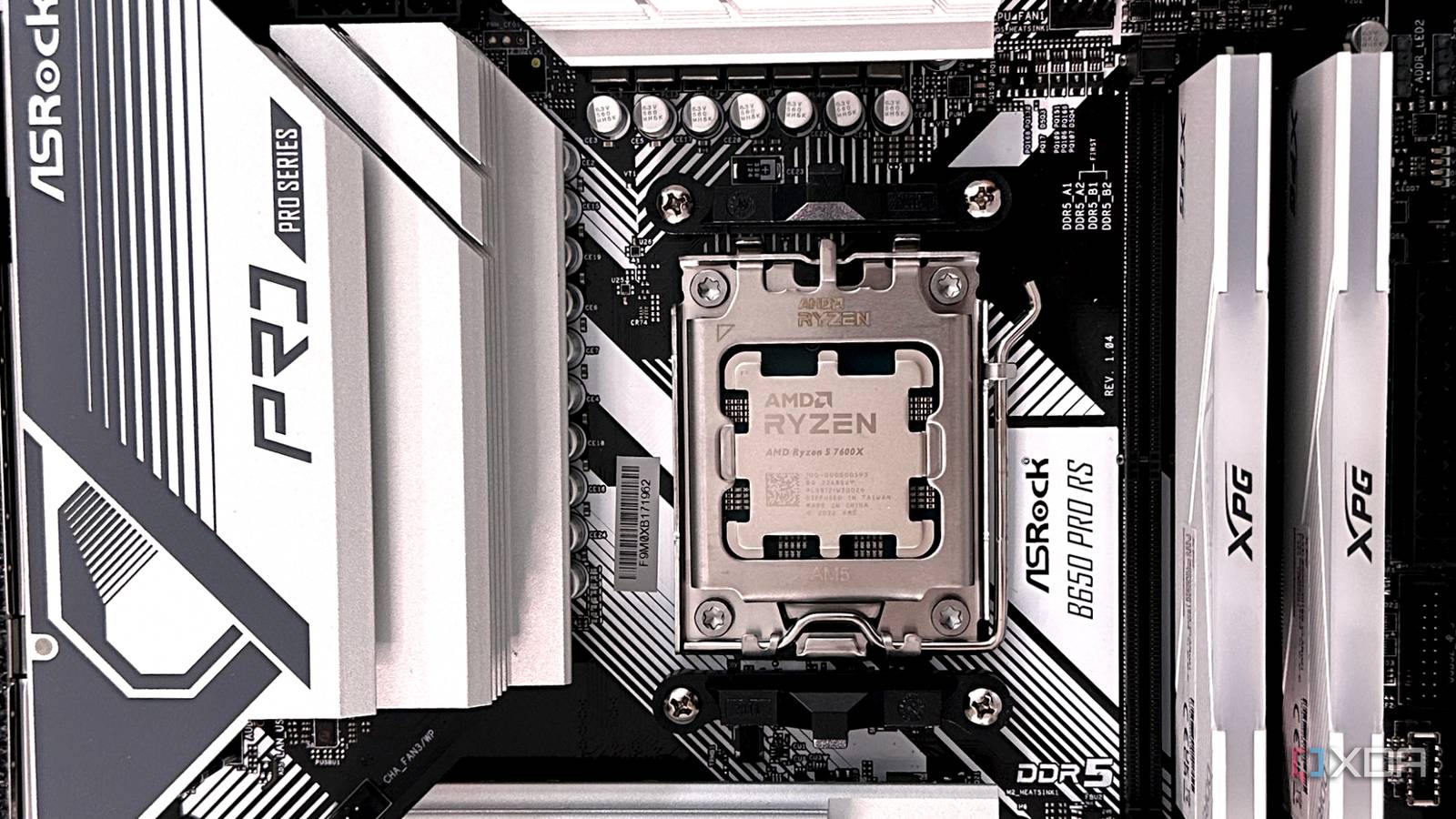
Published Aug 28, 2026, 4:30 PM EDT Gaming has been Samarveer’s greatest passion, and the Literature graduate in him takes immense joy in dissecting games for their themes, messages, and impact. Samarveer holds a deep appreciation of gaming, and considers the platform to be the most immersive and impactful across all media. He can be found engaging with gaming communities online, always ready to debate the finer points of ray tracing or itching to write an 8-page collegiate thesis on any game that impacts him emotionally. Gone are the times when CPUs were collections of identical cores, and Windows knows that better than most of us do today. Your processor can actually tell the operating system which of its cores are capable of reaching the highest performance, yet watching a game run can sometimes make it look like Windows completely ignored the memo. That's especially interesting when you're chasing every last frame or trying to improve those notoriously important 1% lows. Of course, much like anything else when it comes to PC hardware, the story is rarely as simple as that. More cores don't always equal more performance. The scheduler is constantly deciding which threads of the CPU deserve which cores, and those decisions can have surprisingly measurable consequences. The trick is figuring out when Windows is making the right call, when it isn't, and whether manually intervening can help your games run better, smoother, and faster. Your processor ranks its own cores Your CPU actually knows which cores are "the good ones" Credit: htomari | Flickr Modern CPUs aren't built from identical cores. Tiny manufacturing differences mean some can reach higher boost clocks than others, and AMD exposes that hierarchy through Collaborative Processor Performance Control, or CPPC. In a nutshell, our processors know which of their cores won the silicon lottery. It's the firmware that exposes CPPC information to Windows through the ACPI (Advanced Configuration and Power Interface). The best way to describe it would be as a scouting report. It tells Windows which core can boost higher, and which one isn't quite as impressive. If something particularly demanding comes along, Windows knows that it can start with another core in the CPU. When gaming, this turns out to be remarkably useful, since that's a scenario where one or two threads can matter far more than the dozens of background tasks making your CPU usage graph look busy. However, at the end of the day, CPPC is still a recommendation instead of a reservation. Windows knows which cores are preferred, but it still has to juggle temperatures, power, workloads, and everything else happening on your PC. Once Windows gets that aforementioned scouting report, what it does with it is where things get interesting. Windows gets CPU scheduling right, but not always Not every "wrong" core is actually wrong The unglamorous news here is that most of the time, Windows gets this boringly right. It does what it's supposed to do, reads the preferred-core information, gives demanding threads a sensible place to run, and then gets out of the way. When that ranking is wrong, however, the scheduler is effectively working from a bad map. A firmware bug can make all the cores of the CPU appear equally capable, which leaves Windows to schedule without the information that it was supposed to get from the processor. That's one reason to always keep updating your BIOS, because those updates are known to fix seemingly mysterious CPU performance problems. If the firmware isn't correctly exposing your CPU's preferred-core hierarchy, Windows can't magically reconstruct it. It can only work with the information it receives, and garbage data results in some rather unhelpful scheduling decisions. On single Core Complex Die chips, Windows making a suboptimal choice during a gaming load isn't outright catastrophic. There is another wrinkle, though: gaming loads aren't especially polite to the scheduler. A game might have one thread doing the heavy lifting while dozens of smaller threads handle everything else, and Windows has to decide where all of them belong while the workload constantly changes. It can therefore move an important game thread away from a preferred core because, from the scheduler's broader perspective, another core looks like the better choice at that particular moment. Of course, all of this also depends on the hardware you're using. On a single-CCD (Core Complex Die) chips like my Ryzen 5 7600X, Windows making a slightly suboptimal choice during a gaming load usually isn't catastrophic. On a dual-CCD X3D processor, though, the mistake can be much more expensive, since Windows won't be choosing the wrong core, but potentially the wrong CCD itself. That sort of wrong scheduling decision might look insignificant on paper, but that's what starts showing up in games' frame times. Here's why you probably shouldn't play scheduler yourself Most of the time, you're better off not interfering A good rule of thumb here is that you shouldn't start pinning games to cores by yourself just because a monitoring tool shows Windows using something other than your preferred core. By and large, the automatic approach works as intended. Of course, in order to make sure that things go over as smoothly as possible, you need to make sure that your BIOS is up-to-date, along with your chipset drivers. Windows Game Mode, too, should also be properly configured on your PC. Manual intervention and forced affinity do have their place, but they're useful only in niche scenarios. When should you bother? When the detection misses the process for a particular game, or a dual-CCD chip stubbornly misparks. Misfires are real, but they're also game-specific, because some games have been known to park the wrong die inconsistently. Modern X3d chips' scheduling is refined enough to stop worrying about, apart from a few per-game outliers. Still, using software like Process Lasso to tweak affinity yourself can backfire, since the biggest side effect from taking over from Windows can have you defeating Windows's own thermal load-leveling. On dual-CCD hardware, where scheduling mistakes can actually put a game on the wrong CCD and result in a significant performance loss, manual affinity should still be treated as a diagnostic tool instead of a performance toggle. If forcing a game onto particular cores indeed improves frame times consistently on your PC, then you've learned something useful. However, if the performance difference disappears into benchmark noise, then your Windows was probably doing a perfectly respectable job from the get-go. There's also the possibility of performance getting worse, which is a sign that you've outsmarted the scheduler, but for worse. AMD Ryzen 9 9950X3D 9/10 Cores 16 Threads 32 Architecture Zen 5 Process TSMC 4nm FinFET The AMD Ryzen 9 9950X3D is a 16-core flagship CPU based on the Zen 5 architecture, and it includes 144MB of cache with AMD's second-gen 3D V-Cache technology. Your CPU probably doesn't need another manager It can be tempting to treat every unexplained frame-time wobble as an invitation to open another utility and start messing around in your BIOS settings to assign cores by hand. But if your system is behaving normally, there's very little to be gained from replacing a scheduler that has considerably more information about the workload. Ultimately, though, the fastest core is only useful if the rest of the system can actually use it. Windows may occasionally make a questionable decision, but that doesn't mean you should appoint yourself as the CPU scheduler-in-chief.
Windows picks the wrong CPU cores for your games, and your processor has been telling it which ones to use
Full Article
Original Source
Read the full article at Xda-developers →KhanList aggregates and links to publicly available news content. We do not host full articles from third-party sources. Always verify important information with original sources.