
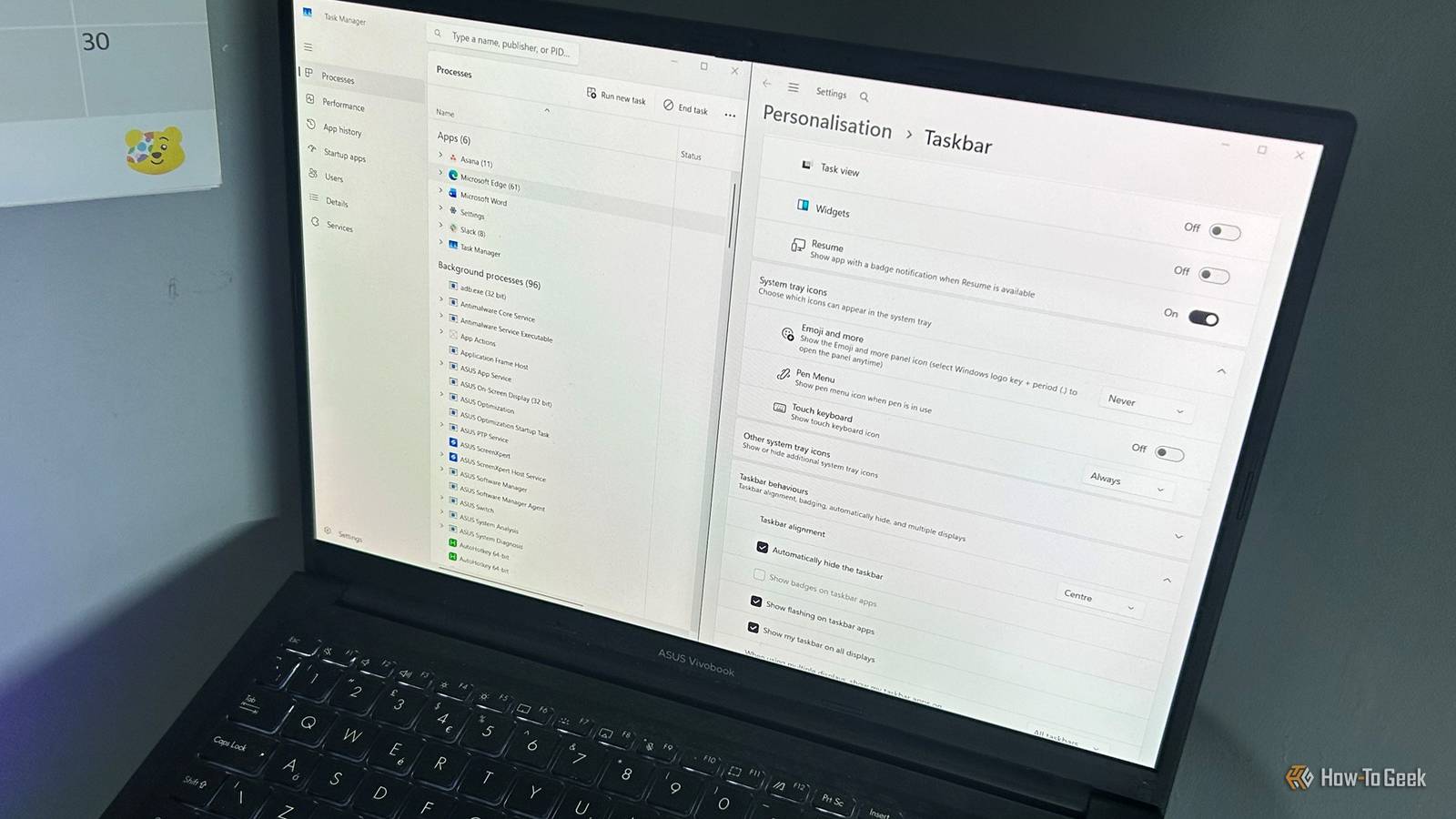
Published Sep 1, 2026, 2:00 PM EDT Tony Phillips is an experienced Microsoft Office user with a dual-honors degree in Linguistics and Hispanic Studies. Prior to starting with How-to Geek in January 2024, he worked as a document producer, data manager, and content creator for over ten years, and loves making spreadsheets and documents in his spare time. Tony is also an academic proofreader, experienced in reading, editing, and formatting over 3 million words of personal statements, resumes, reference letters, research proposals, and dissertations. Before joining How-To Geek, Tony formatted and wrote documents for legal firms, including contracts, Wills, and Powers of Attorney. Tony is obsessed with Microsoft Office! He will find any reason to create a spreadsheet, exploring ways to add complex formulas and discover new ways to make data tick. He also takes pride in producing Word documents that look the part. He has worked as a data manager in a secondary school in the UK and has years of experience in the classroom with Microsoft PowerPoint. He loves to encounter problems in Microsoft Office and use his expertise and legal-level training to find solutions. Outside of the Microsoft world, Tony is a keen dog owner and lover, football fan, astrophotographer, gardener, and golfer. There are some things I do in Windows so often that I can't believe they don't have keyboard shortcuts. After clicking through the same menus over and over every day, I decided to stop waiting for Microsoft and use AutoHotkey to make my own. AutoHotkey makes custom shortcuts surprisingly easy It does the hard work for you AutoHotkey is a free, open-source Windows utility that lets you create custom keyboard shortcuts and automate actions. You don't need to be a programmer to use it, and once you've created your first script, adding more is really straightforward. First, download and install AutoHotkey v2. Then: Right-click an empty area of your desktop or inside a File Explorer folder and select New > AutoHotkey Script. Name the file. Click Edit. Choose the program where you want to create and edit your code. I use Notepad. Paste the scripts you want to use into the file and save it. Once that's done, double-click the AHK file to run it. You don't have to use every shortcut I show you below. I've chosen tasks that I regularly find myself repeating, but you can pick the ones that make sense for you and change the shortcuts or commands to fit your own workflow. You can also keep everything in one AHK file, as I do, or create separate scripts for individual shortcuts. If you want to change a script later, right-click the AHK file and select Edit in Notepad, make your changes, and save it. Just remember to double-click the file again to run the updated version. Hide or show the taskbar Maximize your screen space in seconds I regularly hide the taskbar when I want a little more room on my screen, like when I'm working with a large spreadsheet or comparing two documents. The problem is that Windows makes me dig through Settings every time. I decided that deserved a shortcut of its own: ^!t:: { taskbar := WinExist("ahk_class Shell_TrayWnd") if taskbar { WinHide taskbar } else { DetectHiddenWindows true taskbar := WinExist("ahk_class Shell_TrayWnd") DetectHiddenWindows false if taskbar WinShow taskbar } } Part What it does ^!t Assigns Ctrl+Alt+T to the script WinExist Finds the Windows taskbar window WinHide Hides the taskbar window DetectHiddenWindows Lets AutoHotkey find the taskbar after it has been hidden WinShow Shows the taskbar again Open a frequently used folder Skip File Explorer navigation entirely There are some folders I open so often that I could probably navigate to them with my eyes closed. Yes, I could pin them to Quick Access, and I have, but I still need to open File Explorer and click it. For a folder I open several times a day, I wanted to remove even those few clicks: ^!f:: { Run "[FOLDER PATH]" } Part What it does ^!f Assigns Ctrl+Alt+F to the script Run Tells AutoHotkey to open something [FOLDER PATH] Specifies which folder to open To replicate this script for an Explorer folder you open often, simply head to that folder, copy the path in the address bar, and paste it between the double quotes in the script. Kill the active application No need for the Task Manager When an app freezes, Windows makes me open Task Manager, find the offending program, select it, and click End task. That's a lot of clicking when I already know which app I want to terminate. There are two ways to make this happen more quickly. You can enable a Windows setting that adds End task to the right-click menu for apps on the taskbar, or you can use AutoHotkey to execute the same action with a shortcut: ^!k:: { pid := WinGetPID("A") ProcessClose(pid) } Part What it does ^!k Assigns Ctrl+Alt+K to the script WinGetPID("A") Gets the process ID of the active window ProcessClose(pid) Ends that process Because this shortcut force-closes the app, anything you haven't saved could be lost. Reserve this shortcut for situations where an app has completely frozen. If it's still responding, save your work and close it normally. Switch between dark and light mode Turn a multi-click Settings journey into one shortcut I switch between Windows' light and dark modes depending on what I'm doing and when I'm doing it. The jury's out on the benefits of dark mode, but I find it's easier on my eyes when I'm working in a dim room, while I often prefer light mode during the day. Windows gives me no single shortcut for this, so every switch means another trip into Settings. The key to setting these scripts up was stepping through the keyboard navigation I'd otherwise perform manually. I opened the Colors settings and worked out which combination of Tab, Shift+Tab, and the Arrow keys would move the focus to the setting I wanted. The shortcuts then open the Colors settings and send those same keystrokes automatically. If the controls on your PC are arranged differently, test the sequence yourself and change the Send commands accordingly. I started with a shortcut for switching to dark mode: ^!d:: { Run "ms-settings:colors" Sleep 700 Send "{Tab}" Send "+{Tab}" Send "{Down}" } Part What it does ^!d Assigns Ctrl+Alt+D to dark mode ms-settings:colors Opens Windows' Colors settings Sleep 700 Gives the Settings page time to open {Tab} and +{Tab} Moves the keyboard focus, exactly how Tab and Shift+Tab would {Down} Changes the selected option to Dark To switch back to light mode, I use a second shortcut (Ctrl+Alt+L): ^!l:: { Run "ms-settings:colors" Sleep 700 Send "{Tab}" Send "+{Tab}" Send "{Up}" } Reopen the last File Explorer window Give Explorer its own Ctrl+Shift+T Ctrl+Shift+T is second nature to anyone who has accidentally closed a browser tab and needed it back. I kept trying it in File Explorer after accidentally closing a folder window, only to remember that Explorer doesn't offer the same shortcut. Since I frequently close Explorer windows and then need to get back to the folder I was using, I decided to make my own version. But rather than reusing Ctrl+Shift+T, I gave it Ctrl+Alt+R because I didn't want to interfere with any existing Windows or application shortcuts: known := Map() lastClosed := "" SetTimer WatchExplorer, 500 WatchExplorer() { global known, lastClosed current := Map() for window in ComObject("Shell.Application").Windows { try { if InStr(window.FullName, "explorer.exe") current[window.HWND] := window.Document.Folder.Self.Path } } for hwnd, path in known { if !current.Has(hwnd) lastClosed := path } known := current } ^!r:: { global lastClosed if lastClosed Run 'explorer.exe "' lastClosed '"' } Part What it does known Stores the Explorer windows detected during the previous check lastClosed Stores the path of the most recently detected closed Explorer window SetTimer Checks Explorer windows every 500 milliseconds WatchExplorer() Detects open Explorer windows and identifies when one has closed ^!r Assigns Ctrl+Alt+R to the script Run Opens the folder stored in lastClosed Turn your frustrations into shortcuts AutoHotkey is most useful when you apply it to the little things you do repeatedly and want to make easier and quicker. I've also used AutoHotkey for other tedious tasks that would otherwise take time or drive me crazy, including creating today's folder automatically, turning a short typed trigger into a longer phrase, and keeping a window on top of everything else. Once you start noticing the repetitive things you do in Windows, you'll probably find plenty of other tasks that could quite easily become shortcuts.
Windows makes me click through multiple menus for everyday tasks, so I made my own shortcuts
Full Article
Original Source
Read the full article at Howtogeek →KhanList aggregates and links to publicly available news content. We do not host full articles from third-party sources. Always verify important information with original sources.