
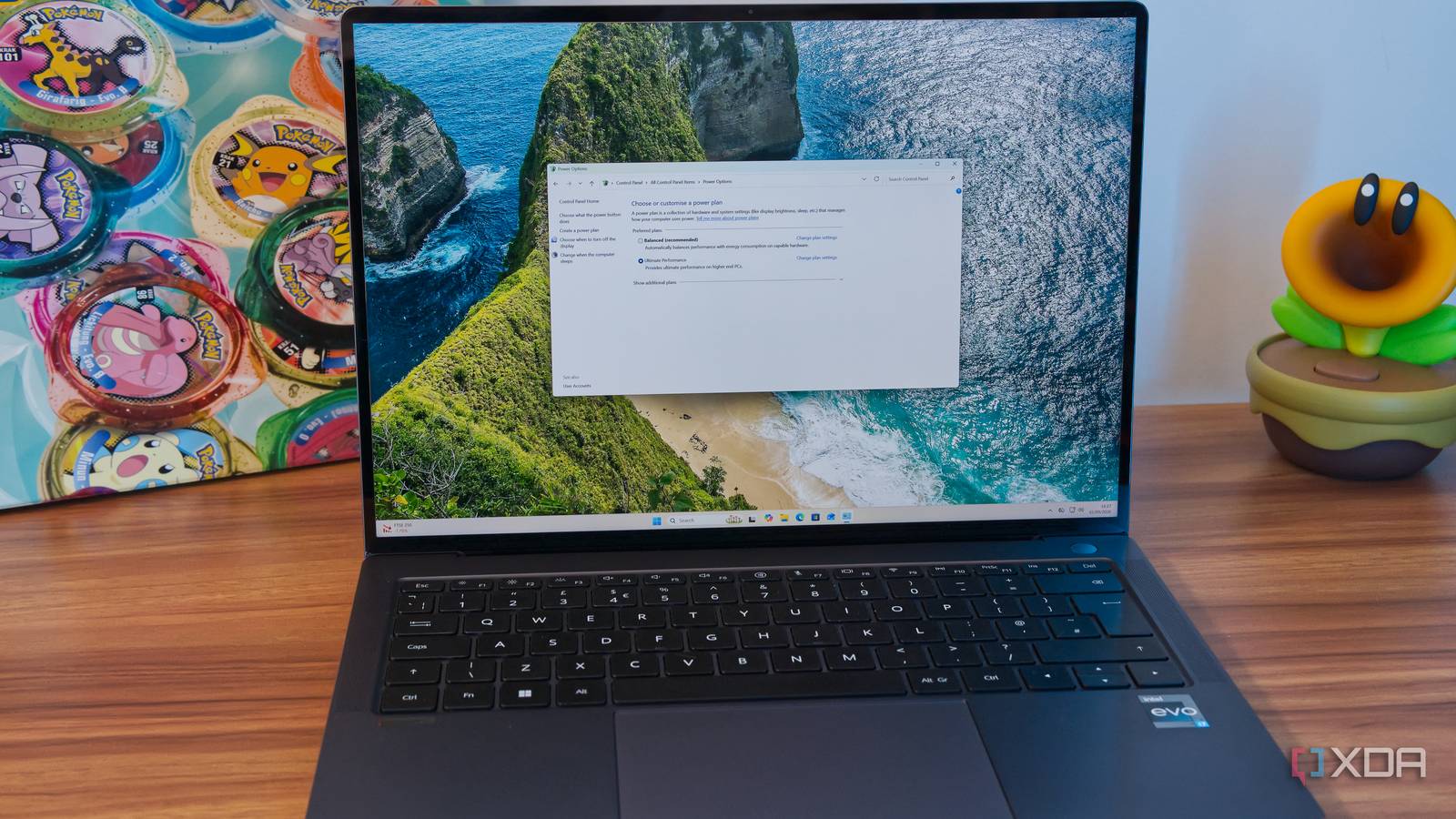
Published Sep 9, 2026, 1:30 PM EDT João has been covering the tech world for over 7 years, with a heavy focus on laptops and the Windows ecosystem. I also love all things tech and videogames, especially Nintendo, which he's always happy to talk about. Prior to joining XDA in 2021, he worked at Neowin: https://www.neowin.net/news/poster/jo%C3%A3o-carrasqueira/ Windows 11 comes with plenty of features to manage power consumption and performance, but it's easy to forget that some things have been removed or hidden over time. For example, you used to change these power settings in Control Panel, and you still have that option, but Microsoft expects you to use the new Settings app, and the settings in these pages aren't exactly the same. But there's one option that's even more hidden than the old Control Panel settings. It's the Ultimate Performance power plan, and while it's hidden on Windows 11, it's still possible to use it with a very simple tweak. What does the Ultimate Performance power plan do? Crank everything to the max As you can probably guess from its name, the Ultimate Performance power plan aims to maximize your PC's performance at the expense of everything else. That includes power consumption and noise, meaning your PC may run louder and hotter than usual. In practical terms, this power plan makes it so that your CPU is always running at max speed, rather than adjusting to your usage. In a typical scenario, your CPU will slow down when it's not doing anything demanding, and speed up when needed, but the short transition period between one mode and the other can result in tiny performance hiccups, which can be noticeable depending on your use case. Likewise, a mechanical hard drive may constantly be spinning so that latency in file access is reduced, your USB devices may be prevented from going to sleep, and a few other things. It's all about ensuring that every part of your setup is always ready to go full bore to give you the best performance possible. This power plan is mostly aimed at desktop workstations, and enabling it on a laptop is something I would strongly advise against. However, if you need unwavering performance all the time, this is the plan for you. How to enable the Ultimate Performance plan It's fairly easy The Ultimate Performance power plan may be hidden, but you can enable it with a single PowerShell command. Simply open Windows Terminal on your PC and enter this command: powercfg -duplicatescheme e9a42b02-d5df-448d-aa00-03f14749eb61Once you've done this, you can open Control Panel, switch the view to Small icons (or Large icons) and then choose Power Options. The Ultimate Performance plan should be there now. However, there's a major caveat to this. As mentioned above, the plan is aimed squarely at desktop users needing the absolute best performance. I've attempted to enable this plan on two laptops and a mini PC (which also uses a laptop-grade CPU), and in all cases, the Ultimate Performance plan didn't appear. In fact, only the Balanced plan is available. When testing on a desktop, however — or even in a virtual machine running inside a laptop — the command works without issues, so you can go ahead and enable it. It shouldn't require a reboot, so if you don't see any changes after running the command, it likely means your PC simply won't support it. While we strongly advise against, if you absolutely must access this power plan (or others hidden on Windows 11 laptops), this YouTube video includes a link to a file you can use to forcefully restore the missing power plans. I tested it and it does achieve that goal without any apparent malware on board, but it's always good to be cautious. Especially considering that, even if it works, it likely won't benefit you. Should you actually use it? Probably not Enabling the Ultimate Performance power plan is easy enough, but is there a good enough reason to actually do it? Even if you have a desktop where the power plan makes some sense, you're probably better off without it. The benefits of running things like your CPU and HDD at max speed all the time are negligible in almost all situations. Very few workloads and people need that kind of constant performance and responsiveness, and the period it takes for a processor or disk to ramp up when needed is very short. You'd almost never see a difference. At the same time, there are some real downsides to running your PC like this. Your CPU will run hotter and you might need to upgrade your thermal paste sooner, or you might end up killing your CPU altogether. The same can go for your hard drive; keeping your disk spinning all the time is going to create a higher risk of a mechanical failure happening sooner rather than later, which is obviously a big risk. That's not even addressing laptops, where you will almost certainly destroy your device's battery much quicker than necessary. Unless you're planning to stay plugged in all the time and bypassing the battery altogether, not only will the battery die faster each time, but the total capacity will be reduced more quickly. Still, for very specific use cases, it has its place, and that's why the feature exists in the first place. Remember, this isn't some ancient feature that's still kept around by chance, it was introduced in Windows 10 just eight years ago. It's hidden for a reason It's easy to understand why the Ultimate Performance power plan isn't immediately available to Windows users. After all, the risk is too high for the reward in the vast majority of cases, though it would be nice to have this more readily available on any machine, even if it remains hidden. Still, if you need it, following the steps above is all you need.
Windows hides its fastest power plan from most PCs, and unlocking it takes one line
Full Article
Original Source
Read the full article at Xda-developers →KhanList aggregates and links to publicly available news content. We do not host full articles from third-party sources. Always verify important information with original sources.