
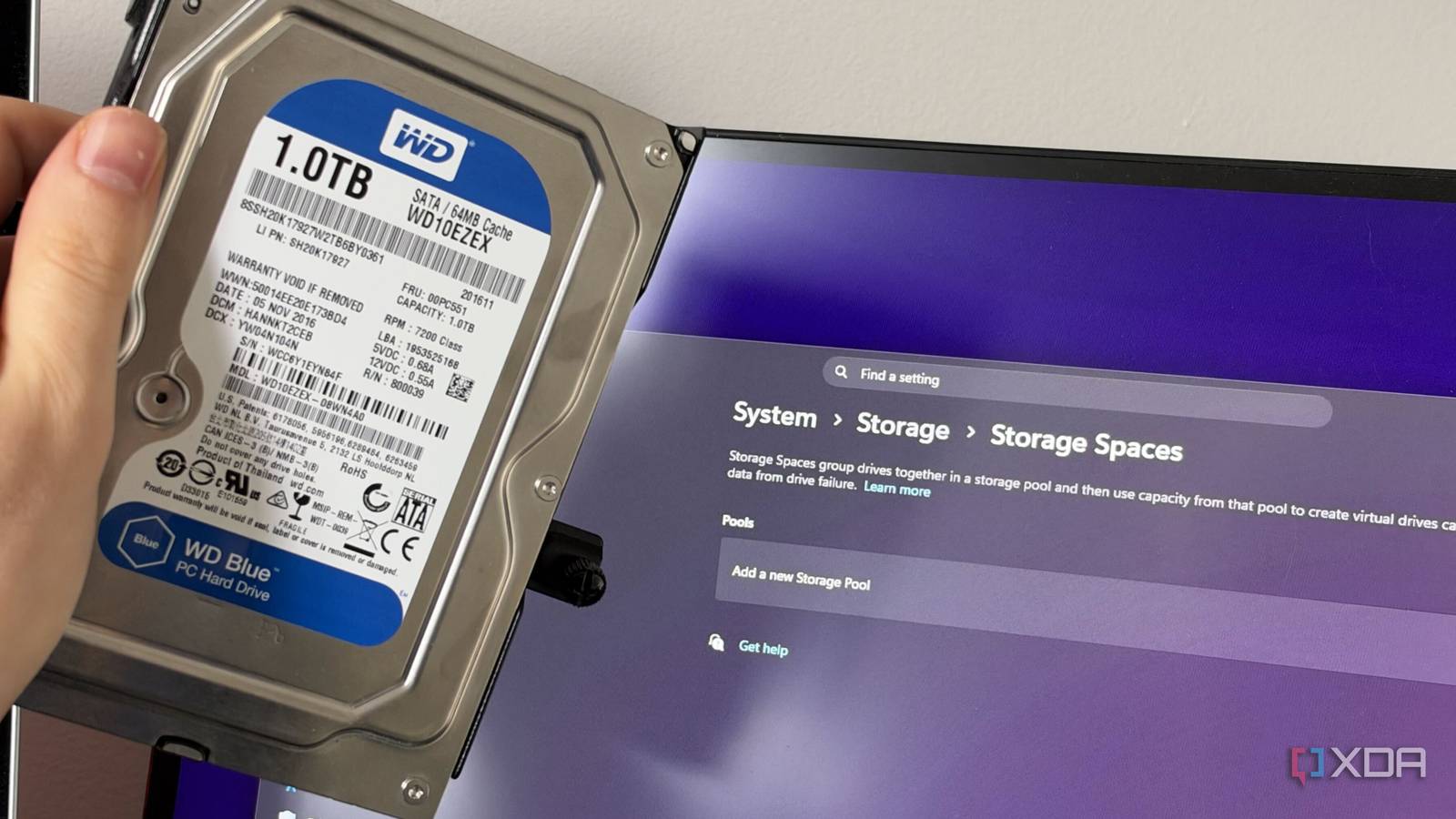
Published Nov 25, 2026, 9:01 AM EST His love of PCs and their components was born out of trying to squeeze every ounce of performance out of the family computer. Tinkering with his own build at age 10 turned into building PCs for friends and family, fostering a passion that would ultimately take shape as a career path. Besides being the first call for tech support for those close to him, Ty is a computer science student, with his focus being cloud computing and networking. He also competed in semi-pro Counter-Strike for 8 years, making him intimately familiar with everything to do with peripherals. It's becoming exceedingly common for people, not just PC enthusiasts, to have spare storage lying around. It could be a 1TB drive from an old build or a 500GB SSD that's sitting in a PC nobody uses, and it's possible none of them are worth taking out to install on their own, so they continue to sit there. Windows has had a solution for this since Windows 8, and it's gone largely unused by the majority of people with spare storage kicking about. It's called Storage Spaces, and it can take those mismatched drives and turn them into a single pool with one drive letter. It can protect you if one of them dies, and comes with Windows Home, so anyone can use it. Storage Spaces is the new spanned volume replacement Windows is pushing users to use these instead If you've ever tried to combine the capacity of two drives into one in Windows using only a GUI, you've probably tried Disk Management's spanned volumes function. This approach relies on dynamic disks, which have largely been deprecated for everything besides boot volumes that are mirrored. Thus, the replacement is Storage Spaces, and to Microsoft's credit, it's better in so many ways. Storage Spaces works by grouping two or more physical drives into a storage pool that is then carved into virtual drives, called storage spaces. Windows formats these virtual drives as if they're any other drive. In the background, Windows splits data saved to these spaces into 256MB chunks that are then spread across the drives in the pool. This is why capacity doesn't matter, and if you run low on space in the pool later, you can always just add another drive instead of starting over. The other key difference between Storage Spaces and spanned volumes is protection. A spanned volume strings drives together end-to-end, so losing one of them means you lose the entire volume. Storage spaces can keep two copies of everything on separate drives, so one failure doesn't mean the entire space dies. One of the primary use cases for Storage Spaces is repurposing old storage which may be susceptible to failures in the future, so having some kind of redundancy built-in is important. Setting up a Storage Space It's pretty simple In Windows 11, Storage Spaces lives in Settings under System > Storage > Advanced storage settings. The older Control Panel version is still there if you search for it, and both do the same job. You need at least two drives besides the one Windows is installed on. Before going any further, though, you should make sure the drives you want to use don't contain any data you need to back up. Windows will warn you that the drives contain files before you continue, but it doesn't hurt to check beforehand. The wizard will then allow you to name the storage space and resiliency type, which depends on how many drives you select. Simple combines all the capacity with no protection at all, a two-way mirror keeps two copies of every file on different drives and survives one drive failure, and finally, a three-way mirror keeps three copies and needs at least five drives. Parity works much like a standard RAID 5 would: it trades some capacity for protection and needs at least three drives. There are a few caveats to using Storage Spaces Microsoft doesn't put these in the wizard The underside of a HDD. Possibly the biggest downside of using Storage Spaces is that when using any kind of parity, performance can suffer immensely. Every write you make to a space using parity means recalculating said parity, and when using it on a few hard drives, that can slow things to a crawl. You can somewhat remedy this by recreating the space in PowerShell with tuned column and interleave values, but the standard wizard for creating a Storage Space doesn't expose this, and it's also far more than the average person will want to deal with. Using internal drives for a storage space is one thing, but if you want to use an external drive, Microsoft themselves say yours might not work. These drives show themselves as removable, so they aren't always recognized as eligible for use in a Storage Space. Microsoft also limits volume creation to NTFS on consumer versions of Windows, which also limits Storage Spaces to NTFS. This is somewhat disappointing considering that it seems like a prime opportunity to use their proprietary ReFS filesystem, which can detect corruption and repair it in a sort of ZFS-like manner. It's not perfect but it's a great way to get some use out of old drives Storage Spaces is far from perfect, but it's one of the better ways to combine a set of old drives within Windows. It certainly doesn't replace a proper NAS, and it certainly doesn't perform as well as one when parity is used, but as a way to reuse some drives you have sitting in a drawer, it does exactly what it says on the tin.
Windows has had a built-in way to turn a drawer of mismatched old drives into one big pool for over a decade, and almost nobody uses it
Full Article
Original Source
Read the full article at Xda-developers →KhanList aggregates and links to publicly available news content. We do not host full articles from third-party sources. Always verify important information with original sources.