
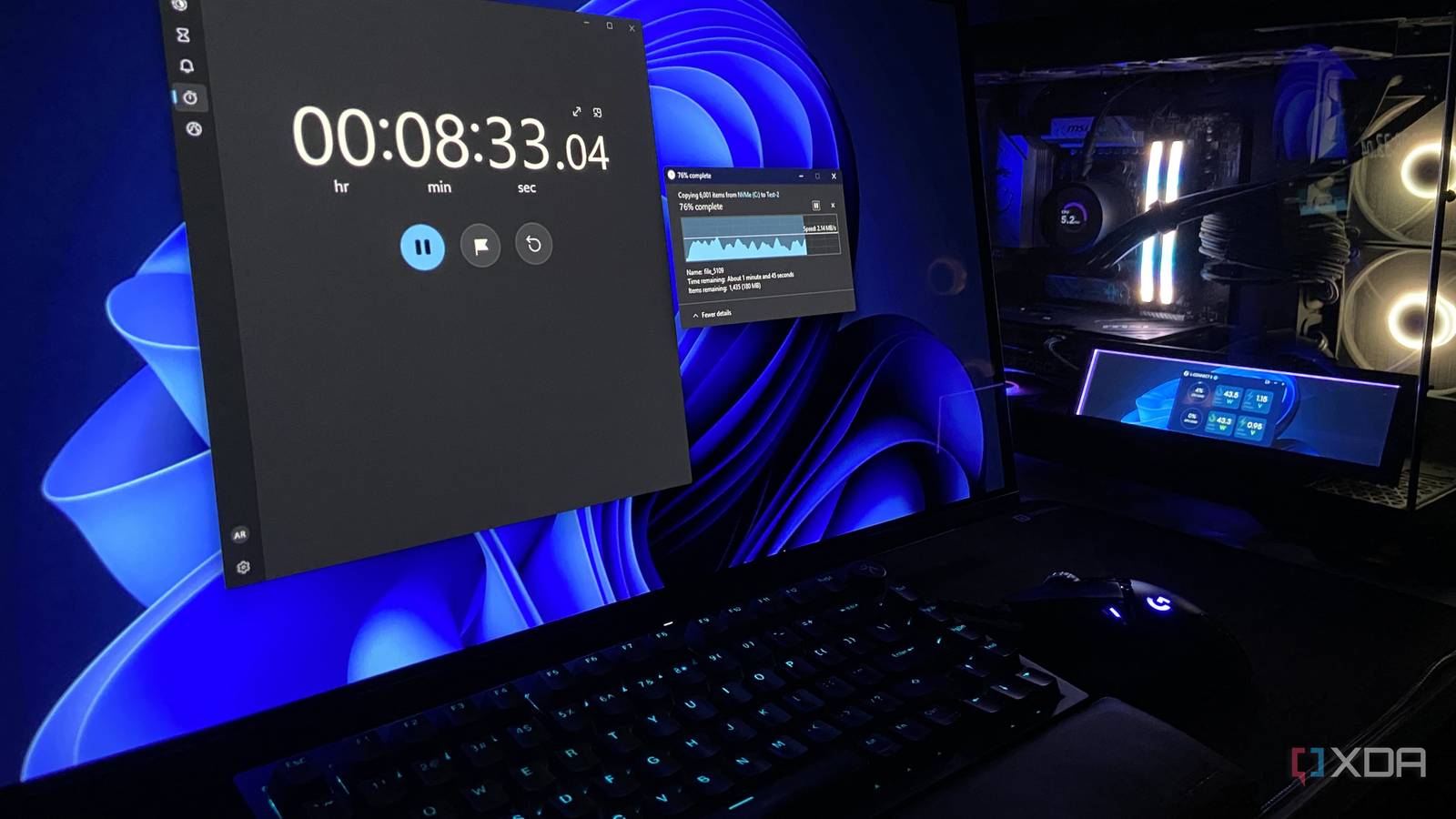
Published Oct 3, 2026, 1:30 PM EDT Abhinav pivoted from a career in banking to pursue his first love in writing. Even while working full-time, he continued contributing as an editor-at-large, a role he has held for more than 7 years. A lifelong tech enthusiast who has built three gaming and productivity powerhouse PCs since 2018, his passion for technology keeps him closely following the semiconductor industry, from NVIDIA and AMD to ARM. His MSc dissertation explored how artificial intelligence will reshape the future of work, reflecting his curiosity about the wider social impact of emerging technologies. Most of us use our USB devices the same way. We plug it in, drag some files across, wait for the copying to finish, and pull it out without a second thought. What most users never notice is that Windows quietly made a change to how it works back in 2018, and this change has been the default on Windows machines ever since. The idea was to make it safer to pull out a USB drive without needing to eject it and reduce the likelihood of losing any data in the process. There's a trade-off to this, though, and there's no way to know exactly what unless you go looking for that information. Windows gives up some write performance to make that possible, because it no longer uses write caching for removable drives by default, which leads to slightly lower transfer speeds. How much that matters depends on the type of drive you're using, and what you're copying. Curious to know the difference, I grabbed a cheap USB 2.0 drive that lay on my desk and put it through an experiment I designed. Windows changed how it treats your USB drives many years ago And it didn't make much noise about it The setting that I'm talking about is known as Quick Removal, and Microsoft switched it on by default with Windows 10 version 1809 in October 2018. Prior to that, the default option for all connected USB devices was called "Better performance." Unless you've gone looking for the setting and changed it yourself, that's how every USB drive, external SSD, and Thunderbolt drive you've plugged in since has been handled. On the Microsoft Learn forums, what the two options do is fairly detailed. Quick Removal keeps the drive ready to be unplugged at any time, but at the same time WIndows can't cache writes to it. On the other hand, Better Performance allows for write caching, which can make transfers faster, but you have to safely eject the drive before pulling it out. As you can imagine, this is just Windows choosing convenience and data safety over a bit of extra performance, which is a sensible trade-off considering how most users just pull out their removable drives without a second thought. The setting still exits in Windows 11, and it's hidden away under the Policies tab in your drive's properties. I put both settings on the clock with a cheap USB 2.0 stick With the same 6,000 tiny files and the same port, I measured the difference To see how much Quick Removal costs in terms of time, I made a folder containing 6,000 small files, ranging from 4KB to 256KB each, for about 760MB in total. Small files are where write caching should have the biggest impact (theoretically speaking), since there's a lot of little bits of overhead for the cache to smooth over. I copied the folder to a cheap USB 2.0 stick, timed it, and then ran the same test with Better Performance enabled. On Quick Removal, which is the default setting on Windows, the copy took about 11 minutes and 31 seconds to complete. Switching to Better Performance brought that down to 10 minutes and 31 seconds, which accounts for a full minute saved by changing the setting on a USB 2.0 stick that was never going to be particularly fast in the first place. Setting Transfer time Quick Removal 00:11:31 Better Performance 00:10:31 How to change the default setting, and whether you should It takes a single checkbox, but requires changing a habit you've built for years Getting to the setting is rather straightforward, and you can flip it in thirty seconds on your desktop. Before that, though, there's an important question worth asking yourself, and it's whether the extra performance is worth changing the way you've been using your USB drives for years. To get to the toggle, you'd have to right-click Start, open Device Manager, expand Disk drives, and look for your USB stick, or sticks, if there are multiple. Open its Properties, head over to the Policies tab, and here is where you'll find the Quick Removal policy at the top. If you've never changed it, that'll be the default. You can switch it from Quick Removal to Better Performance, and then you're done. Microsoft also recommends selecting "Enable write caching" on the device whenever Better Performance is toggled. I've also observed that the setting doesn't immediately take effect, so it's worth going through a reboot cycle after you've toggled it. After the setting is changed, Microsoft also says that the policy that's set remains in effect if you disconnect it and then re-connect it to the same port, so you don't have to change the setting over and over again on each restart. Should you change the policy to save some more time? The question that remains is who should flip this setting, and my recommendation is that not everyone should do it, especially because it's built as a safeguard that's tailored to how people use their USB devices all the time. It's a setting that's better fit for anyone who already waits for the eject prompt out of habit, who copies big folders of small files to the same drive often, and who'd rather have the minute back than the mental shortcut of pulling the stick the moment the window closes. It's also worth noting that the difference that I observed reflects the result of a single test, so the time savings may be more or less depending on the drive used and the type of file that's being copied.
Windows has been slowing down every USB drive you plug in for 8 years, and one setting fixes it
Full Article
Original Source
Read the full article at Xda-developers →KhanList aggregates and links to publicly available news content. We do not host full articles from third-party sources. Always verify important information with original sources.