
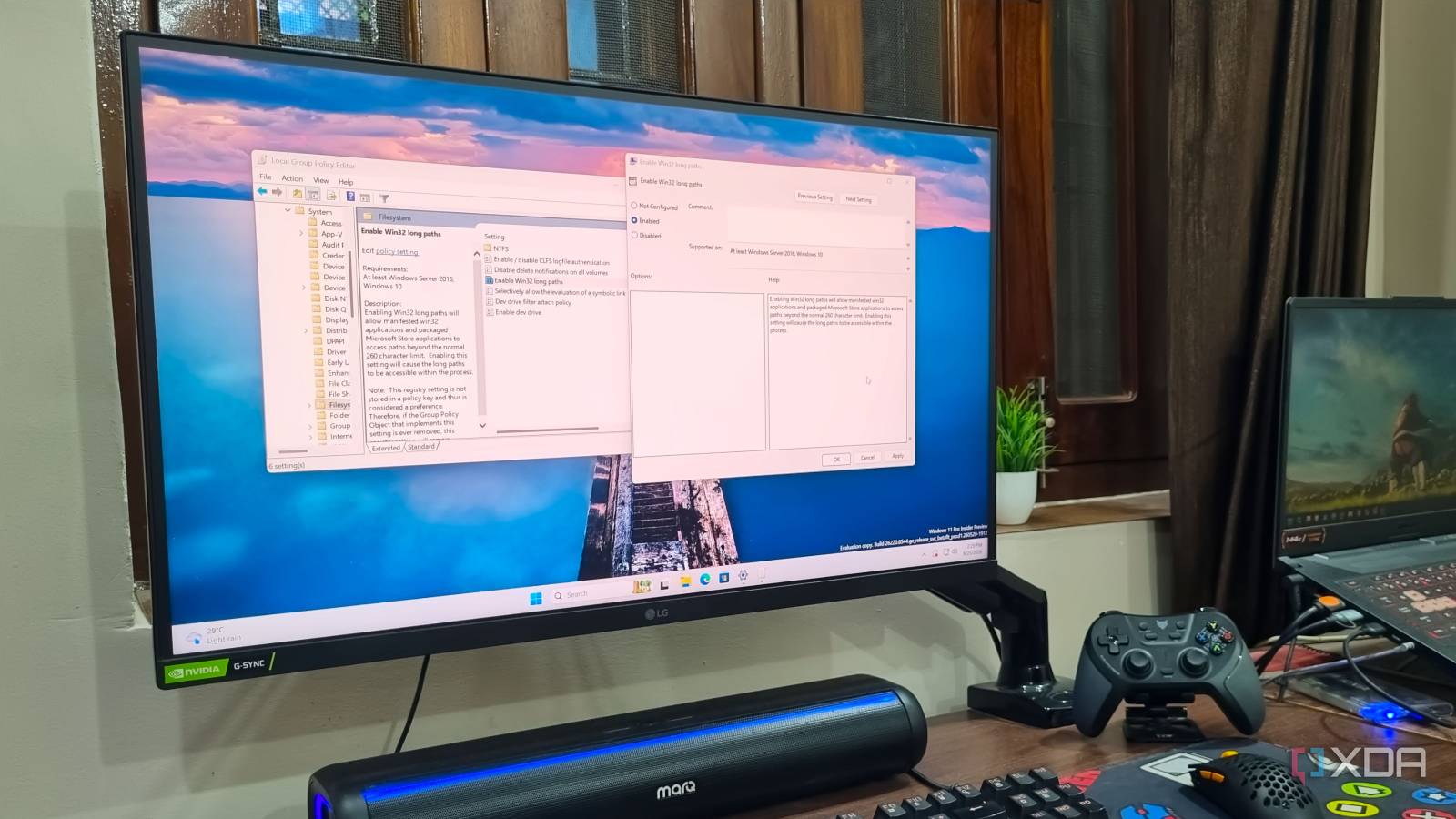
Published Sep 3, 2026, 3:30 PM EDT Abhishek is an author at XDA who covers computing. He has loved computers since he got the Lenovo G570 in 2012. Abhishek holds a master's degree in computer applications and began his writing career in 2018. He loves writing how-to articles, listicles, and informational posts on popular operating systems and web services. He closely follows the Windows Insider program and tests new Insider builds to discover upcoming experimental features and upgrades. His past work includes long-term collaborations with reputed publications like Tom's Hardware, and Windows Latest. When not writing anything, he is busy watching new episodes of One Piece or searching for something binge-worthy. Windows has a long history of strange bugs that disrupt certain OS features. Microsoft fixed them as they became widespread, but some errors still show up, and it makes me wonder how a regular user deals with them. Older versions of Windows imposed a 260-character limit on file names and file paths. Whenever you tried to access or do something with a file or a file path that crossed this threshold, it would often show the “Path too long” or “Filename is too long” error. I remember encountering this error out of the blue while copying media files from my friend's USB to my laptop. Back then, the error would bewilder users, but Windows now has a Group Policy to remove this restriction and deal with longer file names and file paths. Let's discuss why it's a big deal sometimes and how enabling the policy can help. The dreaded 260-character limit was an eyesore Windows couldn’t handle long names or paths If you started your Windows journey with Windows 10 or 11, there’s a high chance that you have rarely encountered this error. But if you started your journey with Windows XP as I did, it was surely one of the most bothersome problems. It disrupted common file actions like copy, move, or delete, and sometimes apps would downright refuse to open the file. Imagine asking for software or media on a USB drive, only for the OS to refuse to copy or delete it, or for VLC to refuse to open it. Frustrating, right? Windows 10 version 1607 decided to address this problem and reduce dependence on third-party tools. It added support for Win32 applications, so they could use paths longer than 260 characters without encountering the bothersome error message. But why did Windows impose such a limit? The old Windows APIs set the 260-character limit because it was standard at the time. But couldn’t Microsoft have changed it when the need arose? Well, it’s not easy to abandon a standard because a lot of old software relies on it. So, instead of removing it entirely, Windows 10 added long-path support for many Win32 APIs. One more caveat is that apps that want to use the extended limit have to declare it in their manifest file, telling Windows about the new requirements. The error has an easy fix Tweaking a system policy Even if an app declares that it’s long path aware, your PC might still encounter the 260-character limit error if the corresponding policy is inactive. Windows lets you manually control long-path support with a policy, and if you run Windows 11 Pro, Enterprise, or Education, you can adjust it. The Group Policy Editor (GPE) is exclusive to the OS editions I mentioned above and makes it quite easy to control various system elements. Here’s how to do it: Press the Win key, type gpedit.msc, and press Enter. Navigate to Computer Configuration -> Administrative Templates -> System -> Filesystem section. Locate the "Enable win32 long paths" entry and double-click on it. Select the Enabled option. Click Apply and then OK. Close the window and restart your PC to apply the changes. The above method is extremely convenient because it's a GUI tool, making it easy to understand what you are changing. GPE describes each policy and explains what impact it will have if you enable or disable it. But Windows 11 Home users don’t have this luxury. Microsoft reserves GPE and a few other tools, like Hyper-V, for the premium OS editions, and that’s a problem. But you can avoid it by tweaking the corresponding registry key and values. GPE is a visual tool for manipulating the system registry, and LongPathsEnabled is the value that does the work. So, you can use the Registry Editor to enable support for older applications. I’ve repeatedly made the same mistake of not backing up my registry to an external USB drive. While LongPathsEnabled is an actual system value, there can be occasions when the registry gets corrupted and renders your system unusable. So, always back up, especially when trying to add a new key/value. Repeat the following steps: Press the Win key, type regedit, and press Enter. Navigate to the following path: HKLM\SYSTEM\CurrentControlSet\Control\FileSystem Double-click the LongPathsEnabled value. Set the value data to 1, and click OK. Restart your PC to apply the changes. Either method can help apps handle names or paths longer than the 260-character limit. Modern apps might not need it The policy is for old software Out of curiosity, I tried to test File Explorer’s response with a longer file name. I was able to save file names way beyond the usual character limit. I experimented with text files, media files, and File Explorer didn’t stutter once. Even other native apps like Notepad and Media Player opened these files with unusually long names without errors. I did encounter an error while trying to move the folder where the file was present to another location. But enabling the policy resolved that specific error. So, you might not face this issue with modern Windows apps, but it doesn’t hurt to enable the policy. Cloning Git repositories and some Microsoft Office apps can encounter path-length limitations. Some apps have specific settings that help them conform to extended path limits without breaking the operation. If you use apps that handle files and nested folder structures, long path support can help you avoid that small inconvenience. An easy fix Windows 10 addressed the long-standing problem and rolled out long path support to help apps bypass the baseline character limit. Although the errors have become noticeably less with time, I suggest keeping the policy enabled if you haven’t done it already. There’s a way to do it via Group Policy Editor and Registry Editor, and both of them can help you control the policy state. Other third-party tools like LongPathTool can help with folder and file management operations, but I prefer sticking with the native solution. Windows 11 Pro A USB installation drive and license key for Windows 11 Pro, with additional features like Hyper-V and Windows Sandbox support.
Windows has been silently breaking file paths for decades, and the fix is one Group Policy toggle away
Full Article
Original Source
Read the full article at Xda-developers →KhanList aggregates and links to publicly available news content. We do not host full articles from third-party sources. Always verify important information with original sources.