
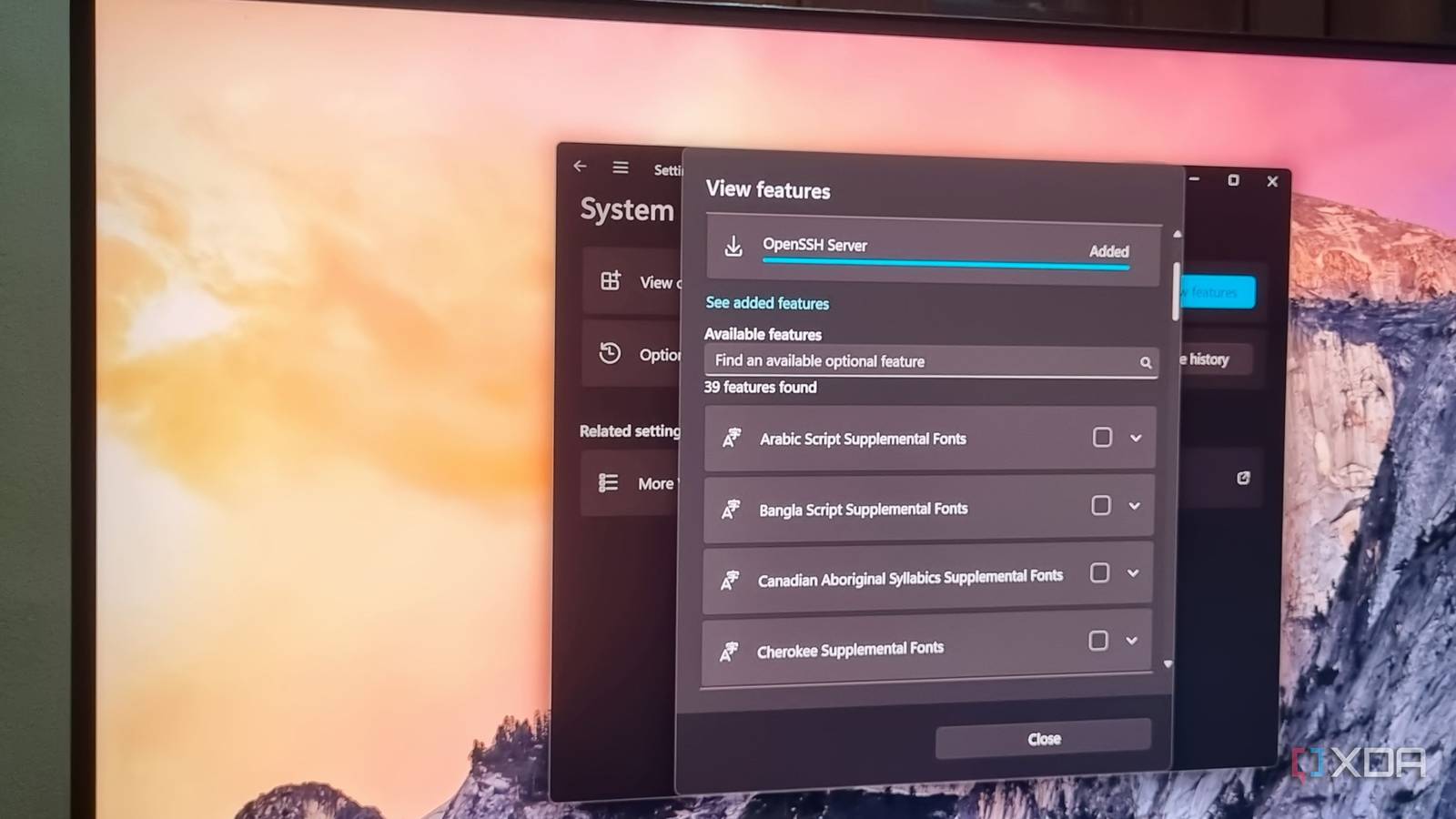
Published Nov 6, 2026, 8:01 PM EST Abhishek is an author at XDA who covers computing. He has loved computers since he got the Lenovo G570 in 2012. Abhishek holds a master's degree in computer applications and began his writing career in 2018. He loves writing how-to articles, listicles, and informational posts on popular operating systems and web services. He closely follows the Windows Insider program and tests new Insider builds to discover upcoming experimental features and upgrades. His past work includes long-term collaborations with reputed publications like Tom's Hardware, and Windows Latest. When not writing anything, he is busy watching new episodes of One Piece or searching for something binge-worthy. Windows has had a built-in server for nearly a decade. SSH is a quintessential feature for anyone who uses more than one computer in their home, especially if they are into servers. I have multiple servers built out of old thin clients, laptops, WSL virtual machines, and single-board computers. I mostly manage everything from one of my Windows computers and never really gave a thought to using an SSH server on it. The most obvious way to connect to any remote Windows machine is via a remote desktop tool, and SSH never felt useful. However, the GUI remote desktop version is not necessary at all times. When you are running some services and self-hosted tools on a Windows machine, the SSH server becomes useful. Windows lists OpenSSH as an optional feature, but it's now my favorite tool to control Windows PCs from the terminal. OpenSSH is part of Windows But only the client comes preinstalled As someone who manages home servers and conducts self-hosting experiments regularly, SSH is absolutely unavoidable for me. I've never been a fan of SSH clients and prefer to use the built-in SSH tool on Windows. However, I had no idea I'd been using the OpenSSH client for so long on my main Windows PC. I always thought of OpenSSH as a third-party tool included with many Linux distributions. It never occurred to me that Windows integrates it by default. If you've ever used SSH, you know that the client doesn't matter at all. You can connect to any other SSH tool, as I do, but the connection protocol, aka SSH, remains the same. For example, all my home servers use DietPi, and they have Dropbear as the default SSH server. But I don't have any problem controlling them from my OpenSSH CLI tool on Windows. Similarly, I can control an OpenSSH server running on a Windows PC via a Linux system without facing connection challenges. SSH is a protocol, and the client doesn't matter. But I didn't know the OpenSSH server existed as an optional Windows feature. Open Settings and go to Optional features to find the OpenSSH Server option. Select the checkbox, then click Install to add it to your Windows PC. Remotely managing Windows systems Just like any other SSH session Accessing a Windows PC via SSH is a learning experience. You can use CLI tools like CMD and PowerShell from another system to control services and processes and view system information. I can launch PowerShell by typing its name and then use all the cmdlets it offers. Similarly, I can use other commands to view active processes, tweak network settings, or even force lock or reboot the system. One lazy use case for running an OpenSSH server is when I’m on the lower floor and want to shut down the main or other Windows systems. I can start an SSH session from my Android phone, run the shutdown command, and sleep peacefully. I highly suggest using Termius as an Android SSH app because it can save profiles and has features that make the absence of a physical keyboard less painful. This is just surface-level control of what anyone usually does with a server. However, there is a completely different use case, like using SSH to manage the WSL environment. I find it relatable because I run a Paperless-ngx server as a Docker container inside an Ubuntu WSL machine. It keeps working in the background and doesn't bother any user, especially my niece, who loves to play games and surf the web on it. The laptop silently runs the server in the background, and I can gain complete control of the WSL machine by SSHing into it or the host (Windows PC). The latter is more powerful because I can reboot the machine and do more system-level troubleshooting, which is not possible with SSH access to just the WSL machine. I can do more exciting things with the Paperless-ngx instance. One of them is adding a local LLM to help find, label, and organize things. The SSH session feels no different from controlling WSL via PowerShell; I can modify the containers and add new ones. I can even update my host system’s packages using Winget and spin up new WSL machines, if necessary. Remote desktop is useful But it's not applicable everywhere Some things are best left to the terminal, and WSL is one of those components for me. There’s no reason to use a remote desktop app for a GUI session when my work is CLI-based. Even if I don’t have a visual connection to the target Windows PC, I can still use PowerShell cmdlets in my SSH sessions for basic actions. The only caveat is that you must know your way around the terminal to make SSH sessions feel useful. Microsoft retired the built-in Remote Desktop app, and unless the target system has the Pro edition of Windows, the tool was partially useful. Windows Home users could only use the tool to connect to other RDP servers but lacked the option to host one. An OpenSSH server has no such restrictions and doesn’t offer features based on Windows editions. It’s a way to create an SSH server and supports cross-platform connections. Everything is interconnected I can control my Linux system from Windows and vice versa via any terminal now. Even my phone can connect to all these systems and manage Windows PCs as well. OpenSSH server is free to use and very easy to set up. You only need to allow incoming connections through Windows Firewall, and you never need to configure it again. SSH sessions are the backbone of any remote server management, and my Windows PCs feel no different from the Linux home servers now. To access the Windows PC outside the network, you can install Tailscale on the host machine. Windows 11 Pro A USB installation drive and license key for Windows 11 Pro, with additional features like Hyper-V and Windows Sandbox support.
Windows has a hidden, free SSH server, and I manage every PC in my house from one terminal now
Full Article
Original Source
Read the full article at Xda-developers →KhanList aggregates and links to publicly available news content. We do not host full articles from third-party sources. Always verify important information with original sources.