
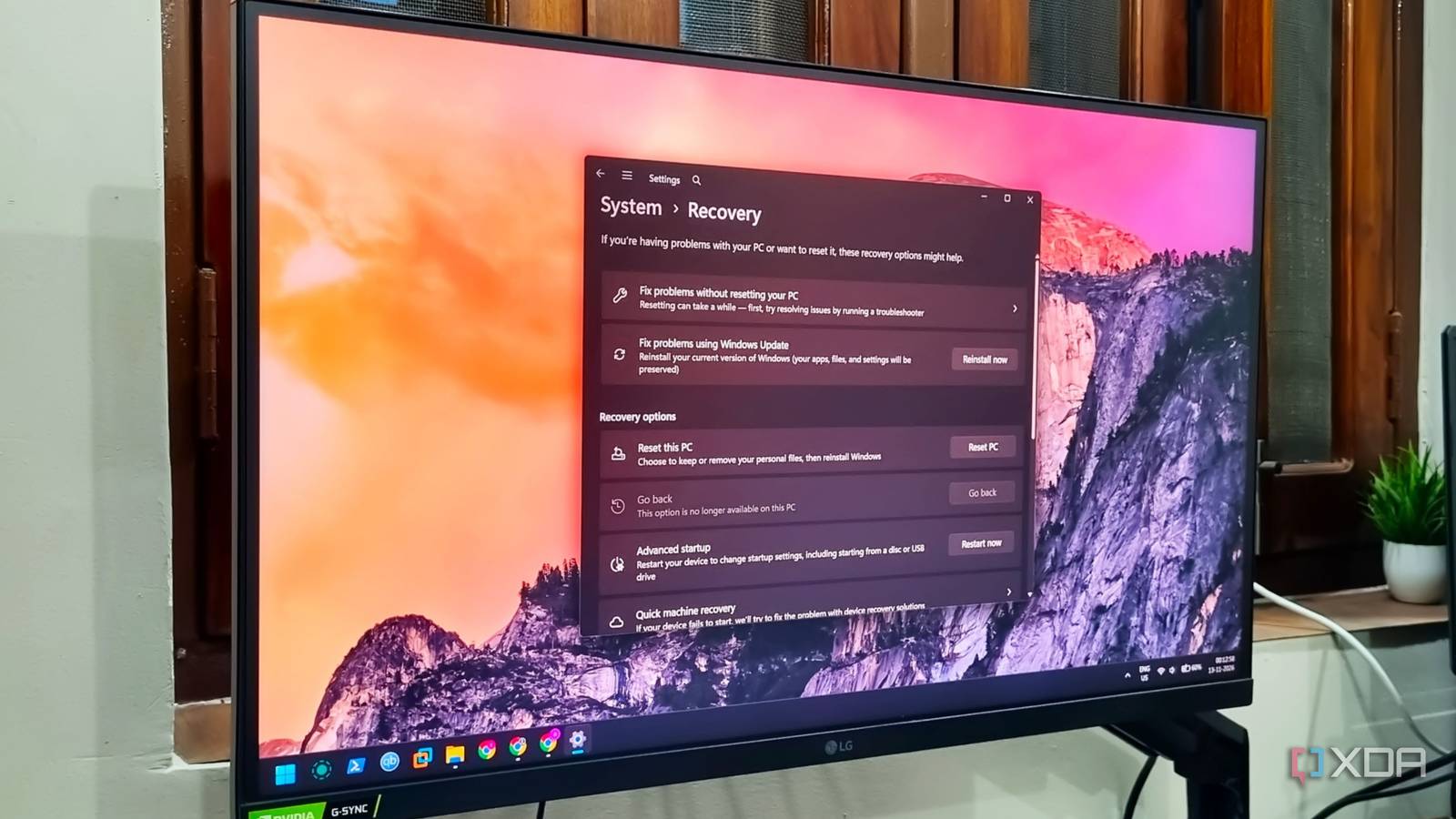
Published Nov 13, 2026, 8:00 AM EST Abhishek is an author at XDA who covers computing. He has loved computers since he got the Lenovo G570 in 2012. Abhishek holds a master's degree in computer applications and began his writing career in 2018. He loves writing how-to articles, listicles, and informational posts on popular operating systems and web services. He closely follows the Windows Insider program and tests new Insider builds to discover upcoming experimental features and upgrades. His past work includes long-term collaborations with reputed publications like Tom's Hardware, and Windows Latest. When not writing anything, he is busy watching new episodes of One Piece or searching for something binge-worthy. Windows has been my primary operating system for over two decades. I tried it and learned it in school first, and began using Windows XP Service Pack 3 on my first personal computer. I've used everything Microsoft has ever released since then and can relate to the statement that “Windows can run into problems.” I've faced my fair share of file corruption, registry problems, missing system files, malware, and broken OS functions. The simplest remedy that I got addicted to was reinstalling the operating system. I never thought of it as a last resort because I was naive back then. But now, reinstalling an OS seems like a daunting task. Despite the fast SSDs, CPUs, and memory, formatting your Windows partition and then adding all your software takes hours. For a working professional and an advanced user, it's a sheer waste of time. So, I tend to use a different method first rather than trying a bunch of cleaner/system repair tools. Windows reinstallation is not easy There's a better way to fix your system issues Old Windows installations on HDDs took anywhere from 30 minutes to an hour. Now, it takes 5–10 minutes to copy the files and load the OOBE setup page. Microsoft loves wasting your time and shows ads and promotions that delay the setup process. You can restore your old installation’s apps, settings, and PC preferences, but the third-party software still needs manual attention and takes a lot of time. Microsoft added the option called “Fix problems using Windows Update.” It's a fairly new addition to the recovery page, which has long included options like Reset this PC, Go back, and a few more. This feature is very different from a clean install or reset. It preserves everything on your system drive, including installed software and drivers. It's better than the reset option with “Keep my files,” which discards everything except your personal files stored on the C drive. A simpler way to fix Windows without reinstallation No prior preparation required I’ve used Windows restore points to go back to an earlier system state many times. But there are limited scenarios where this works. You need a usable system restore point from when all Windows components were working fine. System Restore is not enabled by default, and if you don’t have any usable restore points, your options become very limited. Some Windows problems are far beyond a restore point’s scope. You might see no improvement even after applying them and losing a few app installs. There’s also a new recovery tool called Point-in-time restore. It has a smaller rollback window of 72 hours. The only caveat is that the problem must have occurred after a usable restore point. Not all Windows hiccups are that obvious, and that’s where this underrated system fix becomes essential. If you use the “Fix problems using Windows Update”, there is no need to rely on other options. It temporarily downloads the update files and other necessary components. Just go to Settings -> System -> Recovery and click Reinstall now. You’ll be redirected to the Windows Update page, where it’ll try to find the repair version of the OS update and perform a reinstallation. It doesn’t require any ongoing input or supervision from you, except restarting your PC to apply the changes. Unlike the reset or reinstallation option, you don’t need to deal with any OOBE setup dialog boxes here. It reboots the PC, applies the update, and then boots to the lock screen. You need to have a stable internet connection, which is the only minor limitation I can think of. System Reset can work without downloading the latest ISO files, but it’s more destructive than this feature. You don’t need to be overly prepared beforehand or create a new bootable USB drive with the latest Windows 11 ISO. I do keep a Ventoy drive with both Windows and Linux distros, but that’s more of a last resort to clean-install an OS. PC cleaners and fixers can’t work miracles Windows 11 has by far the most comprehensive set of system troubleshooting, repair, and reset options, including old ones like DISM and SFC. You should try those before attempting an OS reinstallation. I don’t recommend system cleaners or manager/fixer tools because they cannot fix a grave problem with your Windows install. The best they can do is clean temporary files and scan for broken registry items, uninstall a few apps, and perform other generic actions. These actions are already present across multiple Windows tools and are barely a search away. For example, a PC cleaner app doesn’t have the capability to analyze what’s wrong with your PC. CCleaner and other similar tools have a basic feature set but are marketed as an easy solution for most of your OS problems. Some even have a paid tier to unlock more “useful” features, but don’t fall for that. Microsoft advises against using registry cleaners on your PC to fix problems. Treat these tools like regular, basic system maintenance solutions rather than a full-blown troubleshooting and repair kit. Stop unnecessary Windows reinstalls It’s very tempting to plug in the bootable USB and just remove everything in hopes of fixing the OS. But I don’t go to such extreme lengths anymore because of the modern recovery options in Windows. I’ve used them all, and nothing matches the simplicity and effectiveness of the “Fix problems using Windows Update” feature. It’s a non-destructive method that stays away from your personal files, software, and drivers, and only focuses on resolving Windows issues. Reset this PC and reinstall are the options you should try after using this feature. Avoid third-party managers, cleaners, or fixer tools at all costs. If you desperately need such a tool, Microsoft PC Manager can fulfill that role with routine maintenance. Windows 11 Pro A USB installation drive and license key for Windows 11 Pro, with additional features like Hyper-V and Windows Sandbox support.
Windows can reinstall itself without wiping your files, which fixes more problems than any cleaner app
Full Article
Original Source
Read the full article at Xda-developers →KhanList aggregates and links to publicly available news content. We do not host full articles from third-party sources. Always verify important information with original sources.