
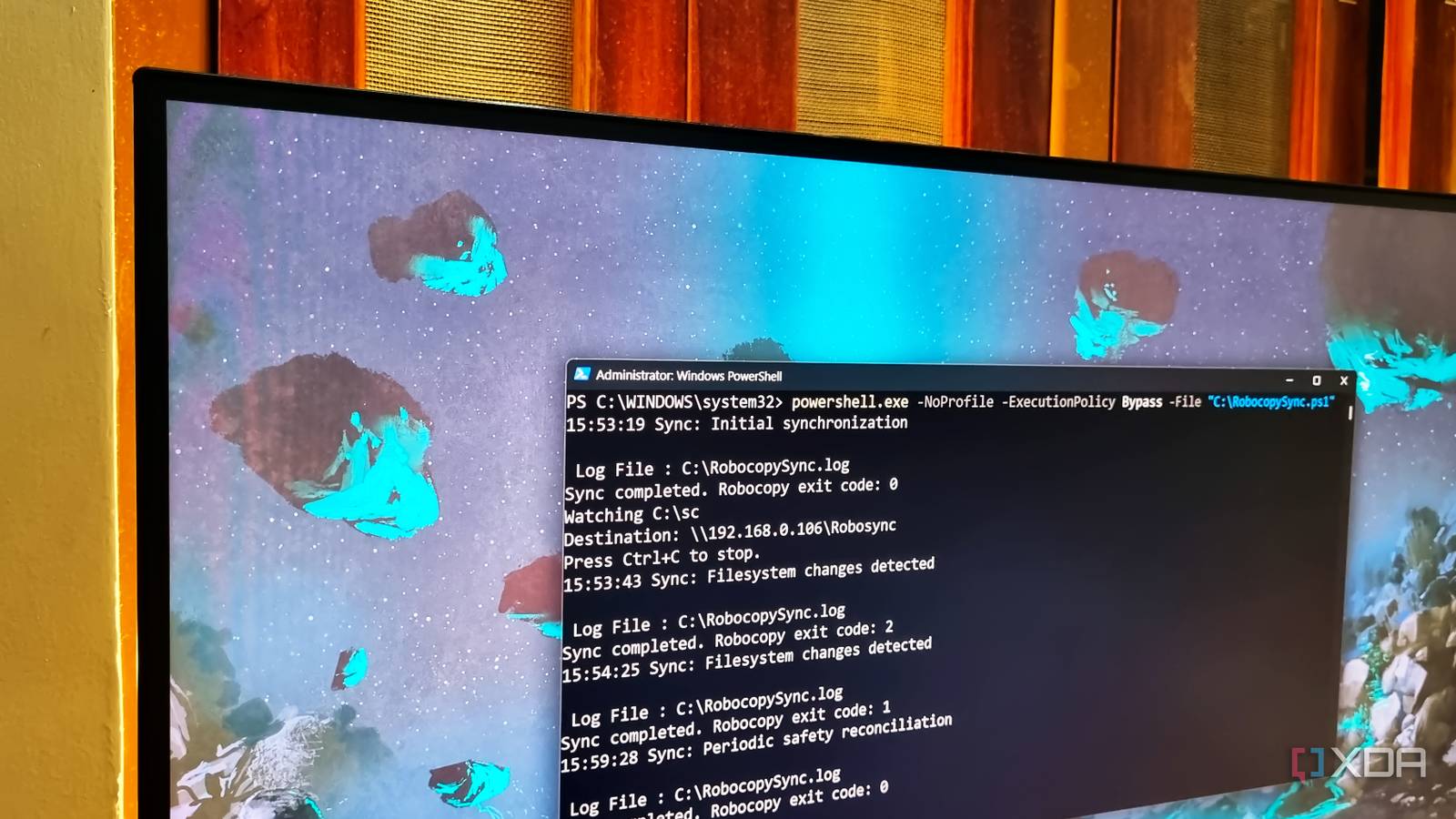
Published Oct 12, 2026, 1:30 PM EDT Abhishek is an author at XDA who covers computing. He has loved computers since he got the Lenovo G570 in 2012. Abhishek holds a master's degree in computer applications and began his writing career in 2018. He loves writing how-to articles, listicles, and informational posts on popular operating systems and web services. He closely follows the Windows Insider program and tests new Insider builds to discover upcoming experimental features and upgrades. His past work includes long-term collaborations with reputed publications like Tom's Hardware, and Windows Latest. When not writing anything, he is busy watching new episodes of One Piece or searching for something binge-worthy. There is an abundance of third-party tools available for Windows that try to solve a problem that the OS doesn’t. Windows doesn’t lack features, but the third-party tools make it more convenient to accomplish the same result. Robocopy is one such overlooked CLI tool that’s been a part of the OS for more than two decades. I discovered it a while ago when I was looking for something more automated and smart compared to simple copy and move actions. However, Robocopy can handle file actions over the shared network locations as well. I was aware of its capabilities, but never really tried it. But I needed to sync my folder to another local folder on a Windows PC and used Robocopy for it. Let’s explore how the project fared and whether you should use the tool. Robocopy is excellent for file transfers I use it for external backups We all have a few folders that are more precious than the rest of the things stored on the system disk. I use a Robocopy script to handle the file transfers between my PC and the external drive. It runs a copy job at logon, which is much better than using the GUI method in File Explorer. It isn’t a complex script, but it gets the job done. I prefer Robocopy because it's already a part of the OS, and I detest memory-hogging apps for a trivial task like this. Another practical use case I can relate to is copying a huge amount of data to another disk. Robocopy has several flags that can handle errors, retries, and can even mirror the source to the destination if you want. I wouldn’t cover all the flags here, but the point is that Robocopy can handle more than you think. With that in mind, I wanted to sync a folder on my main PC to a virtual machine that stores downloads and scripts. I hate the idea of copying the files to and fro, and don’t want to bother with the shared storage angle. So, I created multiple iterations of a script with the help of Gemini and ChatGPT to sync the folder from the host to the VM with Robocopy. It started as a simple command, but evolved into something that mimics a file sync tool. Creating the file sync script Building on a single Robocopy command First, I set up a shared folder where all these actions would happen. I created a shared folder on the VM and modified its permissions for full control. After applying the changes, I tested whether the folder was accessible on my main machine using File Explorer. To do that, I typed the target machine’s IP address and folder name in the following structure: \\192.168.0.106\Robosync You might be familiar with shared folders on Windows if you have experimented with network sharing and home servers. Currently, I can copy files using File Explorer to this folder, and they will be reflected on the target machine. It’s good for a few files, but you’ll have to repeat the action each time. There’s a lack of automation in this approach, and that’s what we’re trying to achieve with Robocopy. To copy files from the host machine to the shared folder, the command becomes: robocopy "C:\sc" "\\192.168.0.106\Robosync" /E /Z This simple command tells the tool to copy files from the “sc” folder to the shared folder named “Robosync”. It also uses the /E flag to copy all the subdirectories (if any) and supports restartable mode with the /Z flag. In case of network interruptions, the tool will restart the transfer from where it was abruptly halted and not from the beginning. If you use the previously mentioned command, Robocopy will copy the files to the shared folder. If you delete a file from the source folder, running the command again won’t delete it from the destination folder. But if you delete something from the destination folder, re-running the command will copy the missing file while skipping matching items. But this command won’t achieve the sync experience I want. A sync script needs multiple elements Covering all the possible bases Running the command multiple times can be done manually or with Task Scheduler. But it won’t tackle problems like consistent monitoring, retries, or error handling. The script uses a watchdog function that tries to detect changes between the source and destination. A debouncing function also controls how quickly the script reacts to changes. Once it detects a change, it uses the/MIR flag while copying the changes to the target drive. There are additional functions for saving logs, detecting errors, retrying the copy operation after a predefined wait period, and more. I tested the script with PowerShell before creating a task for it in the Task Scheduler. The script stays active, waiting for any file changes to happen. I deliberately deleted a few things in the destination folder, but the script was taking too long to detect anything. So, I reduced the wait time to one minute, and then the copy operations happened faster. Since this is a one-sided sync script, it immediately updates the destination folder if I add or delete something from the source. You can build a two-sided sync script, but I didn’t need it for this project. Compared to a sophisticated tool like Syncthing, it’s very barebones. However, it runs in the background and uses just 50MB of memory, which has a negligible impact on my machine. A tiny sync tool My Robocopy script might not be as powerful as Syncthing or other such tools. But it is very lightweight and needs no additional setup on the target machine. It can sync files to the shared folder and uses a bit of intelligence to do so. There are functions to check and execute copy operations based on changes, and it hasn’t disappointed me until now. Dropbox and other cloud solutions might do a better job, but my sync tool is free and doesn’t need an online account or payment subscription to work. Windows 11 Pro A USB installation drive and license key for Windows 11 Pro, with additional features like Hyper-V and Windows Sandbox support.
Windows already has a file sync tool, and it's been hiding in the command line for over 20 years
Full Article
Original Source
Read the full article at Xda-developers →KhanList aggregates and links to publicly available news content. We do not host full articles from third-party sources. Always verify important information with original sources.