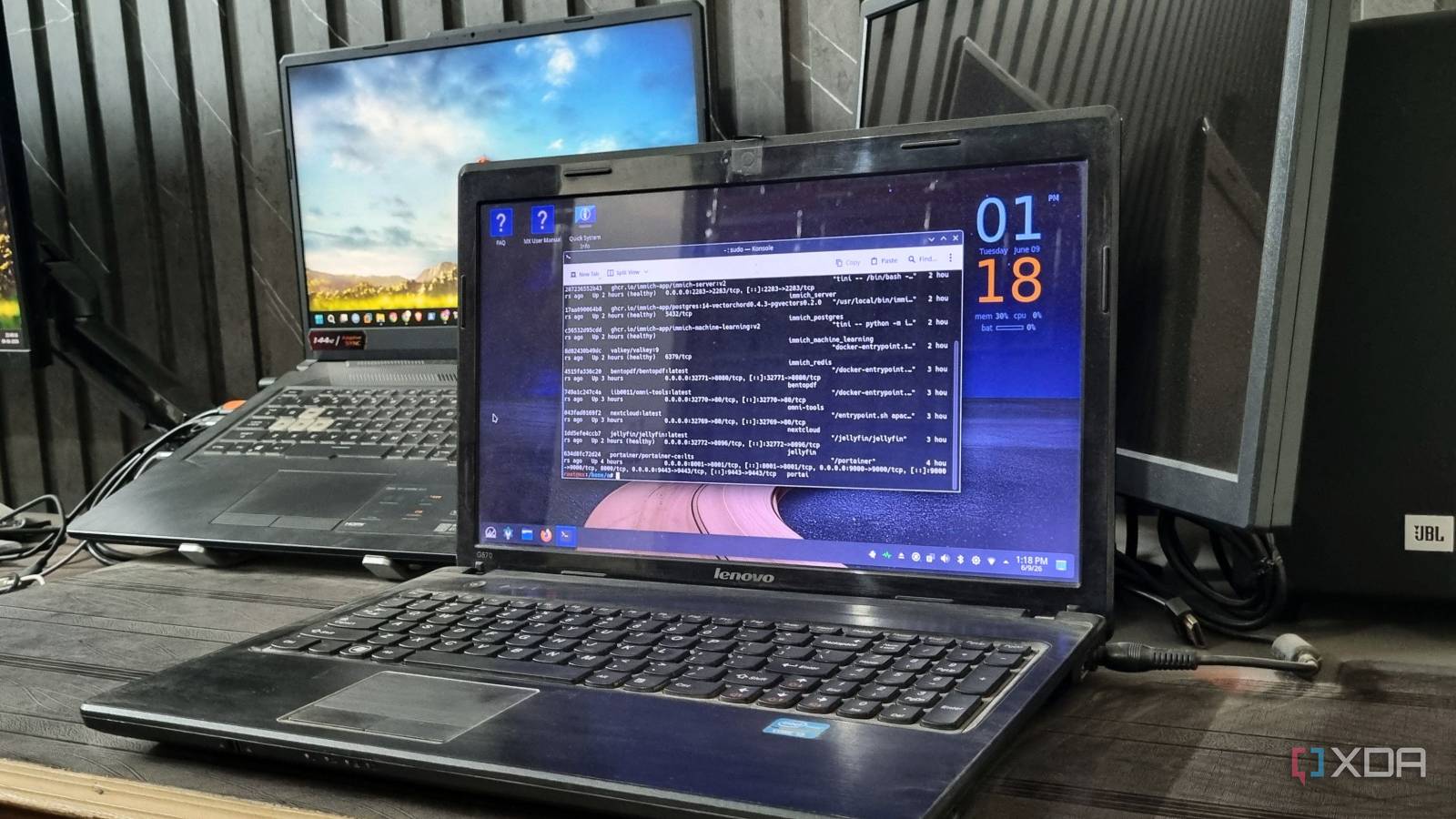
Published Aug 2, 2026, 10:00 AM EDT Abhishek is an author at XDA who covers computing. He has loved computers since he got the Lenovo G570 in 2012. Abhishek holds a master's degree in computer applications and began his writing career in 2018. He loves writing how-to articles, listicles, and informational posts on popular operating systems and web services. He closely follows the Windows Insider program and tests new Insider builds to discover upcoming experimental features and upgrades. His past work includes long-term collaborations with reputed publications like Tom's Hardware, and Windows Latest. When not writing anything, he is busy watching new episodes of One Piece or searching for something binge-worthy. Windows 11's system requirements announcement was something I hadn't expected. It demanded TPM and secure boot in addition to increased memory and processor requirements. It didn't feel serious at that time, because in 2021, Windows 10 worked perfectly fine on my old laptop. The retirement date felt too far, but it's real this year, and even if I want to upgrade to the shiny new OS, the system requirements pose a problem. Even if you have a PC with TPM version 1 or 1.2, you still cannot run Windows. But there's a lot of hope for my and your old laptop if you repurpose it the correct way. The instant urge is to install a lightweight Linux distribution and then use it as a spare machine. But if you have a couple of them and rarely use them apart from your main system, building a home server out of them is wise. Outdated hardware isn’t obsolete Building a server For a regular, technically inclined PC user, building a server is a slightly exhausting yet achievable task. But if you are an absolute beginner at servers, the idea might sound intimidating. It's possible to build a server out of any computer, and if people can build servers with a Raspberry Pi, your old laptop is more than capable of acting as one. My old laptop is certainly not meant for modern, demanding operating systems like Windows 11. It can run the OS, but during my repeated tests, the experience was extremely wonky. But turning it into a server is possible, and its second-generation dual-core Intel i3 processor with 12 GB DDR3 memory can act as a low-grade system capable of powering some applications. If you have a not-so-old, moderately powerful laptop, it can run almost any tool you need. Moreover, if your laptop has a working battery (mine doesn't), it can maintain an active status even during power outages. However, once you have the hardware, the next thing is picking the software and tools. Linux distributions and containers A perfect match Windows escapees jump to the most obvious choice, which is Linux. But when you are building a server out of an old laptop, installing any distro won't do the trick. I learned it the hard way because my initial intention was to go with Ubuntu, and doing so was bad news. My old laptop couldn't keep up with Ubuntu’s graphical demands and struggled with running the tools as well. Ubuntu has become severely heavy, with new editions demanding 4GB and more memory, just like Windows 11. So, if you go with a popular Linux distribution like Ubuntu on ancient hardware, the server experience won't be great. Instead, try to find a lightweight distribution that uses the bare minimum system resources and leaves most of it for your server software and tools. I suggest using MX Linux Fluxbox or AntiX, which can work under 500MB of memory and still deliver a usable desktop experience. I would've suggested a purely CLI OS like Ubuntu server or something similar, but if you're new to this, using a GUI distro with a lightweight desktop environment is better. You'll have less trouble finding files, making system changes, managing services, and more. Once you get the Linux system working, the next part is getting Docker on it. Traditionally, you install an app or tool and then use it, but with Docker, you take advantage of containerization. When you download and run tools individually, they can encounter conflicts and become a pain to troubleshoot. One problematic self-hosted tool might need a complete system restart to get things working again. But using Docker, I can isolate all these tools, manage them with a single interface, and will rarely encounter the problems I mentioned before. I've been using Docker for some time, and it truly changes the way you manage your server and tools. I can SSH into my server and manage Docker from there, or use a tool like Dockhand to control everything with a GUI frontend. The latter is extremely helpful for beginners. I also integrate each new server into my Tailscale network, so I can connect to it even when I'm outside my home. My old laptop saves money on multiple subscriptions When you deal with an old system as a server, you must keep your expectations in check. My laptop doesn't have the chops to run self-hosted tools with local LLM models, and I only run services that can work nicely with the available computing power. That said, I can run a NextCloud instance, a lightweight media streaming server, a PDF toolkit, and a couple of other items without any problem. Self-hosted tools are mostly free and have a dedicated, hardworking community behind them. I used to rely on paid password managers, PDF editors, and cloud storage services before and spent a ridiculous sum on them. But my old laptop can run great alternatives to popular paid tools without costing a dime in initial investment or recurring monthly payments. All I have to pay for is electricity, and my laptop has a minuscule contribution to that. It uses a 60W power supply and averages around 10-15 watts/hour, which is negligible compared to the price of even one paid tool. Saving money is just one aspect of running tools on my old laptop. Despite being unfit for a mainstream OS, I use it to locally host my personal data. Nothing ever leaves my device and gets into the hands of a third-party server company, which often misuses it for monetary gains. It’s the true bliss of building a home server out of an old laptop. More useful than a spare Windows PC Windows 11 ditching old devices actually helped me to get into self-hosting. My old laptops have a new role in my home, and they run multiple tools, dashboards, and don’t need any additional upgrades. I don’t run complex stuff like local LLMs on it, and any 5-10-year-old laptop is fit for the majority of self-hosted tools. So, don’t lose hope if it can’t run Windows and turn it into a money-saving, locally working home server. Docker Docker Desktop is a one-click-install application for your Mac, Linux, or Windows environment that lets you build, share, and run containerized applications and microservices. It provides a straightforward GUI (Graphical User Interface) that lets you manage your containers, applications, and images directly from your machine. Docker Desktop reduces the time spent on complex setups so you can focus on writing code. It takes care of port mappings, file system concerns, and other default settings, and is regularly updated with bug fixes and security updates.
Windows 11's system requirements killed my old laptop — so I made it a home server instead
Full Article
Original Source
Read the full article at Xda-developers →KhanList aggregates and links to publicly available news content. We do not host full articles from third-party sources. Always verify important information with original sources.