
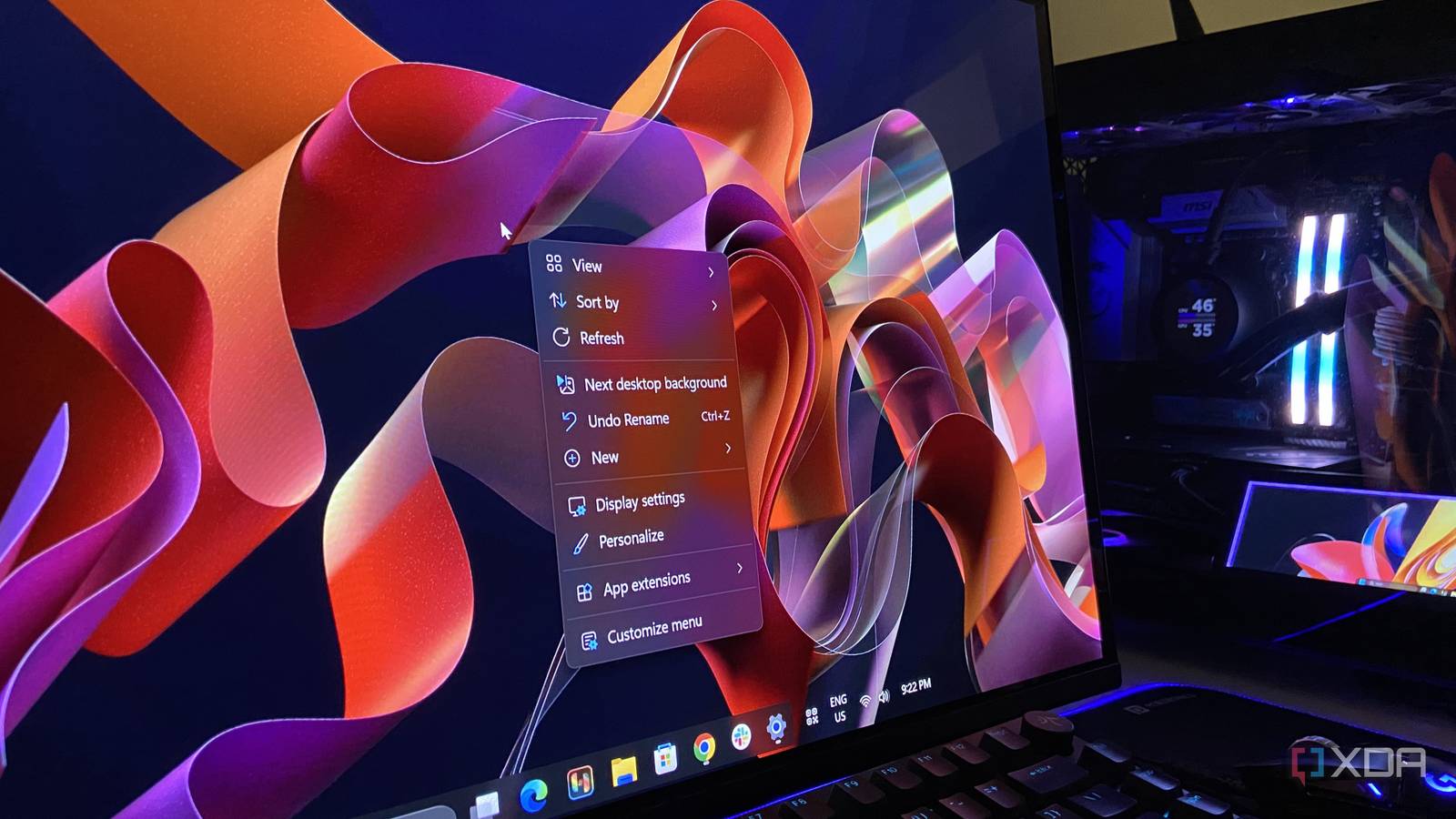
Published Nov 5, 2026, 9:00 AM EST Abhinav pivoted from a career in banking to pursue his first love in writing. Even while working full-time, he continued contributing as an editor-at-large, a role he has held for more than 7 years. A lifelong tech enthusiast who has built three gaming and productivity powerhouse PCs since 2018, his passion for technology keeps him closely following the semiconductor industry, from NVIDIA and AMD to ARM. His MSc dissertation explored how artificial intelligence will reshape the future of work, reflecting his curiosity about the wider social impact of emerging technologies. Much of what makes a power user fast on any OS comes from a small feature that lets you do more with fewer clicks and fewer shortcuts to memorize, and that's the right-click menu. When Windows 11 buried the legacy right-click menu behind a tediously designed "Show more options" button in October 2021, I didn't think much of it beyond assuming I'd eventually get accustomed to it. Five years on, I can confidently say that time never arrived. My right-clicks often produced a half-built menu for a split second with "Loading..." rows where my everyday apps would be found, and anything in the legacy menu cost an additional click, which more often than not, was too much for me. The new optional KB5127936 update has fixed both of these issues at once, and it officially begins reaching Windows 11 PCs through the mandatory November 10 update. The good news is, you don't even have to wait that long. The apps cluttering it were slowing it down The most significant promise that Microsoft's release notes for KB5127936 make to users is that the right-click menu will open faster and carry less clutter. The company has also pinned the old menu's lag on apps that tend to add their own entries to it. While the decluttering is plain to see the moment you right-click, I wanted to see exactly how much the old menu was slowing me down. To test this, I recorded my screen at 60 frames per second via OBS Studio, restarted Explorer, and went through a dozen or more right-clicks frame by frame before and after the update. I found that on the old menu, the first right-click drew "Loading..." rows during the first few frames, in place of the app entries like AMD Adrenalin, Rename with PowerRename, and Open in Terminal. Each occupied their spot one at a time, and the menu took up approximately 200ms to finish building. While the right-clicks that followed opened complete and with fully populated fields, the lag isn't exactly confined to the first right-click after a restart. On my Lenovo Legion 5 Pro laptop, right-clicking an empty space in File Explorer showed Rename with PowerRename and Open in Terminal straight away, but left a "Loading..." row hanging below them for at least 100ms before it vanished without adding anything. Now, to most users, the added latency amounting up to a fifth of a second likely won't make much of a difference. However, in busy power user workflows revolving around the desktop, quick action, and the use of multiple File Explorer functions, I can definitely see this introducing friction, and in cases where decisions are made by muscle memory alone, this can also potentially lead to misclicks. Right-clicking isn't sluggish anymore, thanks to one update After enabling the new menu, I ran the test via OBS again after restarting Explorer and found that it produced a finished menu in 50ms, with absolutely no sign of the old "Loading..." rows. The only hiccup this time was a single OneDrive entry that flickered for about three frames before disappearing. Every right-click after that was fully drawn the moment it appeared, and it certainly feels easier to use a context menu that doesn't waste time. All the other app entries like AMD Adrenalin, Rename with PowerRename, and Open in Terminal now sit in an App extensions sub menu, which cut down my desktop right-click menu from 11 entries down to 9. Now, I get that many would want some of these options to be retained in the context menu for ease of access, and there's a way to do just that through the "Customize menu" option. This entry can be found at the bottom of the new menu, which takes you through Settings > Personalization > Context menu. I've left mine on defaults for now since the simpler menu covers what I use most, but the page goes further with the personalization options than I expected. You don't have to wait for the official rollout The optional update can get you the feature before Patch Tuesday KB5127936 is an optional update, so Windows won't install it onto your machine on its own unless you have the option to "Get the latest updates as soon as they're available" turned on. Although Microsoft's release notes pointed me towards Settings > Windows Update > Advanced options > Optional updates, the only thing waiting for me there was an optional Apple driver. The update only appeared after I flipped the toggle on the main Windows Update page and clicked on "Check for updates." Following this, it installed the 2026-10 Preview Update, and after a restart, winver reported build 26300.9818. I then right-clicked on my desktop, but the context menu hadn't changed, and there was no "Customize menu" option waiting for me. Since Microsoft is rolling out the new menu gradually, merely installing the update doesn't guarantee you'll see it. What did get it working for me, however, was using ViVeTool to fetch it. It's a free, open-source tool on GitHub that helps you to enable features that Microsoft has shipped but not yet enabled, and according to Windows Latest, it sits behind feature ID 60813048, although the outlet has reported that several PCs needed an additional few IDs to get it sorted. The first one that I mentioned worked as intended, so, I extracted ViVeTool to my C: directory and ran the following PowerShell command with admin privileges: cd C:\ViVeTool .\vivetool /enable /id:60813048 Getting the feature to finally work took just a restart after running this script. Post restart, the "Customize menu" option appeared at the bottom of my right-click menu. Microsoft is fixing longstanding Windows 11 issues, one at a time With this year's updates, it finally feels as though Microsoft has started acting on the commonly reported pain points flagged by Windows 11 users on various forums since its launch. First, it was Search and idle memory utilization, and now, it is the right-click menu being fixed, and the latter of the two is the cleanest win so far. What I do certainly hope, is that this precedent becomes a pattern, and all of this is just the beginning of Windows 11 finally becoming the best, cleanest, snappiest, and the lightest version of itself.
Windows 11’s next update fixes the thing I’ve hated since 2021, and you can turn it on today
Full Article
Original Source
Read the full article at Xda-developers →KhanList aggregates and links to publicly available news content. We do not host full articles from third-party sources. Always verify important information with original sources.