
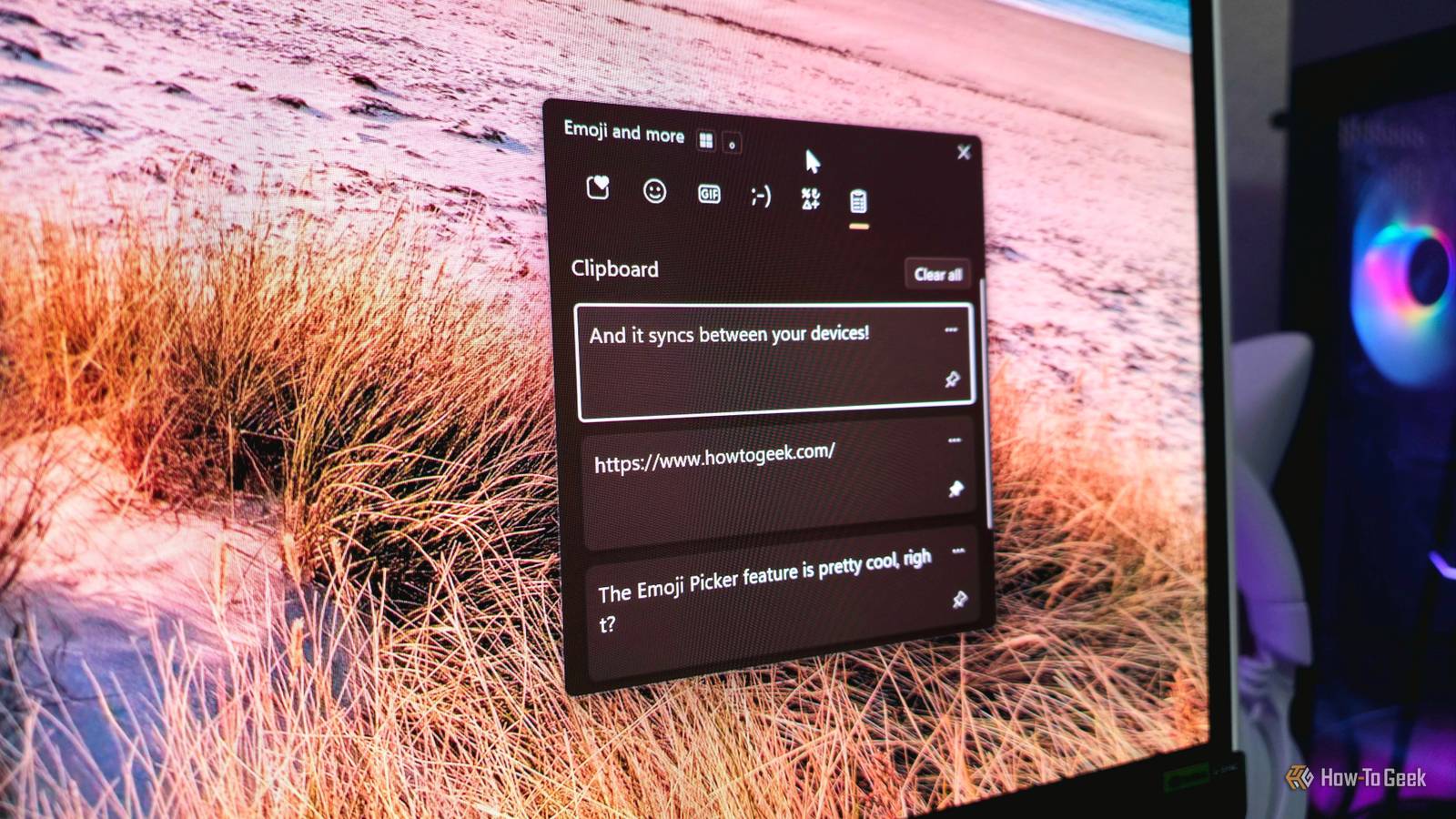
Published Aug 30, 2026, 10:30 AM EDT Zachary Boddy is a seasoned journalist with over six years of experience covering technology and video games, and is now contributing to How-To Geek. Zachary's career began at Windows Central, where their long-running, deep-rooted passion as a tech and gaming nerd fueled thousands of published articles, including reviews, guides, interviews, editorials, and so much more. When Zachary isn't writing, they're playing video games, reading books, listening to music, and spending time with their family, a very food-motivated cat and an exceptionally creative daughter. There's an absurd number of Windows keyboard shortcuts for mastering system navigation, beyond the simple Ctrl + C/V/X for copying, pasting, and cutting. Some I use regularly include Win + I for opening Settings, Ctrl + K for inserting hyperlinks into text, and Win + Shift + S for opening Snipping Tool for all my screen capture and annotation needs. My favorite keyboard shortcut, though, is one of Windows 11's most underrated features. By pressing Win + . (period), you can access the Emoji Picker menu, a modern addition to the behemoth that is Windows that is so convenient and so useful for me, I can scarcely comprehend how few Windows users seem to know it's there (or, if they do know, elect not to use it). Yes, the Emoji Picker gives you access to emojis (and GIFs) Useful, but not why this feature is underrated As the name implies, the Emoji Picker in Windows 11 is effectively the same as the emoji menu in your phone's keyboard, giving you access to every Unicode-based emoji that Windows 11 supports. It's conveniently organized by category, remembers your most used emojis, everything you expect. You can also browse through an impressive library of animated GIFs powered by GIPHY, probably just as you do on your phone. Something your phone keyboard probably doesn't include, though, is a huge list of classic ASCII emoticons and cute kaomoji, so you don't have to remember how to put the symbols together yourself. It's a simple addition to Windows 11 that makes the operating system feel more modern, especially if you use messaging apps or text using Phone Link, peruse social media, or even like to include emojis when sending out emails. For the plethora of people who have never needed to use emojis on their computer, though, the Emoji Picker feature still has a lot more to give. Access to every special symbol and punctuation is where it's at No more copying and pasting, or remembering Alt codes Ever had to search online for a specific symbol or punctuation and copy/paste it? Have you memorized Alt number keypad codes? Have you simply given up and spelled out a symbol or currency instead? Use the Emoji Picker instead. Whether you're looking for punctuation—like my beloved em dash, various currencies from around the world, mathematical symbols for formulas, exponents, and fractions, unique letters and accents from several languages, and every supplemental symbol you can think of (like degrees, copyright, musical notations, and even various shapes), the Emoji Picker has it all. It can be daunting to initially find the exact symbol you need, even categorized as they all are, but the Emoji Picker remembers your most-used so you can add them to anything in mere moments. If you work at your computer a lot, you may not be consciously thinking about how often you use little workarounds to add symbols not available on a standard keyboard, and it's difficult to go back once you have everything at your fingertips. It's Awesome², 1,000° of Greatness, Certified Sweet™, ♪Music to My Ears♪—you get the point, this is how I most often use Emoji Picker. You even get clipboard history that syncs across devices Never lose the text, links, or images you copy The final function of the Emoji Picker is something we've discussed as one of Windows 11's best hidden features: the Clipboard History. Once enabled in settings, the Emoji Picker can remember all the text and links you've recently copied, letting you access and paste them whenever you want. If you do a lot of copying and pasting, this single feature can change your entire workflow. No more switching between tabs, documents, or apps to recover something you have to copy over and over, and certainly no more juggling multiple things you have to copy for one task, such as fields in an Excel spreadsheet. All you need to do is open your Clipboard History and click to paste what you need (there's also an option to paste as plain text). Whatever you last pasted will be your new Ctrl + V item until you copy something new or paste a different item from your Clipboard History. To streamline your workflow even more, you can jump straight to the Clipboard History section with the Win + V keyboard shortcut, instead of opening the Emoji Picker and then navigating to it. You can also delete items you don't want and even pin specific items that you want to keep in your history. From Windows Settings, you can clear your entire Clipboard History with a single click, or enable another hidden feature of the Emoji Picker: cross-device syncing. If you're like me, you might regularly move between a laptop when on the go and a desktop when at your office. Many apps already sync your data and settings through your account, so you never have to worry about losing your hard work... but what about your clipboard? Instead of messaging the text or other items you need to yourself, you can allow Clipboard History to sync across your Windows 11 devices. You can choose to have everything sync automatically, or opt to manually sync the exact items you need for added security. Not the fanciest feature in Windows 11, just a great convenience The Emoji Picker is a lot more than initially meets the eye, and is absolutely one of my favorite features Microsoft has added to Windows in recent years. It's quick and easy to access, and is packed with a lot of subtle functionality that may not completely change the way you get things done, but can absolutely make your life a whole lot easier. Whether you're just now learning about the Emoji Picker or you've passed it over in the past, it's a valuable tool worth keeping in your back pocket.
Windows 11's most underrated keyboard shortcut can change how you work
Full Article
Original Source
Read the full article at Howtogeek →KhanList aggregates and links to publicly available news content. We do not host full articles from third-party sources. Always verify important information with original sources.